
Product type
One choice in the Summary column that sets how the product sells
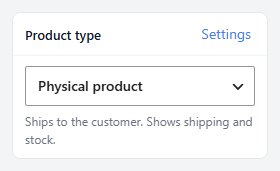
no stored settingsWhat kind of product this is, chosen in the Product type card of the Summary column. The line under the choice says what the type does, and Settings jumps to the Type settings section. There are 12 choices:
Physical product: Ships to the customer, with shipping and stock.
Service, event or course: Nothing ships. Stock can count the places left.
Digital download ( PRO ): Shows the Digital Download card. Nothing ships.
Subscription ( PRO ): Shows the Subscription card. Turn shipping on for a box that ships.
Gift card ( PRO ): Sells a gift card. Turn shipping on for printed cards.
Donation or invoice ( PRO ): Shoppers enter the amount they pay. Nothing ships.
Inquiry or quote request ( PRO ): Shoppers send you a question instead of buying.
Seasonal ( not for sale now ) ( PRO ): Shows your seasonal phrase in place of the buy button.
Preorder for pickup ( PRO ): Ordered ahead and picked up at your store.
Restaurant item ( PRO ): Ordered for pickup while the restaurant is open.
Deconetwork ( PRO ): Designed and made through Deconetwork. Shows the Deconetwork card.
Custom: every type switch: For a product that mixes types: every type switch shows in Purchase rules.
A type sets the product’s type switches for you, turns Ships to the customer on or off where the type decides it, and shows only the cards that type uses. Like every change, it waits for Save.
Sections a type has no use for step aside. A digital download, gift card or donation that does not track stock moves Inventory to the bottom of the left list under Not used for this type, and a gift card or donation without option sets does the same with Options & variants. Click one to bring it back. A product that does not ship keeps its Shipping section, folded with a note saying so.
Without PRO, the PRO types show in the list but cannot be chosen.
Purchase rules
How it can be bought
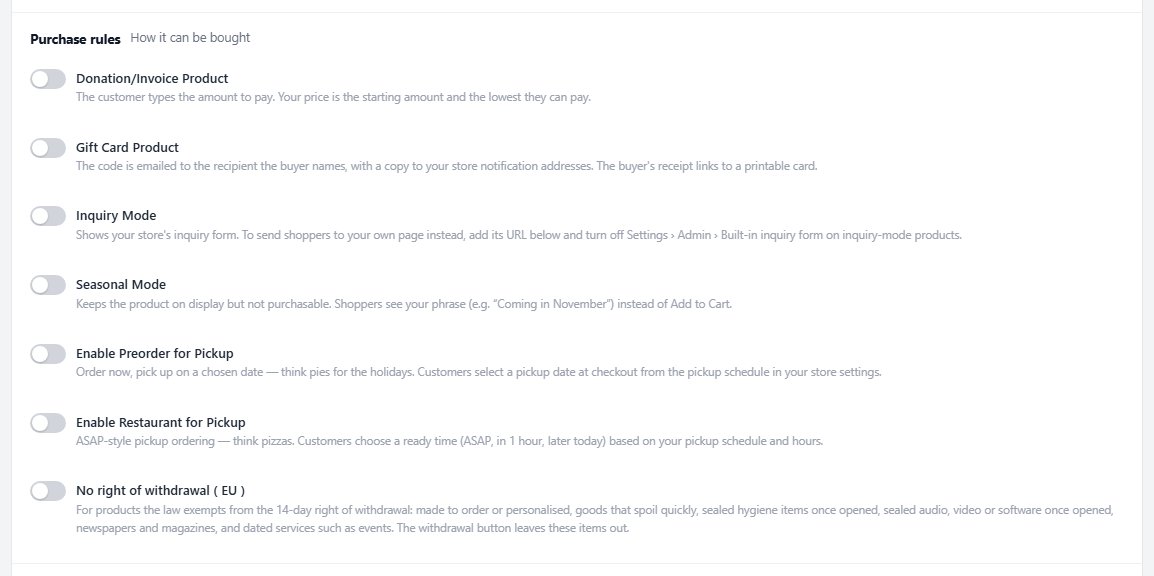
no stored settingsThe first card of Type settings. No right of withdrawal ( EU ) marks a product the law exempts from the 14-day right of withdrawal, such as made-to-order, perishable or sealed items and dated services. The withdrawal button leaves these items out.
The rest follows the type. An inquiry product adds Inquiry URL, to send shoppers to your own page instead of the store’s inquiry form. A seasonal product adds Seasonal Phrase, shown in place of the Add to Cart button. With pickup locations in use, PRO adds Pickup Locations.
Choose Custom: every type switch and the type switches themselves appear here: Donation/Invoice Product, Gift Card Product, Inquiry Mode, Seasonal Mode, Enable Preorder for Pickup and Enable Restaurant for Pickup. A product that has more than one switch on is shown as Custom until you pick a single type.
Subscription
Recurring billing, which needs Stripe
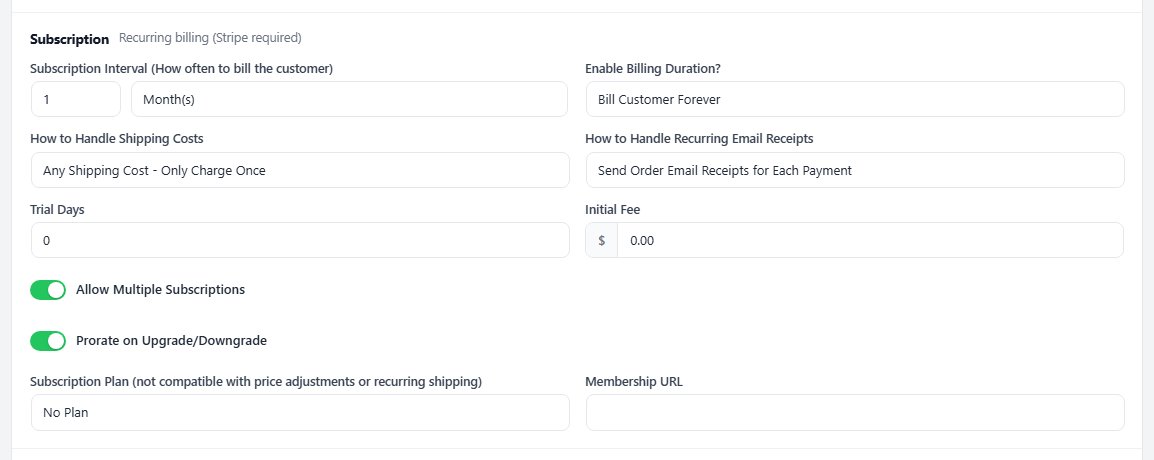
no stored settingsShown for the Subscription type ( PRO ). The product bills the customer automatically on the Subscription Interval you set. Enable Billing Duration? bills forever or stops after a set number of payments, How to Handle Shipping Costs charges shipping once or on every payment, and How to Handle Recurring Email Receipts sends the receipt on the first payment only or on each one. Trial Days and an Initial Fee are optional.
Allow Multiple Subscriptions lets one customer hold more than one. Subscription Plan puts the product on a plan ladder so subscribers can switch tiers, with Prorate on Upgrade/Downgrade deciding whether the switch is prorated. Membership URL is a link to your members’ page, shown with the subscription in the customer’s account.
Subscription products can only be bought while Stripe takes your card payments. With another card gateway the card warns you, and shoppers see a message instead of a checkout.
Digital Download
A file instead of a shipment
no stored settingsShown for the Digital download type ( PRO ). The customer gets a secure download link after purchase. The Download Location is My Server, with the file uploaded here, or Amazon S3, with the file picked from your bucket. Maximum Downloads and Expiration (in seconds) limit how often and for how long the link works.
A cart with a download in it needs a customer account, even when guest checkout is on, because the customer needs somewhere to come back to for the file.

Deconetwork and extension cards
The other cards in Type settings
no stored settingsDeconetwork ( PRO ) shows for the Deconetwork type and connects the product to your Deconetwork designer, so customers customize decorated items before adding them to the cart.
With the BlueCheck extension, Age check ( BlueCheck ) sets who can buy the product: follow its categories, use the store’s age, require 18, 19 or 21 and over, or never restrict it. A line under the choice says what applies now.
With Elementor, Page layout ( PRO ) gives this product its own Elementor template, or leaves it on the store’s product template chosen in Settings › Elementor.


Ready to run your store on WP EasyCart?
Everything in this guide works with the free plugin. PRO and Premium add subscriptions, memberships, wholesale pricing and more. Try every PRO feature free for 14 days.
