
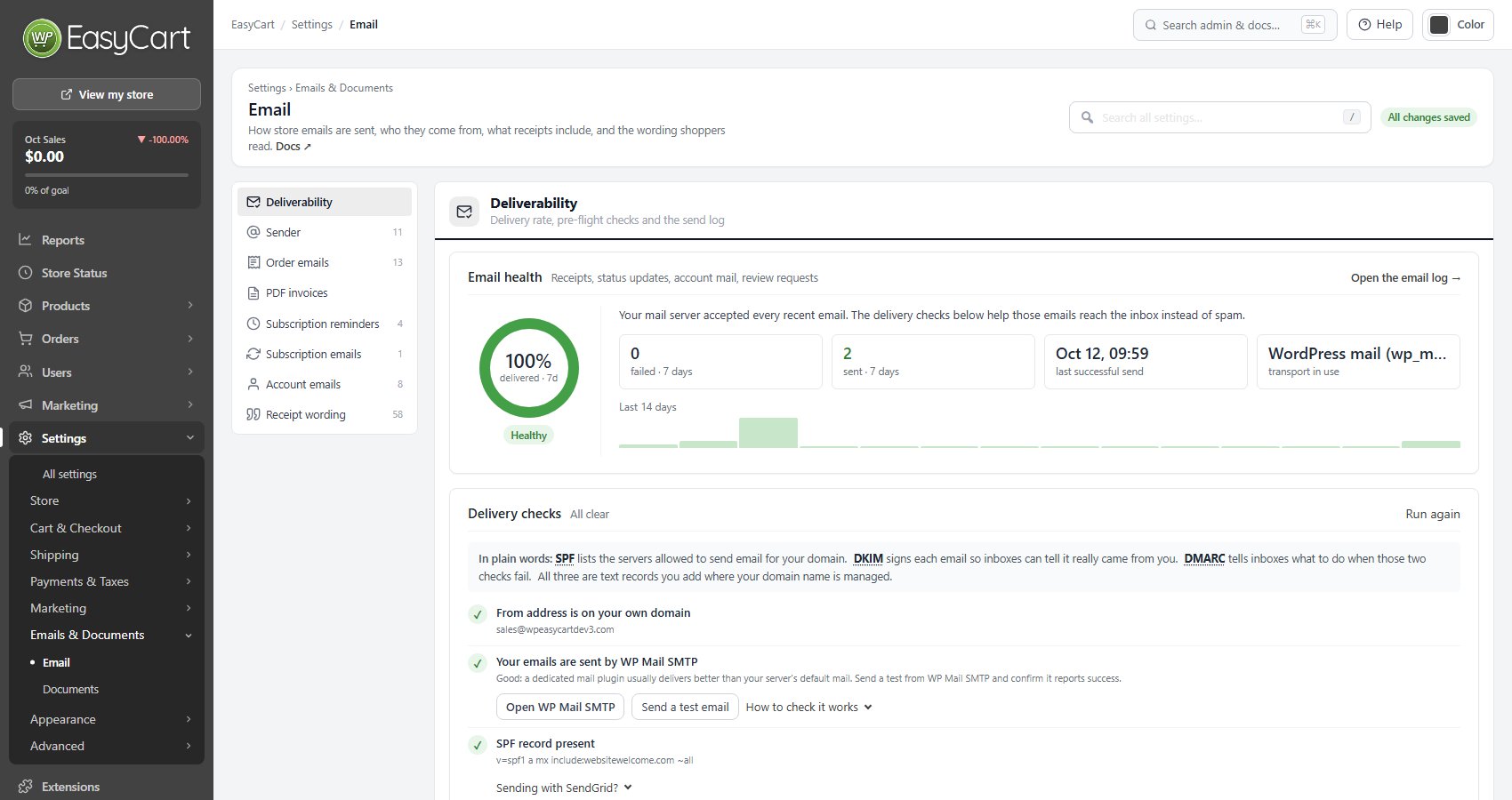
Deliverability
Delivery rate, pre-flight checks and the send log
no stored settingsNo settings here, just tools. The panel reports how your recent mail actually performed, runs pre-flight checks against your sender configuration, and gives you a button to send a test email and see the result on screen and in the email log. It also shows the retry queue: what is waiting, how many attempts each message has had and when the next one is due, with buttons to send the queue now or retry a single email. There is a simulated failure test too, which never touches customer mail. Start here when email is not arriving, before changing anything below.
Sender
How mail leaves the site and how every email is branded
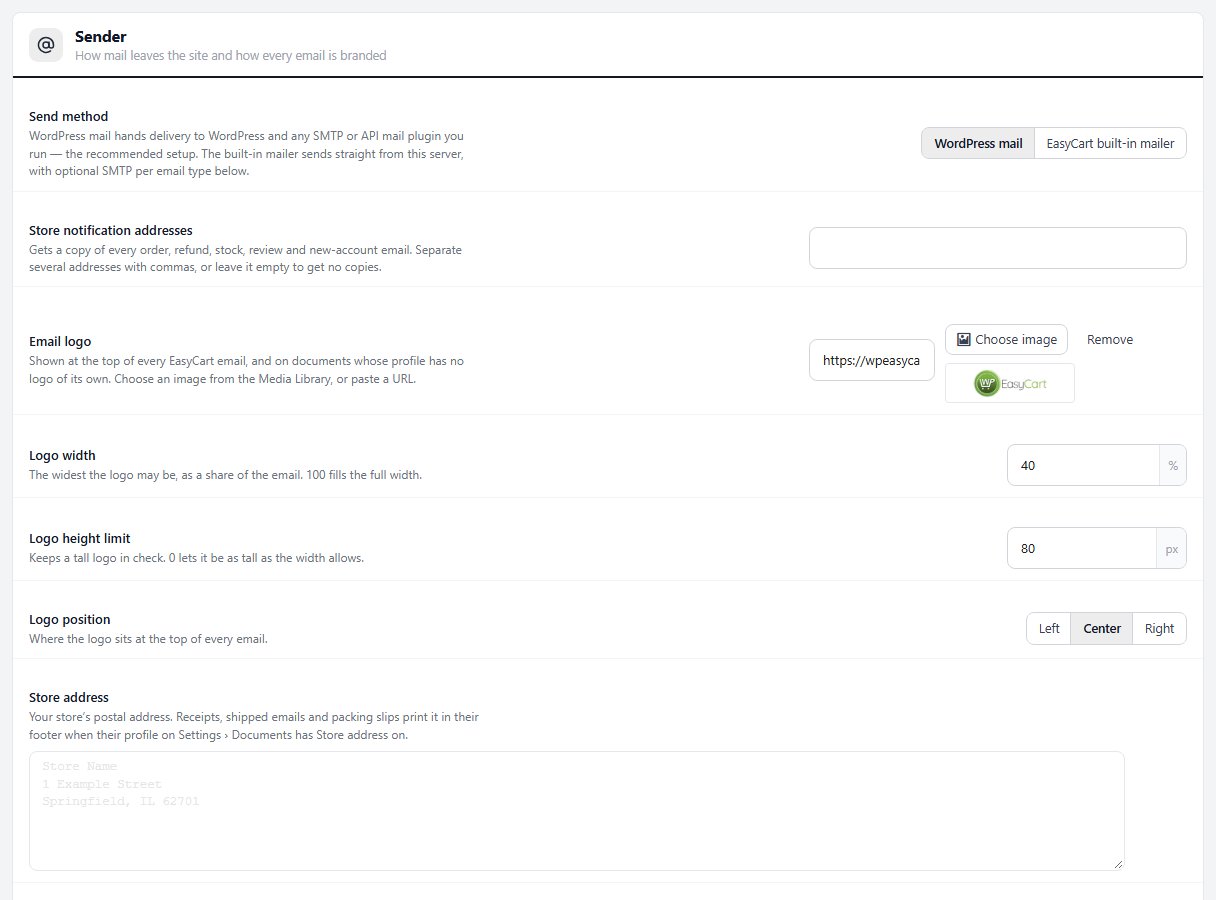
11 settingsSend method
How mail actually leaves the site. WordPress mail hands delivery to WordPress, which means any SMTP or mail API plugin you already run takes over, and that is the recommended setup because those plugins exist to solve deliverability properly. The built-in mailer sends straight from this server instead, with its own optional SMTP settings per email type further down.
Store notification addresses
Every order, refund, stock, review and new-account email is copied to these addresses. Separate several with commas, or leave it empty to get no copies at all. This is the store’s own inbox rather than the customer’s, so put the address somebody actually reads here.
Email logo
Shown at the top of every EasyCart email, and on any document whose profile has no logo of its own. Pick an image from the Media Library or paste its URL. The three settings below control how big it is and where it sits, so the file itself no longer has to be cut to size.
Logo width
The widest the logo may be, as a share of the email. 100 fills the full width. Around 40 suits a typical wordmark; a square badge usually looks right nearer 20. The logo is only ever scaled down, never stretched past its own size.
Logo height limit
A ceiling in pixels, so a tall logo cannot push the order details below the fold on a phone. 0 lifts the limit and lets the width setting alone decide.
Logo position
Left, center or right at the top of every email. Center is the safe choice; left tends to match emails that open with a letter-style greeting.
Store address
Your postal address, printed in the footer of receipts, shipped emails, packing slips and the other documents when their profile has Store address switched on. Profiles live on Settings › Emails & Documents › Documents. Several jurisdictions expect a real business address on commercial mail, and a packing slip with a return address saves a support email. Your registered business name, address and tax number are entered separately, in Settings › Store details › Business details, and print in the footer of receipts and shipped emails whose profile has Business details on.
Email signature text
Closing text at the foot of every automatic email. Your postal address, support hours, a thank-you. Worth filling in: several jurisdictions expect a real business address on commercial mail, and it is the natural place to tell people how to reach a human.
Email signature image
An image placed under the signature text. Useful for a scanned signature, a small badge or a seal. Keep it light, since it is added to every email you send.
Signature image width
The widest the signature image may be, as a share of the email. 100 lets it use the full width; a scanned signature usually looks right at 30 to 40.
Signature image height limit
A ceiling in pixels for a tall image such as a seal or a stacked badge. 0 means no limit, so the width setting alone decides.
Order emails
Receipts, invoices, refunds and store notifications
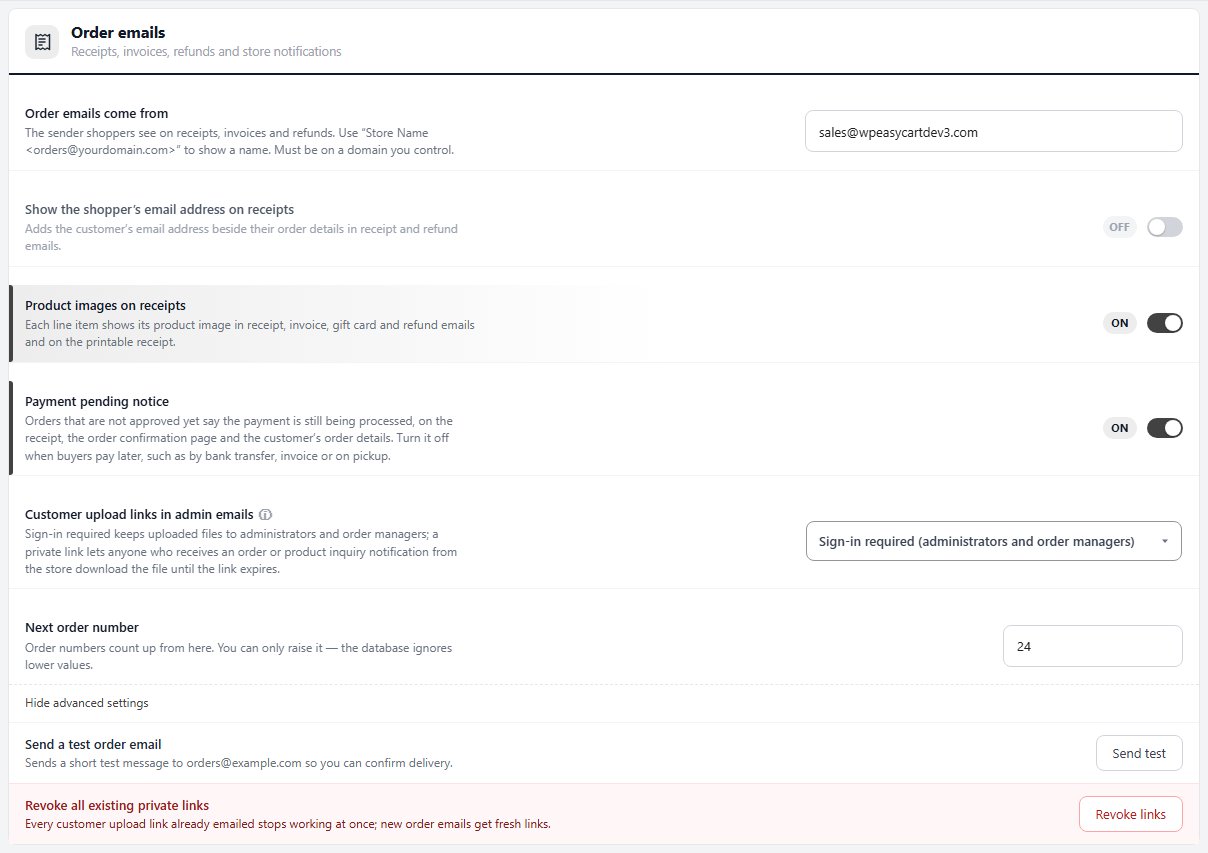
13 settingsOrder emails come from
The sender shoppers see on receipts, invoices and refunds. Write it as Store Name <orders@yourdomain.com> to show a name rather than a bare address. It must be on a domain you control, because sending as an address you do not own is the fastest route to the spam folder. The factory value is a placeholder.
Send order emails over SMTP
The built-in mailer connects to the SMTP server below instead of handing the message to PHP mail on this server. Almost always an improvement: mail sent directly by a web server is frequently rejected or silently dropped because nothing vouches for it.
SMTP host
Your mail provider’s outgoing server, such as smtp.yourprovider.com. Take it from your provider’s own documentation rather than guessing from your mailbox address.
SMTP port
Usually 465 for SSL, 587 for TLS, or 25 for no encryption. The port and the encryption setting below have to agree with each other and with what your provider expects.
SMTP encryption
Match whatever your provider lists against the port above. A mismatch between port and encryption is the single most common reason SMTP sending fails, and the failure is usually silent, so check this first when emails stop arriving.
SMTP username
Often the full mailbox address rather than just the part before the at sign. Again, follow your provider’s documentation.
SMTP password
Only ever sent from your server to your SMTP provider. If your provider offers app passwords, use one here rather than your main account password, so revoking it later does not lock you out of your own mailbox.
Show the shopper’s email address on receipts
Adds the customer’s own email address beside their order details on receipt and refund emails. Handy when receipts get forwarded around an office and somebody needs to know which account placed the order.
Product images on receipts
Each line shows its product image on receipt, invoice, gift card and refund emails, and on the printable receipt. Makes an order instantly recognisable, at the cost of a heavier email. Turn it off if you sell things that all look alike, or if your images are large.
Payment pending notice
While an order is not yet approved as paid, its receipt email, the order confirmation page and the order in the customer’s My Account open with “Your payment is still processing and has not yet been approved.” That is reassuring when a card or wallet payment takes a moment to clear, and confusing when the customer pays later by design. Turn it off if you take Pay by bank transfer, invoice or pay on pickup orders. The failed payment and refunded notices show either way, and the wording can be changed in Settings › Language.
Customer upload links in admin emails
Controls who can open files that shoppers uploaded with their order. Sign-in required keeps them to administrators and order managers. A private link lets anyone holding the notification email download the file until the link expires, which is convenient for passing work to a printer or supplier, and correspondingly less private. Shopper receipts never carry these links either way, and switching back to sign-in required cancels every private link already sent.
Link expires after
How long a private link keeps working. Shortening it also shortens links you have already sent, so reducing this can break a link a supplier was relying on. Choose the shortest window that suits how you actually work.
Next order number
Order numbers count up from here. It can be raised but never lowered, because lower values would collide with orders you already have, and the database simply ignores them. This is the same setting that appears on the Checkout panel.
Subscription reminders
Emails before a yearly renewal and before a free trial ends, each with the date, the price and a link to cancel
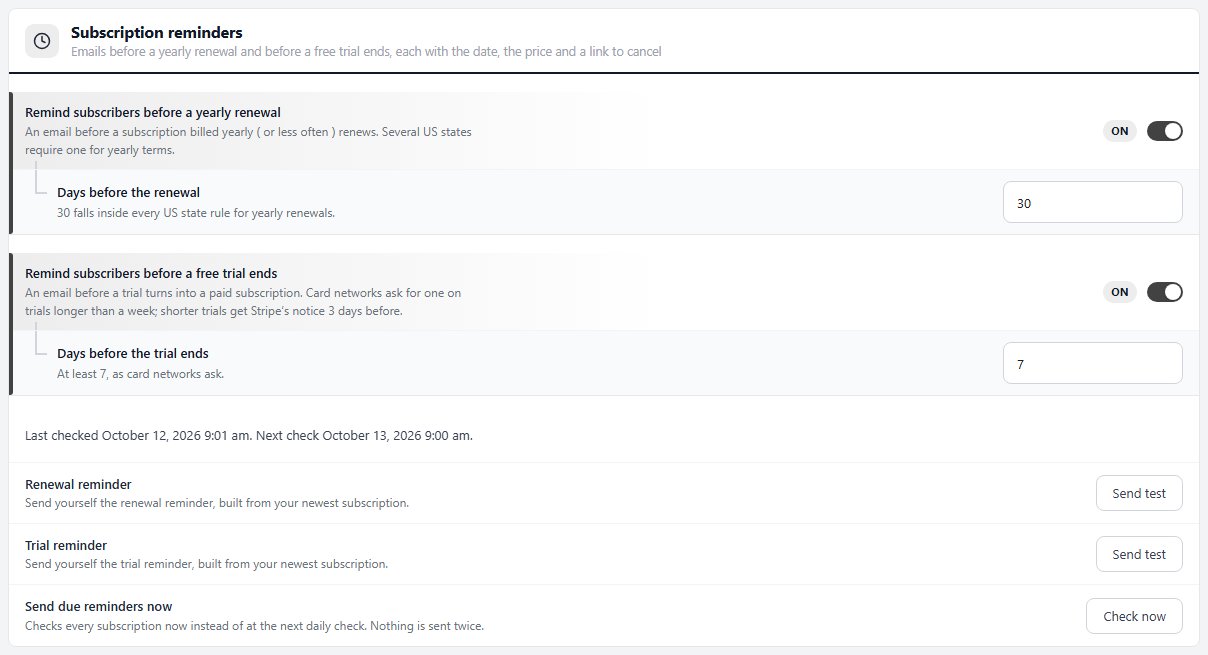
4 settingsRemind subscribers before a yearly renewal
Emails each subscriber before a subscription billed yearly, or less often, renews, with the renewal date, the price and a link to cancel. Several US states require a notice like this for yearly terms, so leave it on. It covers your Stripe subscriptions and keeps going even if your PRO license lapses, because those subscribers keep being billed.
Days before the renewal
How many days before the renewal the reminder goes out, from 5 to 60. 30 falls inside every US state’s window for yearly renewals, which makes it the safe choice.
Remind subscribers before a free trial ends
Emails each subscriber before a free trial turns into a paid subscription, with the date of the first payment, the price and a link to cancel. Card networks ask for this on trials longer than a week. A trial no longer than the days below gets Stripe’s own notice 3 days before it ends instead.
Days before the trial ends
How many days before the trial ends the reminder goes out, from 7 to 30. Card networks ask for at least 7.
Ready to run your store on WP EasyCart?
Everything in this guide works with the free plugin. PRO and Premium add subscriptions, memberships, wholesale pricing and more. Try every PRO feature free for 14 days.
