
Title and SKU
The name shoppers see, and your own reference
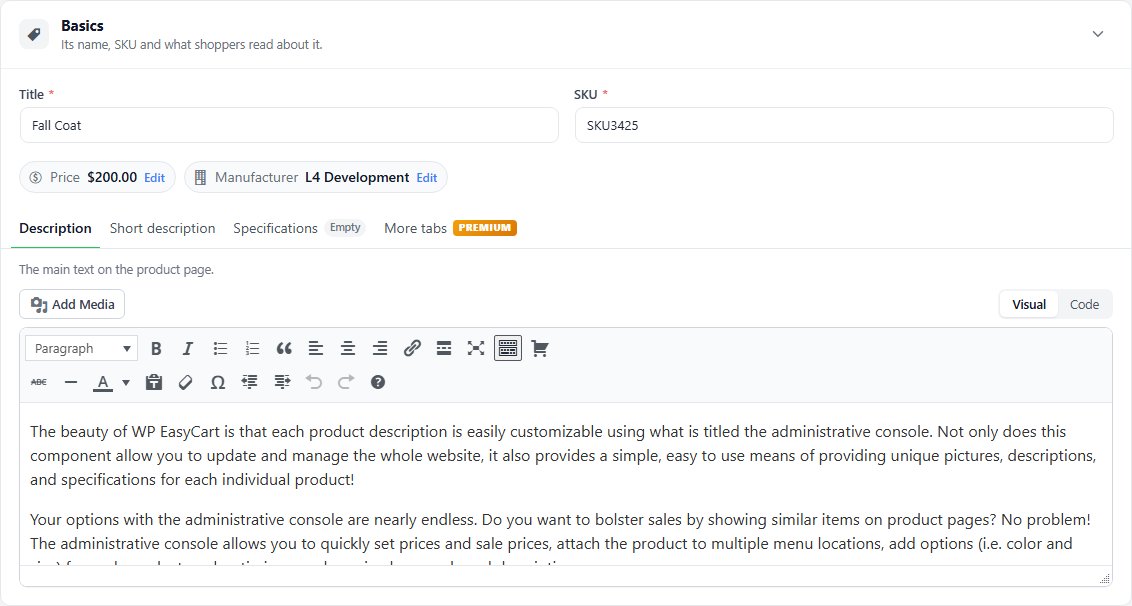
no stored settingsBasics opens with the product’s Title and SKU. The title is the name shoppers see and search for. The SKU is your own reference, used on cart lines, orders and packing slips. Every product needs one, no two products may share it, and it can hold letters, numbers, forward slashes, underscores and dashes. A SKU another product uses stops the save, with That SKU is already in use — choose another. under the field.
Under them, two quick links show values that are set elsewhere: Price, set in Pricing beside the compare-at price, and Manufacturer, chosen in the Summary column. Edit on each takes you to its field. The header repeats the title, SKU and price.
Product page text
Description, Short description and Specifications as tabs
no stored settingsWhat shoppers read sits in one card, with a tab for each text. Description is the main text on the product page, written in the WordPress editor with its Visual and Code tabs and Add Media for pictures. Short description is a line or two shown on product listings and grids, so keep it to the sentence that makes somebody click. Specifications fills a Specifications tab on the product page, shown only when it has text: dimensions, materials, compatibility.
A tab with nothing in it says Empty, and a tab with unsaved changes carries a dot. All three save with Save. A description of more than 20 characters and a short description are both listing health checks.

More tabs and Product tabs
Extra tabs on this product’s page, from the Tabs extension
no stored settingsExtra tabs on the product page, such as a sizing guide or care instructions, come from the Tabs extension, which is included with Premium. Without Premium, a More tabs tab beside Specifications says so, with Learn more. With Premium but the extension not active, the same tab offers to install or activate it.
With the Tabs extension active, its Product tabs card sits above the text card and lists the tabs on this product’s page in order. Design tabs, Start from a template and Copy from another product work on this product; Shared tabs and layout opens the tabs every product shares. If Premium lapses, the tabs keep showing on the product page, and changing them needs Premium again.

What moved to the Summary column
Status, page address, manufacturer and listing health
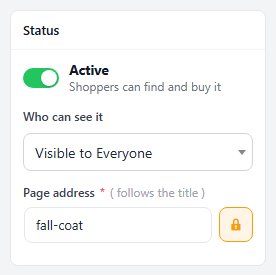
no stored settingsFour things that used to sit with the title now live in the Summary column on the right, so they stay in view while you work on any section. The Active switch and Page address are in the Status card: the switch saves the moment you flip it, and the page address follows the title until you lock it. Manufacturer is in the Organization card, with New manufacturer to add one. Listing health has its own card, with the checks the product still needs.
The price moved the other way, into Pricing, with the compare-at price. The Product Editor walks through the whole Summary column.
Ready to run your store on WP EasyCart?
Everything in this guide works with the free plugin. PRO and Premium add subscriptions, memberships, wholesale pricing and more. Try every PRO feature free for 14 days.
