
Status
What happened at your checkout in the last 7 days
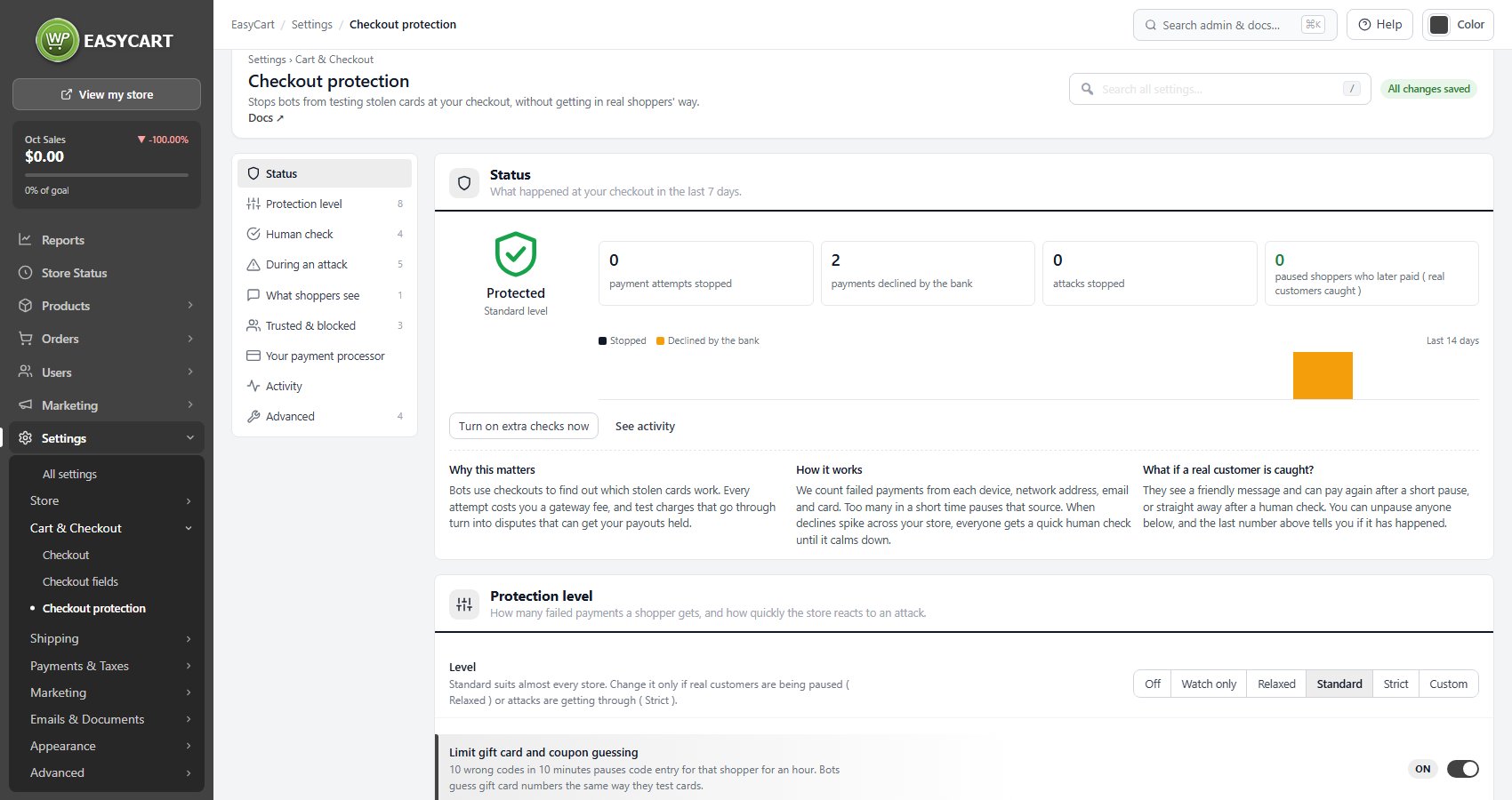
no stored settingsCard testing is a bot running stolen card numbers through your checkout to find the ones that work. Every attempt can cost you a gateway fee, and the test charges that go through turn into disputes. This page stops it without getting in real shoppers’ way, and it is free and on by default at the Standard level.
The shield at the top says where you stand: Protected with the level in use, Watching only, Not protected when the level is Off, or Under attack with the time the extra checks run until. Beside it are four counts for the last 7 days: payment attempts stopped, payments declined by the bank, attacks stopped, and paused shoppers who later paid. That last one is your early warning that real customers are being caught; it should stay at 0. Below them a chart shows stopped and declined attempts per day for the last 14 days.
Turn on extra checks now puts the store into attack mode by hand. During an attack the buttons change to End extra checks now and Keep extra checks on for 24 hours. See activity jumps to the activity list, and once an order has been flagged, Tagged orders to review opens those orders.
For a step by step walkthrough, see How to Stop Card-Testing Bots at Checkout.
Protection level
How many failed payments a shopper gets, and how fast the store reacts
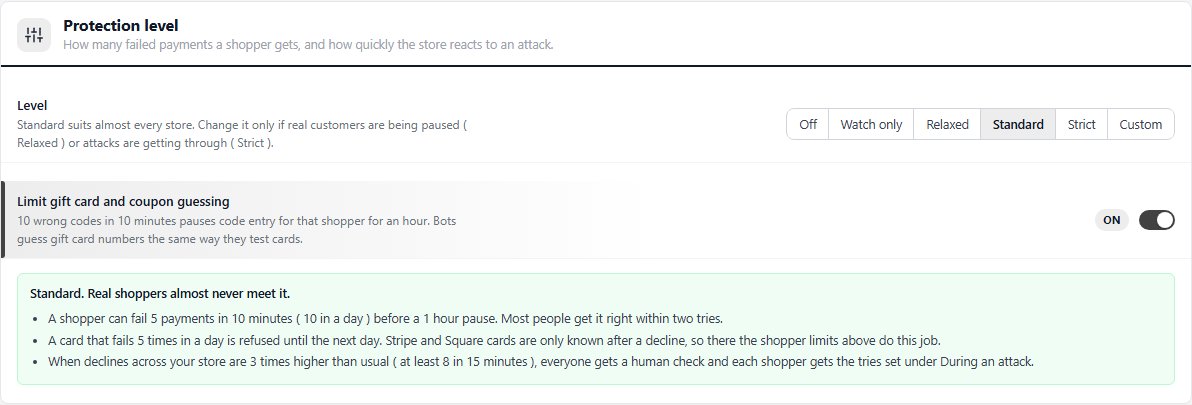
no stored settingsLevel has six settings. Standard is the default and suits almost every store: a shopper can fail 5 payments in 10 minutes ( 10 in a day ) before a 1 hour pause, a card that fails 5 times in a day is refused until the next day, and when declines across the store reach 8 in 15 minutes and 3 times your usual rate, everyone gets a human check.
Relaxed is for stores where many shoppers share one network, like a school or an office: 8 failed payments in 10 minutes, 20 a day, a 30 minute pause. Strict is for stores that have been attacked before or sell cheap items bots like: 3 failed payments, 6 a day, a 24 hour pause, and any payment from a session that never opened your checkout page gets a human check. Watch only stops nothing and records what Standard would have stopped as “Would stop” in Activity, so you can try it on your store first. Off limits nothing.
Custom opens your own numbers: failed payments per shopper ( 5 ), counted over ( 10 minutes ), then pause that shopper for ( 1 hour ), failed payments per card per day ( 5 ), and the attack trigger, a number of declines in 15 minutes ( 8 ) and at least a multiple of your usual decline rate over the last 30 days ( 3 ). The box under the level spells out what the chosen level does.
Failures are counted per browser session, network address, email and card. Stripe and Square cards are only known after a decline, so with those gateways the shopper limits do the card limit’s job.
Limit gift card and coupon guessing ( on ) pauses code entry for an hour after 10 wrong codes in 10 minutes, because bots guess gift card numbers the same way they test cards.
Human check
A quick “are you human?” check that bots cannot pass
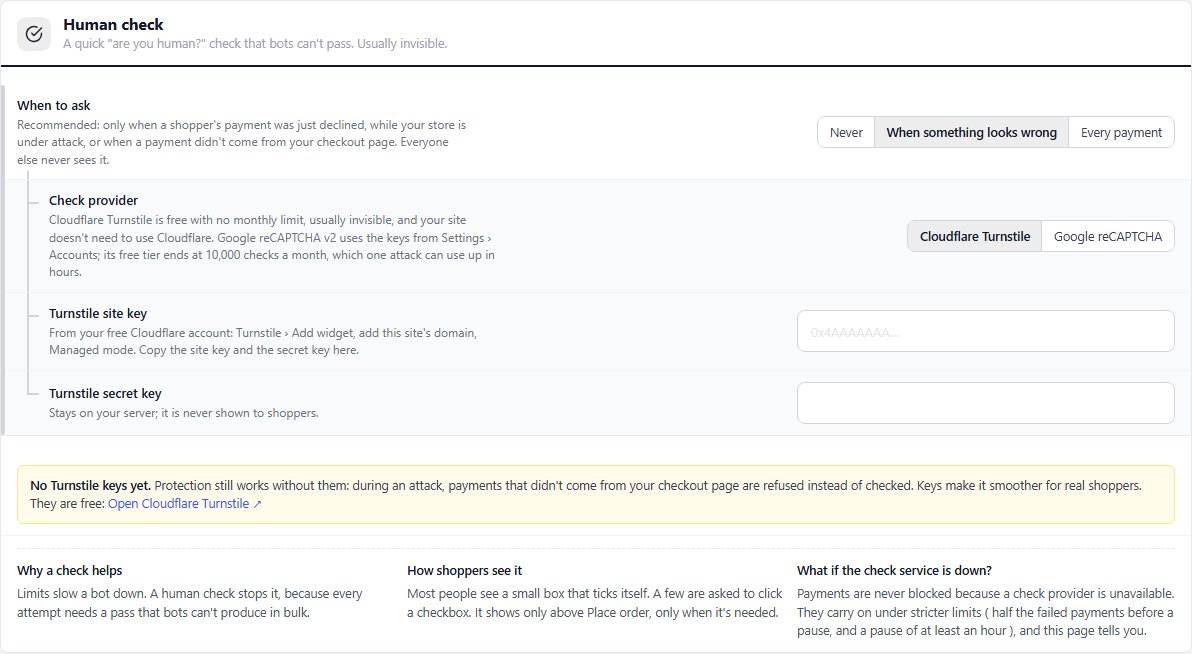
no stored settingsLimits slow a bot down; a human check stops it. When to ask is When something looks wrong by default: only after a shopper’s payment was just declined, while the store is under attack, or when a payment did not come from your checkout page. Everyone else never sees it. Every payment asks everyone, and Never turns it off. Most shoppers see a small box that ticks itself; a few are asked to click a checkbox. It shows above Place order, only when needed.
Check provider is Cloudflare Turnstile ( default ) or Google reCAPTCHA. Turnstile is free with no monthly limit, usually invisible, and your site does not need to use Cloudflare. Create a widget for your domain in Managed mode in your Cloudflare account and paste the Turnstile site key and Turnstile secret key here. Google reCAPTCHA v2 uses the keys you saved on Settings › Accounts; its free tier ends at 10,000 checks a month, which one attack can use up in hours.
Without keys, protection still works: during an attack, payments that did not come from your checkout page are refused instead of checked. Once keys are saved, Show a test check shows the check exactly as shoppers get it and confirms the secret key with the provider, and the section then says when the keys were last tested. If the provider is ever down, payments are never blocked because of it: they carry on under stricter limits, half the failed payments before a pause and a pause of at least an hour, and this page tells you.
During an attack
What the store does by itself when declines spike
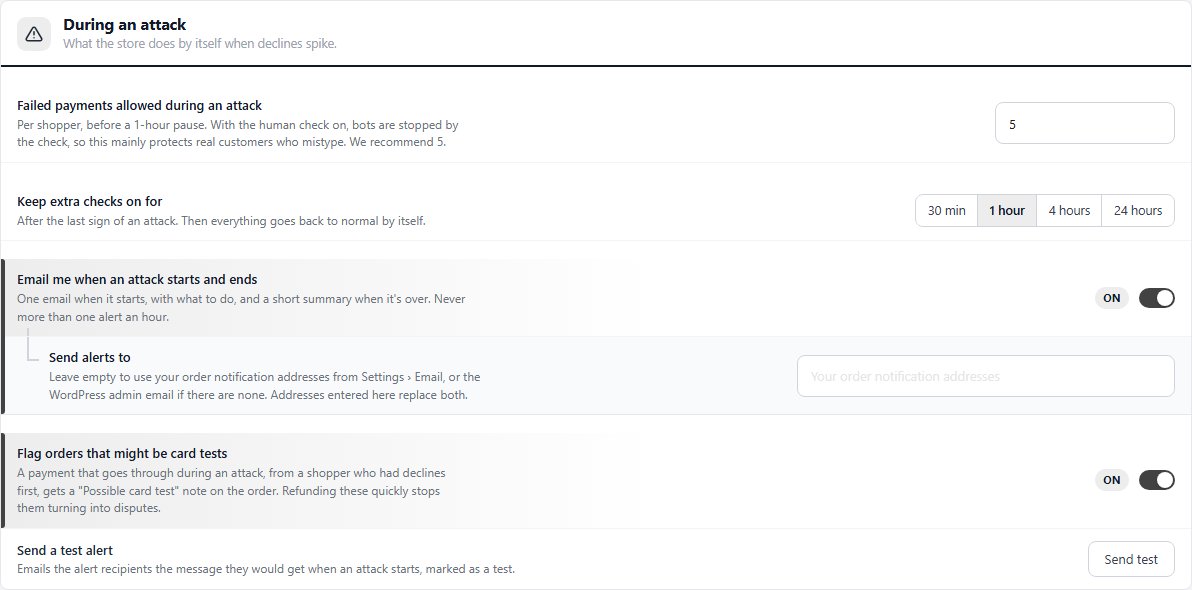
no stored settingsFailed payments allowed during an attack ( 5 ) is per shopper, within an hour, before a 1 hour pause. With the human check on, bots are stopped by the check, so this mainly protects real customers who mistype. Keep extra checks on for sets how long attack mode lasts after the last sign of an attack: 30 min, 1 hour ( default ), 4 hours or 24 hours. Then everything goes back to normal by itself.
Email me when an attack starts and ends ( on ) sends one email when it starts, with what to do, and a short summary when it is over, never more than one alert an hour. Send alerts to can stay empty: alerts then go to your order notification addresses from Settings › Email, or the WordPress admin email if there are none. Send a test alert emails the recipients a copy marked as a test.
Flag orders that might be card tests ( on ) puts a “Possible card test” note on any payment that goes through during an attack from a shopper who had declines first. Refunding those quickly stops them turning into disputes. While an attack runs, a banner across the EasyCart admin says so, with buttons to see what is happening, keep the checks on for 24 hours, or end them now.
What shoppers see
The wording at checkout when a payment is declined or paused
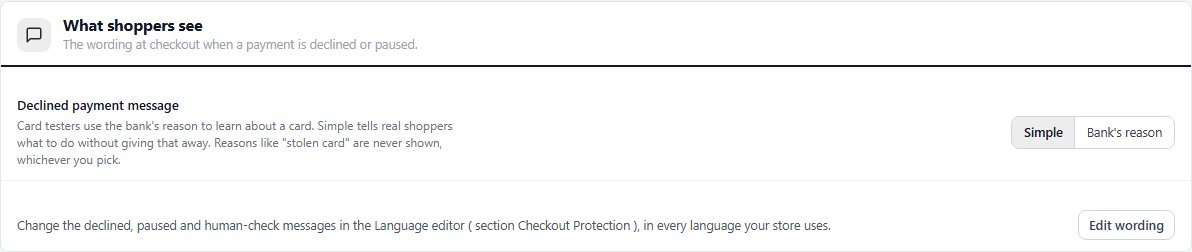
no stored settingsDeclined payment message is Simple by default. Card testers use the bank’s reason to learn about a card, so Simple tells real shoppers what to do without giving that away. Bank’s reason shows the reason instead. Reasons such as “stolen card” are never shown either way.
Edit wording opens the Language editor at the Checkout Protection section, where the declined, paused and human-check messages can be changed in every language your store uses.
Trusted & blocked
People and places that skip the limits, or never get through
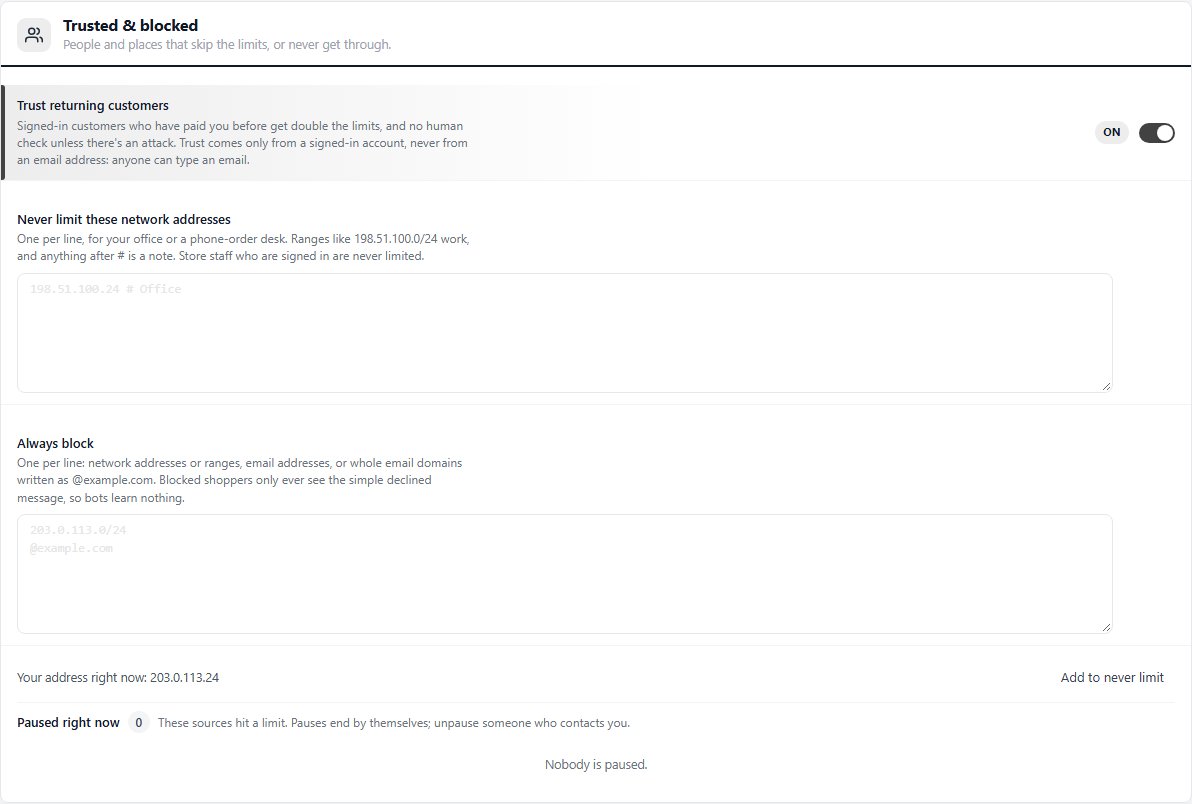
no stored settingsTrust returning customers ( on ) gives signed-in customers who have paid you before double the limits, and no human check unless there is an attack. Trust comes only from a signed-in account, never from an email address, because anyone can type an email.
Never limit these network addresses takes one address per line, for an office or a phone-order desk. Ranges such as 198.51.100.0/24 work and anything after # is a note. Store staff who are signed in are never limited anyway. The section shows your own address with an Add to never limit button.
Always block takes network addresses or ranges, email addresses, or whole email domains written as @example.com, one per line. Blocked shoppers only ever see the simple declined message, so bots learn nothing.
Paused right now lists every browser session, network address, email or card that hit a limit, with when the pause ends. Pauses end by themselves; use Unpause for a customer who contacts you.
Activity
Every stop, decline, check and attack, with the reason
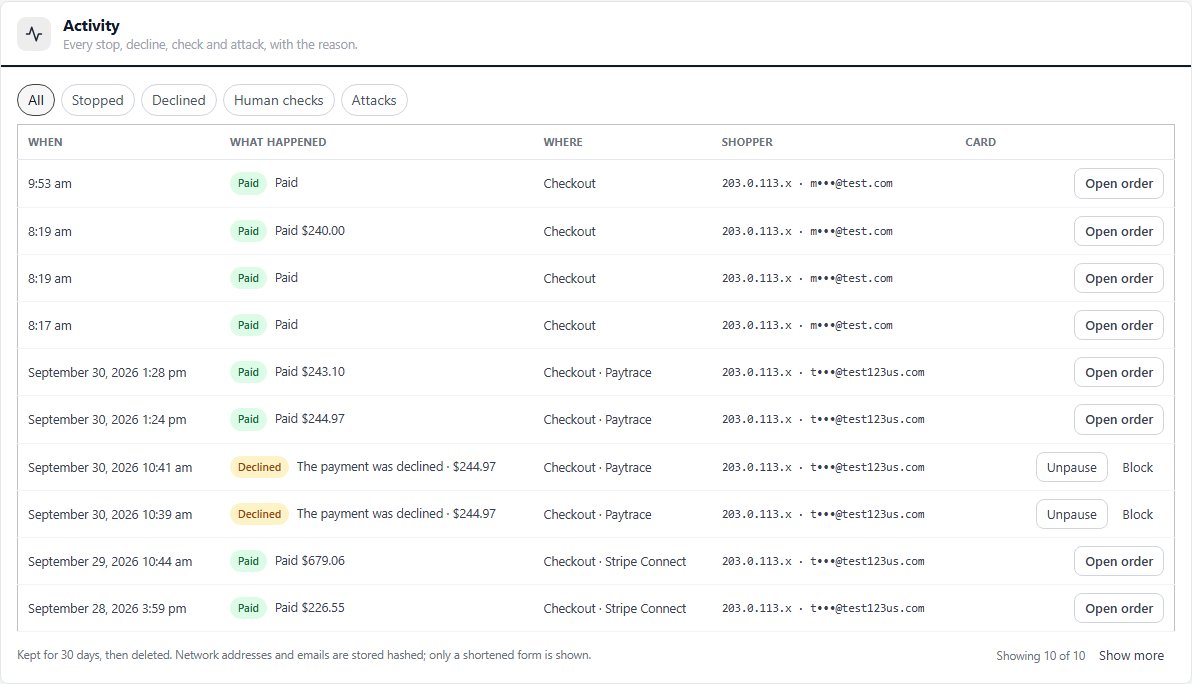
no stored settingsA log of what protection did, filtered by All, Stopped, Declined, Human checks and Attacks. Each row shows when, what happened and why ( for example “Paused: too many failed payments from this network address” ), where it happened ( checkout, express checkout, a pay link, a subscription, PayPal, a gift card or coupon, or a saved card in My Account ), a shortened form of the shopper’s address and email, and the card.
Rows carry the action that fits: Unpause and Block for a declined or stopped shopper, Open order for a payment that went through. Paid orders flagged during an attack read Possible card test.
Records are kept for the retention period under Advanced and then deleted. Network addresses and emails are stored hashed; only a shortened form is shown.
Advanced
You should not need to change these
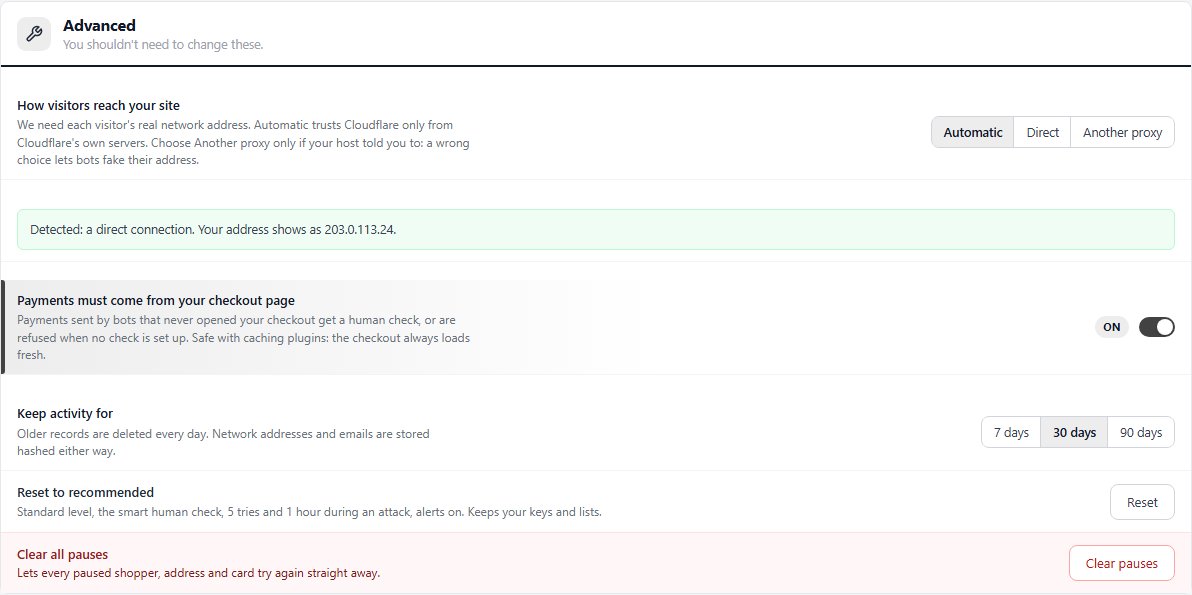
no stored settingsHow visitors reach your site tells the store how to read each visitor’s real network address. Automatic ( default ) trusts Cloudflare only from Cloudflare’s own servers. Choose Another proxy only if your host told you to, and list its addresses under Your proxy’s addresses: a wrong choice lets bots fake their address. Direct reads the connection as it is. The line below shows what was detected and your address as the store sees it; if every visitor shows the same private address, your host uses a proxy.
Payments must come from your checkout page ( on ) gives a human check to payments sent by bots that never opened your checkout, or refuses them when no check is set up. It is safe with caching plugins, because the checkout always loads fresh. Keep activity for is 7, 30 ( default ) or 90 days.
Reset to recommended puts back the Standard level, the smart human check, 5 tries and 1 hour during an attack, and alerts on, and keeps your keys and lists. Clear all pauses lets every paused shopper, address and card try again straight away. Both ask you to confirm.
Ready to run your store on WP EasyCart?
Everything in this guide works with the free plugin. PRO and Premium add subscriptions, memberships, wholesale pricing and more. Try every PRO feature free for 14 days.
