
How-to › Selling special products
How to Sell Downloads on WordPress
Sell ebooks, presets, software, music or any file. You create a download product, attach the file, choose where it lives and test the whole purchase. 8 parts.
Quick links
Where to find it:WP Admin › EasyCart › Products › Add New
Before you start
What you are building
What a customer receives, what you need and where the file lives.
How selling downloads works
What you need and what the customer gets
no stored settingsWhat you need. WP EasyCart PRO or Premium. The Download Product switch and the Amazon S3 settings are PRO features. Customers need an account on your store, so guest checkout is switched off automatically for any cart that holds a download.
What the customer gets. After they buy, the order confirmation page shows a View Downloads button. The receipt email says the order includes downloads and links to their account. They open My Account, find the order and press the file’s link. The email does not carry the file link itself. The link only appears when the order’s status counts as approved. A card payment that goes through is approved at once. A bank deposit order is approved when you mark it Direct Deposit Received.
Where the file lives. Either in a protected folder on your own server, or in your own Amazon S3 bucket. Files on your server are fine for small products. Use S3 once files are large or popular, because your web host then no longer carries the bandwidth.
The steps: create the product, attach the file, optionally connect S3, then test with a real order.
💡 Note: Want monthly access to a library of files? Download links are created when the order is placed, not at each renewal, so sell that as membership content instead.
Set it up
Five steps
Create the product, attach the file, connect Amazon S3 if you want it, test, then manage downloads after the sale.
Step 1. Create the download product
A product of type Downloadable
no stored settingsGo to EasyCart › Products › Products and press Add New. Enter a title and a price, choose Downloadable from Product type, and press Create & open editor. Add a photo and description on the General and Media tabs as you would for any product.
A download is not shipped, so leave Shippable off on the Inventory & Shipping tab.
Step 2. Attach the file
Type & Behavior, Digital Download
no stored settingsOpen the Type & Behavior tab and find the Digital Download section. Download Product is already on for a Downloadable product. Set the rest:
Download Location: My Server or Amazon S3. Leave it on My Server for now. Step 3 covers S3.
Download File: press Select File. The WordPress media window opens, so upload the file or choose one you already uploaded. Zip several files into one archive.
Maximum Downloads: how many times each purchased file can be taken. Leave 0 for unlimited. The count is per purchased copy. Buy three, and each copy has its own count.
Expiration (in seconds): how long the file stays available after the order. 0 means never. For seven days enter 604800, and for 30 days 2592000. The clock starts when the order is placed, not when it is approved.
Press Save.

Where your files are stored
The protected folder on your server
no stored settingsFiles you upload through the media window are kept in wp-content/uploads/wp-easycart/. EasyCart puts a blank index file and access rules there so nobody can browse the folder or guess a file address. Files are only handed out after the store has checked the customer’s order. Files you place by FTP go in wp-content/plugins/wp-easycart-data/products/downloads/, which survives plugin updates.
If the folder cannot be created or read, downloads fail. Give folders permission 755 (or 751 to stop anyone listing them) and files 644, owned by the account that runs PHP. Orders › Manage Downloads checks the folder for you and tells you what is wrong.
Step 3 (optional). Sell large files from Amazon S3
Your bucket, an access key, and four settings
no stored settingsIn Amazon. Create a bucket and upload your files. Keep the bucket private. EasyCart hands the customer a temporary link that stops working after 100 seconds, so Block Public Access can stay on. Create an IAM user for your store with an access key, and give it permission to read the bucket: s3:GetObject on the bucket’s files and s3:ListBucket on the bucket itself. Without ListBucket the product editor cannot list your files.
In WP EasyCart. Open EasyCart › Settings › Integrations and choose the Amazon S3 section. Fill in Access key ID, Secret access key, Download bucket (the name only) and Bucket region. The region must be the one the bucket was created in, or every download fails. Press Save.
On the product. Back on Type & Behavior › Digital Download, set Download Location to Amazon S3. The upload button is replaced by an S3 File list showing the files in your bucket. Pick yours and save. If the list says Not Connected or Error connecting to Amazon S3, recheck the four settings and the ListBucket permission.
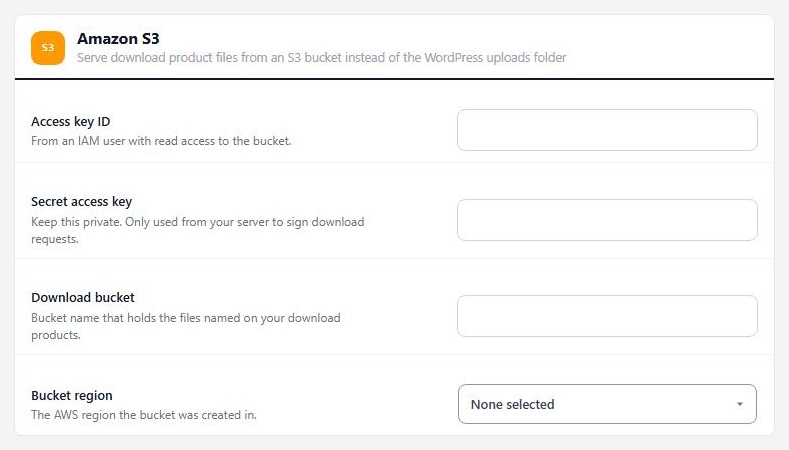
⚠️ Careful: Keep the secret access key private. Give the IAM user read access to this one bucket only, so a leaked key cannot touch anything else in your Amazon account.
Step 4. Test it with a real order
Use a test card and a second browser
no stored settingsSet your card gateway to test mode, then in a private window that is not logged in as an admin:
1. Add the download to the cart and check out. You should be asked to log in or create an account, with no guest option.
2. Pay with your gateway’s test card.
3. On the confirmation page press View Downloads. Your file link should be there.
4. Press the link. A local file streams to the browser. An S3 file redirects to a temporary Amazon link.
5. If you set Maximum Downloads, press the link until you reach it. The next try should tell the customer the download key has expired because they have exceeded the download limit.
To test a bank deposit order, choose the manual payment method. The order starts at Direct Deposit Pending and shows no link. Change its status to Direct Deposit Received and the link appears.
Step 5. Manage downloads after the sale
Orders › Manage Downloads
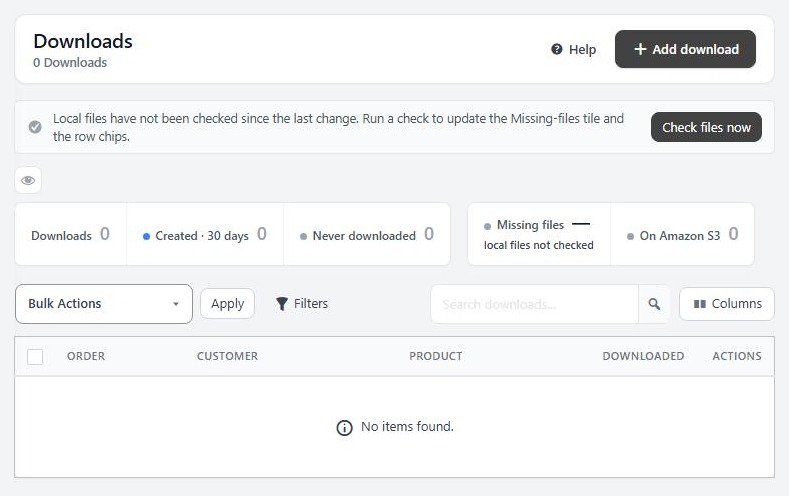
no stored settingsEvery purchased file appears in EasyCart › Orders › Manage Downloads, with its order, customer, product and how many times it has been taken. Buy a quantity of three and you get three rows, one for each copy.
A customer has used up their downloads. Failed transfers use a download, so this happens to honest customers. Open the row and press Reset download count.
You changed a file after the sale. Existing purchases keep pointing at the file they were bought with. Fix the file or the record here.
You want to give someone a file. Press Add download to create a record against an existing order.
Files went missing. Press Check files now and the screen lists the local files it cannot find. This often follows a site move or restore.
Keep it running
When something goes wrong
The usual reasons a customer cannot download, and how to fix each one.
If it does not work
The usual reasons a customer cannot download
no stored settingsThe customer sees no download link. Check the order status. Only approved statuses show a link, such as Order Confirmed, Card Approved, Order Shipped and Direct Deposit Received. Statuses such as Order on Hold or Order Cancelled do not. A customer who was not logged in when they paid is also worth checking, because guests cannot download.
A warning says a downloadable product has no download file. A product is marked as a download but has no file. This often happens after a database repair or import. Open the product, reattach the file and save.
This download is not available on the server. The file is not where the product says it is. Run Check files now in Manage Downloads, then reattach or re-upload the file.
A large file times out. Files on your server are sent by PHP, and a slow host can cut a big transfer short. Move large files to S3.
The link expires too soon. The Expiration timer starts at the order date. A customer whose payment was approved days later has less time than you expect. Raise the expiry, or use 0.
Keep going
Related panels
Every option on the Type & Behavior tab.
Every panel and action in Manage Downloads.
The Amazon S3 integration in full.
Order statuses, and which ones release a download.
Try the PRO features free for 14 days
Anything marked PRO comes with WP EasyCart PRO or Premium. Take the whole thing for a run on your own store before you decide.


