
The editor at a glance
Three columns under one header
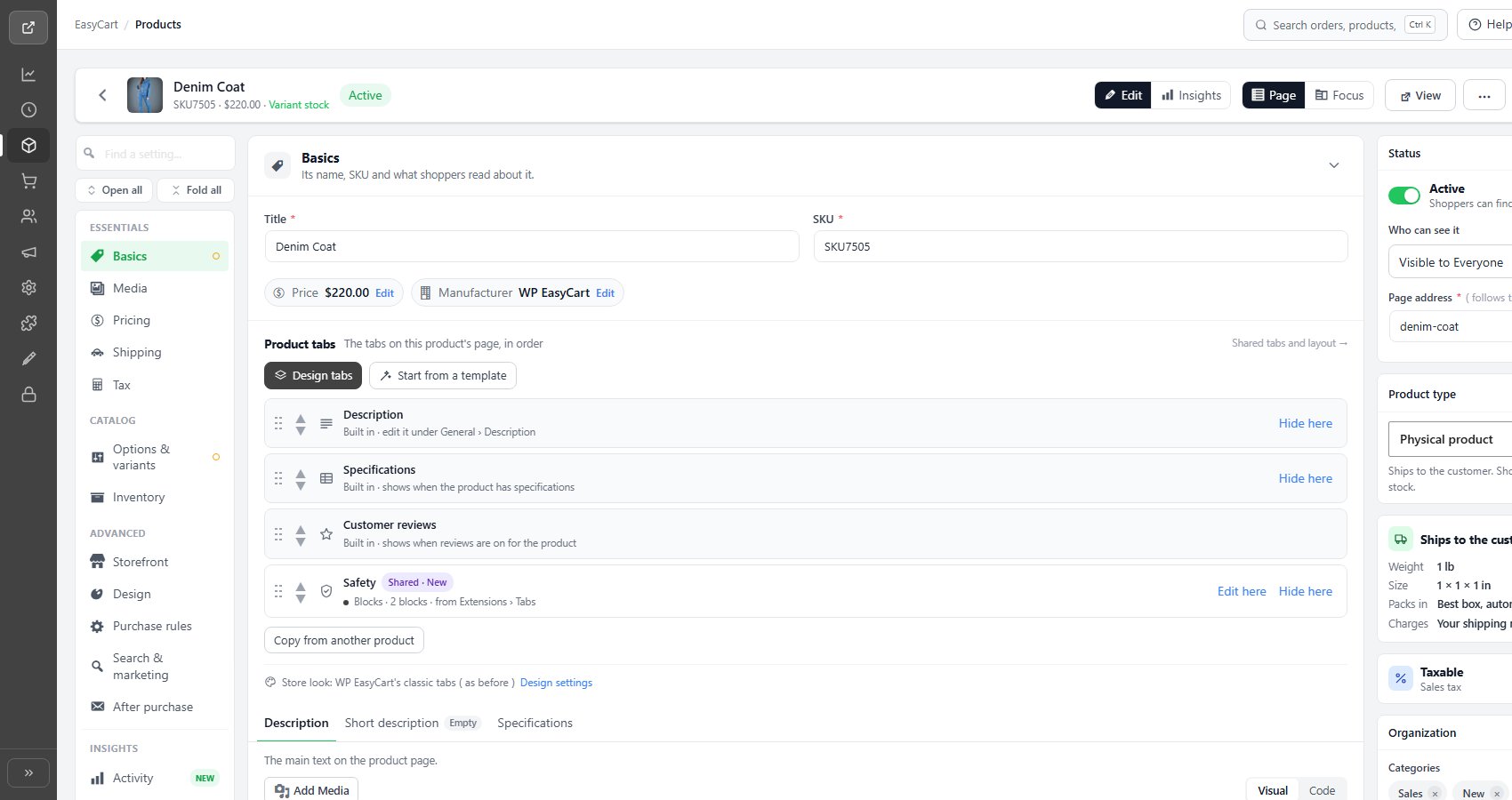
no stored settingsOpen a product and the editor fills the screen in three columns under one header. On the left, the section list. In the middle, the product’s sections, the cards you fill in. On the right, the Summary column, which keeps the product’s status, type, shipping, tax, categories and listing health in view whichever section you are working in.
To give the editor room, the EasyCart menu folds to icons on this screen. The button at the foot of the menu, Show the full menu or Fold the menu to icons, switches it, and the editor remembers your choice for your account.
Opening and adding products
From the products list, and on to the next one
no stored settingsClick a product’s name, or Edit under it, on EasyCart › Products to open it in the editor.
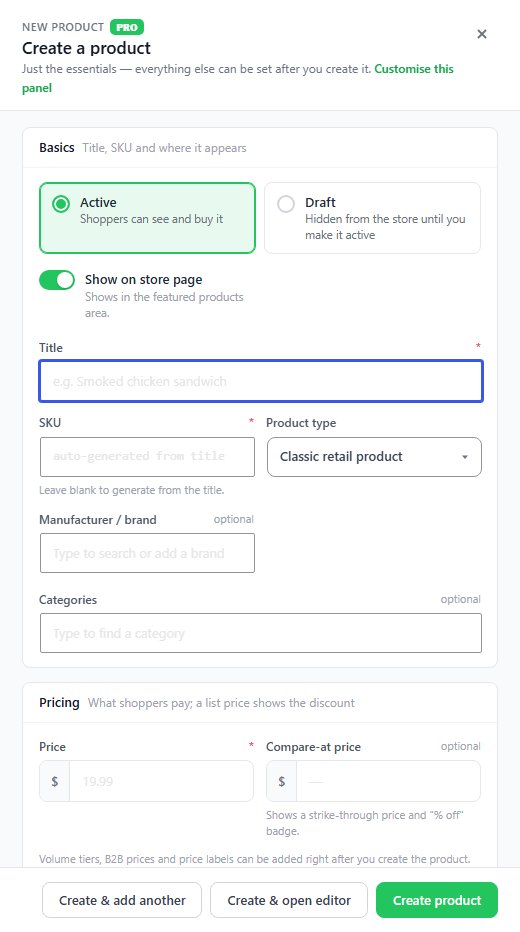
Add product, at the top of the products list, opens the Quick add panel, Create a product, rather than the editor. It asks for the essentials: a Title, a SKU ( left blank, it is made from the title ), a Price, and if you like the product type, manufacturer, categories and main picture, plus whether it starts Active or as a Draft. Create product adds it, Create & add another clears the panel for the next one, and Create & open editor carries on in the full editor with every section ready.
The header
Where you are, and the buttons that act on the product
no stored settingsThe header stays at the top as you scroll. On the left: the back arrow to the products list, the product’s picture, title, SKU, price and, when stock is tracked, how many are in stock. The Active or Draft pill beside it opens the Status card in the Summary column, and a Role restricted pill joins it when only one customer role can see the product.
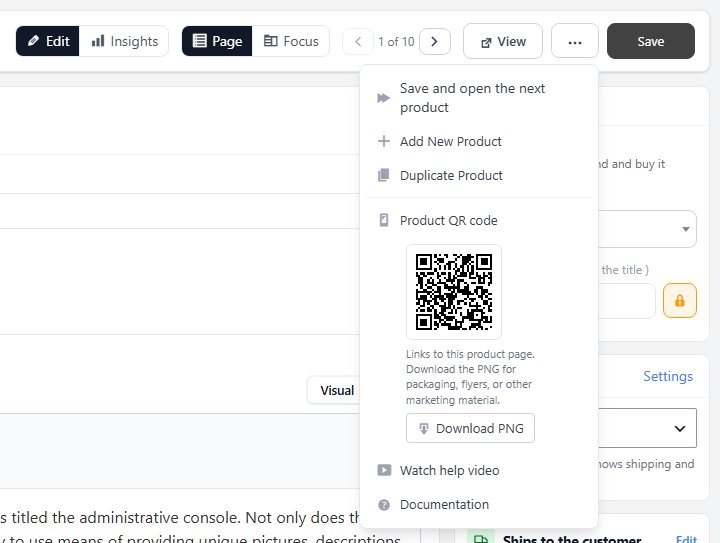
Edit and Insights switch between changing the product and seeing how it sells. Page and Focus pick the view. When you opened the product from the products list, the previous and next arrows step through that list and show your place in it, such as 1 of 10; the K and J keys do the same while you are not typing in a field. The back arrow then returns to the list with its filters, search and page as you left them. View opens the product page in a new tab.
The ⋯ menu holds Add New Product ( Quick add, without leaving the editor ), Duplicate Product ( a copy with its variations ), the Product QR code, a help video and Documentation, and Save and open the next product when you came from the list. The QR code links to the product page; Download PNG saves it for packaging, flyers or shelf labels. Save sits at the far right, with Discard beside it while there is something to undo.
Page and Focus
Every section on one page, or one at a time
no stored settingsPage shows every section on one long page. Scroll, or click a section in the list to jump to it; the list follows along as you scroll. Each section folds: click its heading row to fold or open it, and a folded section shows one line on what is set, such as No badge · Lighten. Open all and Fold all, above the list, do every section at once.
Sections most products never need start folded: Design, Search & marketing and After purchase, the type’s own section unless the product’s type uses it, and Shipping when the product does not ship. Fold or open a section and the editor keeps it that way for you on every product.
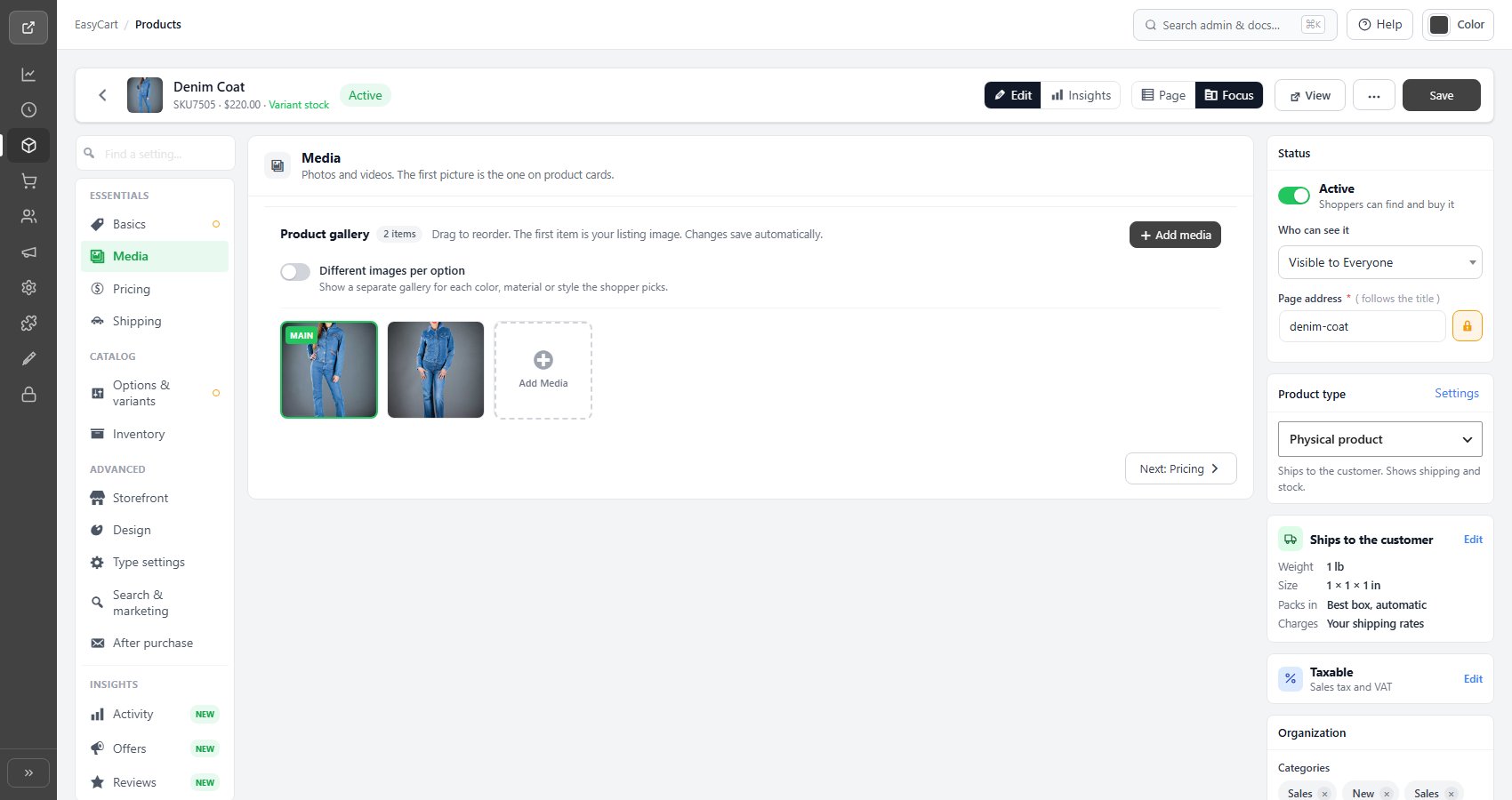
Focus shows one section at a time, picked from the list, with a button at its foot such as Next: Pricing to walk through the product in order. Whichever view you choose is remembered for your account. The first time you see Page view, a short tip explains it; Got it puts it away.
The section list
Four groups, and what each section holds
no stored settingsThe list on the left groups the sections by job. Each section has its own guide, linked below.
| Section | In Page view | What it holds |
|---|---|---|
| Essentials | ||
| Basics | Open | Its name, SKU and what shoppers read about it. |
| Media | Open | Photos and videos. The first picture is the one on product cards. |
| Pricing | Open | The price and compare-at price, what it costs you, how the price shows, and volume and B2B prices. |
| Tax | Open | Which taxes checkout charges on it, at what rate, and the code your tax service reads. |
| Shipping | Folded if it doesn’t ship | Whether it ships, its package, what it adds to shipping, and customs. |
| Catalog | ||
| Options & variants | Open | Sizes, colours and add-ons, and each variant’s SKU, price and stock. |
| Inventory | Open | How stock is counted, limits on a purchase, back-in-stock requests and stock history. |
| Advanced | ||
| Storefront | Open | Where it shows in your store: menus, related products, specials and sort order. |
| Design | Folded | A badge on its product card, and how its picture reacts to the pointer. |
| Named for the type, such as Purchase rules or Subscription | Folded unless used | The settings of the product’s type, such as its billing, its download, and the rules for buying it. |
| Search & marketing | Folded | How it shows in search engines, AI assistants and Google Shopping, and your marketing services. |
| After purchase | Folded | Notes for customers who bought it: on the order confirmation page, in the order email and in their account. |
| Insights | ||
| Activity | Open | Sales and customers tied to this product. |
| Offers | Open | Offers, coupons, and promotions that discount this product, and how each one is performing. |
| Reviews | Open | Whether shoppers can review this product, and the reviews they have left. |
Find a setting, at the top of the list, searches every section and the Summary column. Type two letters or more and pick a result to go straight to that field, which flashes so you can spot it.
Two marks can appear beside a section: a hollow amber ring when listing health has something for you to finish there, and a solid amber dot when it has changes you have not saved.

The Summary column
Status, type, shipping, tax, categories and listing health
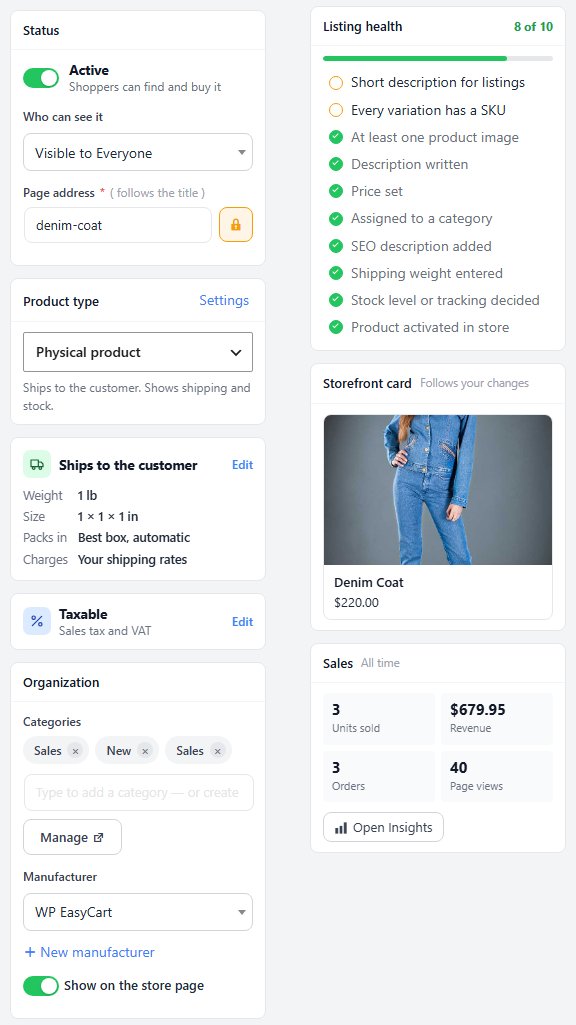
no stored settingsThe Summary column keeps these cards in view, top to bottom, whichever section you are in:
| Card | Its link | What it shows |
|---|---|---|
| Status | – | The Active switch ( Shoppers can find and buy it ) or Draft ( Hidden from your store until you switch it on ), Who can see it to limit the product to one customer role, and Page address, the end of its page’s URL. |
| Product type | Settings | What the product is, with a line on what that means. Settings opens the type’s own section. |
| Shipping | Edit | Ships to the customer with its Weight, Size, Packs in and Charges, or Doesn’t ship. It turns amber, with Add a weight: your shipping rates read it, when your rates go by weight and the product has none. |
| Tax | Edit | Taxable, with what checkout charges on it, such as Sales tax or VAT 5% · Reduced rate, or Not taxable. It turns amber while your store charges no tax at all. Edit opens the Tax section. |
| Organization | Manage | Categories, Manufacturer ( with New manufacturer ) and Show on the store page. Manage opens the Categories screen in a new tab. |
| Listing health | Each line | The checks the product still needs, below. |
| Storefront card | – | The product’s card as shoppers see it in a list: picture, title, price, a crossed-out compare-at price and its badge. It follows your changes before you save. |
| Sales | Open Insights | Units sold, revenue, orders and page views, all time. Shown to store managers. |
The Active switch saves the moment you flip it, and only the switch: your other changes still wait for Save. Page address follows the title until you lock it with the padlock beside it; a saved product starts locked, so its address does not change under people who bookmarked it. Categories you pick wait for Save; a category you create is made at once, and the product joins it when you save.
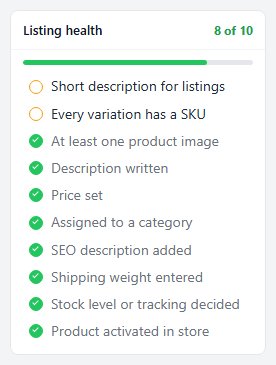
Listing health
What the product is still missing, with a way to each
no stored settingsListing health counts how complete the listing is, such as 8 of 10, and lists the checks with the unfinished ones first. Each line takes you to the field that settles it: At least one product image, Description written, Short description for listings, Price set, Assigned to a category, SEO description added, Shipping weight entered, Stock level or tracking decided and Product activated in store. A subscription product is also checked for Stripe set up to bill this subscription, and with PRO a product whose stock is tracked per variation for Every variation has a SKU.
A product that does not ship passes the weight check, and a donation or inquiry product passes the price check. The list updates as you work, the same unfinished checks put a hollow ring beside their sections in the list, and on a phone their number shows on the Summary button.
On phones and narrow screens
The Summary as a drawer, the sections behind a button
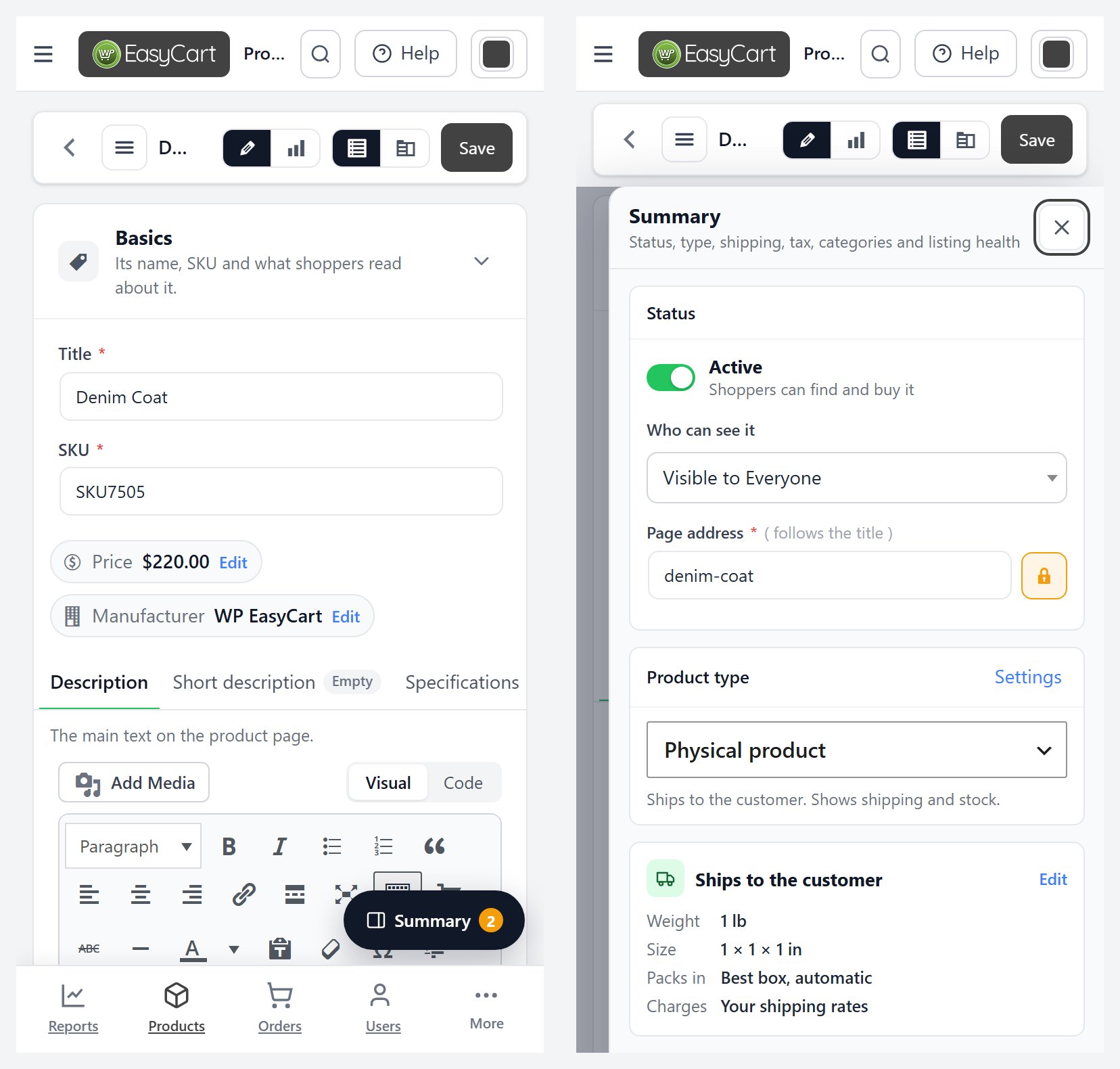
no stored settingsWhen the editor itself is less than 960 pixels wide, on a phone, a tablet or a small browser window, the Summary column becomes a drawer. The Summary button opens it, showing how many listing health checks are left to finish. The close button, a click beside the drawer or the Escape key closes it, and a link in it that leads to a section closes it and takes you there.
On a phone the section list moves behind the Sections button, the three lines beside the back arrow, and slides in from the left. Picking a section closes it again.
Save and Discard
Every change waits for Save, with a few exceptions
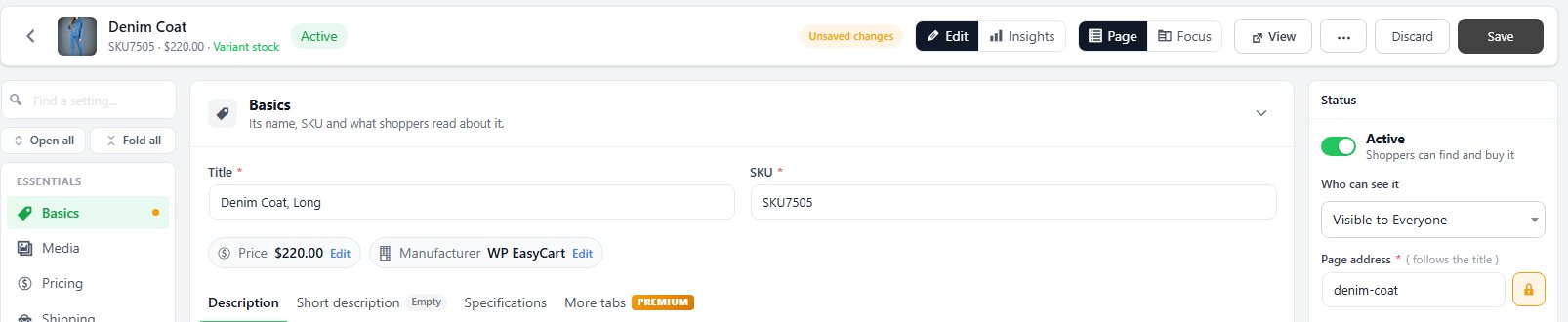
no stored settingsChanges wait for Save, so you can work through several sections and save once. Save, or Ctrl+S ( ⌘S on a Mac ), saves every section you changed. While anything is waiting, the header shows Unsaved changes, Discard appears beside Save, a solid dot marks each section in the list with changes, and a dot marks the tab inside a card. Put a field back the way it was and its mark goes away.
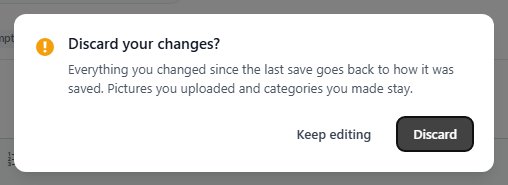
Discard asks first, Discard your changes?, then puts every field back as it was last saved. Pictures you uploaded and categories you created stay. Leaving the page with changes waiting brings up the browser’s leave-page question, and the previous and next arrows offer Save and open or Stay here.
A few things save the moment you do them: the Active switch; with PRO, the product gallery and the Different images per option switch in Media; and Approve or Unapprove on a review. Categories, volume and role prices, the variations table and the Allow customer reviews on this product switch wait for Save like everything else.
When something is not saved
The list at the top, and the field that needs you
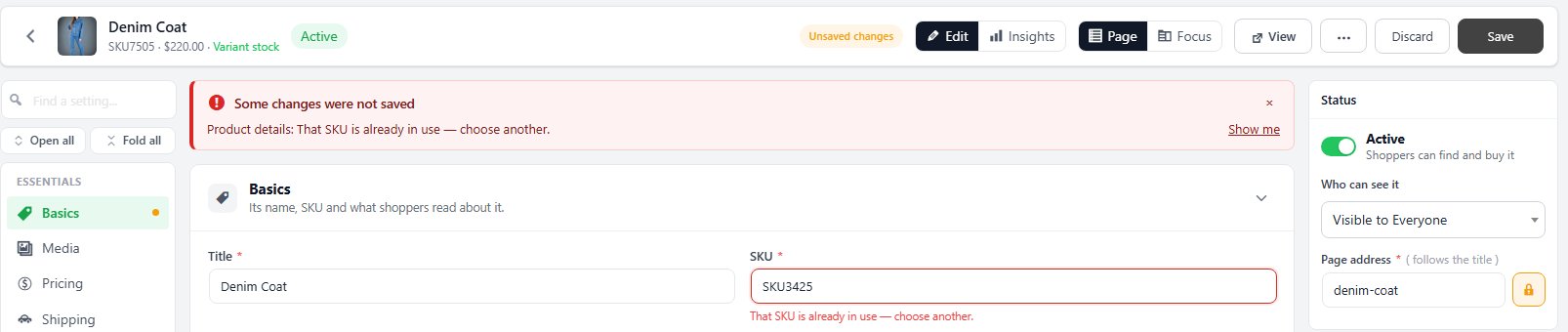
no stored settingsIf part of a save does not go through, the sections that did save are saved, and a Some changes were not saved box at the top lists what is left, each with Show me to take you to the field or card. What was not saved stays marked, so Save tries it again.
The SKU is the one you will meet most. Every product needs one, no two products can share it, and it may only hold letters, numbers, forward slashes, underscores and dashes. A SKU another product already uses stops Basics from saving, with That SKU is already in use — choose another. under the SKU field; an empty one says A SKU is required. A product also needs a title before it saves.
Insights
Activity, Offers and Reviews, apart from the fields
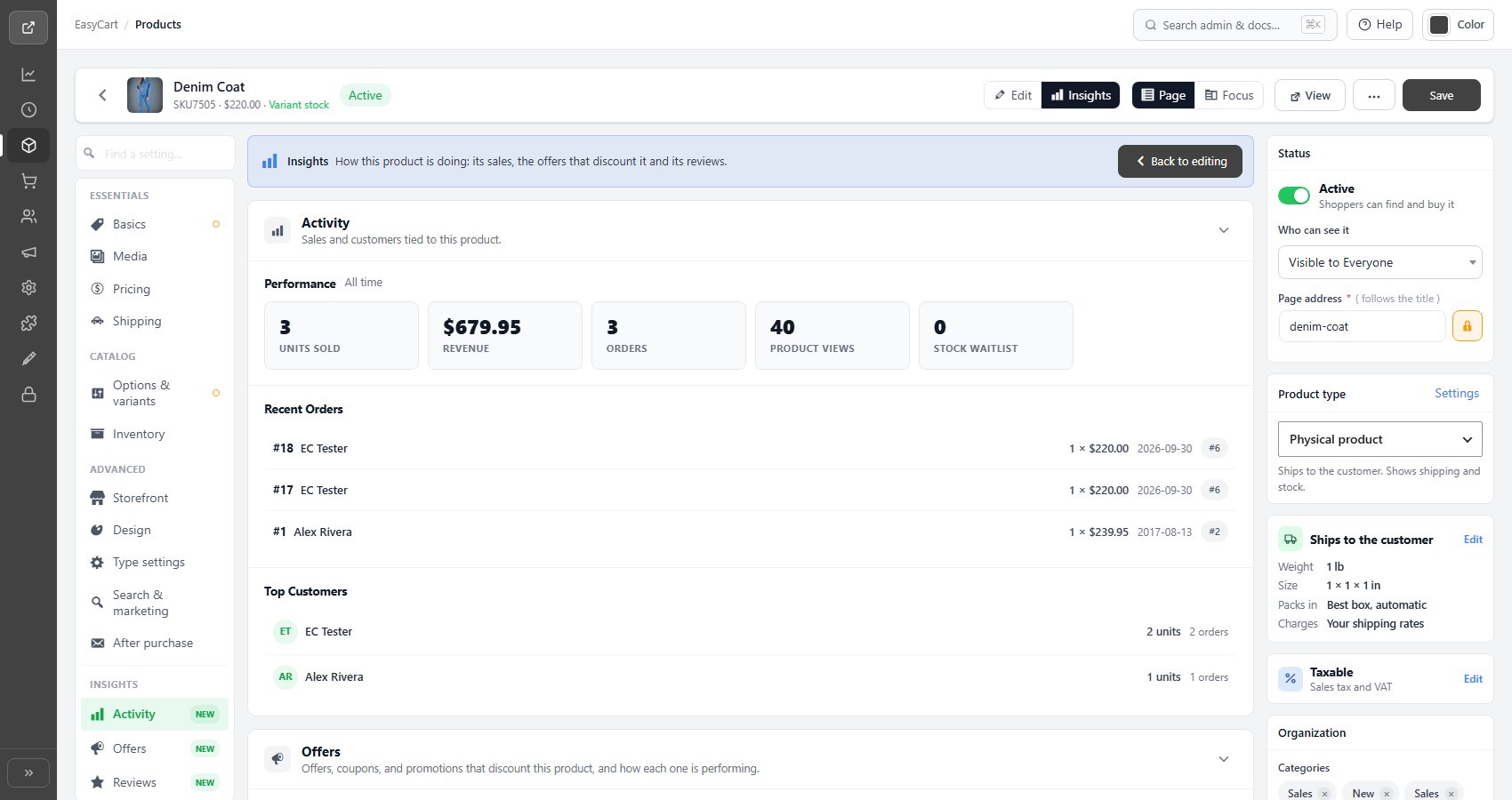
no stored settingsInsights, beside Edit in the header, swaps the editing sections for three about how the product is doing: Activity ( its sales and customers ), Offers ( the offers, coupons and promotions that discount it, and how each is performing ) and Reviews ( whether shoppers can review it, and the reviews they have left ). A bar across the top says you are in Insights, and Back to editing returns to the section you were working on. Clicking one of the three in the list, or Open Insights on the Sales card, switches too.
Offers needs PRO; without it the section shows a preview of what it lists.
Ready to run your store on WP EasyCart?
Everything in this guide works with the free plugin. PRO and Premium add subscriptions, memberships, wholesale pricing and more. Try every PRO feature free for 14 days.
