
Integration Guide
WP EasyCart × Google Ads
Connect Google Ads to WP EasyCart and every purchase flows back to your Ads account through the Google tag — ready for conversion reporting, smart bidding and remarketing audiences.
Before You Begin
A Google Ads account with conversion tracking set up is required. If you haven’t set up conversions yet, visit your Google Ads dashboard and create a website conversion action first. You’ll need your Google tag ID ( AW- ) and the conversion label of your Purchase conversion action. Google Ads in WP EasyCart is a PRO feature.
Step 1 — Get Your Tag ID and Conversion Label
Create a conversion action in Google Ads so it can hand you the tracking ID EasyCart needs.
Set Up a Conversion Action
In Google Ads, find your tag ID under Tools › Data manager › Google tag; it starts with AW-. Then create a website conversion action for purchases under Goals › Conversions and copy its conversion label. You’ll need both in the next step.
Step 2 — Enter Tracking Data in EasyCart
Paste your Google Ads tracking codes into EasyCart so purchase data flows back automatically.
Configure Google Ads Tracking
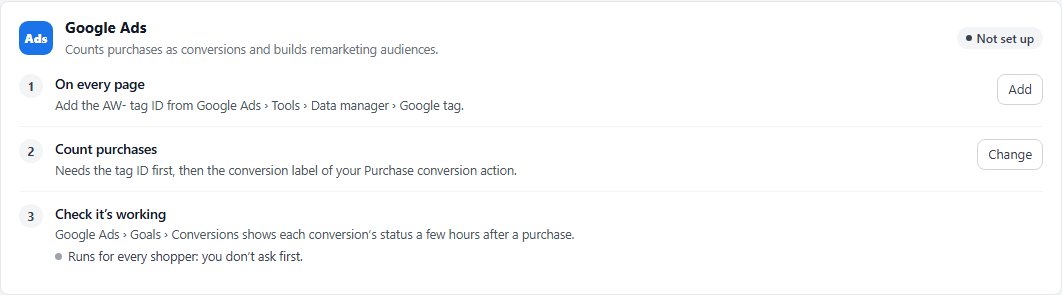
In WordPress, go to EasyCart › Settings › Marketing › Analytics & ads. On the Google Ads card, step 1 On every page takes the Google Ads tag ID, and step 2 Count purchases takes the Conversion label. From then on each order’s total and order number go to Google Ads as a conversion through the Google tag, once the shopper agrees if your store asks first; Google counts an order once. Set Conversion currency to your store’s currency. Already using the older conversion tag ( a saved Conversion ID )? The card says An older conversion tag is saved: press Move to the Google tag and it switches over in one click.
Going Further
Use Google Merchant for Product-Level Ads
To get the most from Google Ads, pair conversion tracking with rich product data via Google Merchant. Share your catalog through the Google product feed on Settings › Marketing › Search & AI, and fill in each product’s Google details — these power Google’s shopping ads and free listings.
- Set Conversion tag purpose to Remarketing only if you only want to track audiences for retargeting, not full conversion events
- Edit each product’s Search & marketing section: its Search & AI tab holds product condition, GTIN and MPN, the Google Merchant card on its Google Shopping tab holds Google product category, and the brand comes from the manufacturer
- Read the full Google Merchant guide for the complete field reference
Measure What’s Actually Working
Combine WP EasyCart with Google Ads conversion tracking to see which campaigns drive real revenue — then double down on what works.