
The Storefront section
Placement around the store, and what moved to the Summary column
no stored settingsStorefront holds the settings that place a product around your store: Sort order and specials, Store menus and Featured products. It sits under Advanced in the editor’s left list.
Categories, the manufacturer, Show on the store page and Who can see it are not here. They live in the Summary column on the right, so they stay in view whichever section you are working in. The note at the top of Storefront says so, and Show them takes you there.
Every change in this section, and in the Summary column’s categories, waits for Save. Discard puts everything back as it was last saved.
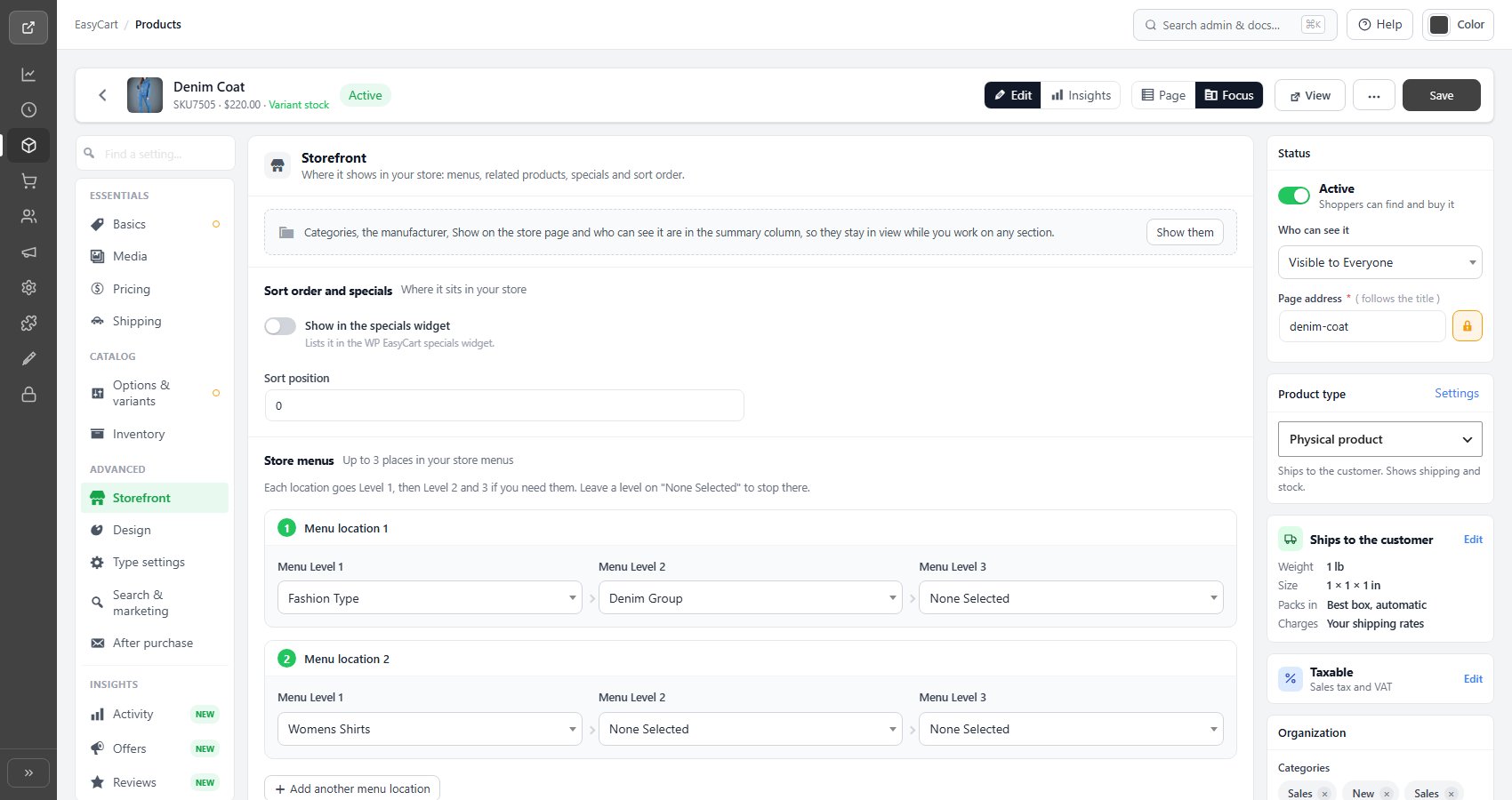
Sort order and specials
Where it sits in your store
no stored settingsShow in the specials widget lists the product in the WP EasyCart specials widget.
Sort position decides where the product falls in listings when shoppers use the default order. It is the lever for putting your best sellers first without reorganizing categories.

Store menus and featured products
Hand-placed menu positions, and related products on its page
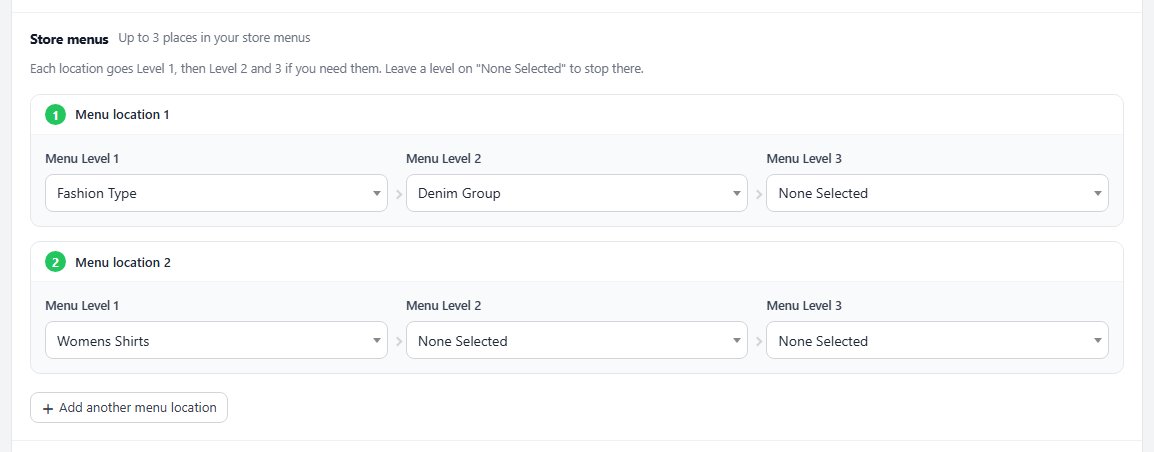
no stored settingsStore menus places the product in up to three menu locations. Each Menu location drills down from Menu Level 1 to Level 2 and Level 3; leave a level on None Selected to stop there. The first location always shows, and Add another menu location opens the next. Unlike smart categories, menus do not fill themselves, so this is where you put a product into a seasonal or promotional route through the store.
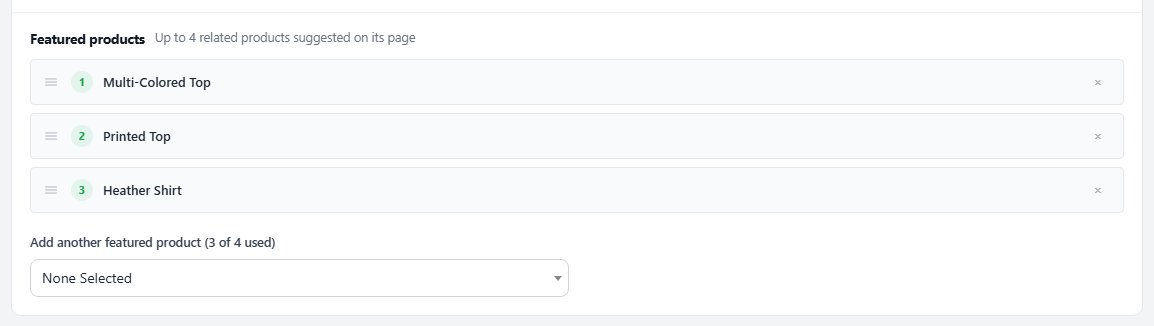
Featured products suggests up to four related products on this product’s page. Pick them in order, and add another until all four are used.
Neither will maintain itself. A product placed in a holiday menu stays there until somebody removes it, which is worth a calendar note rather than a discovery in February.
Categories
In the Summary column’s Organization card
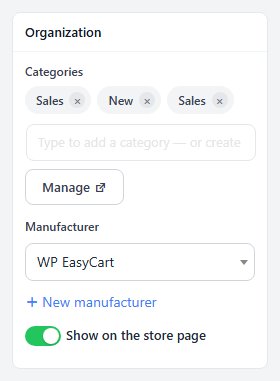
no stored settingsCategories are in the Organization card of the Summary column, with the manufacturer. A product can belong to several. Type to add one, or to create a new category on the spot, and click a chip’s cross to remove it. Manage opens the Categories screen in a new tab.
Category changes wait for Save like the rest of the editor. A category you create here exists straight away, and the product joins it when you save.
A chip marked rule was added by that category’s smart rules. Removing it here leaves the product out of the rules.
Who can see it and the store page
In the Summary column’s Status and Organization cards
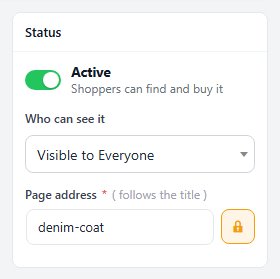
no stored settingsWho can see it ( PRO ), in the Status card, shows the product only to customers in one user role. Everyone else, guests included, does not see it anywhere in your store. It is how trade-only or member-only products are kept out of public view, and the editor header then carries a Role restricted marker. Visible to Everyone is the default.
Show on the store page, in the Organization card, lists the product on the main store page.
Ready to run your store on WP EasyCart?
Everything in this guide works with the free plugin. PRO and Premium add subscriptions, memberships, wholesale pricing and more. Try every PRO feature free for 14 days.
