
Where NMI lives
A PRO card gateway, set up in a side panel on Settings › Payment
no stored settingsNMI ( Network Merchants ) is a card gateway that many US and Canadian payment providers resell. It comes with WP EasyCart PRO and Premium. Shoppers pay by card on your own checkout page.
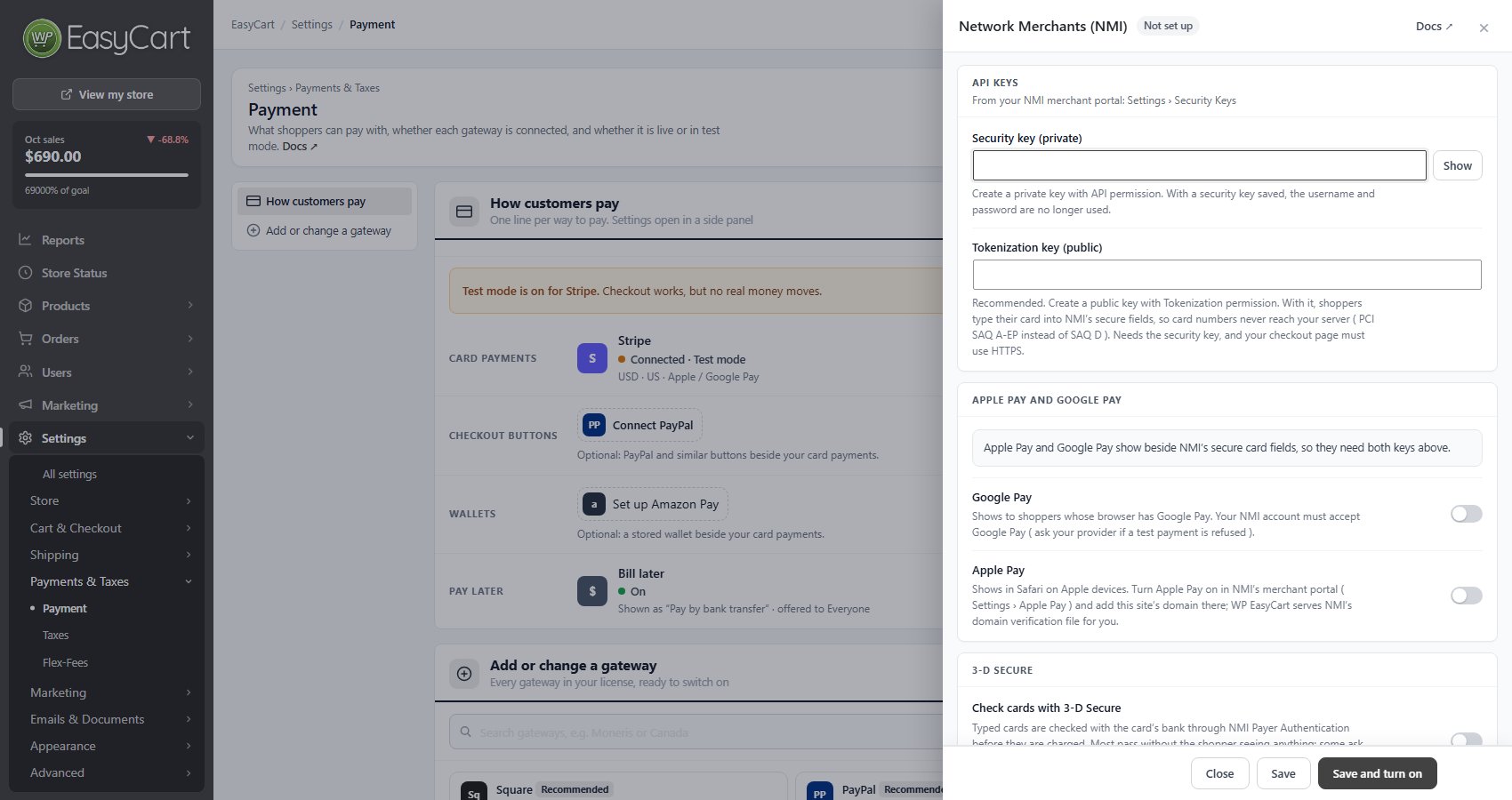
Open EasyCart › Settings › Payment, type NMI in Search gateways under Add or change a gateway, and press Set up on Network Merchants (NMI). Its settings open in a side panel. Press Save and turn on to make NMI the gateway on your Card payments line, or Save to keep it off for now.
Once NMI is connected, its line says how cards are taken and how the store signs in: Card entry reads NMI secure card fields or Card form ( cards pass through your server ), and Sign-in reads API security key or Username and password ( retired by NMI at the end of 2026 ). It also shows the result of the last key check, the wallets that are on and whether 3-D Secure is on.
API keys
A private security key, and a public tokenization key for the secure card fields
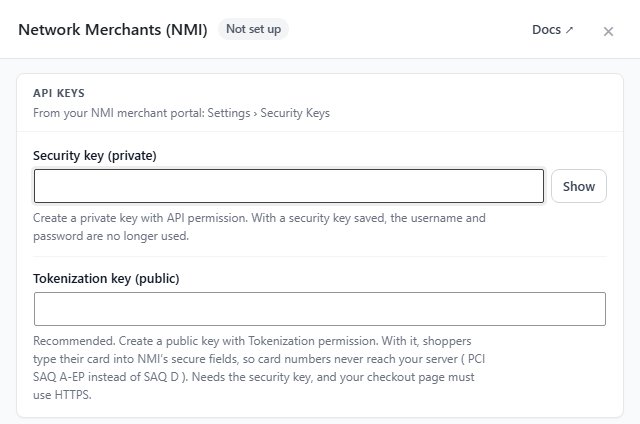
no stored settingsBoth keys come from your NMI merchant portal, under Settings › Security Keys.
Security key (private): create a private key with API permission and paste it here. It is how your store signs in to NMI. With a security key saved, the username and password are no longer used.
Tokenization key (public): create a public key with Tokenization permission. With it, shoppers type their card into NMI’s own secure fields, so card numbers never reach your server. That moves your store from PCI SAQ D to SAQ A-EP. It needs the security key, and your checkout page must use HTTPS.
Each save checks the security key with NMI. The panel then says NMI accepted the security key with the time of the check, or that NMI refused it, with NMI’s answer. A refused key usually means part of it was not copied, or it lacks API permission. If NMI could not be reached, check the Gateway address under Options and save again.
With a security key and no tokenization key, the panel warns Card numbers still pass through your server: add the tokenization key to switch to NMI’s secure card fields.
Apple Pay and Google Pay
Shown beside NMI’s secure card fields, so they need both keys
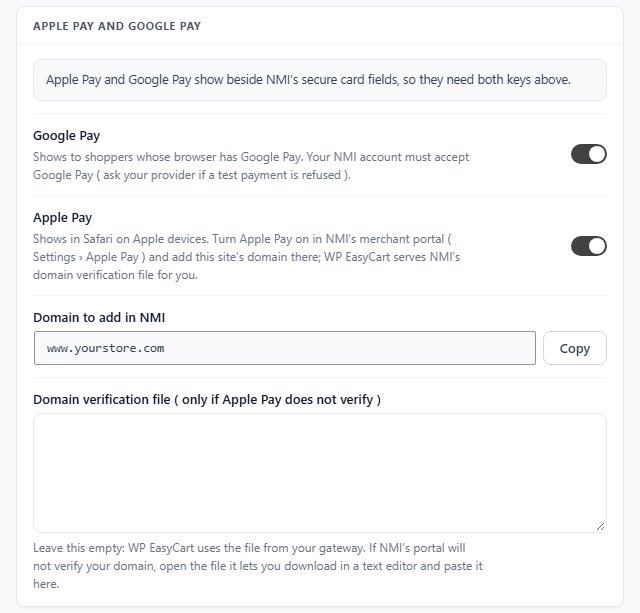
no stored settingsGoogle Pay shows to shoppers whose browser has Google Pay. Your NMI account must accept Google Pay; if a test payment is refused, ask your provider.
Apple Pay shows in Safari on Apple devices. Turn Apple Pay on in NMI’s merchant portal ( Settings › Apple Pay ) and add your site’s domain there. Switch Apple Pay on here and Domain to add in NMI shows that domain with a Copy button. WP EasyCart serves NMI’s domain verification file for you, so leave Domain verification file ( only if Apple Pay does not verify ) empty. Only if NMI’s portal will not verify your domain, open the file it lets you download in a text editor and paste it there.
Both wallets need the security key and the tokenization key. At checkout they sit above the card fields, with or pay by card between. After a wallet press the shopper places the order to finish, or chooses Use a card instead.
3-D Secure
Typed cards checked with the card’s bank before they are charged
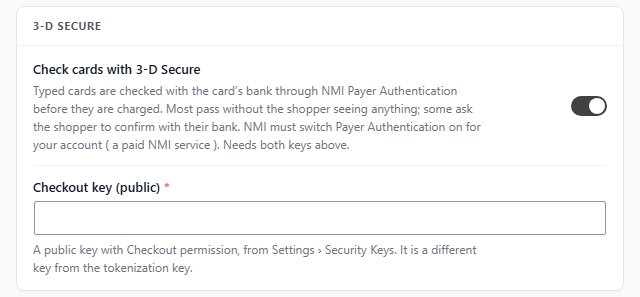
no stored settingsCheck cards with 3-D Secure checks each typed card with the card’s bank through NMI Payer Authentication before it is charged. Most cards pass without the shopper seeing anything; some shoppers are asked to confirm with their bank.
Switch it on and Checkout key (public) appears. It is a public key with Checkout permission, from Settings › Security Keys in your NMI portal, and a different key from the tokenization key. 3-D Secure also needs both API keys, and NMI must switch Payer Authentication on for your account; it is a paid NMI service. Without the checkout key, NMI’s line says On, but the checkout key is missing and cards are not checked.
When a card cannot be checked, it is not charged. A shopper whose bank does not confirm the card is asked to try another card or contact their bank. If a checkout finds Payer Authentication switched off on your NMI account, the panel says so for a week, with the date: ask your provider to switch it on, or turn 3-D Secure off.
Options and test mode
Currency, a reseller’s gateway address, level 3 details, and NMI’s test mode
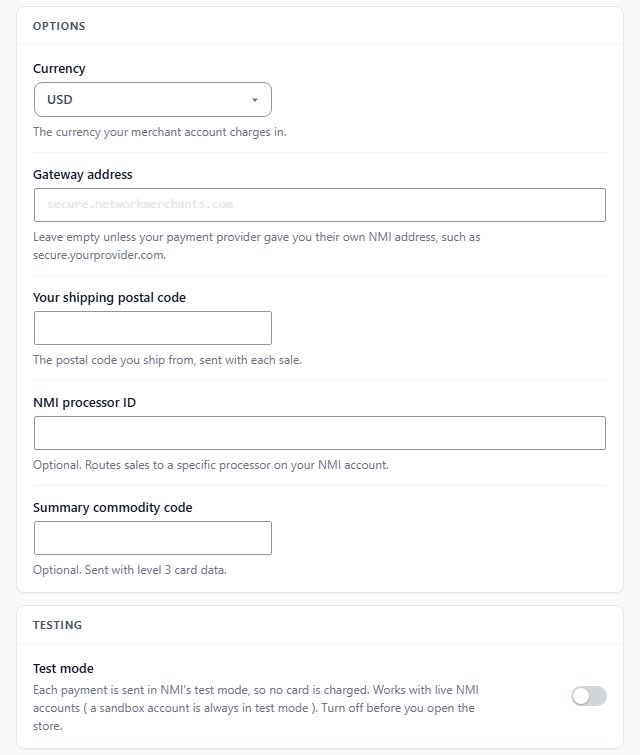
no stored settingsCurrency: the currency your merchant account charges in: USD, CAD, EUR or GBP.
Gateway address: leave it empty to use NMI’s usual address, secure.networkmerchants.com. If your payment provider gave you their own NMI address, such as secure.yourprovider.com, enter it as a host name. Every NMI call, the secure card fields included, goes to that address.
Your shipping postal code: the postal code you ship from, sent with each sale.
NMI processor ID: optional. Routes sales to a specific processor on your NMI account.
Summary commodity code: optional. Sent with level 3 card data.
Test mode, under Testing, sends each payment in NMI’s test mode, so no card is charged. It works with a live NMI account; a sandbox account is always in test mode. Turn it off before you open the store.
Moving from username and password to an API key
NMI retires username and password sign-in at the end of 2026
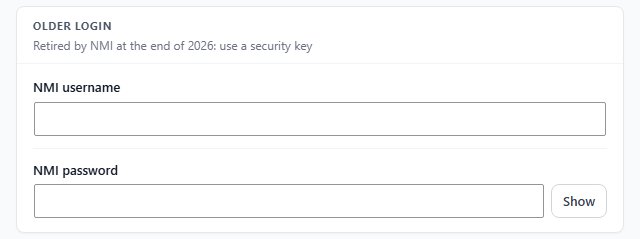
no stored settingsStores set up before NMI’s API keys sign in with an NMI username and NMI password. NMI is retiring that sign-in at the end of 2026. While your store still uses it, NMI’s panel opens on NMI login with that warning, and Settings › Payment shows NMI is retiring username and password sign-in at the top.
To switch:
1. In your NMI merchant portal open Settings › Security Keys and create a private key with API permission.
2. Create a public key with Tokenization permission too, for the secure card fields.
3. Paste them into Security key (private) and Tokenization key (public) under API keys, and press Save.
4. Check that the panel says NMI accepted the security key and that the line’s Sign-in reads API security key.
5. Place a test order, with Test mode on, before you take live payments again.
The username and password then move to Older login, marked Not used while a security key is saved.
Cardinal Centinel is gone. NMI’s older Cardinal Centinel option ran a version of 3-D Secure that the card networks have retired. A store that had it on sees NMI now charges cards without Cardinal Centinel on Settings › Payment and in Store Status; cards are charged through NMI Direct Post. Open NMI’s settings and save them to turn the old setting off, and use Check cards with 3-D Secure for 3-D Secure.
Ready to run your store on WP EasyCart?
Everything in this guide works with the free plugin. PRO and Premium add subscriptions, memberships, wholesale pricing and more. Try every PRO feature free for 14 days.
