
Store pages
The three WordPress pages EasyCart needs; each holds one shortcode
3 settingsStore page
The WordPress page that holds your catalogue, which must contain the [ec_store] shortcode. Every product, category and manufacturer link is built beneath this page’s slug, so a store page at /shop/ gives you /shop/product-name/. That also means changing the page, or renaming its slug, changes every product URL on the site at once; do it before you launch, or plan redirects if you do it after. The picker searches your pages as you type, and the row warns you if the chosen page is unpublished or has lost its shortcode.
Cart and checkout page
Where shoppers review their basket, enter their details and pay. It must contain the [ec_cart] shortcode, and one page does both the cart and the checkout: there is no separate checkout page to set. Keep this page out of menus and sitemaps if you like, but never unpublish it, because every Add to cart button leads here.
Account page
Where shoppers sign in, register, and see their orders, downloads and subscriptions. It must contain the [ec_account] shortcode. Login links in checkout and in order emails point at this page, so it has to exist even on a store that allows guest checkout.
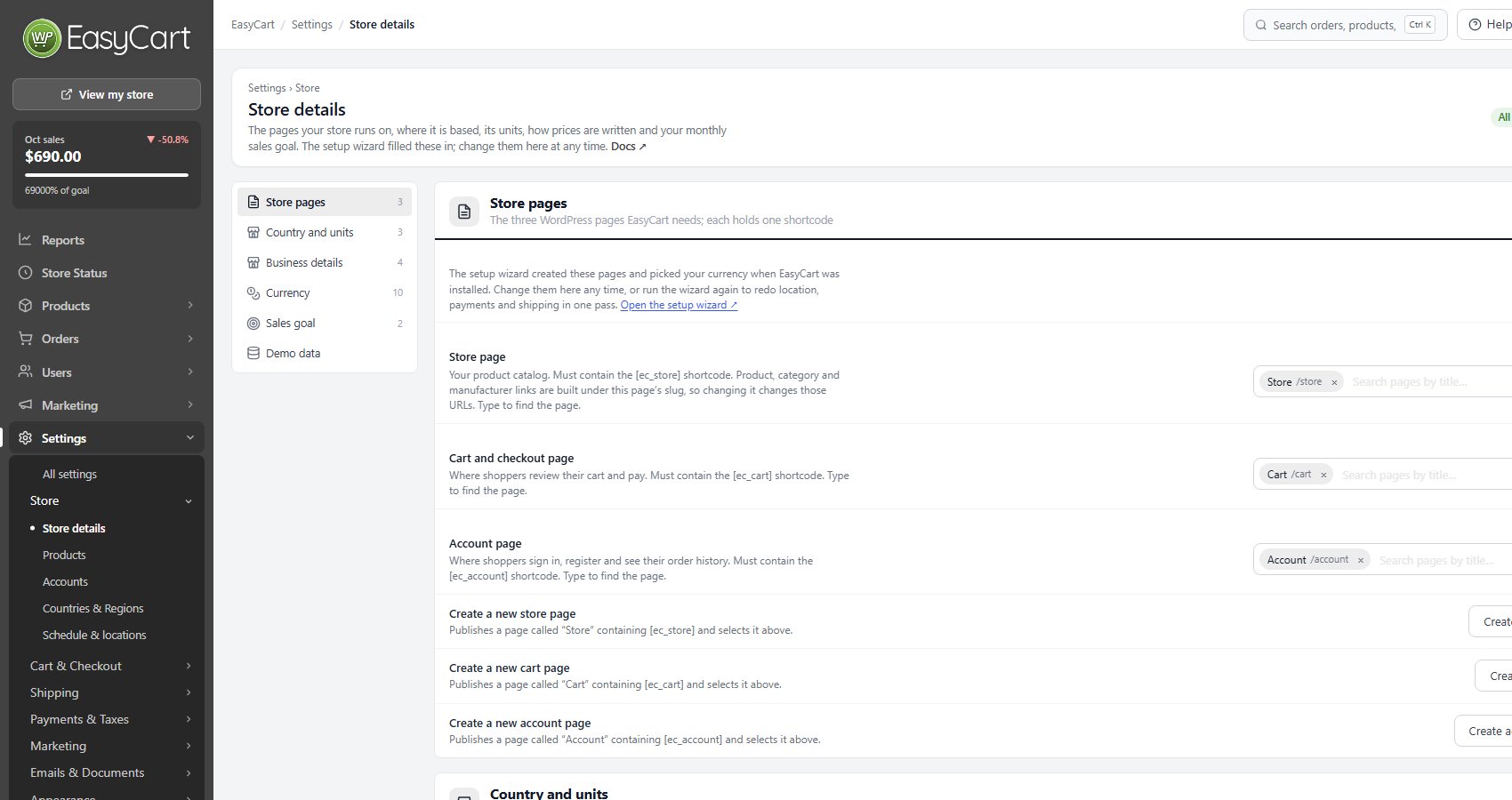
Country and units
Where your business is based and how it weighs and measures
3 settingsStore country
Where your business is based. It decides which carriers are listed first in Settings › Shipping, which payment gateways lead the list in Settings › Payment, whether EU rules such as the withdrawal button apply, the wallet country for Square, the format your bank details take and what your tax number is called. Until you save one, WP EasyCart works it out from the setup wizard, then the checkout’s default country, then your Stripe account, then the site language. Choosing a country in the EU or the EEA while the withdrawal button is off brings a reminder to switch it on in Settings › Checkout.
Weight unit
The unit you enter weights in for products, variants, option choices and boxes: pounds, ounces, kilograms or grams. Weight-based shipping rates, live carriers, PayPal and search engines all read weights in this unit. Carriers and PayPal are given pounds or kilograms, so ounces and grams are converted for them. When you change the unit and weights are already saved, the card offers Convert saved weights: it names how many products, variants, option choices, boxes and weight-based shipping rates have a weight, shows an example such as 1.5 kg becoming 1500 g, and converts them, along with the weights recorded on orders, with Convert to the new unit. If you had already typed them in the new unit, press They are already in that unit instead. The conversion cannot be undone, but you can convert back the same way. If an older Shippo, ShipStation, Stamps.com or OptimalShip extension is active, choosing ounces or grams warns you to update it first.
Dimension unit
Inches or centimetres, for the length, width and height of products and boxes, and for sizes that price an option. A carrier quoting on the wrong unit gets the parcel size wrong by a factor of two and a half, so set this before you enter dimensions.
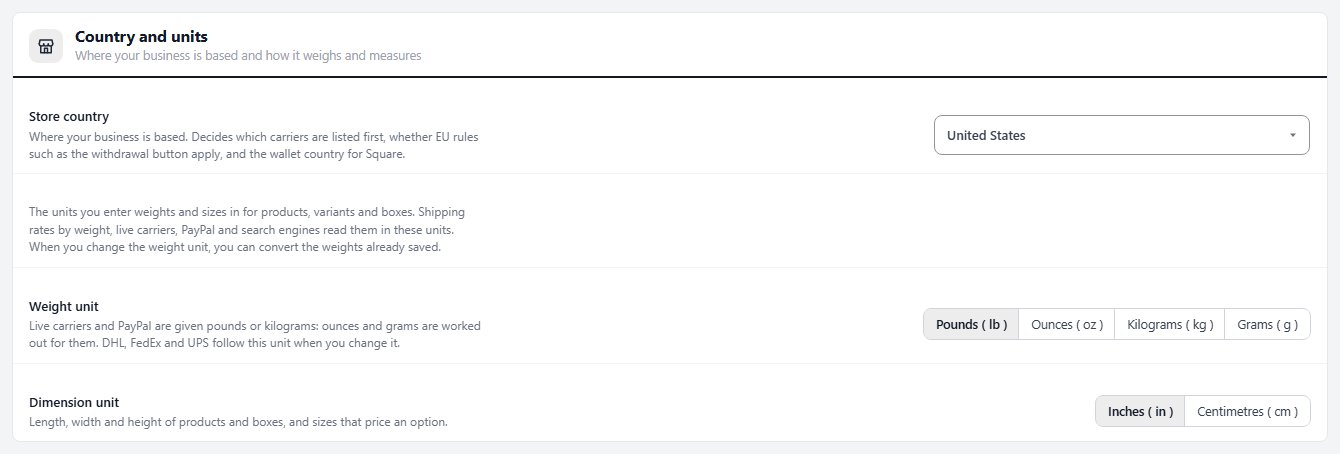
Business details
Your registered name, address and tax number, on receipts and invoices
4 settingsRegistered business name
Your registered, legal business name. It prints with the address and tax number below in the footer of the receipt and shipped emails, and on the invoice and credit note PDFs ( PRO ) while their own business details box is empty. Invoices in the EU and the UK must show it. Left empty, the field suggests your site name.
Registered address
The address on your business registration, one line each. It can differ from the store address in your email settings, which is the one shoppers write to.
VAT number
Your VAT, GST or ABN number. Tax invoices in the EU, the UK, Australia and New Zealand must show it. The field is named for your store country: Tax ID in the US, ABN in Australia, GST number in New Zealand, GST/HST number in Canada, GSTIN in India and VAT number elsewhere. It prints as that name and the number, such as VAT number: GB123456789.
What the number is called
What the number is called on receipts and invoices, when the name for your country is not the one you want. Leave it empty to use your country’s name for it.
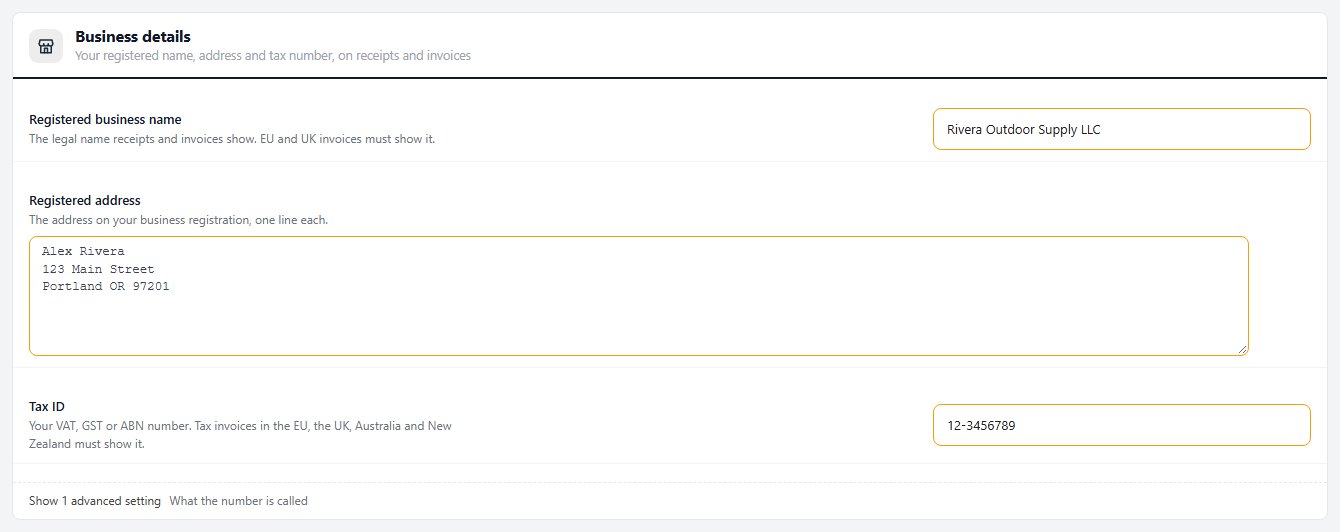
Currency
How every price is written across the store, emails and admin
10 settingsCurrency code
The three-letter ISO code your store trades in, such as USD, EUR or GBP. This is the currency sent to your payment gateway with every charge, so it has to match what the gateway account is set up to take; a mismatch is rejected at payment time, not here. It is also the base the currency switcher converts from. Start typing and the field suggests valid codes.
Currency symbol
The symbol printed beside every price on the storefront, in emails and in the admin: $, €, £, kr, or anything up to ten characters. It is display only. The gateway never sees it, so you can write “US$” or “CA$” to tell two dollars apart without affecting what is charged.
Symbol position
Whether the symbol comes before the amount, as in $40.00, or after it, as in 40.00 €, which is the convention across much of Europe. The price preview at the top of the section updates as you switch, so you can see the result before saving. Beside it, Usual format shows how your currency code is normally written, in your store country’s way for the euro and the Canadian dollar, and Apply sets every field below to match.
Space between the symbol and the amount
Puts a space between the symbol and the amount, so prices read 93,00 € or CHF 12.00 instead of 93,00€, as most of Europe writes them. The space never lets a price break over two lines.
Show the currency code with prices
Prefixes every price with the ISO code as well as the symbol, so $40.00 becomes USD $40.00. Worth turning on when you sell into more than one country that uses the same symbol, since a Canadian shopper seeing a bare dollar sign will assume the wrong currency. On a single-country store it is clutter.
Decimal separator
The character between whole units and fractions: a point in the US, UK and most of Asia, a comma across most of continental Europe and South America. This affects how prices are printed, not how you type them into the admin, which always takes a point.
Thousands separator
The character between groups of three digits, so 1,250.00 or 1.250,00 or 1 250,00: a comma, a point, an apostrophe, a space ( France, Scandinavia and Poland write prices this way ) or none. Pick one that differs from the decimal separator; the panel warns you if they match, because a price like 1,250,00 is unreadable and a shopper will not know whether it is twelve hundred or a million.
Decimal places
How many digits follow the decimal separator. Two suits nearly every currency. Zero is right for the yen, the won and other currencies with no fractional unit, and three for the dinar family. Prices are rounded for display; the stored price keeps its precision.
Minus sign position
Where the minus sign sits on refunds, discounts and negative fees: before the symbol gives -$5.00, after it gives $-5.00. Most stores never change this. It is folded away because it only matters on the handful of screens that print negative amounts.
Currency
The rates the currency switcher widget uses when a shopper chooses to see prices in another currency. Each row is a currency code and how much of it one unit of your base currency buys, so with a USD base, EUR at 0.92 means one dollar shows as €0.92. Leave your base currency out. These are display conversions only: the order is still charged in the base currency, and the rates do not update themselves, so revisit them or remove the widget rather than show stale numbers. A new store starts with none.
Ready to run your store on WP EasyCart?
Everything in this guide works with the free plugin. PRO and Premium add subscriptions, memberships, wholesale pricing and more. Try every PRO feature free for 14 days.
