
Settings › Marketing

Search & AI Settings

How your products appear in Google, Bing and AI assistants like ChatGPT, Gemini, Perplexity and Copilot: product data, your return and shipping policy, the Google product feed, and who can read your store. 9 sections.

Quick links

Where to find it:WP Admin › EasyCart › Settings › Marketing › Search & AI

On default is enabledValue factory defaultPRO needs PRO or Premium

What is shared

Your products and policies

The status of your store, then the product data, return policy and shipping times search engines read.

Status

What search engines and AI assistants can read about your store right now.

no stored settings

What search engines and AI assistants can read right now: how many products are shared with price and stock, how many are shared without a price, how many are missing a barcode or part number, and the average rating. Below the counts, a line for each check ( product details, return policy, shipping, who can read your store ) says what to fix, with a link to the section that fixes it. Test a product in Google opens Google’s Rich Results Test on one of your product pages, and Add barcodes in Products opens your product list.
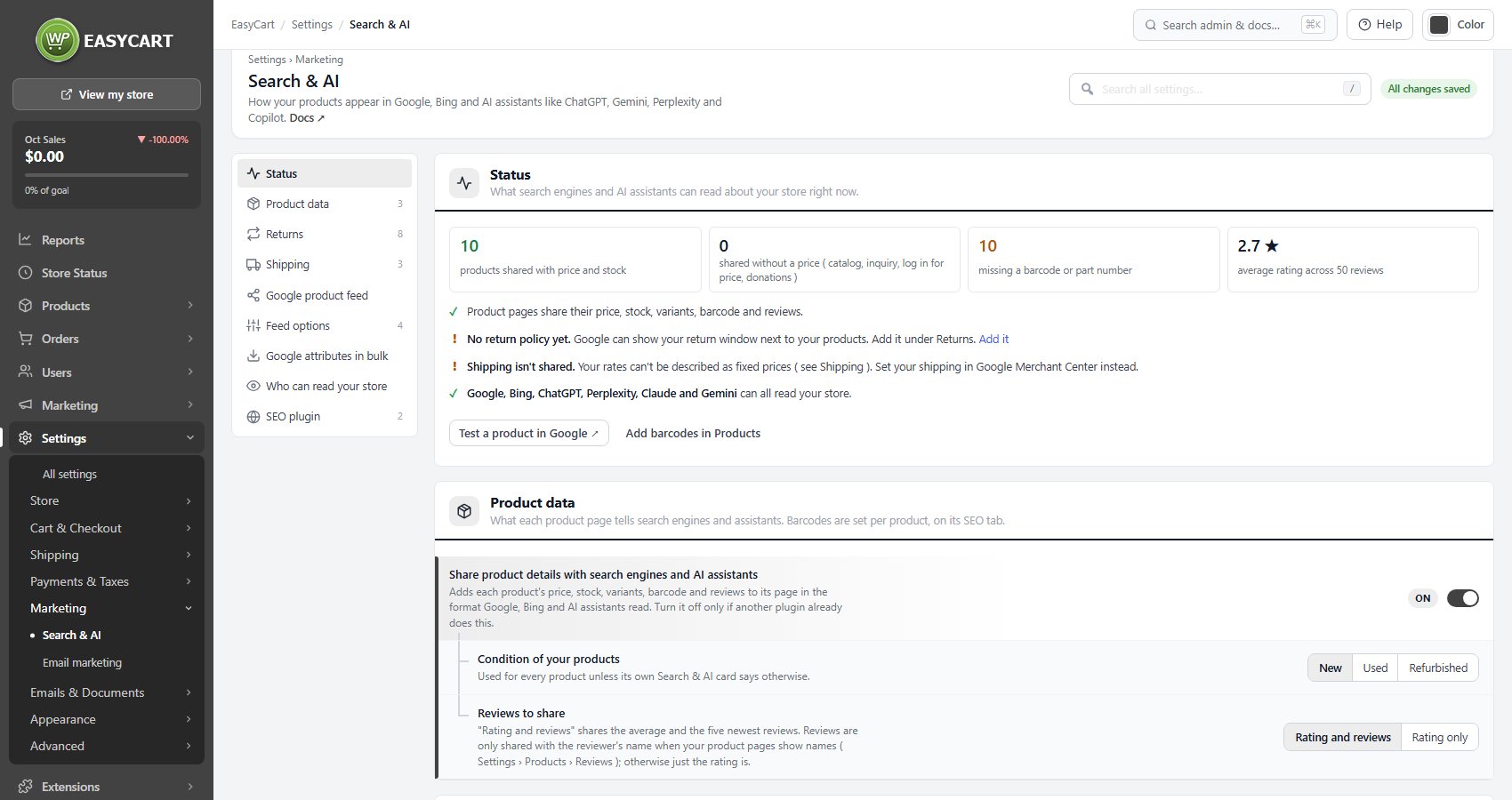
Settings › Marketing › Search & AI, opening on the Status section.

Product data

What each product page tells search engines and assistants. Barcodes are set per product, on its SEO tab.

3 settings

Share product details with search engines and AI assistants

Adds each product’s price, stock, variants, barcode and reviews to its page in the format Google, Bing and AI assistants such as ChatGPT read. Leave it on unless another plugin already adds product data, or it prints twice. Products that hide their price ( catalog, inquiry, log in for price, donations ) are shared as information, not for sale.

On

Condition of your products

New, Used or Refurbished, used for every product unless its own Search & AI card says otherwise.

New

Reviews to share

Rating and reviews shares the average and the five newest reviews. Rating only shares just the average. Reviews carry the reviewer’s name only when your product pages show names ( Settings › Products › Reviews ).

Rating and reviews

💡 Note: Each product also has a Search & AI card on its SEO & Marketing tab for its barcode ( GTIN, UPC, EAN or ISBN ), manufacturer part number and condition, with a checklist and Preview what Google reads. See SEO & Marketing.

Returns

Google can show your return window next to your products, and assistants answer “can I return it?” from this.

8 settings

Do you accept returns?

Shared once for the whole store. Within a set time, Any time or No returns. Not shared says nothing about returns. Google can show your return window next to your products.

Not shared

Return window

Days after delivery, for Within a set time. Between 1 and 365.

30 days

How customers return items

By mail, In store, or both.

By mail

Return shipping

Free, Customer pays, or Flat fee.

Free

Return fee

The flat return fee, in your store’s currency. Shown only for Flat fee.

0

Refund

Full refund, Exchange, Store credit, or more than one.

Full refund

Countries you sell to

The countries the return policy applies to, which Google needs, and the countries listed for shipping rates that apply everywhere. Leave it empty to use the countries in your shipping zones. The Status section warns while Google is missing them.

Your shipping zones

Returns page

The page with your full return policy, linked for shoppers and assistants who want the details.

None

Shipping

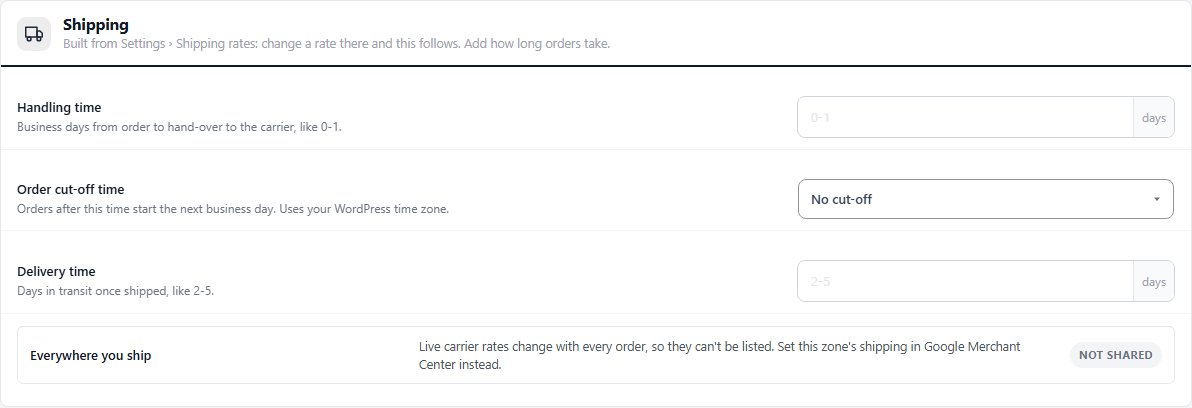
Built from Settings › Shipping rates: change a rate there and this follows. Add how long orders take.

3 settings

Handling time

Business days from order to hand-over to the carrier, such as 0-1.

Empty

Order cut-off time

Orders after this time start the next business day. It uses your WordPress time zone.

No cut-off

Delivery time

Days in transit once shipped, such as 2-5. Under Show advanced settings each shipping zone with rates gets its own delivery time, for zones that take longer or shorter.
Empty
The Shipping section, with the zone list built from your shipping rates.

💡 Note: Rates come from Settings › Shipping › Shipping rates. Live carrier rates, percentage rates and some regions cannot be listed as fixed prices; the zone list marks those Not shared, and their shipping is set in Google Merchant Center instead.

Google Shopping

The Google product feed

A feed Merchant Center fetches every day, its options, and the attribute spreadsheet.

Google product feed

Your catalog for Google Shopping, Bing and Pinterest, kept up to date by the store

no stored settings

PRO. A private feed address, kept up to date by the store, that Google Merchant Center, Microsoft Merchant Center and Pinterest fetch every day. It is built from the same data as your product pages, rebuilt every night and within the hour after product or stock changes, so there is nothing to upload and products never expire. The section shows the items in the feed, how many were left out, how many lack a barcode, and when it was last built.

Your feed address holds two addresses: .xml for Google and Microsoft, .tsv for Pinterest. Anyone with an address can read your public product list and nothing more. Update now rebuilds at once, and the feed can be downloaded as either file. Left out and warnings lists what the last build skipped and why.

Connect Google Merchant Center: Connect Google adds your feed to Merchant Center in one step and then shows how many products are active, waiting for review or disapproved, with the top problems to fix. Where the card says Coming soon, open Add the address by hand for the Google, Microsoft and Pinterest steps. New address replaces a feed address that was shared by mistake: the old one stops working at once, and a connected Merchant Center is moved for you.
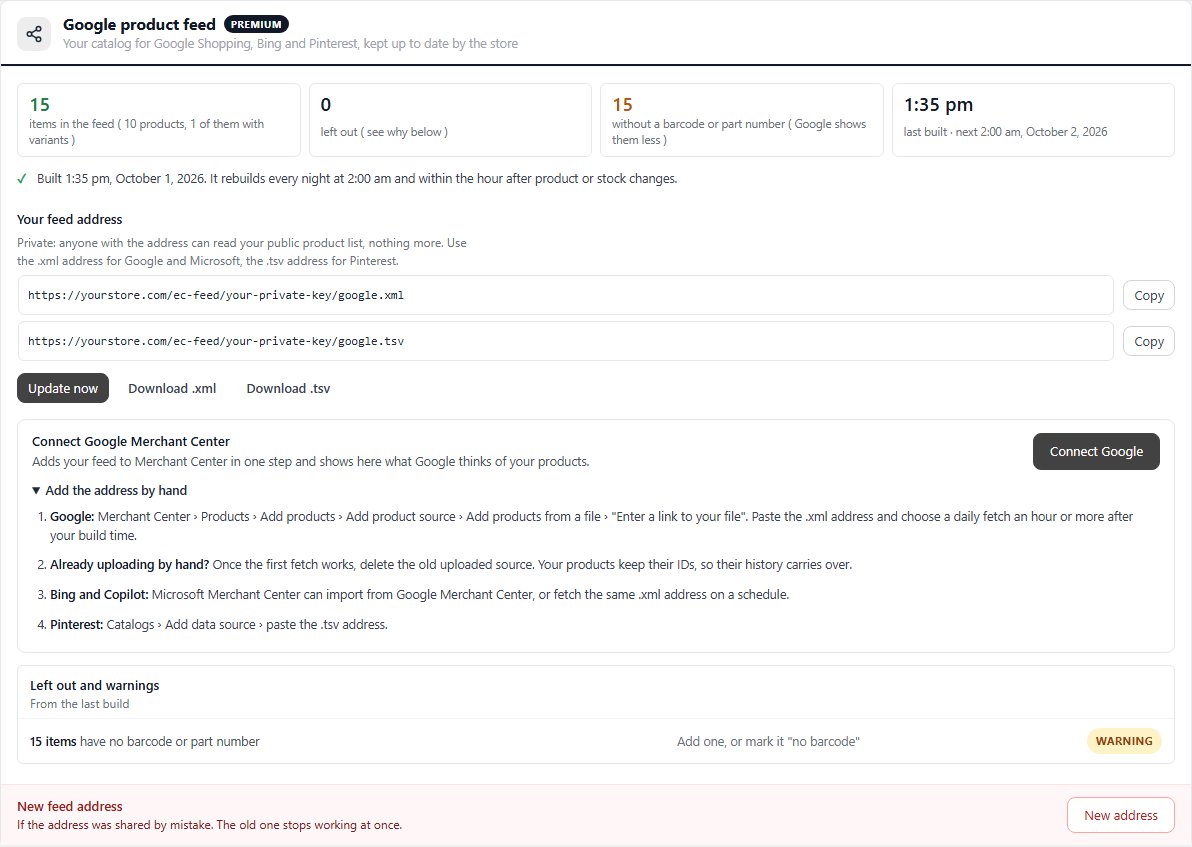
The Google product feed section after a build, with the feed addresses and Connect Google.

⚠️ Careful: Treat the feed address as a secret link. If it leaks, make a new address and paste it into Google, Microsoft and Pinterest. For a step by step walkthrough, see How to Share Your Products with Google and AI Search.

Feed options

When the feed rebuilds and what goes in it

4 settings

Build the feed every night at

The hour the feed is rebuilt each night. Pick one before Google fetches it. Product and stock changes are also picked up within the hour.

2 am
PRO

Include out-of-stock products

Google shows out-of-stock products as out of stock instead of dropping them, which keeps their history.

On
PRO

Use your store name as the brand for handmade products

For products marked “no barcode” that have no manufacturer, your store name is sent as the brand, as Google asks for custom goods.

On
PRO

Default Google product category

Optional. Used for products that do not set their own on their Google Merchant card. Google can also work it out.

Empty
PRO

Google attributes in bulk

Edit the Google attributes of many products at once in a spreadsheet

no stored settings

PRO. Edit the Google attributes of many products at once, such as product category, gender, age group and sizes. Download CSV gives one row per product and variant with every Google attribute as a column. Fill it in, keep all 41 columns with product_id first, and use Upload and import. Values replace what was stored for that product or variant, and the feed picks the changes up within the hour. Barcodes, part numbers and condition are set on each product’s Search & AI card, not in the spreadsheet.
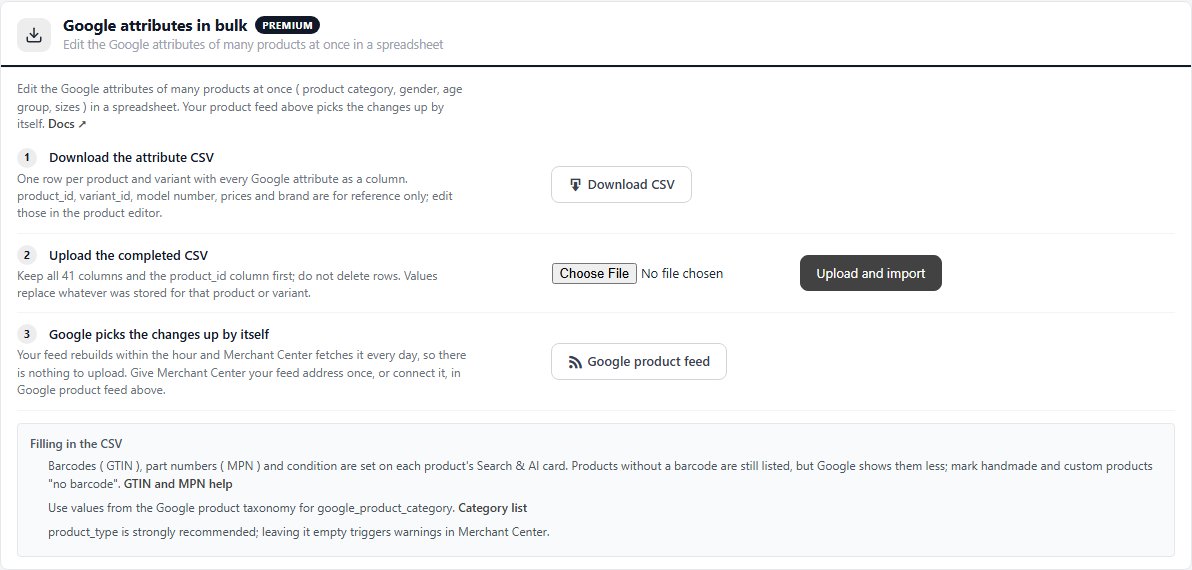
Google attributes in bulk: download the CSV, upload it, and the feed picks it up.

Who sees it

Crawlers and SEO plugins

Whether search engines and assistants can read your store, and who prints what.

Who can read your store

From your robots.txt and WordPress’s search engine setting.

no stored settings

Checks your live robots.txt and WordPress’s search engine setting for Google, Bing and Copilot, ChatGPT search, Perplexity, Claude and the Gemini app. Each shows Can read or Blocked, with the line that blocks it and how to fix it. WP EasyCart never changes robots.txt; the rule comes from a file on your server, another plugin or your host. Ticking Discourage search engines in Settings › Reading blocks them all. If your site is behind Cloudflare, check its AI crawler setting as well. Check again after changing robots.txt.
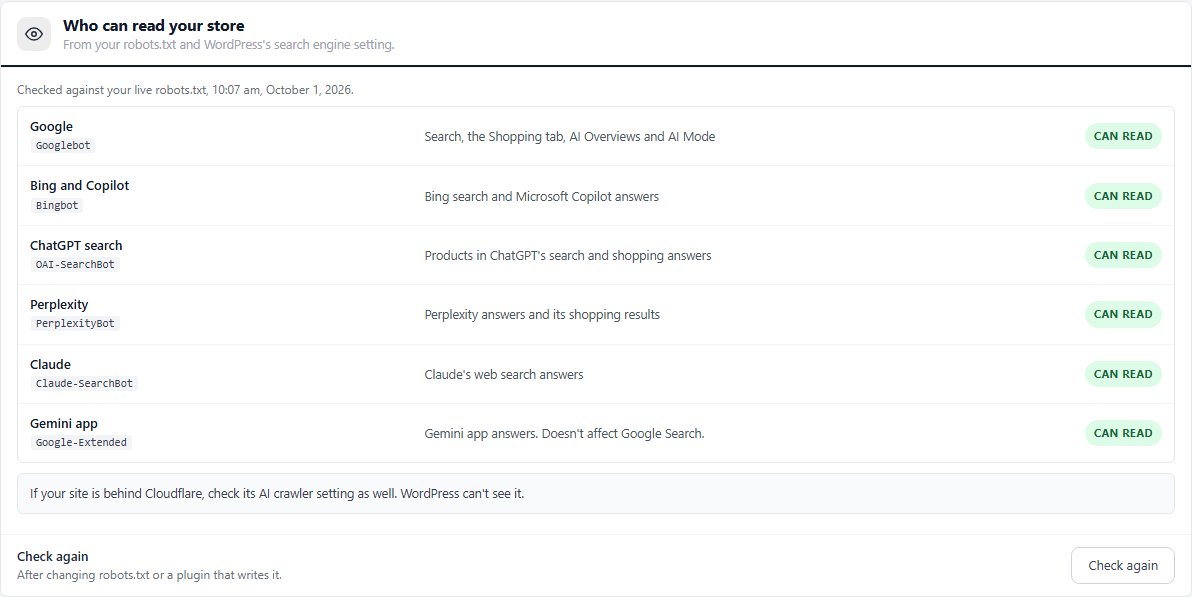
Who can read your store, checked against the live robots.txt.

SEO plugin

Who prints descriptions and social previews when you use an SEO plugin.

2 settings

Let the SEO plugin handle descriptions and social previews

With Yoast SEO, Rank Math, All in One SEO or SEOPress active, EasyCart stops printing its own descriptions and social previews and gives the plugin each product’s description and main image, so nothing prints twice. The product data search engines read is still printed by EasyCart.

On

Add your return and shipping policy to the SEO plugin’s store details

For Yoast SEO and Rank Math: adds your return and shipping policy to the plugin’s store details, so Google gets one description of your business instead of two.

On

Keep going

Related panels

SEO & Marketing

The Search & AI card on each product.

Shipping rates

The rates the Shipping section is built from.

Google Merchant

Google Merchant Center and the product feed.

Integrations

Analytics and ads tags.

Products

Showing reviewer names on product pages.

Store Status

Store readiness checks.

Ready to run your store on WP EasyCart?

Everything in this guide works with the free plugin. PRO and Premium add subscriptions, memberships, wholesale pricing and more. Try every PRO feature free for 14 days.

The WP EasyCart admin: orders and offers
Updated on October 2, 2026