
Store schedule
Opening hours, pickup windows and holidays, per ordering channel
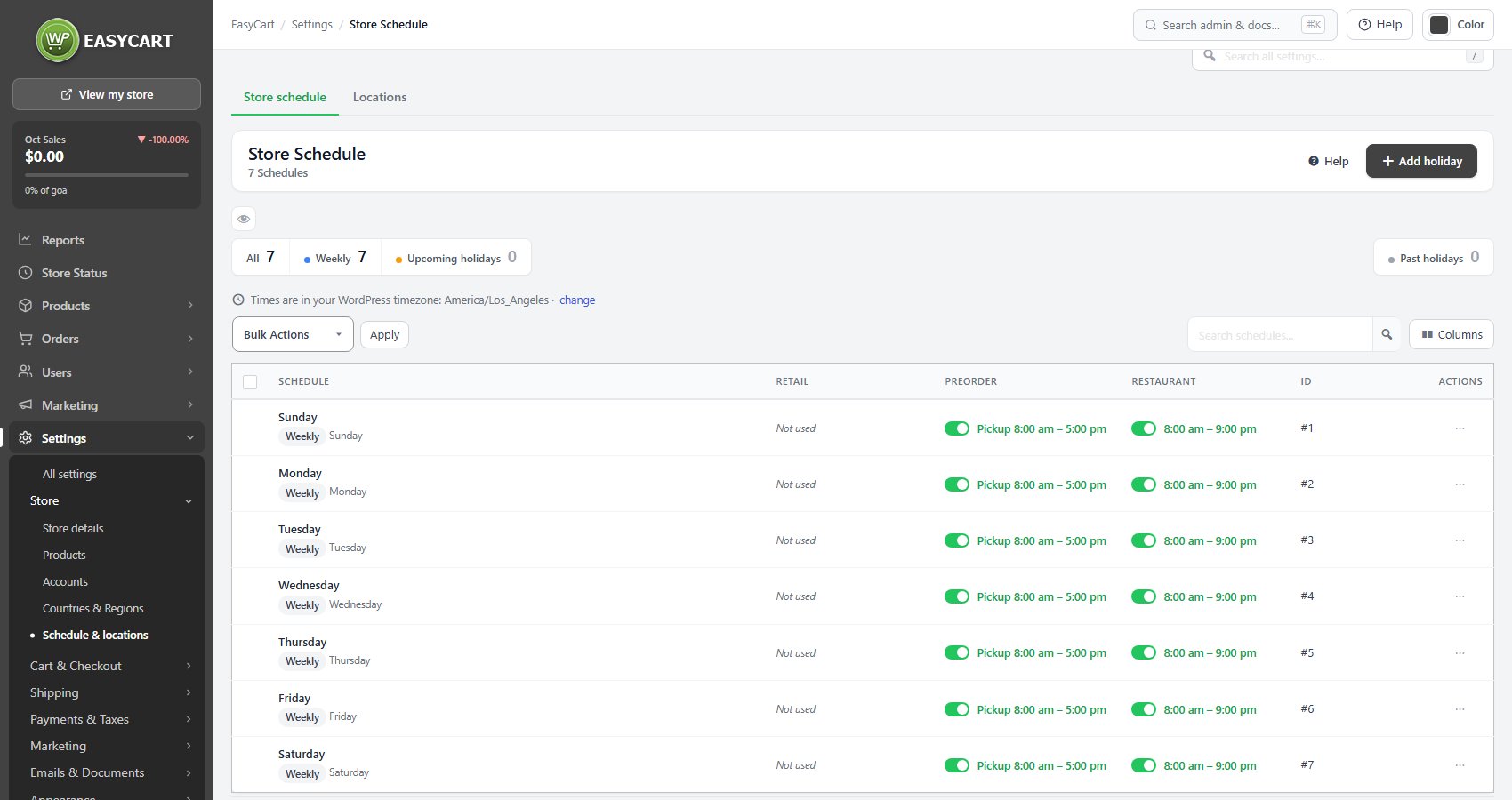
no stored settingsA schedule is seven weekly rows, Monday to Sunday, and those seven are permanent: they can be opened, closed and edited but never deleted, because a week always has seven days. Each row can be closed, open all day, or open between an opening and a closing time, with a separate pickup window if collection runs to different hours from trading.
Holidays are added as extra dated rows that override the weekly pattern for that one day. You can duplicate an existing day as a holiday, which saves retyping the hours for a day that is nearly normal. Holidays are split into upcoming and past, and past ones can be cleared out; unlike the weekly rows, holidays can be deleted.
A schedule applies to one or more ordering channels: retail, pre-order and restaurant. That is what lets a kitchen take restaurant orders on a different timetable from regular retail trading. A schedule that no channel uses is marked as unused, which is usually a sign it was set up and then never attached to anything.
Times are interpreted in your WordPress timezone, which the panel prints so you are never guessing, and a closing time earlier than its opening time is refused rather than silently accepted.
Store locations
The places shoppers collect from, and what shows against each one
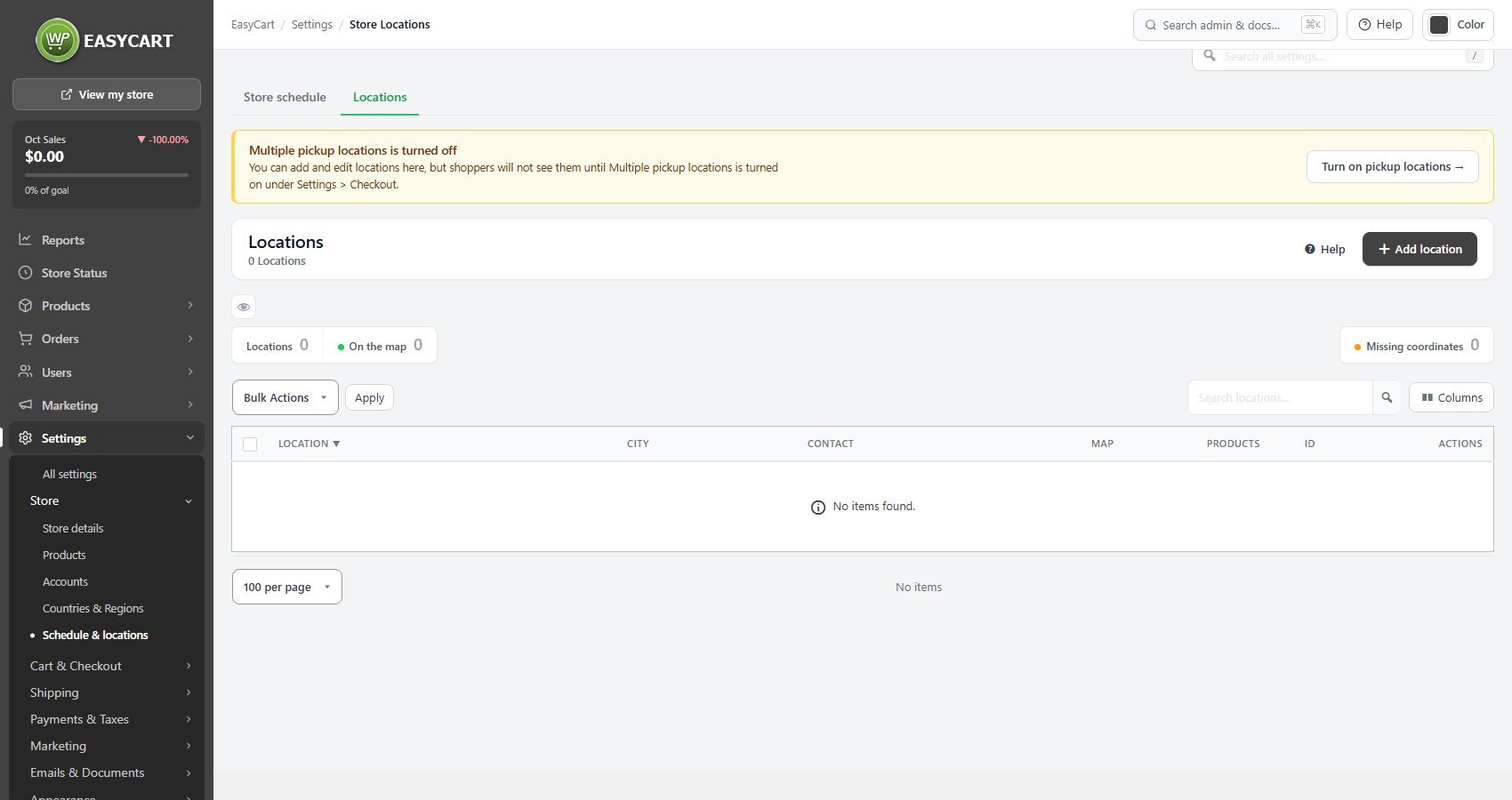
no stored settingsEach location is a record with a label, a full address, contact details and a pickup note. The label is the name shoppers actually see when they choose where to collect, so write it the way a customer would say it, not the way your stock system refers to it.
The pickup note is free text shown under the location in the picker: which door, where to park, what hours the counter is staffed. It is the cheapest way to prevent the phone calls a bare address generates.
Latitude and longitude place the location on the map and drive the distance shown to shoppers. With a Google Maps key set on the Checkout panel these are filled in for you from the address; without one you enter them by hand, and a location missing coordinates is flagged as such rather than silently failing to appear in a distance search.
Before deleting, the panel shows where a location is used, including the products tied to it, so you can see the consequences first. A deletion can be undone for fifteen minutes, after which it is permanent.
Ready to run your store on WP EasyCart?
Everything in this guide works with the free plugin. PRO and Premium add subscriptions, memberships, wholesale pricing and more. Try every PRO feature free for 14 days.
