Search and the launch checklist
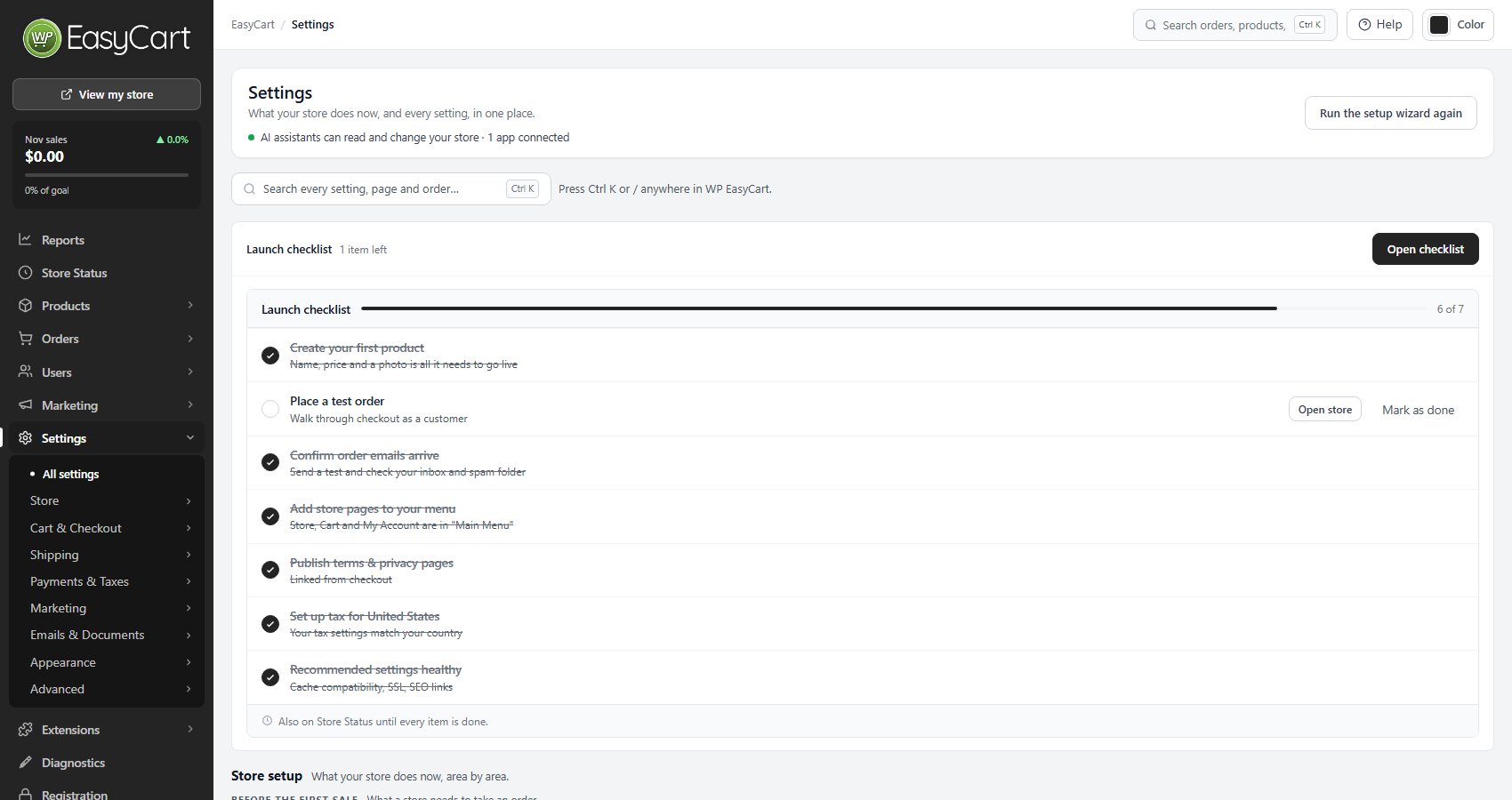
The top of the page
The heading says what this page is for: what your store does now, and every setting, in one place. Under it, one line says whether AI assistants can read and change your store, can only read it, or are off, with how many apps are connected.
Search every setting, page and order finds a setting by its name or by what it does, and opens the page it is on with that setting picked out. Press Ctrl K or / anywhere in WP EasyCart to open it.
If your store, cart or account page is missing, unpublished or has lost its shortcode, a red banner says so here, and Fix opens the page row in Store details.
After setup, the Launch checklist stays at the top until every item is done: create your first product, place a test order, confirm order emails arrive, add store pages to your menu, publish terms and privacy pages, set up tax for your country, and keep the recommended settings healthy. Each item has its own button, and Mark as done ticks off one the check cannot see, such as a menu built another way. Open checklist opens it in the setup wizard.
Store setup
What your store does now, area by area
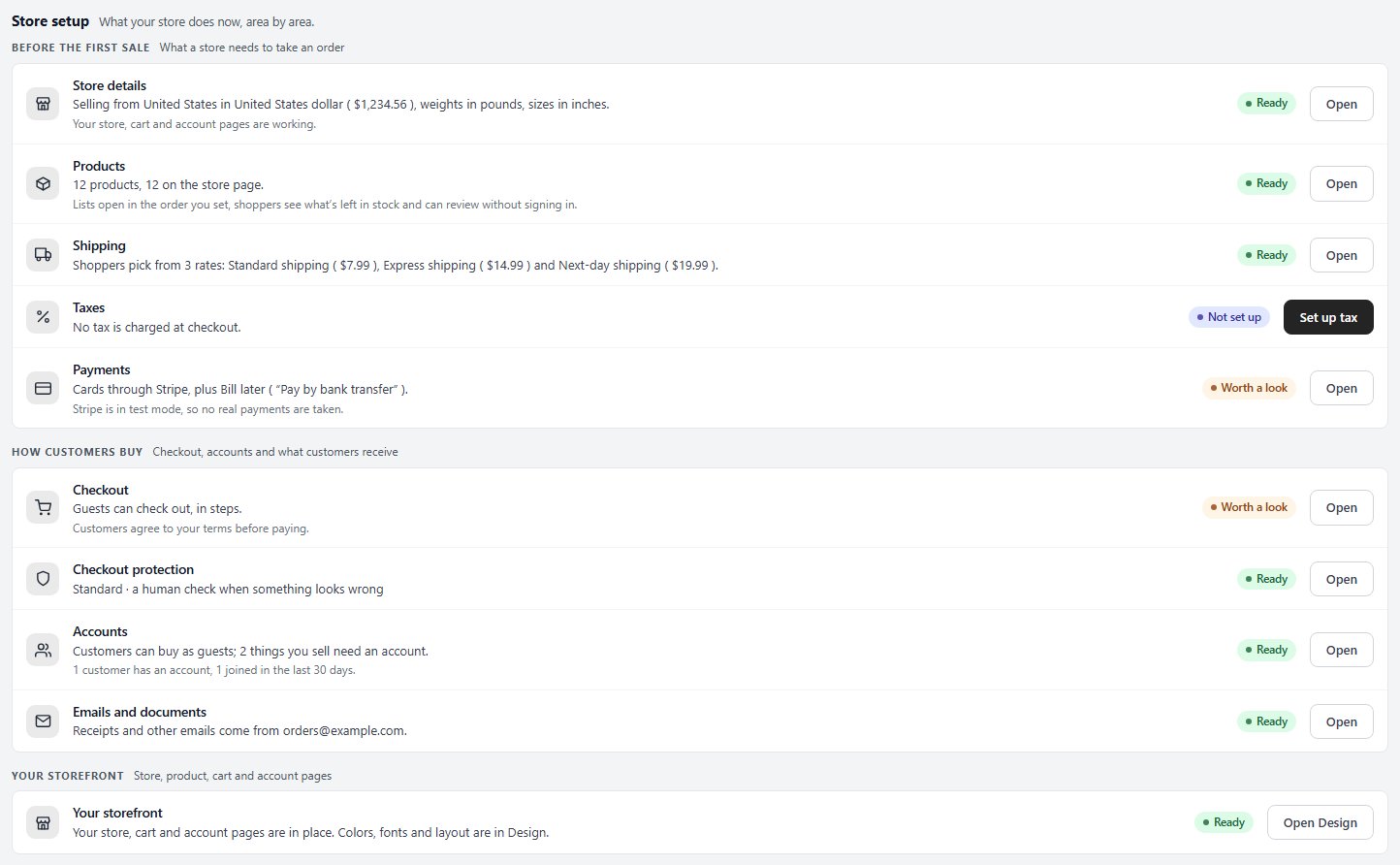
One row for each part of your store, in three stages. Before the first sale is what a store needs to take an order: Store details, Products, Shipping, Taxes and Payments. How customers buy is Checkout, Checkout protection, Accounts, and Emails and documents. Your storefront covers the store, product, cart and account pages.
Each row says in a sentence what that part does today, worked out from your settings every time you open the page, such as the rates shoppers pick from or the processor that takes your cards. A chip gives its state:
Ready: set up and working.
Worth a look: working, with something you should check, such as a gateway still in test mode.
Not set up: nothing there yet. Its button starts the setup.
Off or Your own setup: switched off, or set up in a way the page does not describe.
Open takes you to that part’s own settings page.
Worth a look
Real problems, from every part of the store
The few things that need you, most urgent first, each with the part of the store it belongs to. Examples: terms and privacy pages checkout links to are still drafts, there is no returns page, the store’s clock is on the wrong time zone, or sample products are still in the store.
The button beside each one fixes it or opens the place to fix it. Not now puts an item aside. Items put aside are counted under the list, and Bring back returns one. If the problem changes, it comes back by itself.
When nothing needs you, the heading says Nothing needs you now. Each settings page shows the same list for its own part of the store.

Grow
Ideas for marketing and search
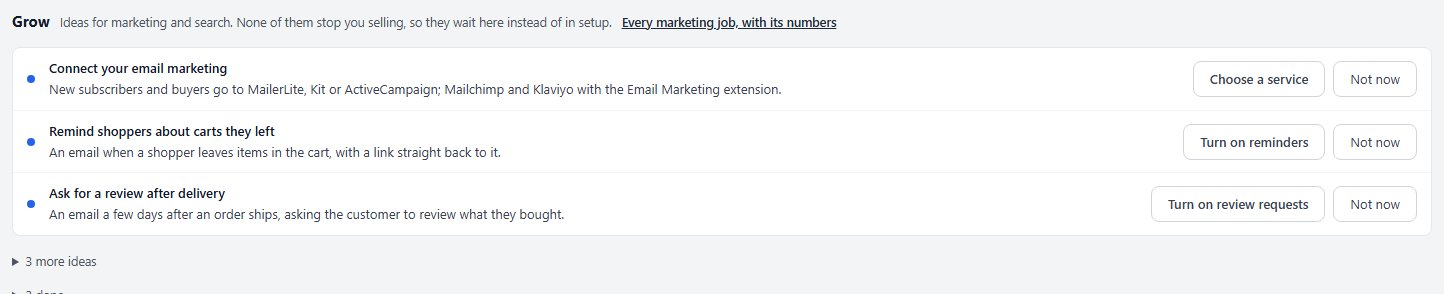
Ideas that help a store grow but never stop you selling, so they wait here instead of in setup: connect your email marketing, remind shoppers about carts they left, ask for a review after delivery, run an offer, give your products a brand, send your catalog to Google Shopping and let AI assistants read your store. Each says why it matters and has a button to set it up, and Not now puts it aside. More ideas, and the ones already done, fold away under the list. Every marketing job, with its numbers opens Settings › Marketing.
Recent changes
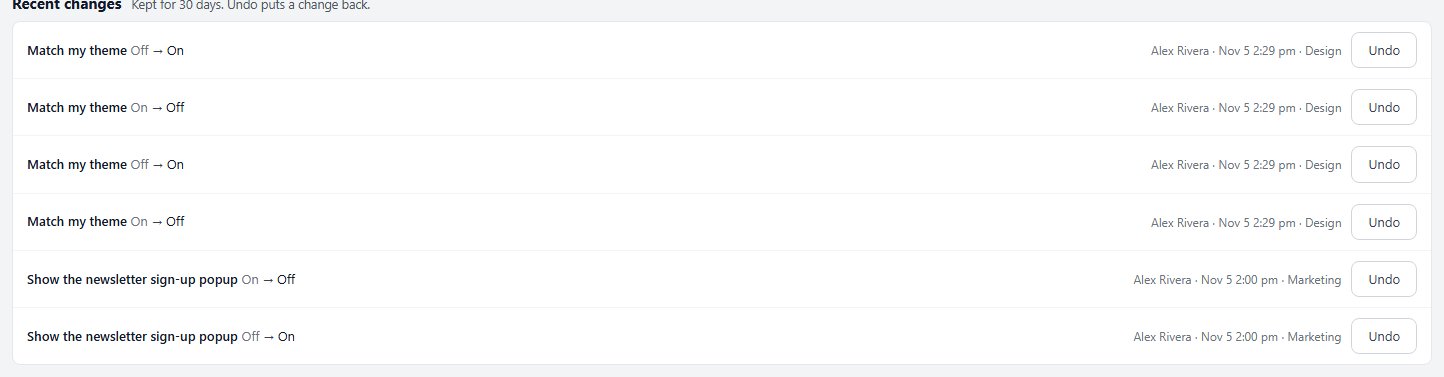
Every settings change of the last 30 days, with Undo
Every change made on a settings page or a setup page is kept for 30 days: the setting, its value before and after, who changed it, when, and where. The place reads Setup wizard, Recommended tax settings, Your AI assistant, WP EasyCart API or the page it was changed on, so a change you did not make yourself is easy to spot.
Changes saved together are one entry, and Undo puts the whole entry back, running the same steps a save runs. A setting someone changed again since is left as it is, and the message names it. An undone entry shows Undone. Keys, passwords and other secrets are listed without their values and cannot be undone.
Each settings page ends with Recent changes here: the same list, for that page only.
All settings
Every settings page, by group
The last part lists every settings page as a tile, in the same eight groups as the Settings menu: Store, Cart & Checkout, Shipping, Payments & Taxes, Marketing, Emails & Documents, Appearance and Advanced. Each tile says what the page holds and, on most, how many settings it has. A tile marked PRO or Premium needs that plan.
Store holds Store details, Products, Accounts, Countries & Regions and Schedule & locations. Per page options and Price points are no longer in the menu: their lists open from the Store page card in Settings › Store › Products.

Ready to run your store on WP EasyCart?
Everything in this guide works with the free plugin. PRO and Premium add subscriptions, memberships, wholesale pricing and more. Try every PRO feature free for 14 days.