
Product gallery
The images, and which one does the selling
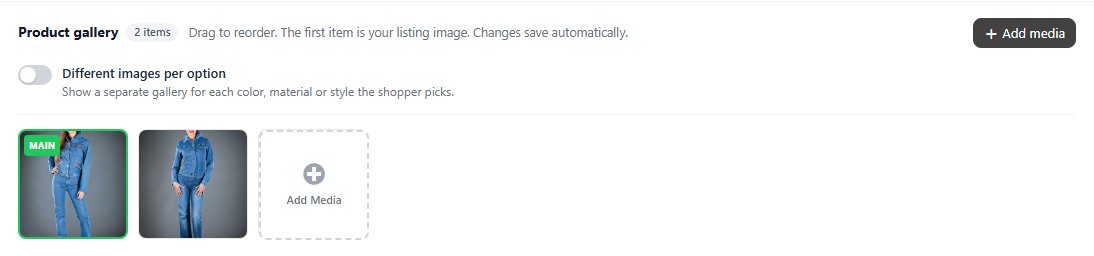
no stored settingsImages are added with Add media and dragged into order, and the order matters: the first tile is marked MAIN and is the listing image, the one shoppers see in grids and search results. With PRO the gallery saves as you change it, without the Save button.
The rest form the gallery on the product page. Shoppers close to buying look for the angle that answers their doubt, so scale, back views and detail shots earn their place more than variations on the same hero shot.
Without PRO, a Product images card holds two pictures, each with Choose or Replace, and they save with Save; the first is the main listing image. The full gallery, with any number of images, video and per-option galleries, comes with PRO. The badge on the product’s card and the way its picture reacts to the pointer are set in Design.
Video
YouTube, Vimeo or an MP4 file, in the same gallery
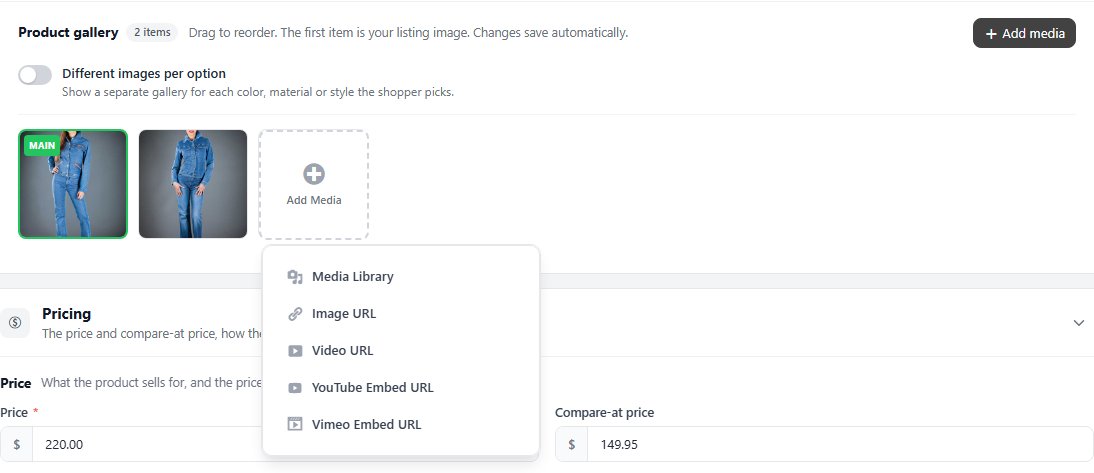
no stored settingsVideo sits in the gallery beside the photographs rather than in a separate tab, so shoppers find it while they are already looking. The Add Media tile offers Media Library, Image URL, Video URL for an MP4 file, YouTube Embed URL and Vimeo Embed URL. YouTube and Vimeo take the full embed URL, and a thumbnail image can be chosen for the tile.
Video earns its keep on anything where scale, motion or assembly is hard to show in a still. It is wasted on products a photograph already explains.
Per-option image sets
A separate gallery for each color or finish
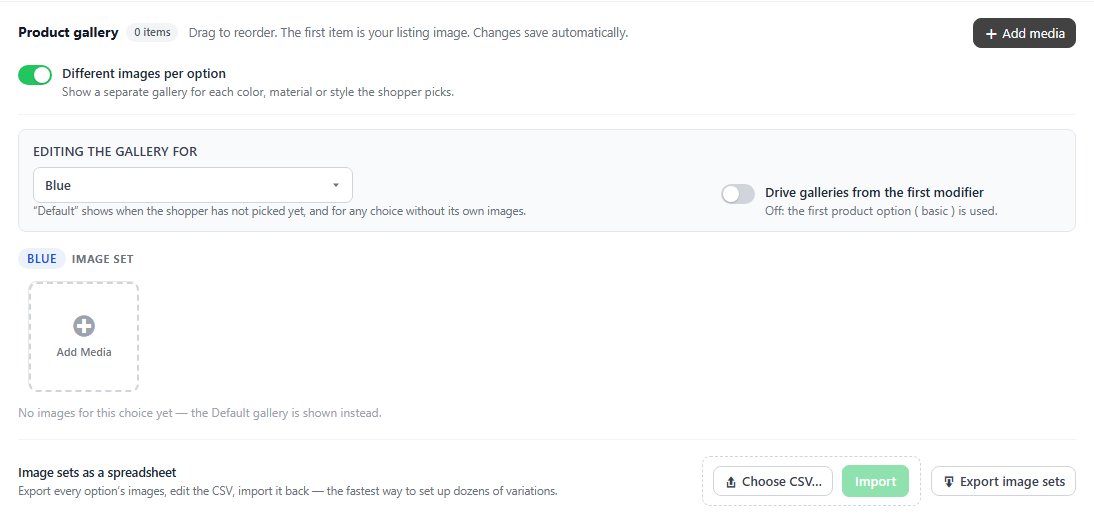
no stored settingsSwitch on Different images per option and the product gets a separate gallery for each choice of its first option set: a shirt in red, green and blue shows the red photographs when red is picked. Editing the gallery for chooses which gallery you are working on. The Default gallery shows before the shopper picks, and for any choice without images of its own. The switch, like the gallery, saves the moment you change it.
A second switch, Drive galleries from the first modifier, uses the first swatch, drop-down or radio modifier instead of the first option set. For a long range, Image sets as a spreadsheet exports every option’s images to a CSV ( Export image sets ) that you edit and import back.
On anything sold by color or finish this is close to essential. It removes a large share of returns caused by expectation rather than fault.
Ready to run your store on WP EasyCart?
Everything in this guide works with the free plugin. PRO and Premium add subscriptions, memberships, wholesale pricing and more. Try every PRO feature free for 14 days.
