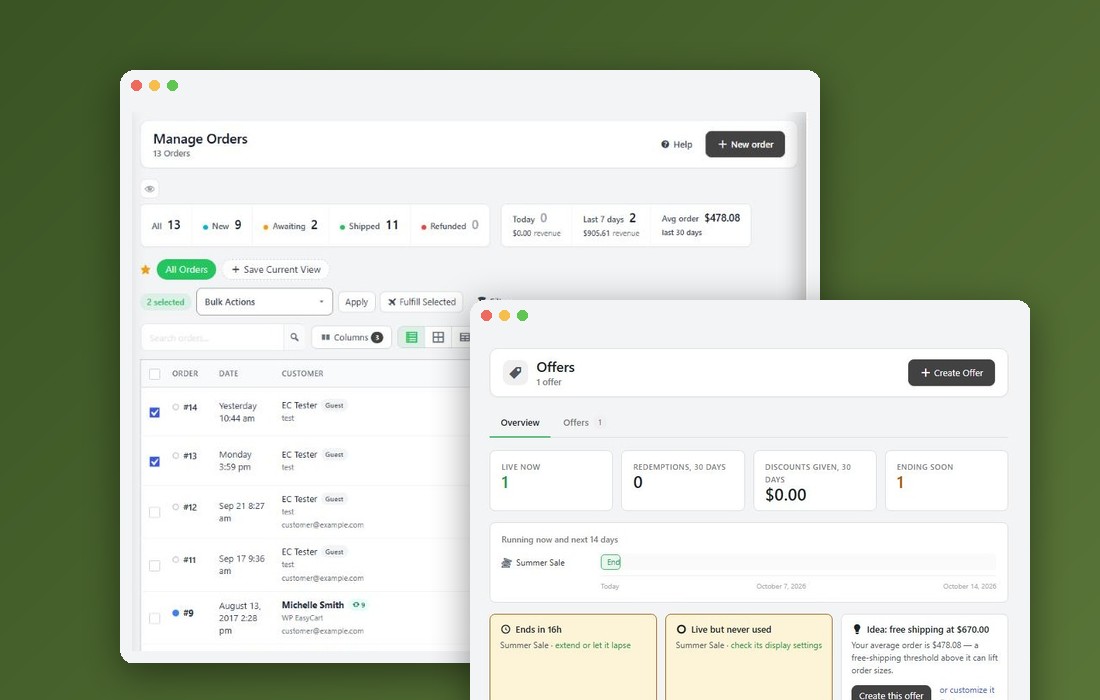
The page at a glance
What is running, what it did in the last 30 days, and what shoppers see
Marketing is the first page of the Marketing group in Settings. It gathers every way your store finds shoppers and brings them back into seven cards, one per job. Each card says whether the job runs, shows what it did in the last 30 days, holds the switches that need nothing else set up, previews what shoppers see, and opens the page or list that sets the rest up.
The line under the title counts the jobs that run, such as 3 of 7 marketing jobs are running. Reports and Offers at the top open those screens.
The page keeps no settings of its own. A switch on a card is the same setting as on its own page ( the card says where, such as Also on Settings › Accounts ), so you can change it in either place and it shows in Recent changes with Undo.
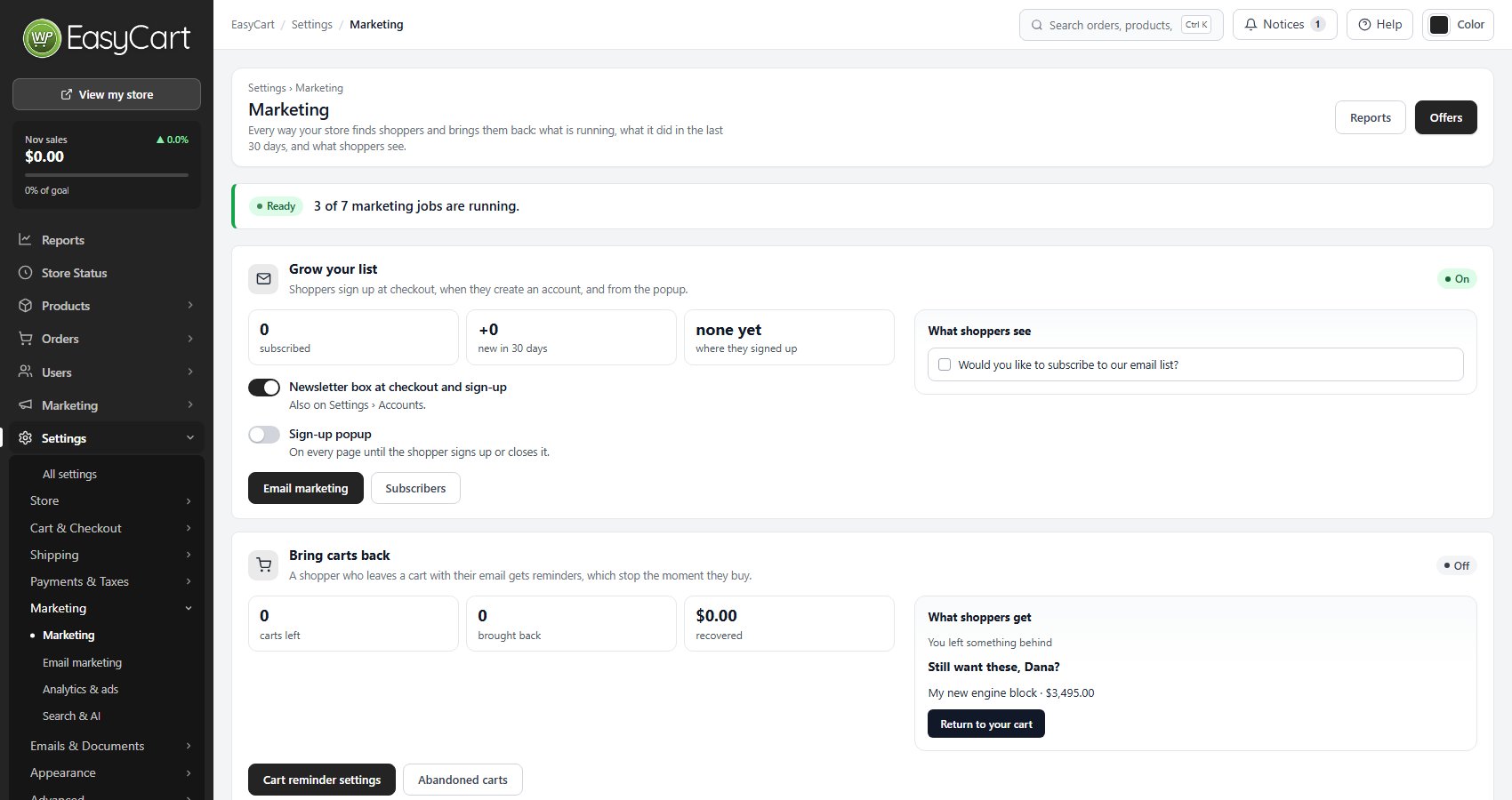
Grow your list
Newsletter sign-ups at checkout, at sign-up and from the popup
2 switchesHow many people are on your list, how many joined in the last 30 days and where they signed up. Newsletter box at checkout and sign-up adds the newsletter tick box to checkout and the account forms ( also on Settings › Accounts ). Sign-up popup shows a sign-up form on every page until the shopper signs up or closes it. The preview shows the tick box as shoppers see it.
Email marketing opens the page that sends your list to an email service, and Subscribers opens the list itself.
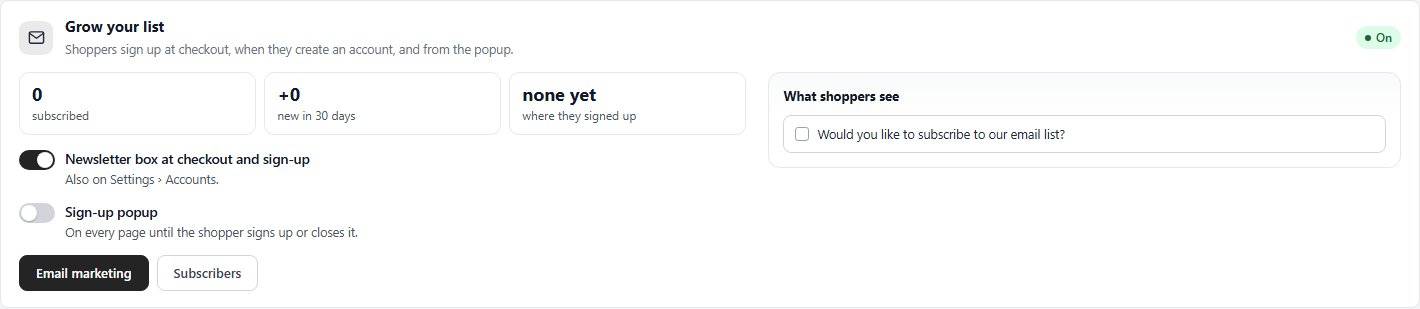
Bring carts back
PRO. Cart reminders to shoppers who leave a cart with their email
PROCarts left, carts brought back and the money recovered in the last 30 days, with a preview of the reminder email. Reminders stop the moment the shopper buys. Cart reminder settings opens the reminder emails, their timing and discounts, and Abandoned carts opens the list of carts.
Who sends the reminders? appears once MailerLite, Kit or ActiveCampaign is connected and gets your abandoned carts. Choose WP EasyCart and the store sends every reminder, while the service still gets each cart. Choose the service and its own automation emails shoppers on your list, and WP EasyCart sends the rest, so nobody is reminded twice. Set that automation up in the service.
Without PRO the card says what cart reminders do instead of showing the numbers.
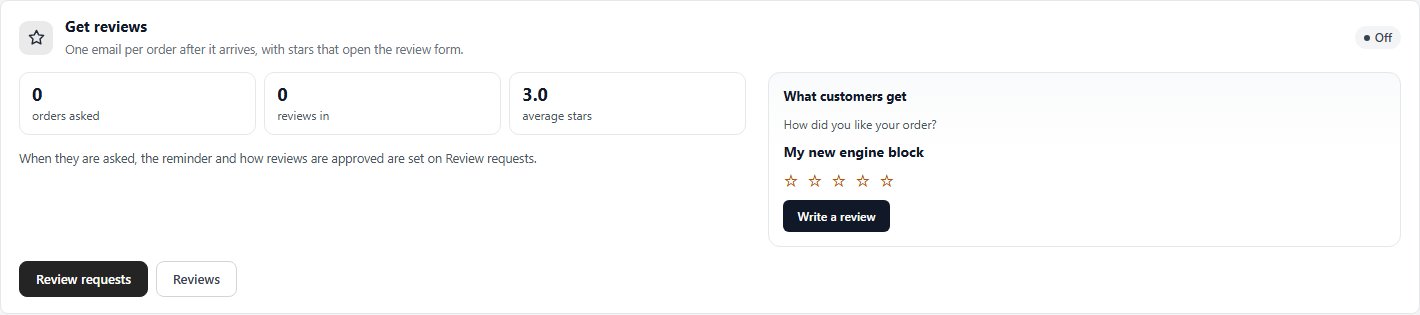
Get reviews
PRO. One review request per order once it arrives
PROOrders asked, reviews in and the average stars, with a preview of the request email. When customers are asked, the reminder and how reviews are approved are set on Review requests ( Products › Reviews ), which the card opens. Reviews opens the reviews list. While requests are on, the card’s state says how many days after delivery they go out.
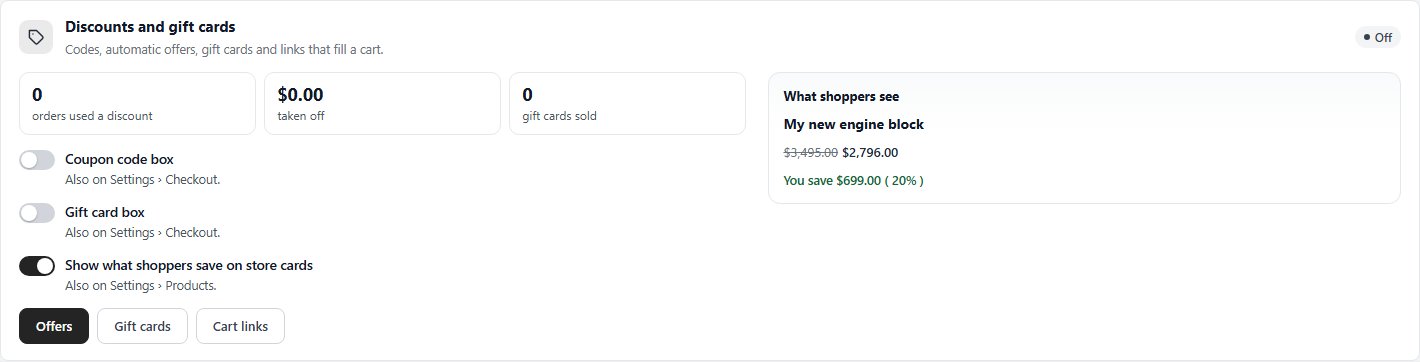
Discounts and gift cards
Codes, automatic offers, gift cards and links that fill a cart
3 switchesOrders that used a discount, the amount taken off and gift cards sold in the last 30 days. Coupon code box and Gift card box show those boxes in the cart ( both also on Settings › Checkout ). Show what shoppers save on store cards puts the saving under a reduced price on product cards ( also on Settings › Products ); the preview shows a card with it.
Offers, Gift cards and Cart links open those screens. Offers, coupon codes and gift cards need PRO. Cart links, which fill a cart from one link, are free.
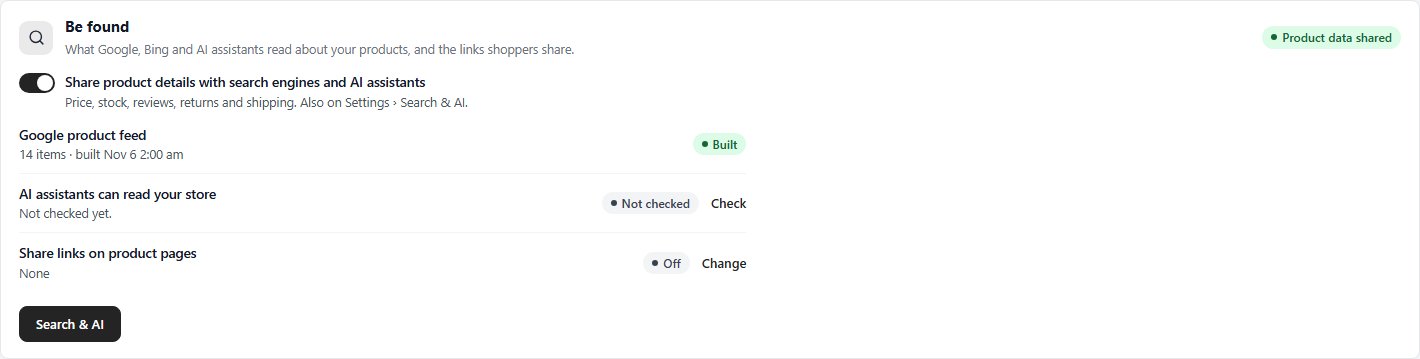
Be found
What Google, Bing and AI assistants read, and the links shoppers share
1 switchShare product details with search engines and AI assistants is the product data on each product page: price, stock, reviews, returns and shipping ( also on Settings › Search & AI ). Below it: the Google product feed ( PRO ) with its item count and when it was built, AI assistants can read your store with Check to test your robots.txt, and Share links on product pages with Change to pick them. Search & AI opens the page that sets all of this up.
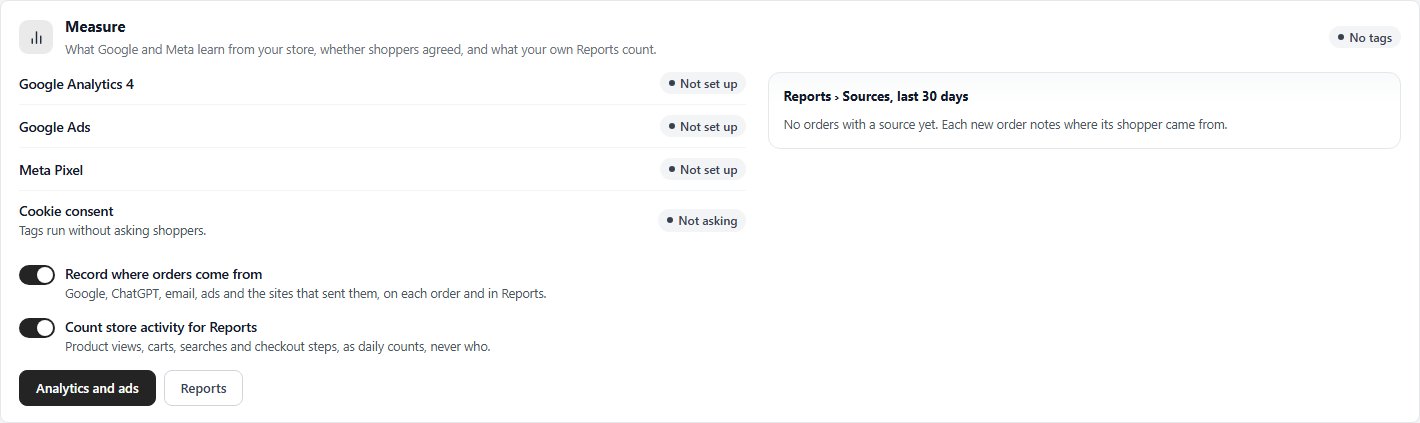
Measure
Ads and analytics tags, consent, and what your own Reports count
2 switchesWhether Google Analytics 4, Google Ads and the Meta Pixel are set up ( PRO ), and whether your store asks shoppers before tags run ( Cookie consent ). Two free switches decide what your own Reports count: Record where orders come from and Count store activity for Reports. Beside them, Reports › Sources, last 30 days lists where recent orders came from.
Analytics and ads opens the page where the tags and consent are set up, and Reports opens Reports.
Channels and partners
Selling where shoppers already are, and paying the people who send them
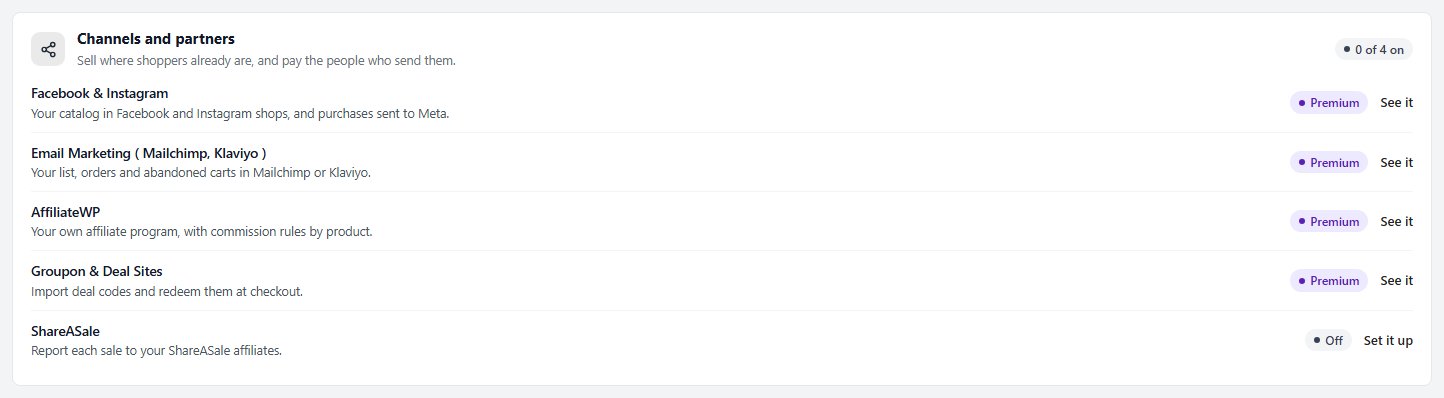
One row each for Facebook & Instagram, Email Marketing ( Mailchimp, Klaviyo ), AffiliateWP and Groupon & Deal Sites, which are Premium extensions, and ShareASale, which needs PRO. Each row says whether it is on, installed but off, or part of a plan you do not have yet, with See it or Set it up. The card counts how many are on.
All settings and recent changes
Every marketing page, and the last 30 days of changes with Undo
All settings lists the other marketing pages: Marketing, as one list ( every setting these cards draw, in its section ), Email marketing, Search & AI, Analytics and ads, Cart reminders, Review requests and Subscribers.
Recent changes here lists each change made on this page in the last 30 days: the setting, from and to, who changed it and when. Undo puts a change back.

Ready to run your store on WP EasyCart?
Everything in this guide works with the free plugin. PRO and Premium add subscriptions, memberships, wholesale pricing and more. Try every PRO feature free for 14 days.