
Ships to the customer
Whether checkout asks for an address and adds shipping
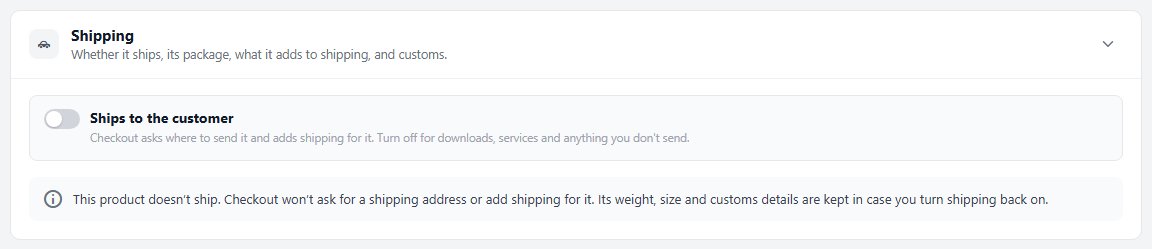
no stored settingsShipping is one section with one switch at the top. With Ships to the customer on, checkout asks where to send the product and adds shipping for it. Turn it off for downloads, services and anything you don’t send.
Off, the rest of the section folds away behind a note: the product doesn’t ship, checkout won’t ask for a shipping address or add shipping for it, and its weight, size and customs details are kept in case you turn shipping back on. A product that doesn’t ship opens with the Shipping section folded, and its heading says Doesn’t ship.
The switch and the Product type in the Summary column work together. Physical product ships; Service, event or course, Digital download and Donation or invoice don’t, and choosing one of them sets the switch for you. The other types leave it to you, so a subscription box or a printed gift card can still ship. For a product with no other type, the switch alone decides between Physical product and Service, event or course.
The Summary column card
Shipping at a glance, beside every section
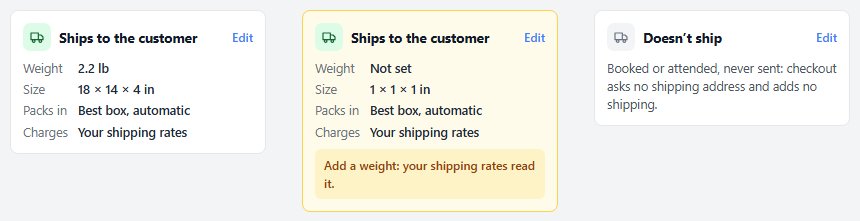
no stored settingsThe Ships to the customer card in the Summary column keeps shipping in view whichever section you are in: Weight, Size, Packs in and Charges, which reads Your shipping rates until you add a fee or make it ship free. It follows your edits before you save, and Edit opens the Shipping section. On a narrow screen the column opens from the Summary button in the header.
The card turns amber with Add a weight: your shipping rates read it. when the product ships with no weight and your rates are worked out by weight, by live carrier rates or by Fraktjakt. With Ships free on, its title reads Ships free. A product that doesn’t ship shows Doesn’t ship with a line that fits its type, such as “Booked or attended, never sent” for a service.
Package
Weight, size and the box it packs in
no stored settingsThe Package group describes the product as it leaves you, packed: Weight, Width, Height and Length, each labelled with your store’s unit: lb, oz, kg or g for weight, in or cm for size. Rates by weight, live carrier rates and the box packer all read them. A product with no weight returns no live rate or a wrong one, and carriers also price on size, so a light but bulky item quoted on weight alone costs you the difference on every order.
Packs in decides the box. The best box for the order ( automatic ) lets the packer choose from your box library. Ships in its own box ( one per item ) is for something that never shares a box, and Always in: followed by a box name always uses that box. New orders are split into packages from these boxes when Pack new orders into boxes is on.
A variant can carry its own weight in the Variations table ( PRO ), which replaces the product’s weight for that variant.

Charges
What this product adds to the shipping price
no stored settingsShips free leaves the product out of your shipping rates, while checkout still asks where to send it. Use it for an item whose shipping you have priced in.
Handling fee per order adds a fixed amount once to any order with this product in it, and Handling fee per item adds it again for every unit. Both show in the Summary card’s Charges line.

Where it goes
The address checkout asks for, and where it can ship
no stored settingsShip to the billing address means checkout asks for no shipping address while this item is in the cart: the order goes to the billing address.
Restrict where it ships ( PRO ) limits the product to one shipping zone. With PRO the field reads Restrict Shipping for this Product by Zone: pick a zone, and checkout will not go through for a shipping address outside it. Allow Shipping to All Locations is the default.

Customs
What the customs declaration says about it
no stored settingsThe Customs group sits closed at the foot of the section, marked For international labels; once it is filled in, its heading shows the HS code and the country. HS tariff code ( for example 6109.10 ), Country of origin and Customs description ( what it is and what it is made of, such as Cotton t-shirt ) go on the customs declaration when a label extension such as Shippo, Stamps.com or ShipStation buys an international label.
Leave a field empty, or the country at Not set ( use the store default ), and the label extension uses its own default instead, such as the Default HS tariff code in the Shippo and Stamps.com settings.

Ready to run your store on WP EasyCart?
Everything in this guide works with the free plugin. PRO and Premium add subscriptions, memberships, wholesale pricing and more. Try every PRO feature free for 14 days.
