
Step 2. Create the subscription product
A product of type Subscription
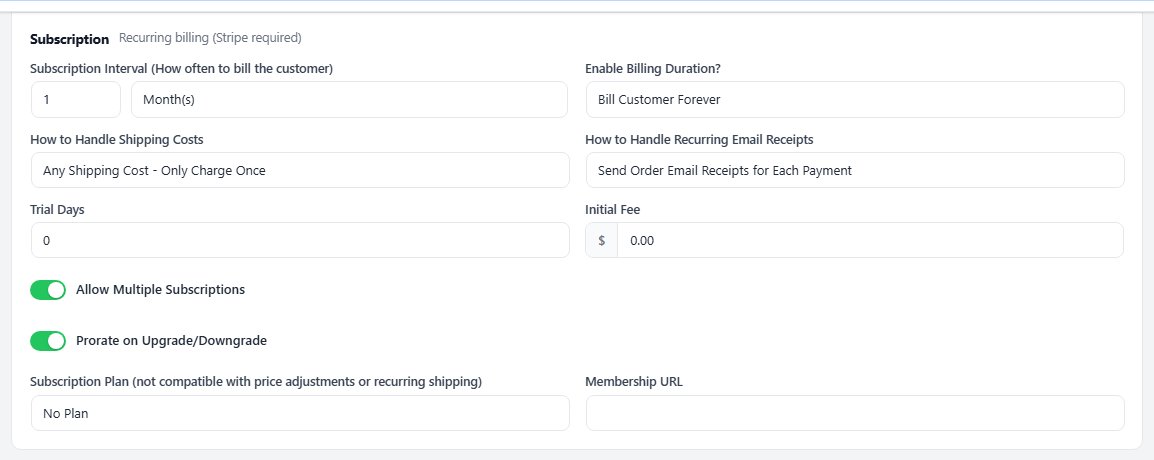
Go to EasyCart › Products › Products and press Add product. In Create a product enter a title and the price for each billing period, choose Subscription as the Product type and press Create & open editor. Then open the Type settings section and fill in the Subscription card:
Subscription Interval: how often to bill, in days, weeks, months or years.
Enable Billing Duration?: Bill Customer Forever, or Set Max Number of Payments for a fixed term such as a 12 month plan.
Trial Days: days before the first charge.
Initial Fee: a one-time sign-up fee, charged with the first payment.
How to Handle Shipping Costs: charge shipping once, or every period.
How to Handle Recurring Email Receipts: email a receipt only for the first payment, or for every payment.
Allow Multiple Subscriptions: whether one customer can hold this product more than once at the same time.
Prorate on Upgrade/Downgrade: whether Stripe prorates when a customer changes level.
Membership URL: the members page, if this subscription unlocks content.
Press Save. The product page now shows a Sign Up Now button.
Step 3 (optional). Sell levels customers can move between
Products › Subscription Plans
A plan groups subscription products into levels, such as Basic, Plus and Pro, so a customer can upgrade or downgrade. It is only a grouping. It does not bill anything. A single subscription needs no plan.
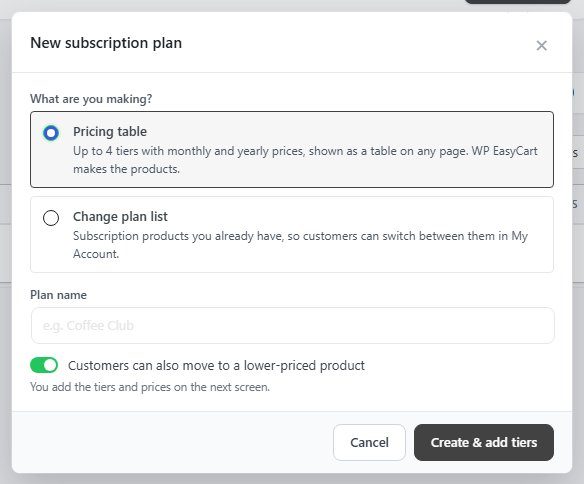
Go to EasyCart › Products › Subscription Plans and press Add plan. What are you making? offers two kinds:
Pricing table: up to four tiers sold monthly and yearly from a table on any page. WP EasyCart makes the products for you. See How to Sell Plans from a Pricing Table.
Change plan list: subscription products you already have. Give it a name, which only you see, and add your subscription products with the search box. Customers can always move to a higher-priced product; Customers can also move to a lower-priced product lets them move down too. A product can belong to only one plan, and adding it here moves it out of any other.
You can also pick the plan from the product itself, in the Subscription Plan list. A plan does not work with price adjustments or with repeating shipping.
Step 4. Decide what customers can manage
Settings › Accounts and Settings › Products
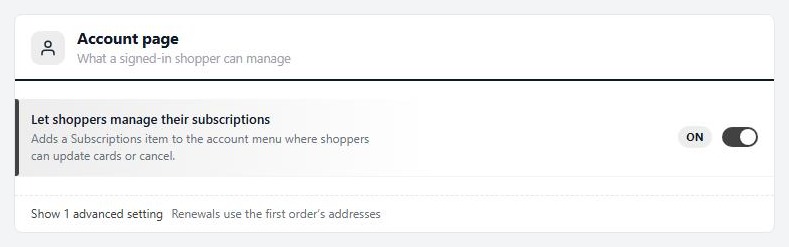
Under Settings › Accounts, switch on Let shoppers manage their subscriptions. It adds a Subscriptions item to My Account, where a customer can update their card, change plan and cancel.
One card per subscription. Each subscription in My Account shows the card it bills, with its expiry date, and its past payments ten at a time, newest first, with Load more and a link to every order. A customer with more than one subscription who enters a new card chooses where it goes under Use this card for: This subscription only, This subscription and others I choose or All my subscriptions. Nothing else moves to the new card unless they choose it.
What a customer can do. Update the card on a subscription that is active, in a trial, past due or paused. Cancel a subscription that is active, in a trial, past due or paused. A customer’s cancellation takes effect at once in Stripe. Change plan or quantity on an active or trialing subscription, when the plan offers other levels. Only you can pause a subscription, or cancel it at the end of the period or on a date you choose.
Under Settings › Products, One subscription per purchase is on by default. It removes the quantity box from subscription products. Turn it off to let customers buy or change a quantity.
If your subscription needs a shipping address, turn on Charge shipping on subscriptions under Settings › Shipping settings, in the additional options. It is off by default, and the subscription checkout collects no address without it.
Step 5. Choose the checkout style
Settings › Checkout › Checkout form
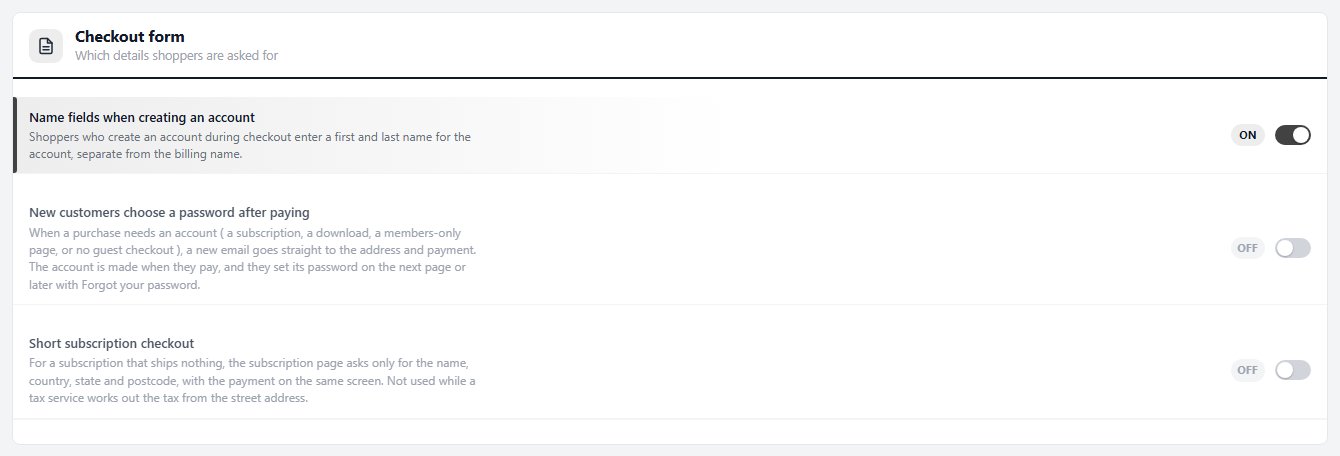
Two switches in the Checkout form card of EasyCart › Settings › Checkout shape the subscription page. Both are off until you turn them on.
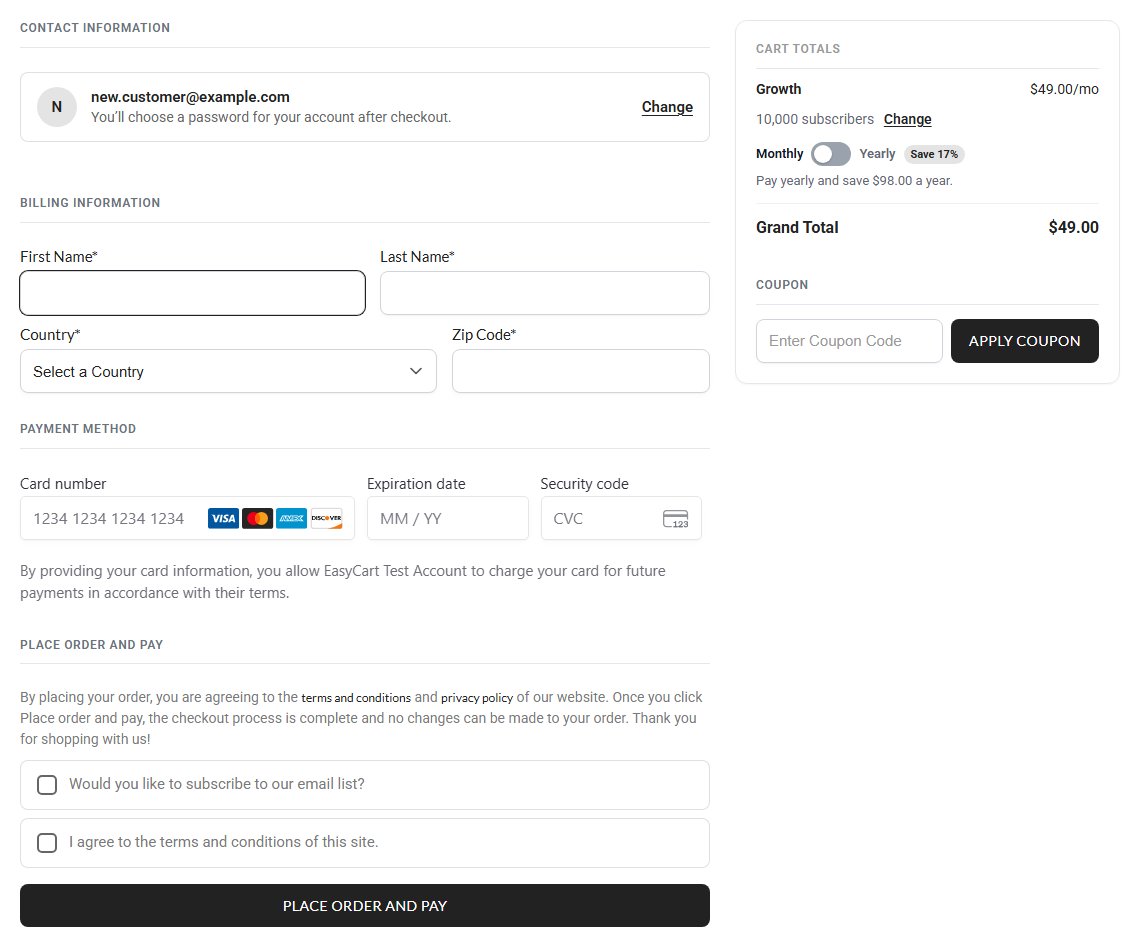
New customers choose a password after paying: a new email goes straight to the address and payment, with You’ll choose a password for your account after checkout. The account is made with that email when they pay. The page they land on, the order confirmation, or the subscription in My Account for a free trial, shows Set a password for your account with Save password. Anyone who skips it uses Forgot your password later. The same switch covers other purchases that need an account: downloads, members-only pages and stores with guest checkout off.
Short subscription checkout: for a subscription that ships nothing, the page asks only for the name, the country, the state or province where the country has a list and the postcode where it uses one, with the payment on the same screen. The totals follow as they are typed. A subscription that ships keeps the full address. While a tax service such as TaxJar or TaxCloud works out your tax from the street address, the short form is not used: the setting says so under the switch with Open Taxes, and only you, signed in as a store manager, see a note on the subscription page.
With both on, a new subscriber types an email, a name, a country and a postcode, then pays. That is the shortest sign-up WP EasyCart offers.
Step 6. Review the subscription emails
Settings › Email: Subscription reminders and Subscription emails
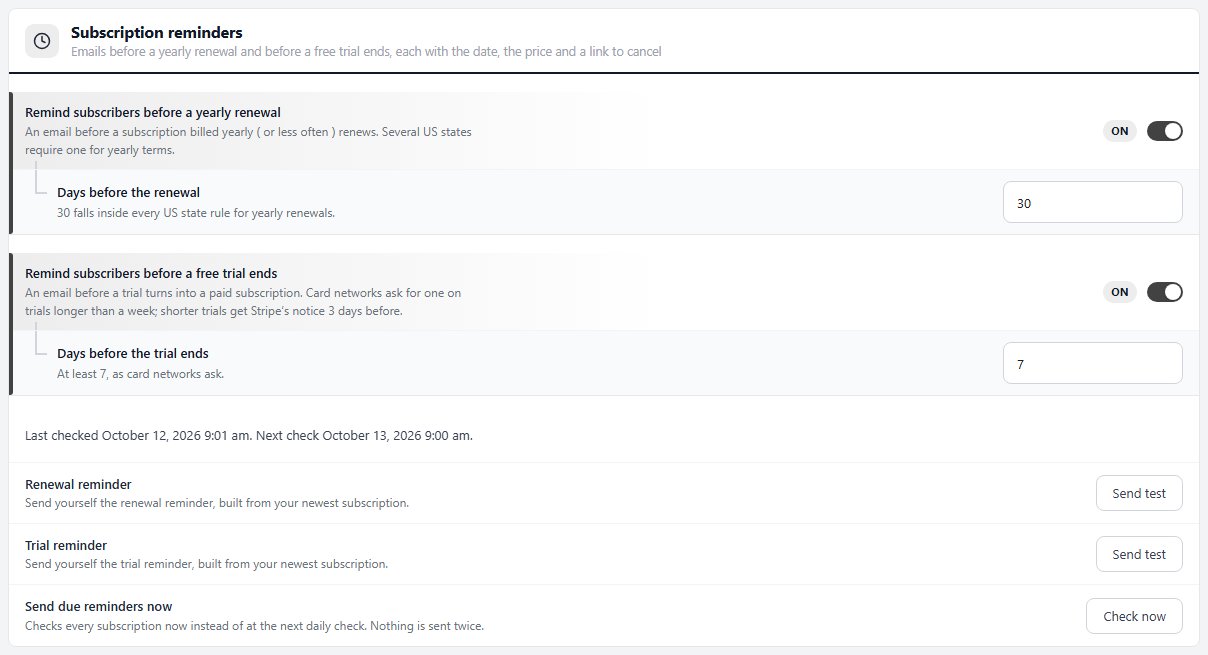
Subscription reminders are in the free plugin and on by default, for every Stripe subscription. Each has the date, the price and a link to cancel:
Remind subscribers before a yearly renewal: an email Days before the renewal ( 30 by default, 5 to 60 ) before a subscription billed yearly or less often renews.
Remind subscribers before a free trial ends: an email Days before the trial ends ( 7 by default, at least 7 ) before a trial turns into a paid subscription. Shorter trials get Stripe’s notice 3 days before.
The card shows when the reminders last ran and what they sent, has Send test for each, and Check now sends the reminders that are due without waiting for the daily check. Nothing is sent twice.
Subscription emails, a PRO card, goes out on Stripe’s events:
Trial started when the customer signs up for a trial.
Trial ending before a trial turns into a paid subscription.
Renewal coming up before each renewal. It needs Email subscribers before each renewal from step 1.
Payment failed when Stripe cannot take a payment.
Subscription ended when a subscription finishes or is cancelled.
That card does not switch them on or off. Its buttons send you a test of each, to the address in Send test emails to or, if empty, to your WordPress address. The Payment failed test is built from your latest order, so place a test order first. The wording of the confirmation is under Receipt wording on the same page.
Managing subscriptions after the sale
Orders › Subscriptions
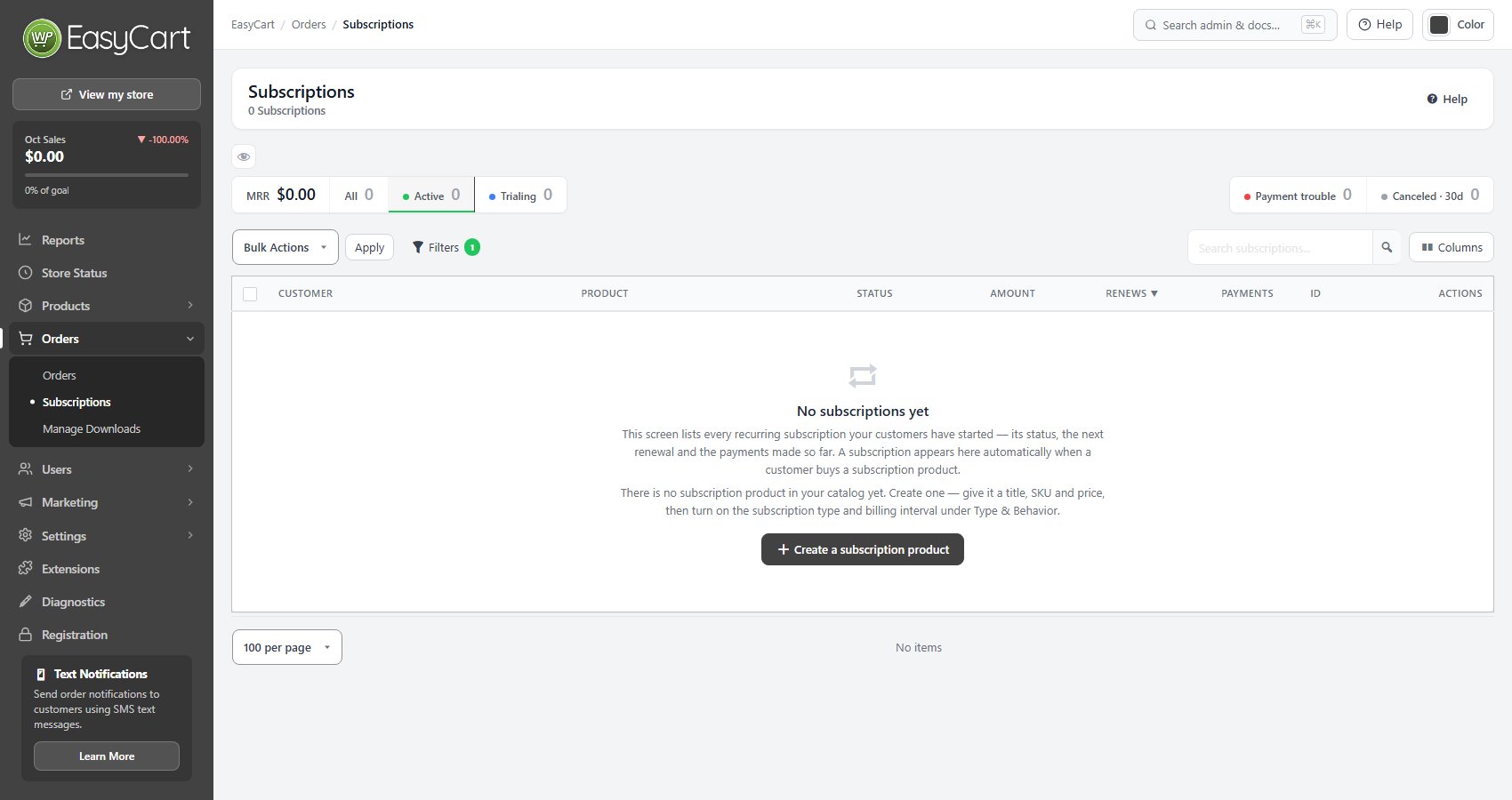
Every subscription is listed in EasyCart › Orders › Subscriptions, with its customer, product, status, amount and next renewal. The tiles show your monthly recurring revenue, how many are active or in a trial, how many have payment trouble and how many cancelled in the last 30 days.
Open a subscription to change its product, pause it, cancel it, resume one set to cancel, or view it in Stripe. When you cancel, choose to end it now, at the end of the current period or on a date, and optionally refund the last payment. Statuses are Active, Trialing, Past due, Payment failed, Unpaid, Incomplete, Expired, Paused, Canceling and Canceled.
The Reports screen has a Subscriptions tab ( PRO ) with monthly recurring revenue, new and cancelled subscriptions, churn and a table by plan. Pricing tables add how many pay yearly and a table by tier and billing period.
Ready to run your store on WP EasyCart?
Everything in this guide works with the free plugin. PRO and Premium add subscriptions, memberships, wholesale pricing and more. Try every PRO feature free for 14 days.
