
Admin panels › Diagnostics
Diagnostics
Every health check the store can run on itself and on your server, with the problems brought to the front and the passes tucked away. 6 parts.
Quick links
Where to find it:WP Admin › EasyCart › Diagnostics
Reading the screen
The summary, the database and your server
What the banner is telling you, and the two cards covering the foundations the store runs on.
The summary at the top
One line saying whether anything actually needs you
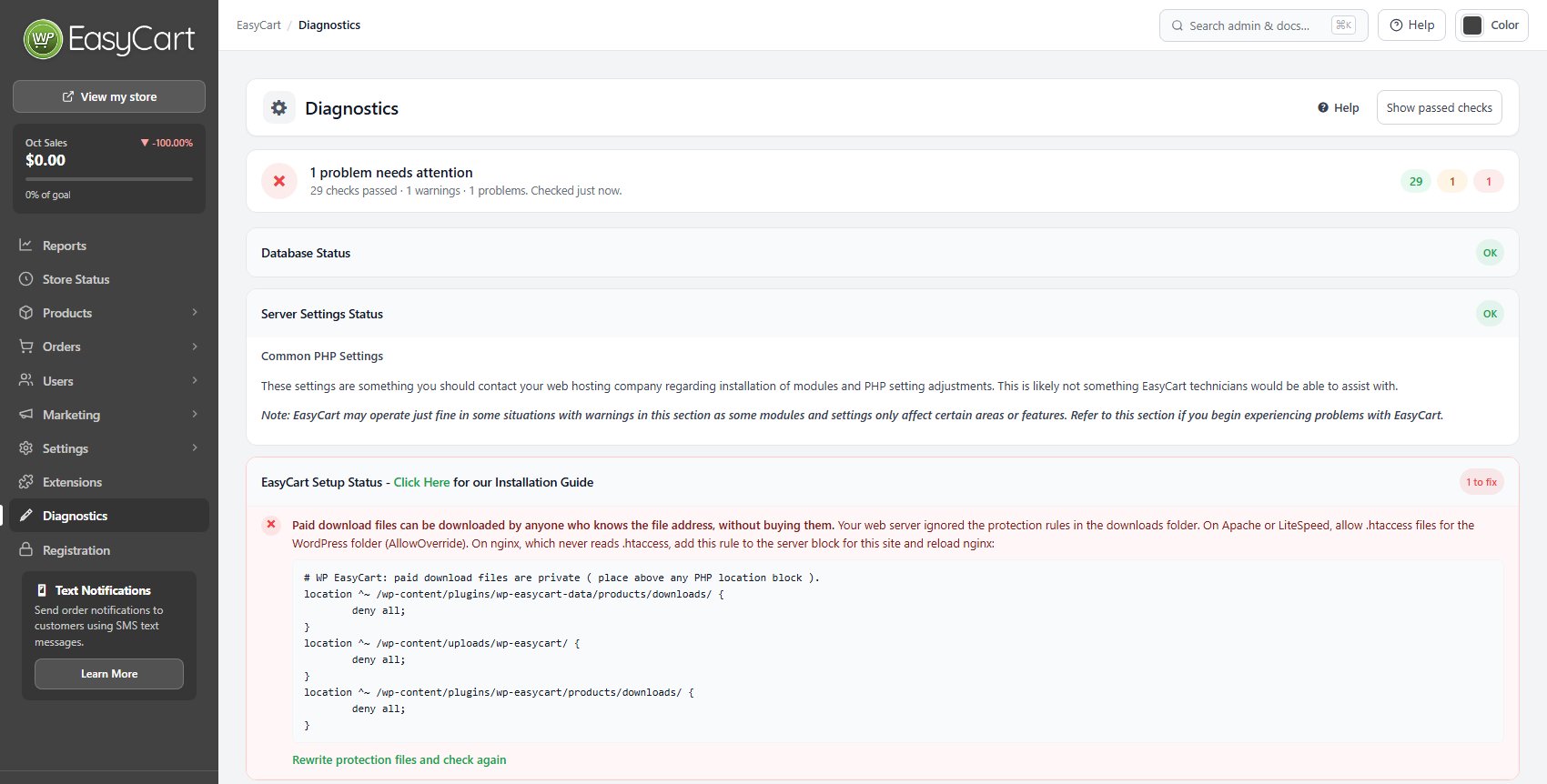
no stored settingsDiagnostics runs a long list of checks every time you open it, then leads with the answer rather than the working. The banner reads Everything checks out, or Everything works, with N server warnings, or N problems need attention, followed by the counts of passes, warnings and problems.
Checks that passed are hidden by default whenever there is anything to see, so the screen shows you the problems rather than making you hunt for them. Show passed checks reveals the rest, which is what you want when you are confirming something works rather than looking for a fault.
The checks are grouped into cards, and each card carries a badge reading OK, a count of warnings, or a count to fix, so a long page can be skimmed from the headings alone.
Read the distinction carefully. A problem is something broken on your store. A warning is usually a server setting that may never affect you, and the screen says so.
Database Status
Tables, columns and the reference data the store needs
no stored settingsThe first card checks that the EasyCart tables exist and have the columns this version expects. If they do not, it says so and offers Click to Repair!, with the full list of differences available behind a link. Repair adds what is missing; it does not delete your data.
It then checks the reference data the store cannot run without: settings, countries, order statuses, timezones, states and shipping zones. Each has its own repair link, so a single missing set can be restored without touching the rest. Missing country or state data is the usual reason an address form comes up empty.
Straight after an upgrade this card may report missing columns while the database upgrade is still running. The screen tells you when that is the case and asks you to reload in a minute rather than repairing over the top of a job in progress.
If one change in a database update cannot be made, the update notice offers Continue without this change. That finishes the rest of the update and stops the retries, and the store keeps working. This card then lists the skipped changes, may keep reporting them in the structure check, and offers Try them again once the cause is fixed.
The same checks run from the command line with WP-CLI. wp easycart db verify checks every table and column, and adding --repair adds what is missing, as Click to Repair! does. wp easycart db upgrade finishes a database update, and wp easycart info shows the version and whether the database is up to date.
💡 Note: Straight after an upgrade this card can report missing columns while the database upgrade is still running. The screen says so; reload in a minute rather than repairing over a job in progress.
Server Settings Status
What your host provides, and what it does not
no stored settingsThis card reports your PHP version and the extensions and limits your host has set. It is the one card whose contents are mostly not yours to change, and the screen is explicit that these are questions for your hosting company rather than for EasyCart support.
It checks for the extensions the store leans on: OpenSSL, cURL, GD, SOAP, MySQL, OAuth and SimpleXML, along with URL fopen, file uploads and output buffering. It also reports four limits with the values worth having: upload size above 10M, execution time above 300, memory limit above 128M and post size above 10M.
It writes and removes a test file in the plugin and EasyCart folders to prove the store can create the files it needs, and checks that WordPress is using post name permalinks, which store links depend on.
A warning here is not a fault. SOAP and SimpleXML, for instance, only matter if you turn on a live shipping carrier that needs them, and the screen tells you that rather than making you guess.
💡 Note: Warnings here are usually your host’s settings, not a fault in the store. Several only matter if you switch on a feature that needs them. Take this card to your hosting company rather than to EasyCart support.
The store itself
Setup, selling and the loose ends
Folders, pages and file privacy, whether checkout is actually configured, and the repair tools for everything else.
EasyCart Setup Status
Folders, pages, and whether customer files are actually private
no stored settingsThis card confirms the data folders were created, and that the store, cart and account pages exist and are connected. A page counts whether it holds the shortcode, the EasyCart block, or the WP EasyCart elements in an Elementor layout, so a store built in Elementor is found.
It also catches a store page that is the site’s front page as well. Product pages then have no address of their own and their links open a page not found error. Create Store page makes a separate store page for them and leaves your front page as it is.
It also runs the two checks that matter most for security, by trying to fetch a protected file over the web the way a stranger would. The first asks whether customer uploads are private. The second asks whether paid download files are private, and a failure there means anyone who knows or guesses the address can take your digital products without buying them.
When a check fails, the reason is almost always the web server ignoring the protection files EasyCart writes. On Apache or LiteSpeed that means .htaccess files are not permitted for the WordPress folder. On nginx, which never reads .htaccess at all, the screen prints the exact rule to add to the server block, which you then hand to whoever administers the server.
Rewrite protection files and check again restores the protection files and re-tests. A result of could not check means the test request itself did not complete, which is not the same as a failure and is worth retrying.
The card also checks that every product is linked to its own product page. A products CSV import in an earlier version could link new products to a menu item, a page or an image instead. The card names them, and Link products to their own pages links each one back and makes a new page where none is left, without changing your other pages, menu items or images.
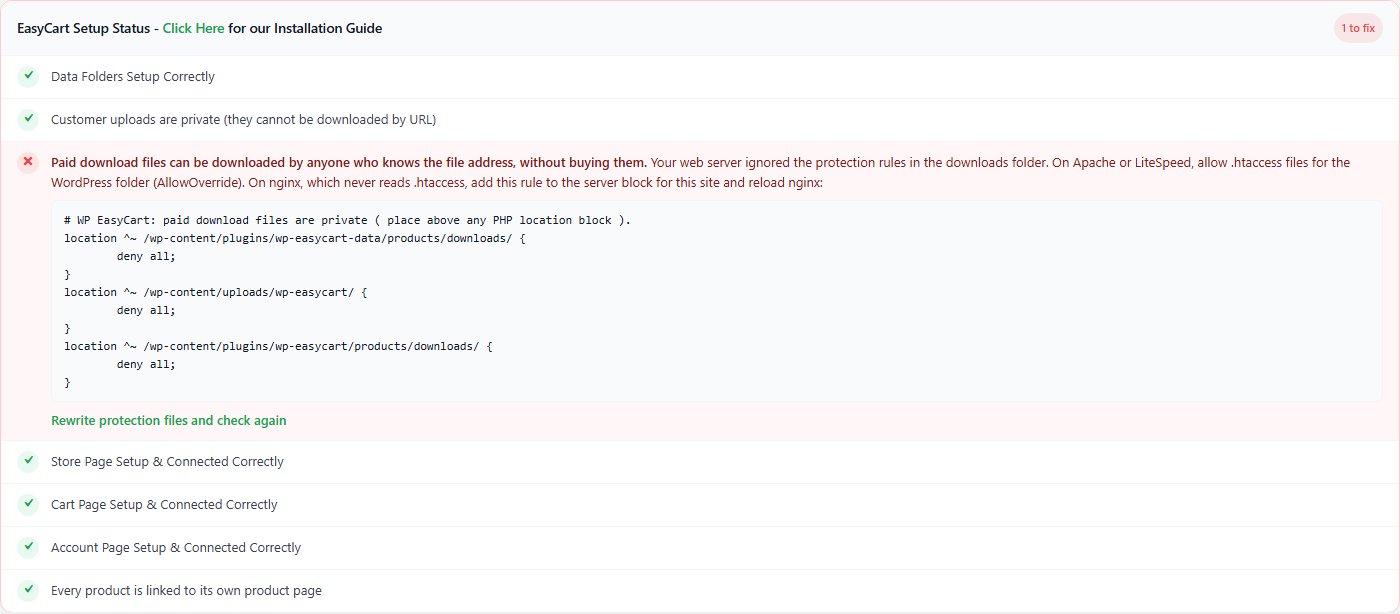
⚠️ Careful: If the paid downloads check fails, your digital products can be downloaded by anyone who knows the file address, without buying them. Treat it as urgent. The screen prints the exact server rule to fix it.
Shipping, Tax and Payment
Whether each part of checkout is configured, not just switched on
no stored settingsThree cards check the selling side, and each tests configuration rather than intent. Choosing a method and then not finishing it is the common failure, and these are the checks that catch it.
Shipping Status reports no methods at all, or for each method you chose, whether rates actually exist behind it. Live carriers are checked one by one, so UPS, USPS, FedEx, DHL, Australia Post, Canada Post and Fraktjakt each say whether they are set up correctly. Rates from a rate service, such as Royal Mail, Shippo or ShipStation, count as live rates.
Tax Status confirms which tax structure is configured, covering state and province, country, global, customs and export, and VAT. Selecting VAT without entering a rate is called out specifically. Using no tax at all is reported as a state of affairs rather than a fault, because for some stores it is correct.
Payment Status is the one that stops sales. With no method selected it says plainly that customers cannot complete checkout. With a gateway selected it names it and says whether every required field was filled in. A gateway left in sandbox or test mode is a warning: it works, but no real money moves, so switch it to live before you take real orders. Stripe or Square in test mode with no test account connected is an error.
With Stripe live, the card also says how many customer accounts are Stripe test-mode customers, who check out with your Stripe test keys while everybody else pays live, and warns when they have no test keys to use, so they pay live. With your own Stripe keys it warns when test mode is chosen but no test keys are saved. The EU withdrawal button adds rows too: whether it is on and has its own page, and orders with a withdrawal waiting to be handled.
The same card reports checkout protection: off, only watching, on, or an attack under way right now, each with a link to its settings. Search & AI, cookie consent and store activity add their own rows here too.
Shipping Status also spots shipping rates that use a live carrier you have not connected, which cannot be quoted at checkout, with a button to set the carrier up or to remove those rates.

💡 Note: These checks test configuration, not intent. Choosing a shipping method or gateway and then not finishing it is the usual cause. Fix payment under Settings › Payments & Taxes › Payment, shipping under Settings › Shipping › Shipping rates and card testing under Settings › Cart & Checkout › Checkout protection. A store that ships nothing or charges no tax can say so on Store Status.
Miscellaneous
Permalink repairs and log sizes
no stored settingsThe last card holds the tools for problems that do not belong anywhere else.
When store links misbehave, there are actions to reset and rebuild permalinks and to fix category, product and post tag permalink problems. These are the right first move when a product page returns a not-found error while the product itself clearly exists.
It also reports how many rows the gateway and webhook logs hold, and offers to trim them when they have grown larger than they should be, keeping the most recent entries. A store that has been running for years can accumulate a great deal here.
Trimming deletes the older rows for good, so if you are mid-investigation, export what you need from the log screen first.
With the Meta Conversions API on, a Meta tracking card checks your theme’s copied store templates. A copy that sends Meta events without an event ID makes Meta count each sale twice, and the card names the file to update or delete. And when WP EasyCart’s Elementor display conditions are off, on an Elementor Pro version they do not support yet, a row says so, as a warning if pages use them, since those elements then show to every visitor.
For a step by step walkthrough, see How to Fix 404 Errors on Cart Pages.
⚠️ Careful: Trimming a log deletes the older entries permanently. Export what you need from Settings › Advanced › Log entries before trimming.
Keep going
Related panels
The gateway and webhook replies behind a failing check.
Licence state and the four readiness checks.
Payment setup, the check that stops checkout.
Shipping rates behind the shipping checks.
Tax and VAT setup.
Digital products, which the privacy check protects.
Ready to run your store on WP EasyCart?
Everything in this guide works with the free plugin. PRO and Premium add subscriptions, memberships, wholesale pricing and more. Try every PRO feature free for 14 days.



