
Where your products are now
One screen for every way a catalog comes in
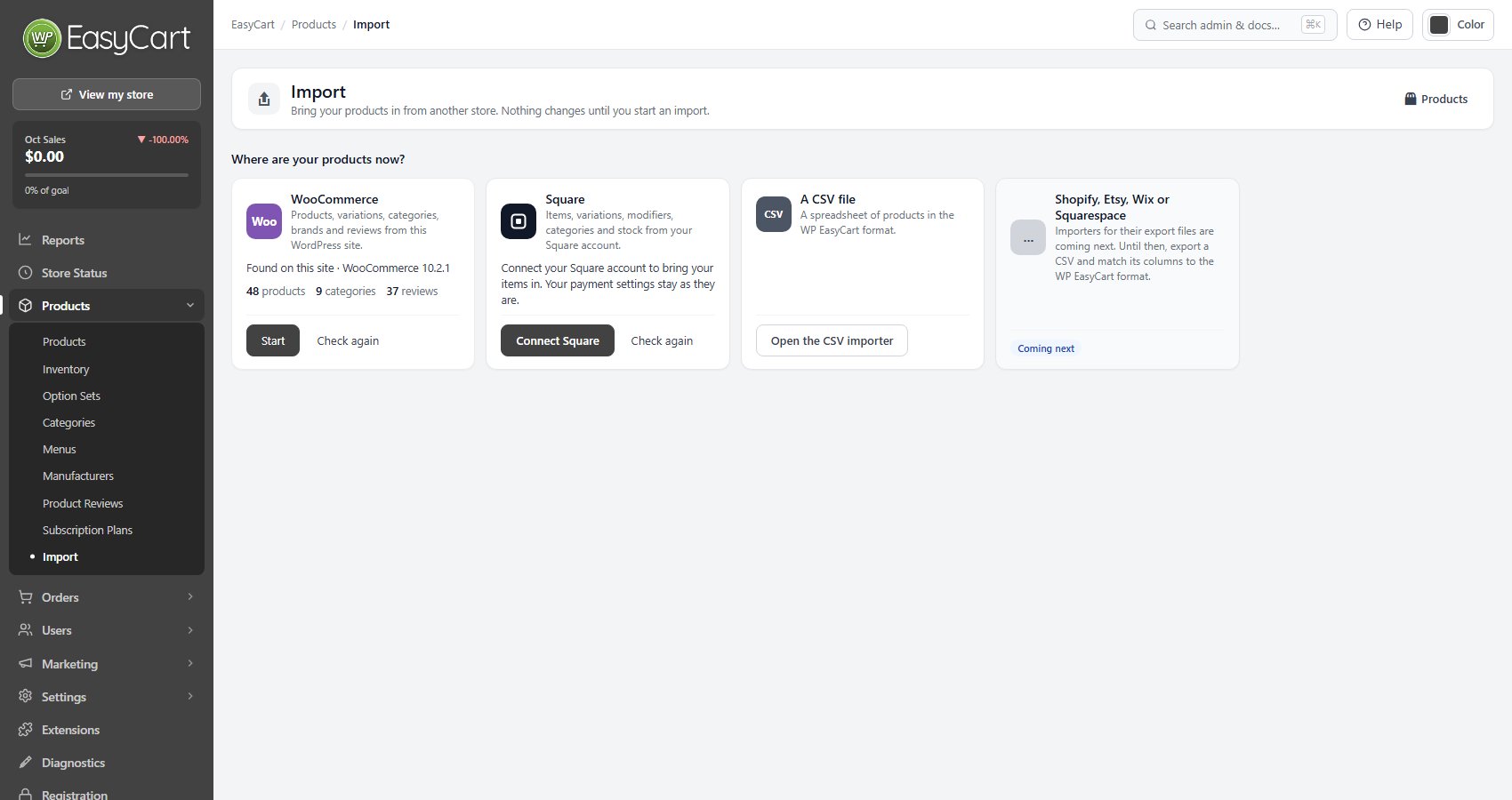
no stored settingsProducts › Import brings a catalog across from another store. Nothing changes until you start an import, and everything on this screen is in the free plugin. It asks one question, Where are your products now?, with a card for each place it can read:
WooCommerce: products, variations, categories, brands and reviews from WooCommerce on this WordPress site. It reads WooCommerce’s own tables, so WooCommerce can still be active or already switched off.
Square: items, variations, modifiers, categories and stock from your Square account. Connect Square on the card connects it for the import; your payment settings stay as they are.
A CSV file: a spreadsheet of products in the WP EasyCart format. Open the CSV importer opens the import panel on the products list, described below.
Shopify, Etsy, Wix or Squarespace: marked Coming next. Until then, export a CSV from that store and match its columns to the WP EasyCart format.
Each card says what it found, such as the number of products, categories and reviews, and Check again looks again. The products list reaches the same places from its Import menu: From a CSV file and From WooCommerce or Square.
One import runs at a time. If the WP EasyCart database update has not finished, the screen asks you to finish it on Store Status first.
Choose what comes across
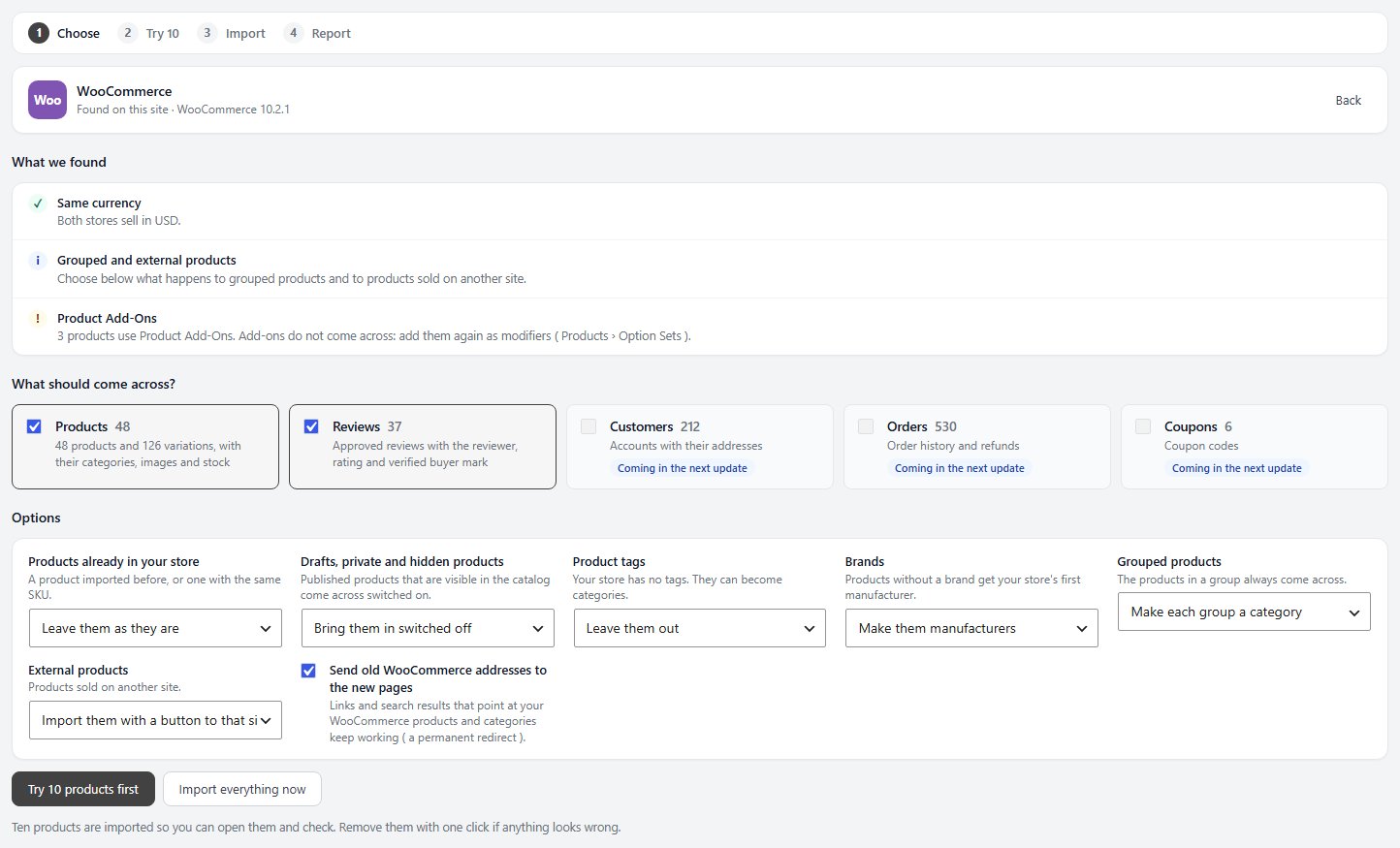
What was found, what to bring, and the choices for WooCommerce
no stored settingsStart opens four steps: Choose, Try 10, Import and Report. What we found lists what is worth knowing first: whether both stores sell in the same currency ( prices are copied as they are ), WooCommerce prices that include tax, weight units that differ, grouped and external products, bundles and other extension types ( imported as simple products ), products that use Product Add-Ons ( add-ons do not come across: add them again as modifiers ), WooCommerce subscriptions ( they do not come across ) and products imported before.
What should come across? ticks Products, with their variations, categories, images and stock, and Reviews, with the reviewer, rating and verified buyer mark. Customers, orders and coupons are listed as Coming in the next update.
Options for WooCommerce:
Products already in your store, one imported before or with the same SKU: Leave them as they are or Update them from WooCommerce.
Drafts, private and hidden products: Bring them in switched off or Leave drafts out. Published products that are visible in the catalog come across switched on.
Product tags: leave them out, or make them categories.
Brands: make them manufacturers, or leave them out. A product without a brand gets your store’s first manufacturer.
Grouped products: make each group a category, or leave the groups out. The products in a group always come across.
External products: import them with a button to that site, or leave them out.
Weights, when the two stores use different units: convert them, or keep the numbers.
Send old WooCommerce addresses to the new pages: on, so links and search results that point at your WooCommerce products and categories keep working.
A CSV file and its columns
What the CSV importer reads, and what it refuses
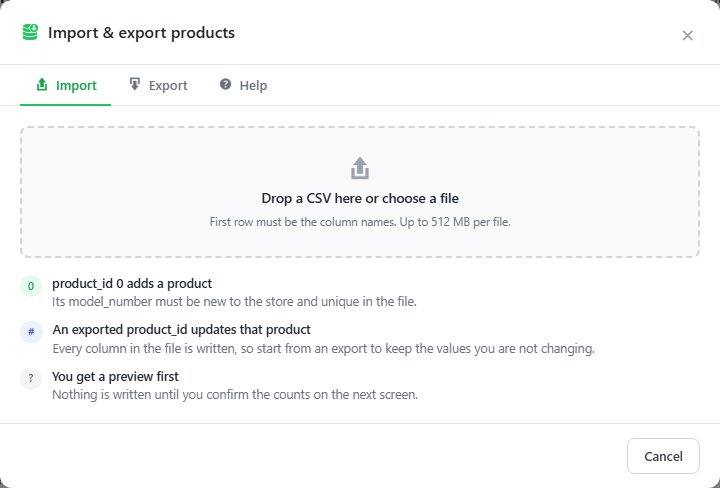
no stored settingsThe CSV importer is a panel on the products list: Import › From a CSV file, or Open the CSV importer on Products › Import, opens Import & export products. Drop a CSV on it or choose a file; the first row must be the column names, and the server’s upload limit is shown.
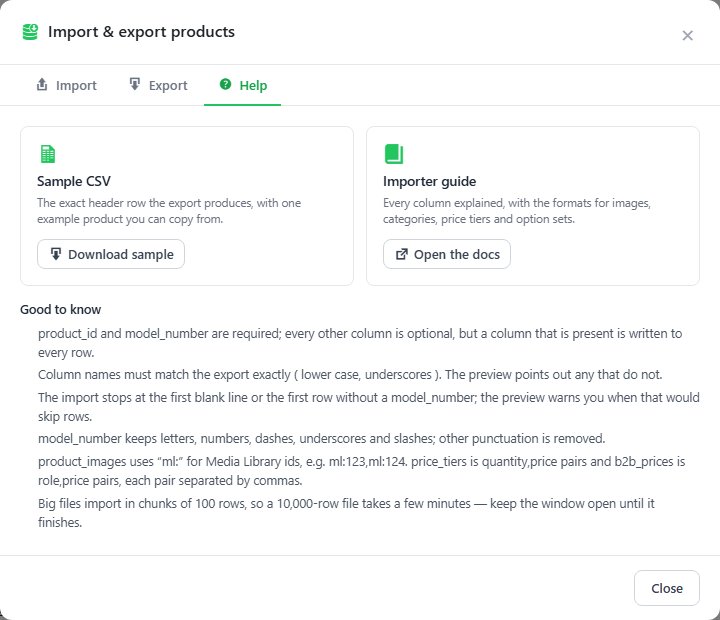
The most reliable way to build a file is to export your products first and edit that, because the export already has the exact column names. The Help tab offers a Download sample with the header row and one example product. Column names must match exactly, in lower case with underscores. product_id and model_number are required; every other column is optional, but a column that is present is written to every row.
The file is checked before anything happens. A column with no header, a column that appears twice, or a name that is not a product field stops the import, with a suggestion where the name is close, such as did you mean title?
With Yoast SEO. While Yoast SEO is active, the export adds a yoast_meta_description column after advanced_option_ids: each product’s Yoast meta description, the one the product editor shows. Import the file and that column is written back to each product’s page. An empty cell removes the description, so Yoast falls back to its own template. Without Yoast active the column is still saved, and the preview warns that nothing uses it until Yoast SEO is active.
The export opens in Excel with accented letters and dashes intact, and the importer reads the file back the same way.
The CSV preview
What will happen, before it happens
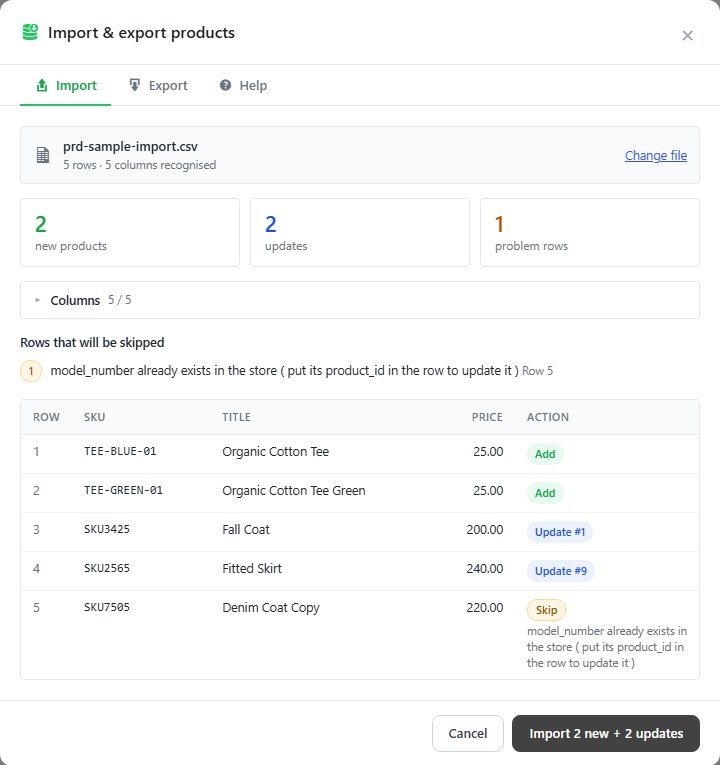
no stored settingsNothing is written until you have seen the preview. It reports the rows read and the columns recognized, then counts the new products, the updates, the problem rows and any rows ignored, with the first rows shown so you can check the data landed where you expected.
Rows that will be skipped lists each problem row with its reason: a product_id that is not a number or does not exist, an empty model_number, a model_number used by an earlier row, a model_number that already exists in the store, or a row with the wrong number of cells. Problems that stop the whole import are listed separately under Fix these before importing.
The importer stops at the first blank line, or the first row without a model_number, and the preview warns you when that would leave rows behind. Punctuation in a model_number other than dashes, underscores and slashes is stripped, and the preview says how many will change.
Adding against updating
The one rule to get right in a CSV
no stored settingsThe product_id column decides what each row does. 0 adds a new product, whose model_number must be new to the store and unique in the file. An exported product_id updates that product, and every column in the file is written, so start from an export to keep the values you are not changing.
A file with no product_id column is refused, and a model_number that already exists is skipped rather than duplicated, so check the count of new against updated rows before you confirm. If you meant to update and the preview says new, the IDs have been lost.
Big files import in chunks of 100 rows, so keep the window open until it finishes. Rows that could not be written are listed at the end, and new products are published or private according to their activate_in_store value. A new product keeps the formatting in its description and specifications, gets its own product page, and keeps the pickup locations in the file. Products an earlier import linked to the wrong page, such as a menu item, a page or an image, are found by Diagnostics, which links each back to its own product page.
Ready to run your store on WP EasyCart?
Everything in this guide works with the free plugin. PRO and Premium add subscriptions, memberships, wholesale pricing and more. Try every PRO feature free for 14 days.
