
Step 1. Check that mail gets through
Settings › Email › Deliverability
Open EasyCart › Settings › Email. The Deliverability card has no settings, just tools. Start here.
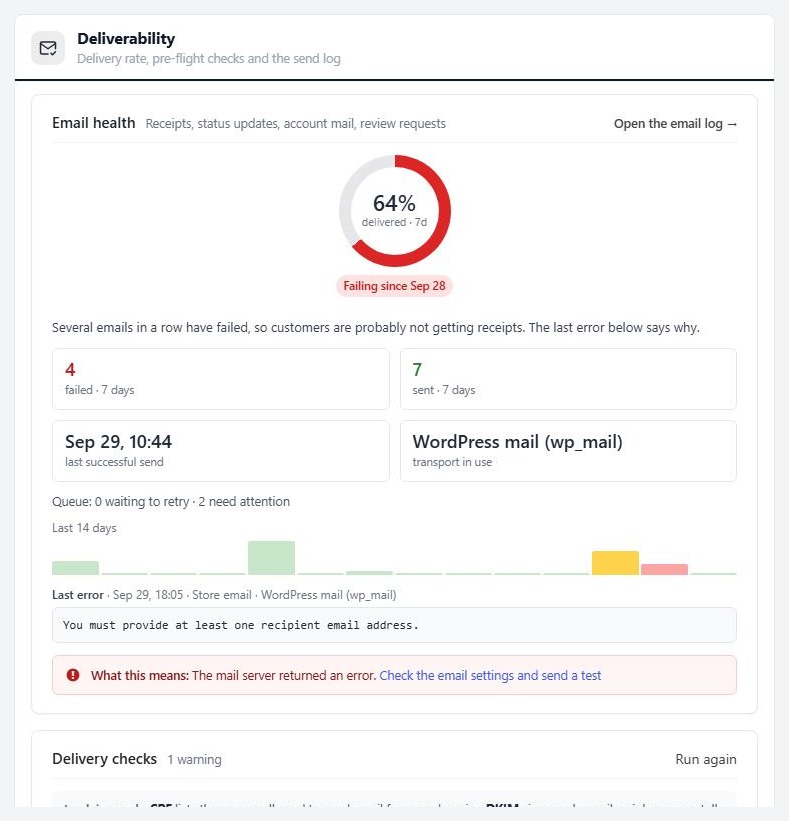
Email health reports the last seven days: how many sent, how many failed, when the last one went out, the transport in use and the last 14 days as a chart. A red chip says Failing since a date when sends keep failing.
Delivery checks inspects your setup and marks each line Passed, Warning or Problem. It checks your from address is on your own domain, that a mail plugin is in the path, and that your domain has SPF, DKIM and DMARC records. If you use SMTP, it checks that the port is reachable. The checks are advice and never stop an email. Press Run again after you fix something.
Send a test email sends a message to your own address through the same route as order emails, and shows the result on screen.
Fix any Problem lines before you go on. A store that sends from a free webmail address, or from a domain with no DKIM, is the usual reason receipts land in spam.
Step 2. Set the sender and the branding
Settings › Email › Sender
On the Sender card, set what every email shares:
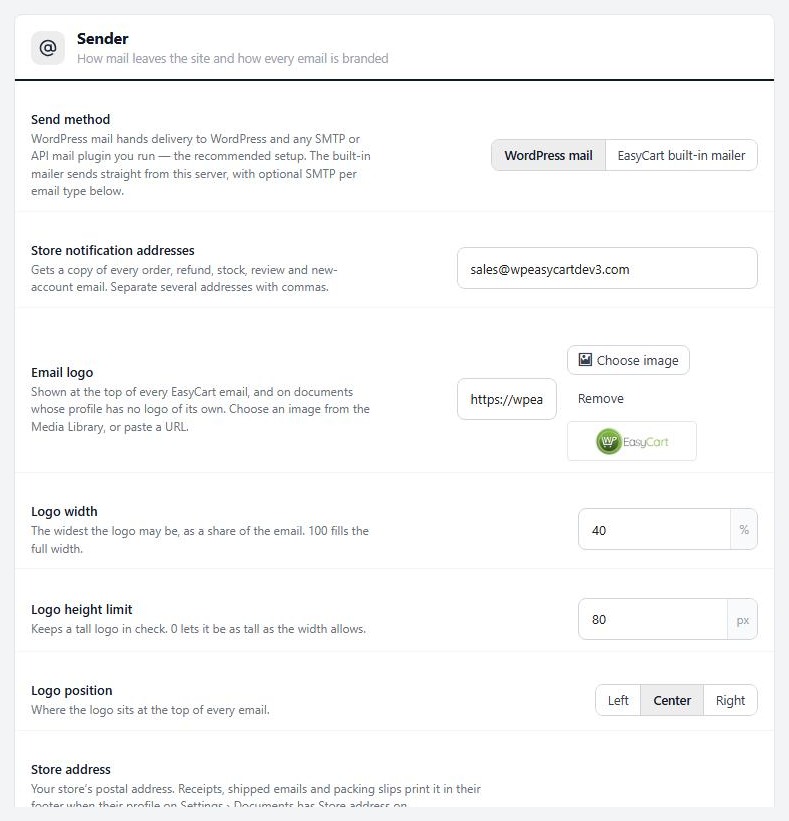
Send method: WordPress mail or EasyCart built-in mailer. Leave it on WordPress mail if you run an SMTP or mail service plugin. That is the recommended setup.
Store notification addresses: who gets a copy of every order, refund, stock, review and new-account email. Separate several with commas. It ships with a placeholder that is not yours, so change it first.
Email logo with Logo width, Logo height limit and Logo position: the logo at the top of every email.
Store address: printed in the footer of receipts, shipped emails and packing slips when the profile has Store address on.
Email signature text and Email signature image (PRO): a closing block for every automatic email.
Your registered business details are not on this card. Enter the Registered business name, Registered address and tax number, such as a VAT number or an ABN, once in Settings › Store details › Business details. Receipts and shipped emails print them in the footer, and the Invoice PDF uses them when its own Business details box is empty. EU and UK invoices must show them.
Step 3. Set up the order emails
Settings › Email › Order emails
On the Order emails card:
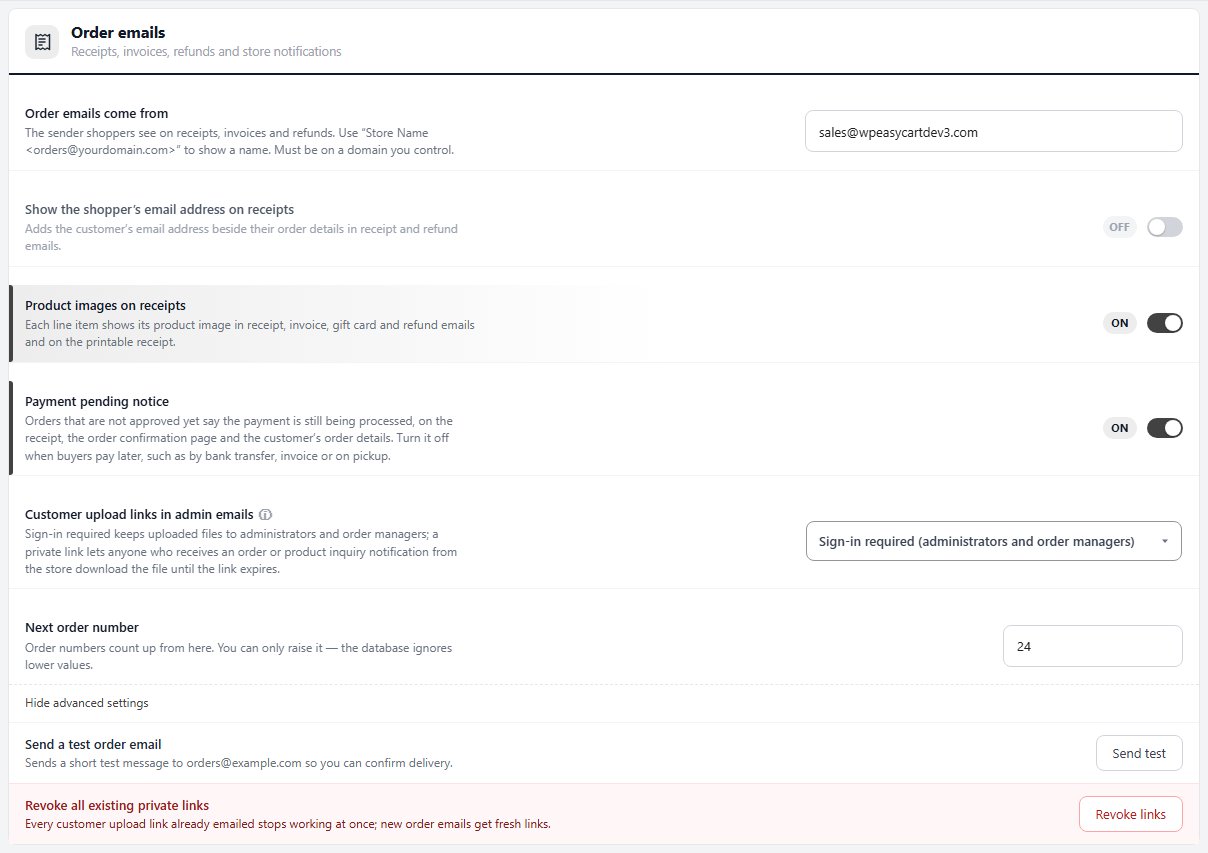
Order emails come from: the sender shoppers see on receipts, invoices and refunds. Write it as Store Name <orders@yourdomain.com>. It must be on a domain you control.
Send order emails over SMTP: for the built-in mailer only. When on, fill in SMTP host, SMTP port, SMTP encryption, SMTP username and SMTP password. The port and the encryption must agree. A mismatch is the most common reason SMTP sends fail.
Show the shopper’s email address on receipts and Product images on receipts: the same switches as on the receipt document, so changing one changes the other.
Payment pending notice: while an order is not yet approved as paid, the receipt, the order confirmation page and the order in My Account say the payment is still being processed. Turn it off if customers pay later by design, such as with Pay by bank transfer, invoice or on pickup.
Send a test order email: press Send test to get a short test.
The Account emails card has its own Account emails come from and SMTP fields for password resets, activation and abandoned cart reminders. Set it too. Someone locked out of their account is waiting for that email. Tell me when someone registers sends a note to your notification addresses for each new account.
Step 5. Shape your documents
Settings › Documents
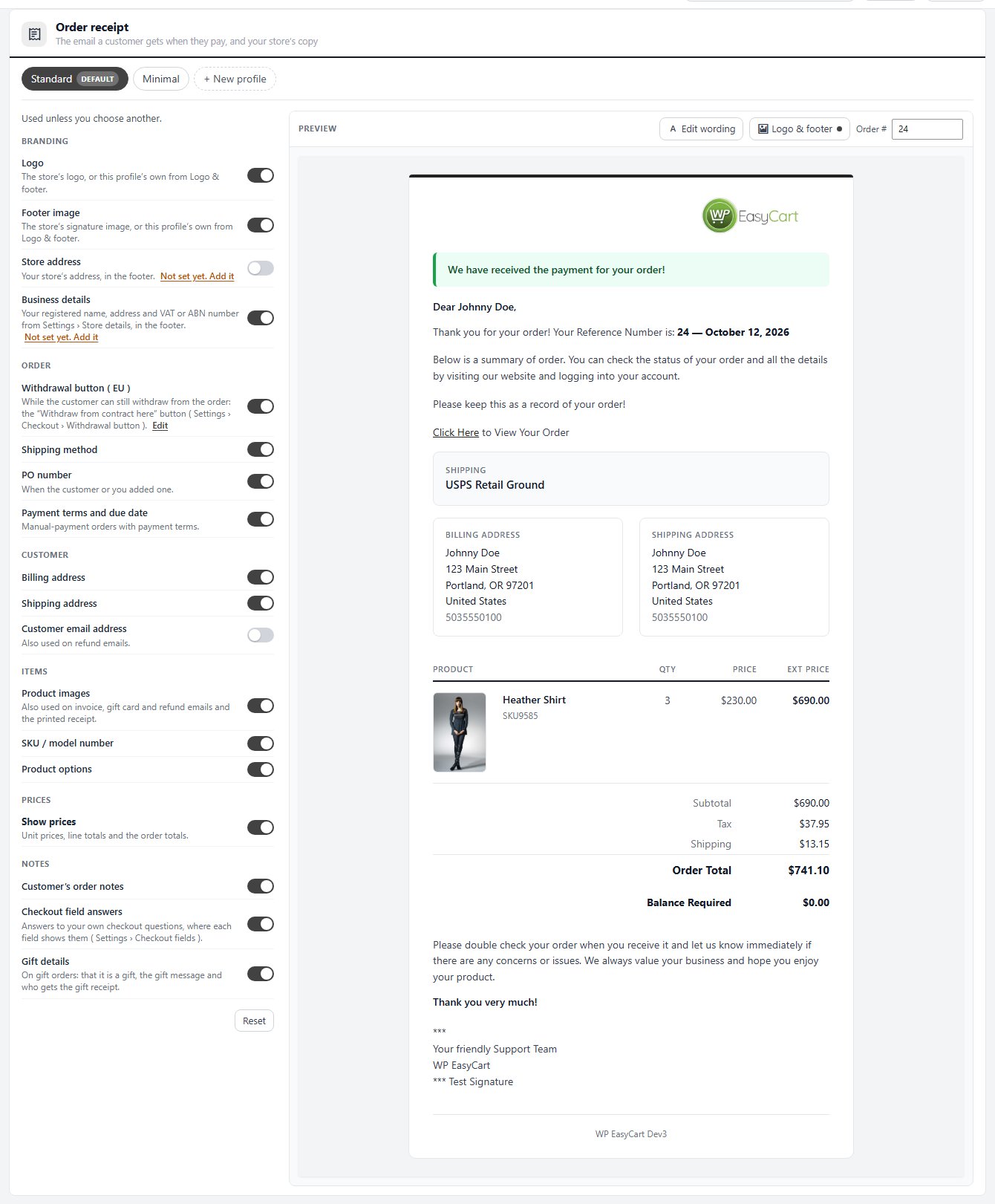
Open EasyCart › Settings › Documents. Each document is its own section, and each is a set of show and hide switches with a live preview beside it:
Order receipt: the email a customer gets when they pay, and your store’s copy.
Shipping confirmation: the email a customer gets when their order is marked shipped.
Packing slip: the page that goes in the box.
Invoice PDF (PRO): the invoice or receipt PDF, with your business details.
PRO also adds Invoice email, Gift receipt and Credit note documents.
The Order receipt and the Shipping confirmation also have a Withdrawal button ( EU ) switch. While the customer can still withdraw from the order, it adds the “Withdraw from contract here” button to their copy of the email. It only shows when the withdrawal button is on under Settings › Checkout. Both emails also have a Business details switch, on by default, for the details you entered in Store details.
The Packing slip has a Logo position choice above its switches: Top of the page or Beside the title, which saves room on a printed slip. With PRO, the Invoice PDF and the Credit note have one too: Top of the page, With your business details, Above the title or Under the heading, the default.
What every document prints. Addresses follow each country’s own format, so a German address reads 10115 Berlin and a UK postcode sits on its own line. When an order charged more than one VAT rate, receipts and invoices list the VAT rate by rate, such as VAT @ 20% and VAT @ 5%. A reprinted receipt or invoice shows the VAT the order was charged, even after your VAT settings change.
Discount codes. Receipts, invoices, order emails, the order confirmation and My Account print the code a customer used beside its discount. To keep a private code off them, turn off Show discount codes on receipts and documents in Settings › Checkout › Cart page. The discount itself still shows.
Switches save the moment you change them. There is no Save button. The preview uses your newest order, and you can type another order number to check one with options or a discount. On a store with no orders yet, the preview appears once there is one.
Every document starts on its Standard profile. Use Edit wording to change its headings and phrases, and Logo & footer (PRO) to give a profile its own images. With PRO you can also add profiles: a new one starts as a copy of the one you are looking at, and each has Rename, Make default, Reset and Delete. The default profile goes out unless you pick another when you send. The full guide to profiles is in the Document Profiles doc.
Ready to run your store on WP EasyCart?
Everything in this guide works with the free plugin. PRO and Premium add subscriptions, memberships, wholesale pricing and more. Try every PRO feature free for 14 days.
