
How documents work
Profiles, instant saving and the live preview
no stored settingsSeven documents live here: the order receipt, the shipping confirmation and the packing slip, and with PRO the invoice PDF, the invoice email, the gift receipt and the credit note. Each one is a set of show and hide switches, and that set is called a profile. Every document starts on its Standard profile, which is the one that goes out unless you choose another.
Switches save the moment you flip them; there is no save button. Beside each editor a live preview shows a real order exactly as it goes out, starting on your newest order. Type another order number to check a tricky one, such as an order with options or a discount. Edit wording changes the headings and phrases a document prints, and Logo & footer gives a profile its own branding.
Below the documents sit the store-wide sections that decide which documents an order gets: email attachments, gift orders, document rules, customer downloads, pay links, invoice numbers, PO numbers and payment terms.
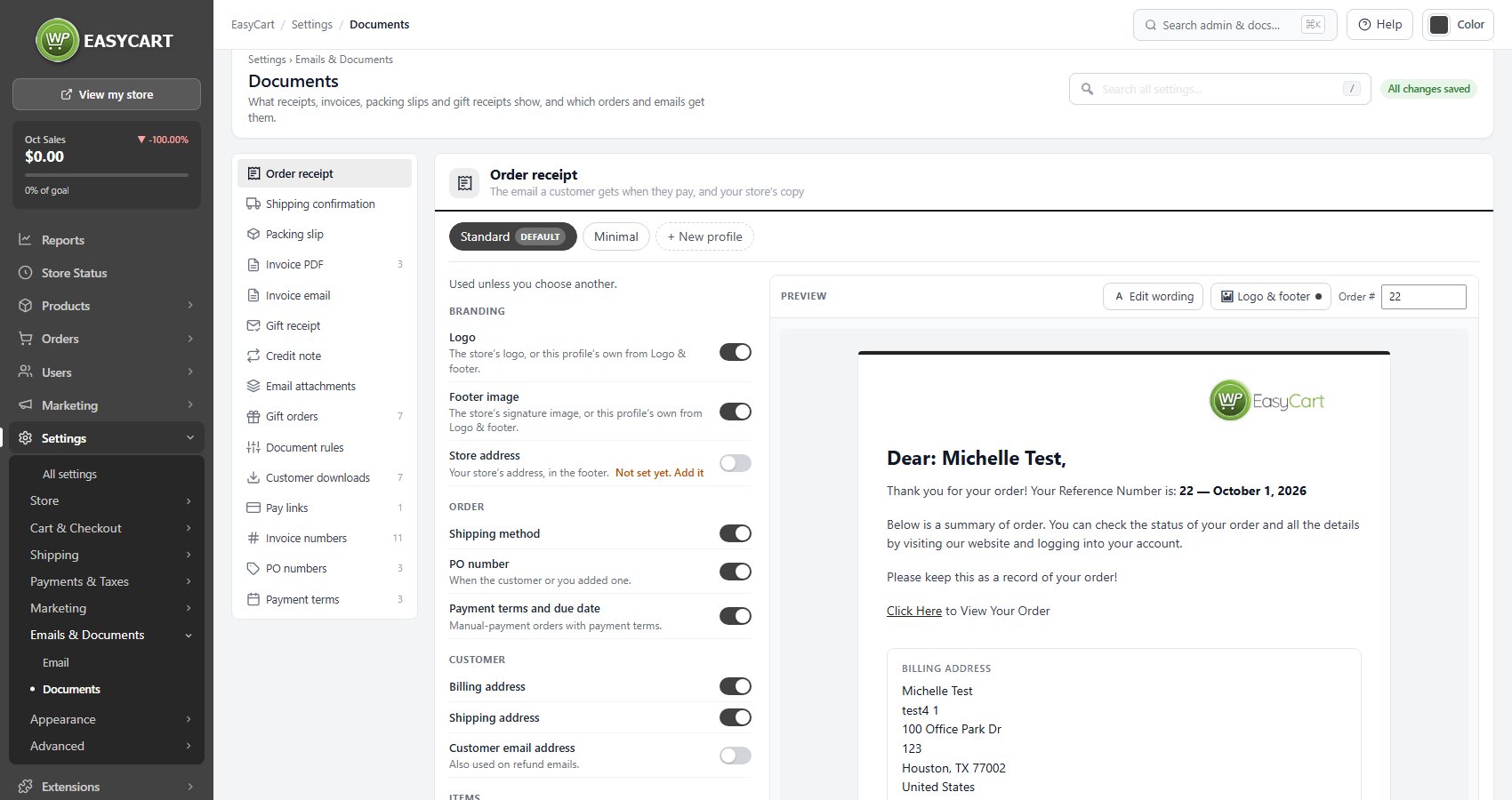
Packing slip
The page that goes in the box
25 settingsLogo
Printed on the packing slip when it is on. The packing slip is a picking and packing document rather than a customer receipt, so include what your team needs to get the right things in the right box, and leave out what only clutters it.
Footer image
The store’s signature image at the foot of the document, or this profile’s own. Handy for a seal, a badge or a scanned signature.
Store address
Your postal address in the footer, entered on Settings › Email › Sender. A return address on the slip saves the customer hunting for one.
Order number
The order number on the packing slip. Keep this on: it is the reference for every conversation about the parcel afterwards.
Order date
Printed on the packing slip when it is on. The packing slip is a picking and packing document rather than a customer receipt, so include what your team needs to get the right things in the right box, and leave out what only clutters it.
Shipping method, carrier and tracking
The shipping method, the carrier and the tracking number, once the order has them. Useful in the box when a parcel is split or re-sent.
PO number
The purchase order number, when the customer gave one at checkout or you added it on the order screen. Prints nothing on orders without one. Recording PO numbers needs PRO, so the switch is locked without it. A business buyer’s receiving team often books goods in against it.
Billing address
Printed on the packing slip when it is on. The packing slip is a picking and packing document rather than a customer receipt, so include what your team needs to get the right things in the right box, and leave out what only clutters it.
Shipping address
The shipping address on the packing slip. Keep this on unless your labels are generated entirely elsewhere, because a slip without a destination is a picking list rather than a packing slip.
Phone numbers
The phone number, printed under the billing and shipping addresses. It needs at least one of those turned on to appear at all. Carriers frequently ask for it on delivery problems.
Customer email address
Printed on the packing slip when it is on. The packing slip is a picking and packing document rather than a customer receipt, so include what your team needs to get the right things in the right box, and leave out what only clutters it.
Product images
A thumbnail against each line. Genuinely useful when picking from a catalogue of similar-looking items, and wasted ink when your products are obviously different.
Product titles
Printed on the packing slip when it is on. The packing slip is a picking and packing document rather than a customer receipt, so include what your team needs to get the right things in the right box, and leave out what only clutters it.
SKU / model number
The model number or SKU against each line, which is what a warehouse picks by. If your team works from codes rather than names, this is the most important line on the slip.
Product options
The size, colour or other choices made for each item. Leave this on if you sell anything with variants, because a slip listing the shirt without the size guarantees the wrong one goes out.
Show prices
Unit and line prices on the slip, plus whichever totals you pick below. A slip carrying prices doubles as a receipt, which is convenient for the customer and awkward when the parcel is a gift. Off on new stores; a store upgraded from an earlier version keeps whatever it had.
Subtotal
One line of the totals block. Only shows while Show prices is on.
Discounts
One line of the totals block. Only shows while Show prices is on.
Shipping total
One line of the totals block. Only shows while Show prices is on.
Tax or VAT
One line of the totals block. Only shows while Show prices is on.
Tip
One line of the totals block. Only shows while Show prices is on.
Grand total
One line of the totals block. Only shows while Show prices is on.
Customer’s order notes
Notes the shopper left at checkout. Keep this on if you accept notes at all, since a delivery instruction nobody in the packing room can see is worse than not having asked for it.
Gift message
On gift orders, the message the shopper wrote at checkout, so it goes in the box with the gift. Needs PRO, which is what records gift messages.
Checkout field answers
Answers to your own checkout questions, for the fields set to show them, from Settings › Checkout fields. Locked without PRO, since the checkout fields builder is PRO.
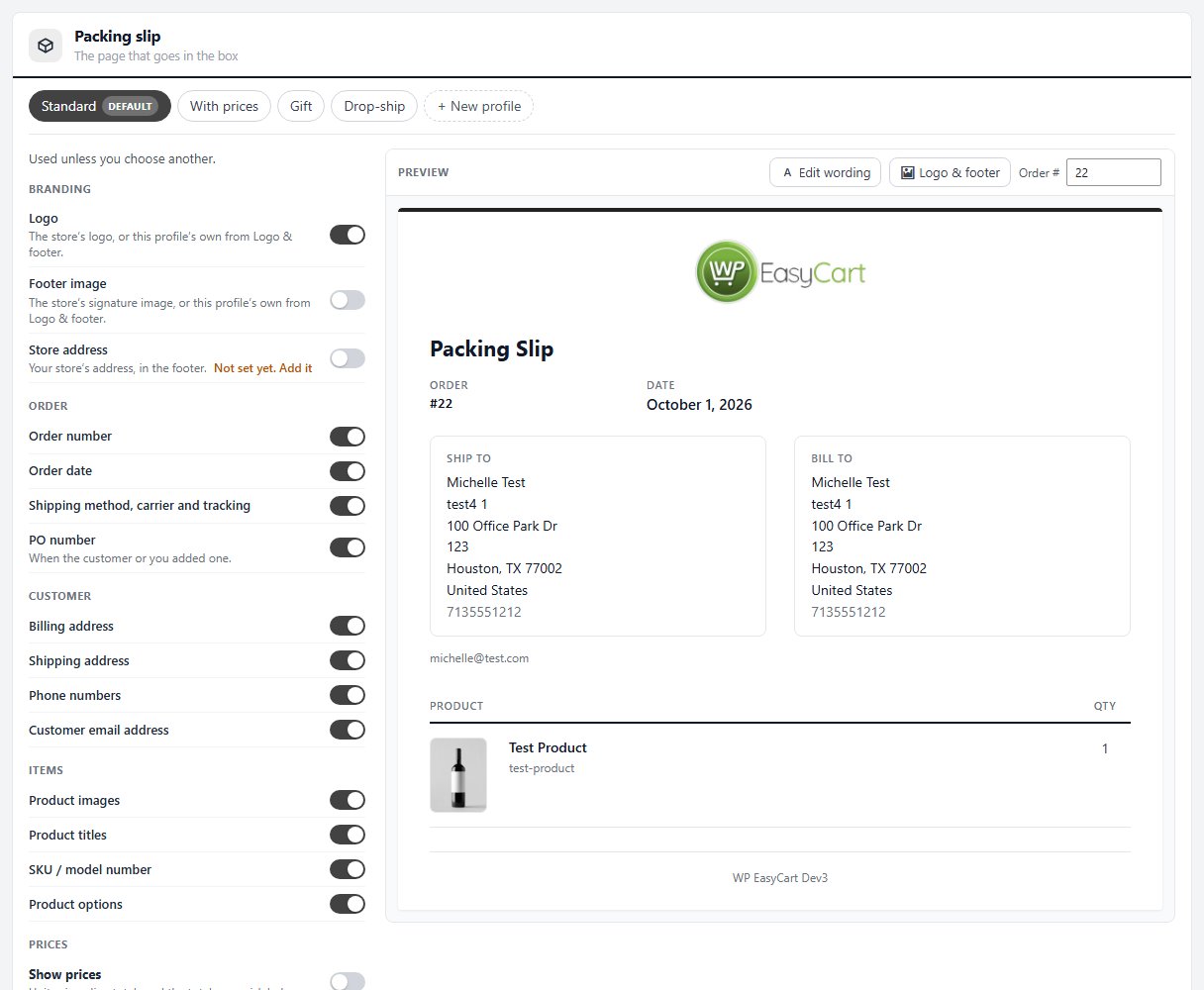
Invoice PDF
The invoice or receipt PDF attached to order emails, with your business details
22 settingsBusiness details
Your registered business name, address and VAT number, printed at the top of the PDF. EU invoices are required to show them, so if you attach PDFs for compliance reasons this field is the compliance. Left empty, the PDF prints your site name instead. The credit note prints the same details.
File name
What the attachment is called. {order_id} becomes the order number, {invoice_number} the invoice number once one is issued, and {date} the order date. Anything other than letters, numbers, dashes and underscores is removed, and the name always ends in .pdf. A folder full of identically named attachments is useless, so keep a number in it.
Paper size
Automatic uses US Letter where that is the local standard, such as the United States, Canada and Mexico, and A4 everywhere else. Override it only if you know every recipient prints on one size.
Heading
Invoice or Receipt, chosen per profile above its switches and printed at the top of the PDF. Invoice suits a record of payment for accounting; Receipt a plain confirmation that money changed hands. The built-in Receipt profile is headed Receipt, for orders already paid; Bookkeeping and B2B are headed Invoice.
Business details
Whether the business details above print on this profile. Turn it off for a profile you do not want to double as a formal invoice.
Logo
The store logo from Settings › Email, or this profile’s own if it has one under Logo & footer. Size and position follow the same place.
Footer image
The store’s signature image at the foot of the PDF, or this profile’s own. The signature text never prints on the PDF, only the image.
Store address
Your postal address in the footer. Usually redundant when the business details are on, since those carry your address already.
Heading, order number and date
The block at the top right: this profile’s heading, the order number and the date. Keep it on; an invoice without a number and a date is hard to file.
Invoice number, terms and due date
The invoice number, payment terms and due date, once the order has been invoiced. Invoice numbers are switched on in the Invoice numbers section below.
PO number
The purchase order number, when the customer gave one at checkout or you added it on the order screen. Prints nothing on orders without one. Recording PO numbers needs PRO, so the switch is locked without it.
Greeting and thank-you lines
The receipt email’s own lines above the addresses and below the totals. The built-in Bookkeeping and B2B profiles turn them off for a plainer document.
Shipping address
Where the order was delivered.
Billing address
Who paid. Most invoicing rules expect it.
Customer VAT number
The customer’s VAT number, when they gave one at checkout. Business buyers in the EU need it on the invoice to reclaim VAT.
Customer email address
The customer’s own email address beside their order details. Useful when paperwork is forwarded around an office and somebody needs to know which account ordered.
Product images
A thumbnail against each line. Off makes a lighter, more formal PDF.
SKU / model number
The SKU or model number against each line, which is what a warehouse or a bookkeeper matches on.
Product options
The size, colour or other choices made for each item. Leave it on if you sell anything with variants.
Show prices
Unit prices, line totals and the order totals.
Customer’s order notes
What the shopper typed in the order notes box at checkout. It only prints when order notes are turned on at checkout in the first place.
Checkout field answers
Answers to your own checkout questions, for the fields set to show them, from Settings › Checkout fields. Locked without PRO, since the checkout fields builder is PRO.
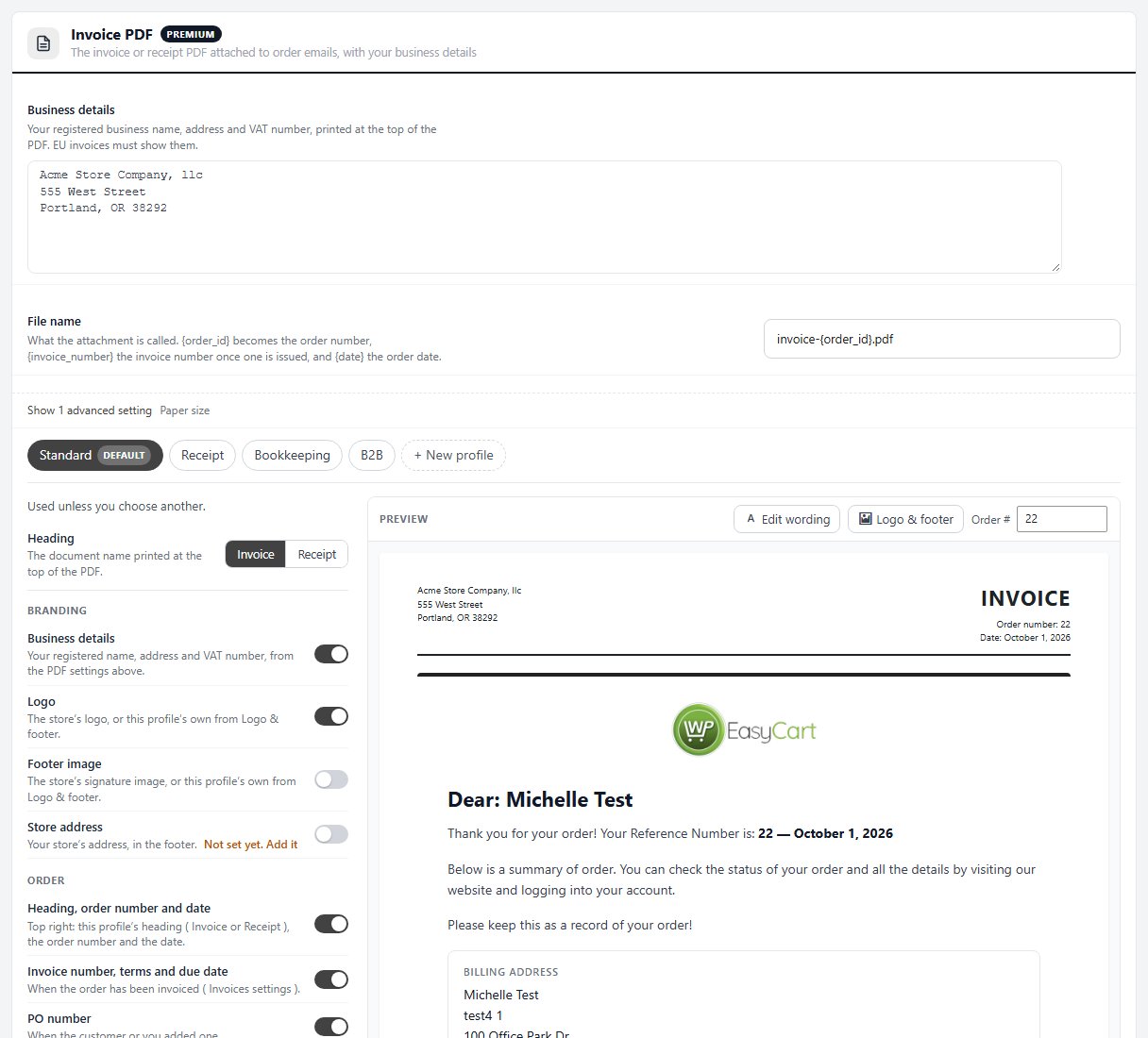
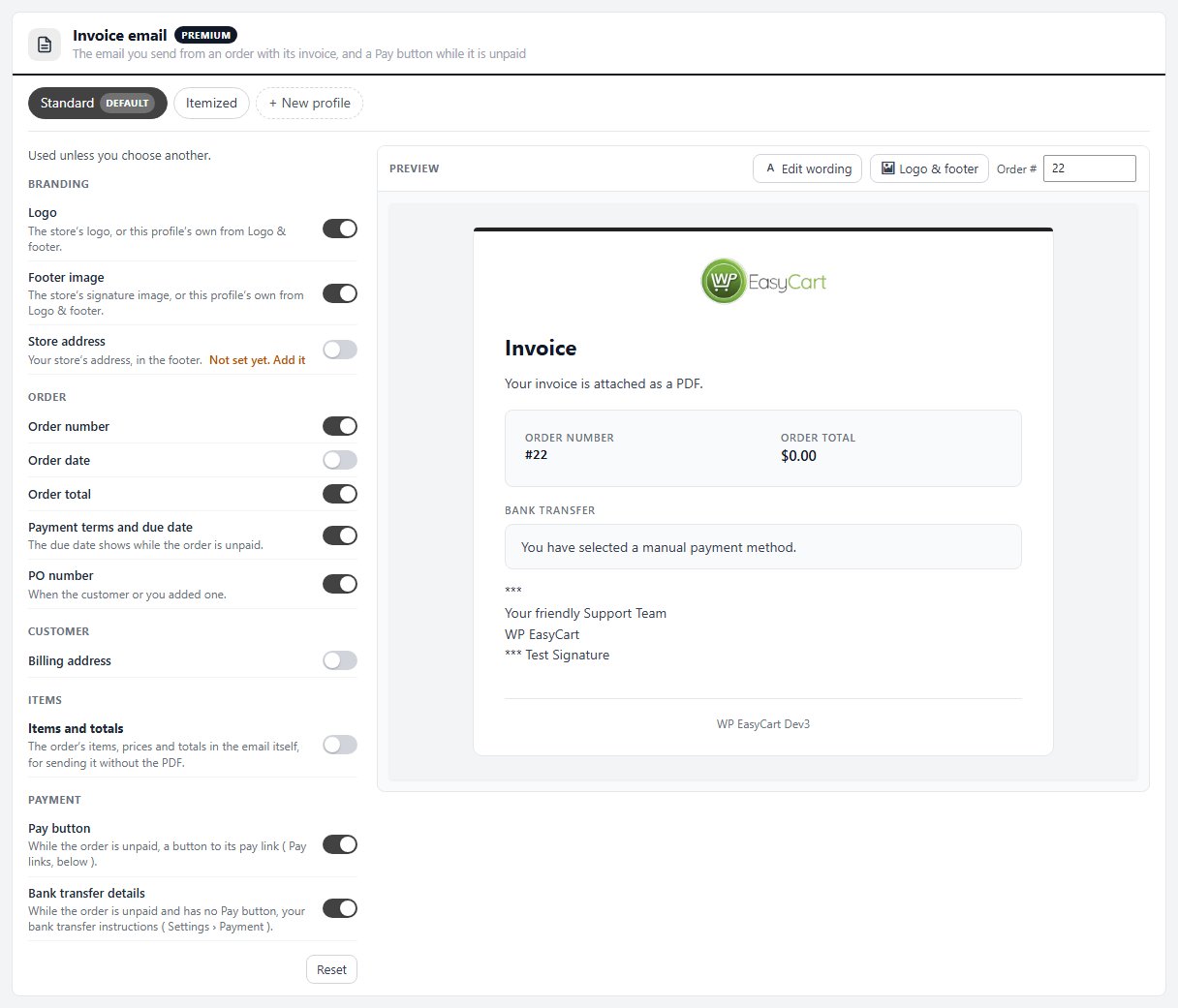
Invoice email
The email you send from an order with its invoice, and a Pay button while it is unpaid
15 settingsLogo
The store logo from Settings › Email, or this profile’s own if it has one under Logo & footer. Size and position follow the same place.
Footer image
The store’s signature image at the foot of the document, or this profile’s own. Handy for a seal, a badge or a scanned signature.
Store address
Prints your postal address in the footer. The address itself is entered once, on Settings › Email › Sender; the switch shows an Add it link while it is still empty.
Order number
The order number, so the customer can quote it when they pay.
Order date
The date the order was placed. Off on Standard, on in the built-in Itemized profile.
Order total
What the order comes to. Keep it on: it is the figure the customer pays.
Payment terms and due date
The payment terms and the due date, which only shows while the order is still unpaid.
PO number
The purchase order number, when the customer gave one or you added it on the order screen. Accounts teams match invoices to POs, so leave it on for business buyers.
Billing address
The billing address in the email itself. Off on Standard, because the attached PDF already carries it.
Items and totals
The order’s items, prices and totals written into the email, for an invoice sent without the PDF. The three switches below only apply while this is on.
Product images
A thumbnail against each item line. Off by default to keep the email light.
SKU / model number
The SKU or model number against each line, which is what a warehouse or a bookkeeper matches on.
Product options
The size, colour or other choices made for each item. Leave it on if you sell anything with variants.
Pay button
While the order is unpaid, a Pay button that opens the order’s pay link. It needs Pay links on, below, and a payment method that can take a payment on a pay link.
Bank transfer details
While the order is unpaid and has no Pay button, your bank transfer instructions from Settings › Payment, so the customer still knows how to pay.
Gift receipt
Emailed to the person receiving a gift order, without prices
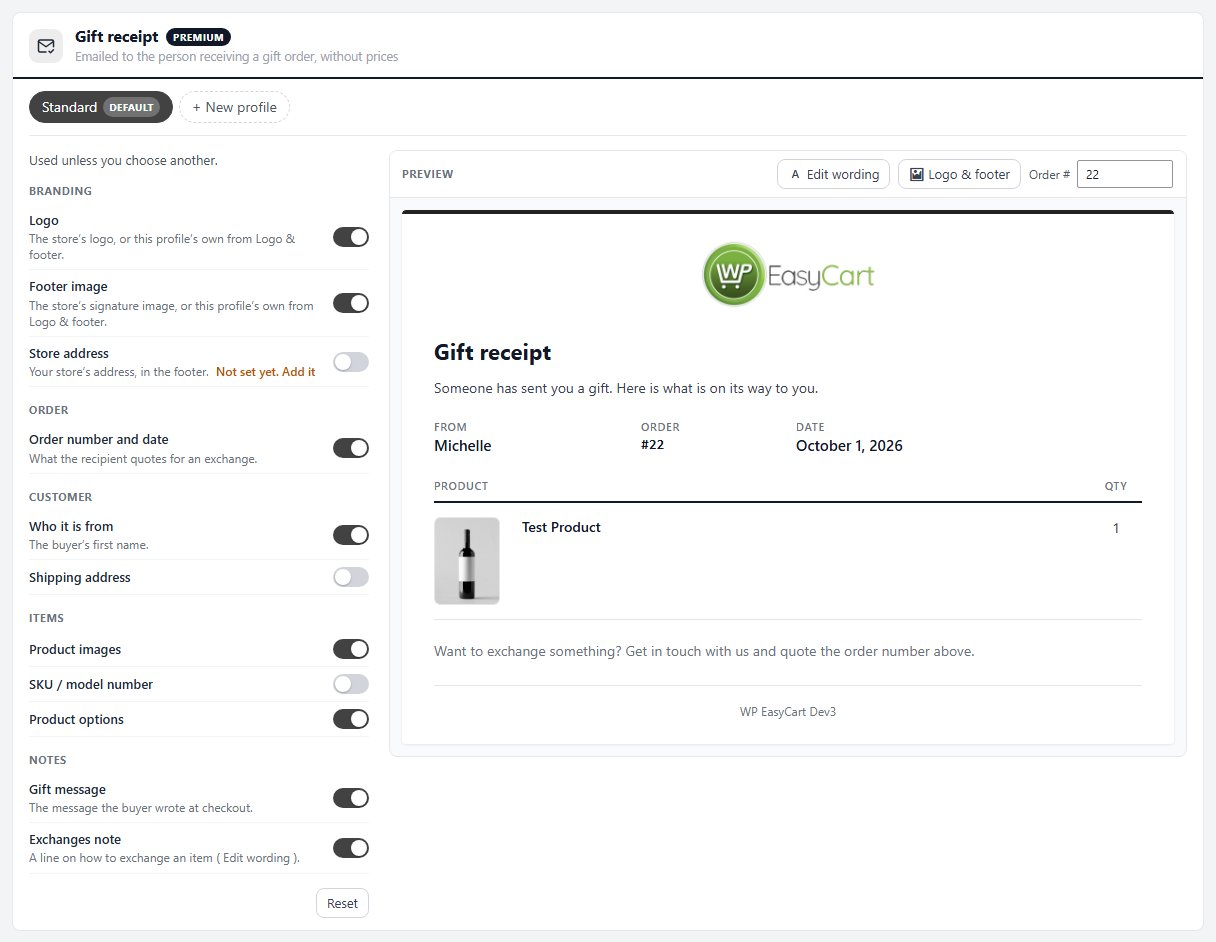
11 settingsLogo
The store logo from Settings › Email, or this profile’s own if it has one under Logo & footer. Size and position follow the same place.
Footer image
The store’s signature image at the foot of the document, or this profile’s own. Handy for a seal, a badge or a scanned signature.
Store address
Prints your postal address in the footer. The address itself is entered once, on Settings › Email › Sender; the switch shows an Add it link while it is still empty.
Order number and date
The order number and date, which is what the recipient quotes if they want to exchange something.
Who it is from
The buyer’s first name, so the recipient knows who sent it.
Shipping address
Where the gift was sent. Off by default; the recipient already knows.
Product images
A thumbnail against each line. It makes an order recognisable at a glance, at the cost of a heavier email.
SKU / model number
The SKU against each line. Off by default, since a gift recipient rarely needs it.
Product options
The size, colour or other choices made for each item. Leave it on if you sell anything with variants.
Gift message
The message the buyer wrote at checkout.
Exchanges note
A line telling the recipient how to exchange an item. Change what it says with Edit wording beside the preview.
Credit note
The PDF a refund on an invoiced order issues
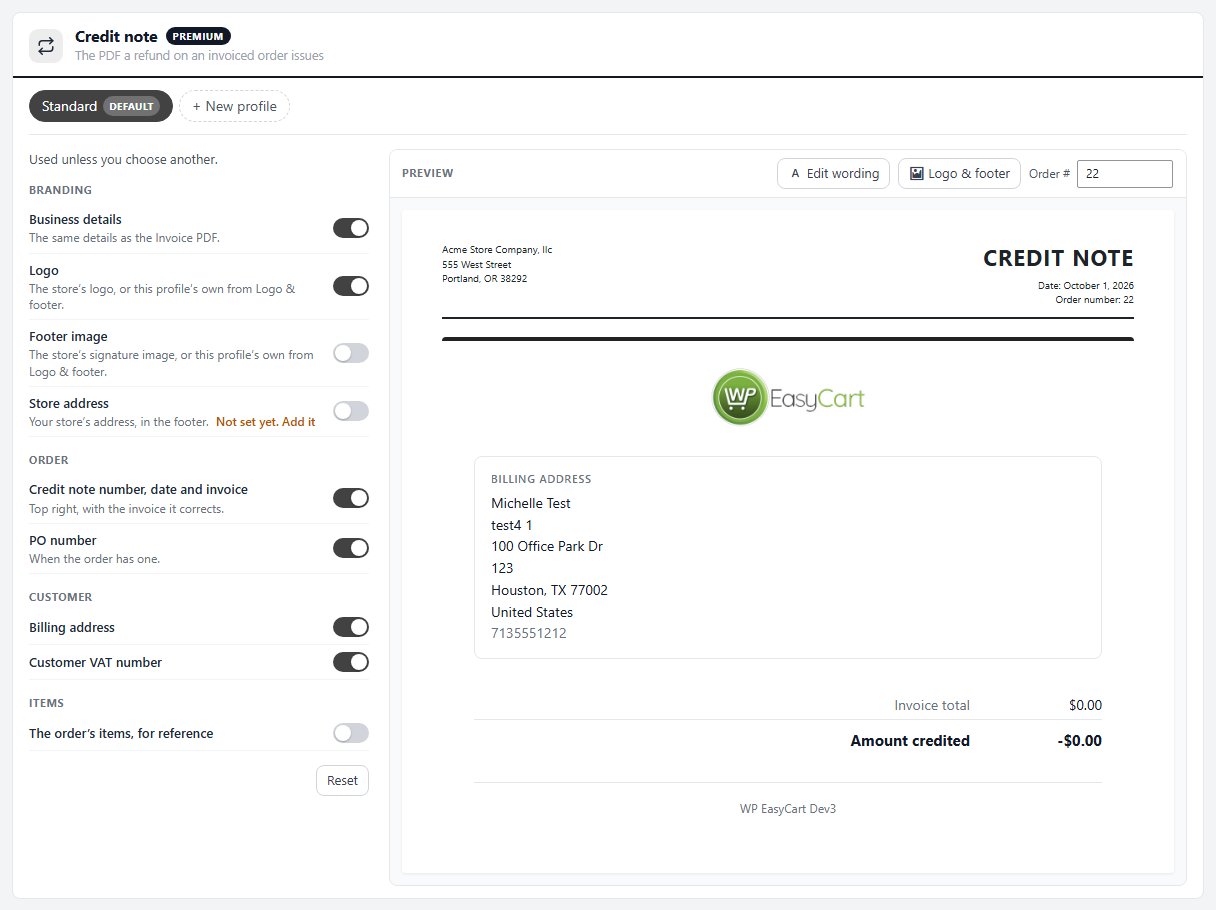
9 settingsBusiness details
The business details from the Invoice PDF section, your registered name, address and VAT number, at the top of the page.
Logo
The store logo from Settings › Email, or this profile’s own if it has one under Logo & footer. Size and position follow the same place.
Footer image
The store’s signature image at the foot of the document, or this profile’s own. Handy for a seal, a badge or a scanned signature.
Store address
Prints your postal address in the footer. The address itself is entered once, on Settings › Email › Sender; the switch shows an Add it link while it is still empty.
Credit note number, date and invoice
The block at the top right: the credit note number, its date and the invoice it corrects. Keep it on; it is what ties the refund to the original invoice in your books.
PO number
The order’s purchase order number, when it has one.
Billing address
Who the credit is for.
Customer VAT number
The customer’s VAT number, when they gave one. A business buyer needs it to adjust the VAT they reclaimed.
The order’s items, for reference
The order’s items, listed for reference under the amount credited. Off by default, which keeps the credit note to the figures.
Email attachments
Which documents go out as PDFs with each email, and with which profile
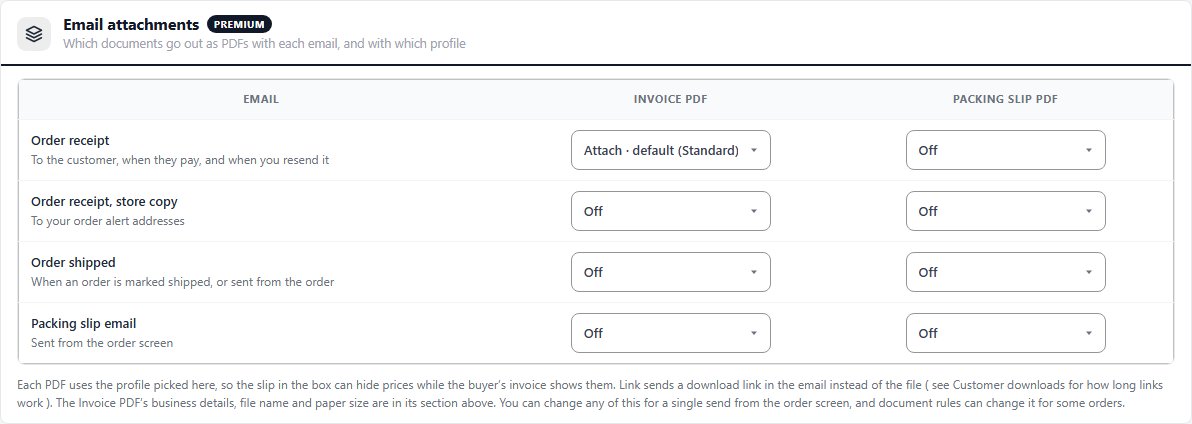
no stored settingsA grid of emails down the side and the two PDFs across the top: Invoice PDF and Packing slip PDF. The emails are the order receipt, the store’s copy of it, the order shipped email and the packing slip email. Each cell is Off, Attach · default, which follows whichever profile is the default when the email is sent, Attach with a named profile, or Link, default or named, which puts a download link in the email instead of the file. Links are not offered on the packing slip email, which is the slip itself. Cells save as you change them.
Picking a profile per cell is the point of the grid: the buyer’s receipt can carry an invoice with prices while the slip in a gift box carries none. The PDFs need the PHP dom and mbstring extensions on your server; if one is missing a warning names it above the grid, and emails go out without the PDF rather than not at all. How long a download link works is set under Customer downloads. A document rule can change any cell for some orders, and anything here can be changed for a single send from the order screen.
Document rules
Different profiles, attachments and customer downloads for different kinds of orders
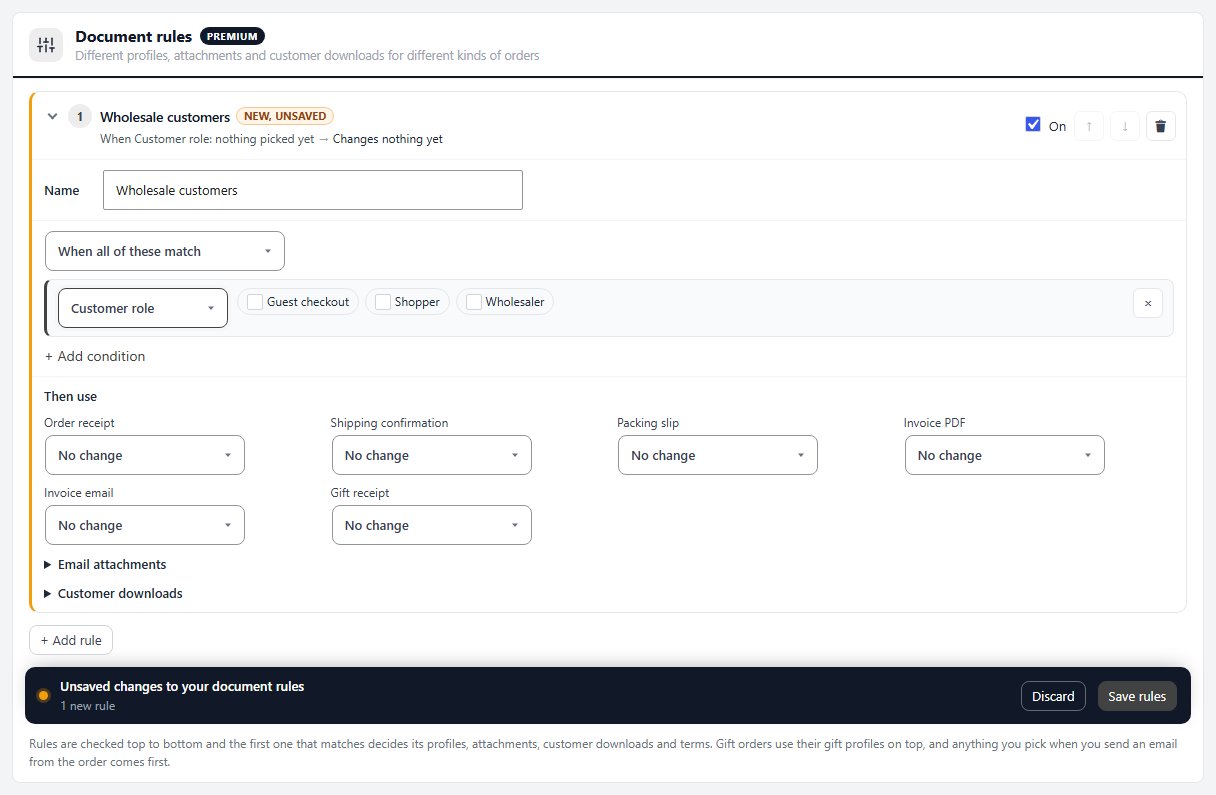
no stored settingsAn ordered list of rules, each with a name and an On switch. A rule has conditions, matched as When all of these match or When any of these match: Customer role ( guest checkout included ), Payment ( manual payment, paid online or free order ), Delivery ( shipped, local pickup or nothing to ship ), Gift order, Order total ( at least or at most an amount ) and Ship-to country.
Under Then use a rule picks a profile for the receipt, shipped email, packing slip, invoice PDF, invoice email and gift receipt, each left on No change unless you pick one. It can also change any cell of the attachments grid, show or hide each customer download, and set the payment terms of a manual-payment order.
Rules are checked top to bottom and the first one that matches decides for that order; use the arrows to reorder them. New rules start off and turn on once they have a condition; a rule with no conditions would match every order, so the page asks before turning one on. Unlike the rest of the page, rules save together with Save rules, and Discard puts them back as they were. A store keeps up to 50 rules.
Customer downloads
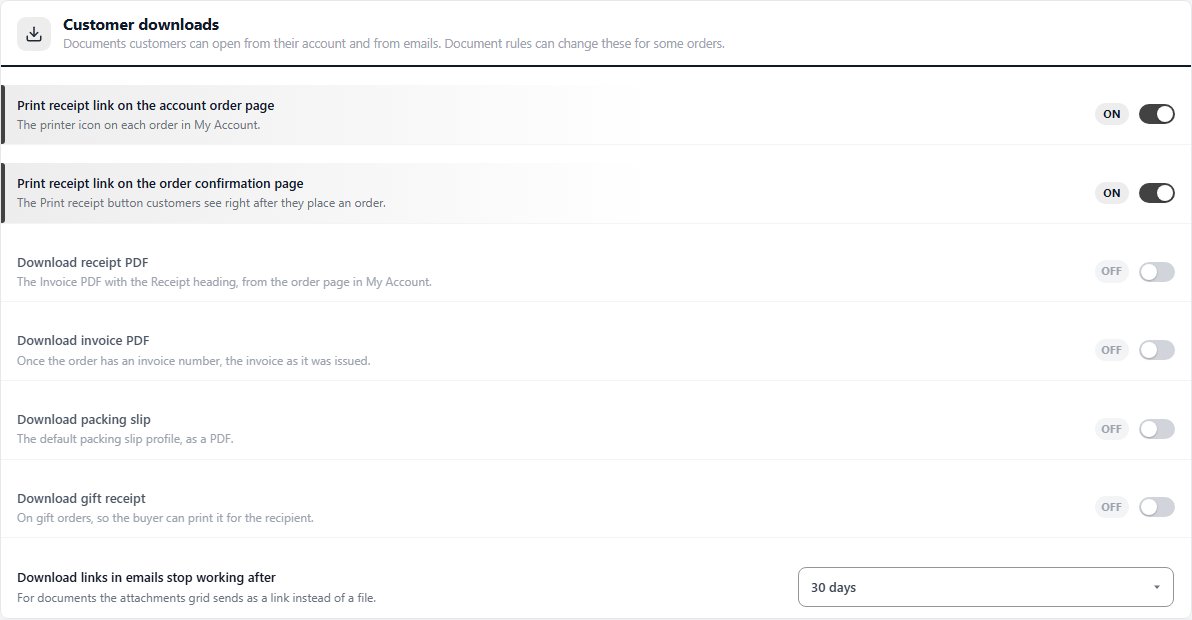
Documents customers can open from their account and from emails. Document rules can change these for some orders.
7 settingsPrint receipt link on the account order page
The Print Receipt link on each order card in My Account and on the dashboard’s recent orders, and the Print Receipt button on the order’s own page, which open a printable receipt. Account pages built with the Elementor account widgets show it as a printer icon.
Print receipt link on the order confirmation page
The Print Receipt button in the corner of the thank-you card, on the order confirmation page customers see right after they place an order.
Download receipt PDF
A download on the order page in My Account: the Invoice PDF with the Receipt heading.
Download invoice PDF
Once the order has an invoice number, the invoice exactly as it was issued, from the order page in My Account. Orders without an invoice number show nothing.
Download packing slip
The default packing slip profile as a PDF, from the order page in My Account.
Download gift receipt
On gift orders, the gift receipt as a PDF, so the buyer can print it for the recipient.
Download links in emails stop working after
7, 30 or 90 days, or never. Applies to documents the attachments grid, or a document rule, sends as a download link instead of a file. The links in My Account are made fresh each time the page is shown, so they are not affected.
Pay links
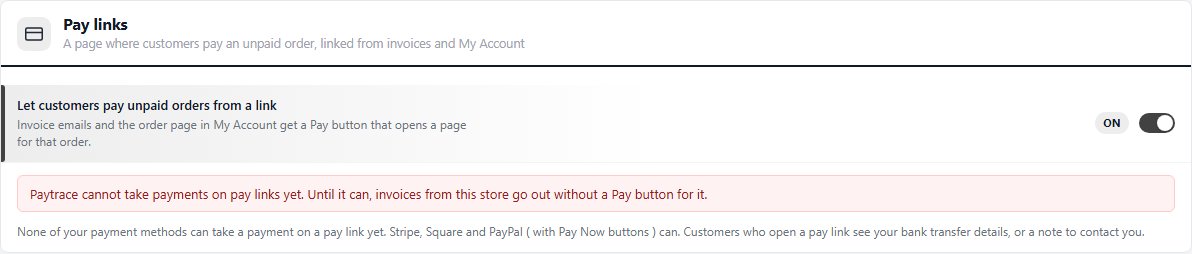
A page where customers pay an unpaid order, linked from invoices and My Account
1 settingLet customers pay unpaid orders from a link
Invoice emails and the order page in My Account get a Pay button for an unpaid order. It opens a page for that order where the customer pays what is due and can correct the billing address; everything else on the order stays as you set it. Below the switch, the section lists the payment methods that can take a payment there: card payments with Stripe or Square, PayPal, and your bank transfer details when manual payment is on. A gateway that cannot is named in a warning, and invoices go out without a Pay button for it. An unpaid bank transfer order also gets a Pay now button in the How to pay card of its order confirmation page.
Ready to run your store on WP EasyCart?
Everything in this guide works with the free plugin. PRO and Premium add subscriptions, memberships, wholesale pricing and more. Try every PRO feature free for 14 days.
