
How-to guides › Orders
Sending Order Documents
Resend a receipt, send a shipped email or a packing slip, attach the right PDF and split a shipment, all from one window on the order. 8 parts.
Quick links
Where to find it:WP Admin › EasyCart › Orders › open an order › Send Email
Sending
The window
Which email, to whom, and a look before it goes.
The Send Email window
One place for every email an order can send
no stored settingsOpen an order, then its … menu, then Send Email. It replaces the separate resend receipt and send shipped email items. The window opens on Order shipped when the order has a tracking number and on Order receipt when it does not.
Choose the email at the top: Order receipt, Order shipped, and with PRO Packing slip and Message, the old email customer option. The send button names what it will send, so there is no guessing.
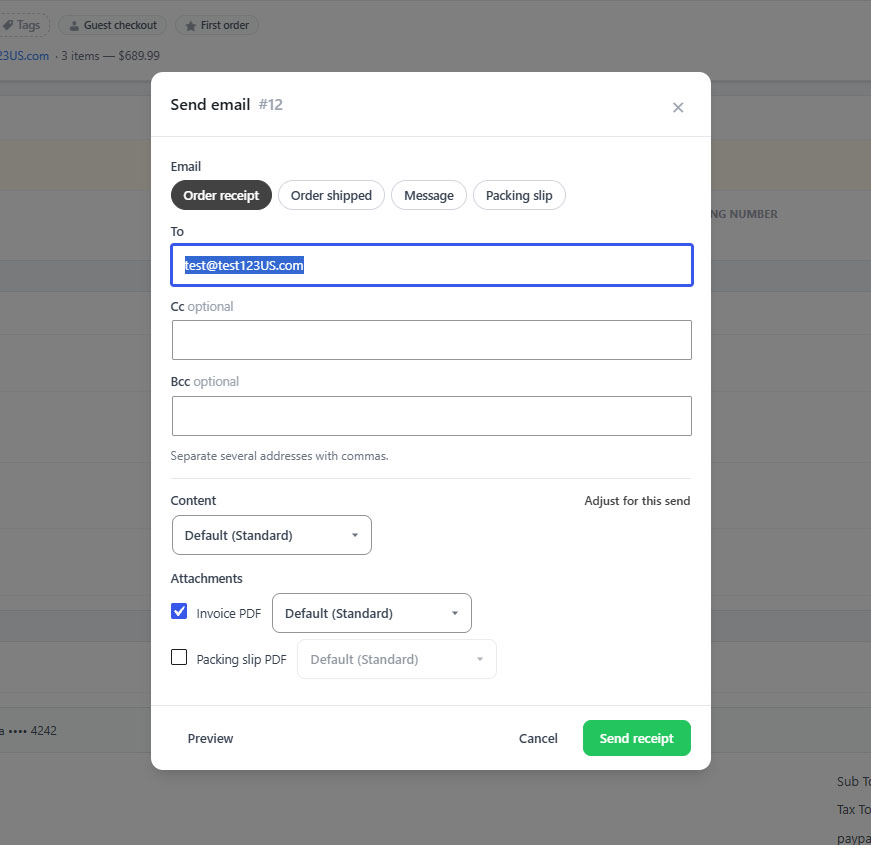
Recipients and preview
Exactly who gets it, and exactly what they see
no stored settingsTo starts with the order’s email address, and Cc with its second address if it has one. Bcc is there when you need it. Separate several addresses with commas. The email goes to these addresses only, so this is also how you send a copy to a supplier or an accountant without involving the customer.
Preview renders the email with every choice made in the window, attachments and item selection included. Look before you send anything you have adjusted.
⚠️ Careful: The email goes only to the addresses in the window. Remove the customer from To and they will not get it, which is intended for supplier copies and easy to do by accident.
Shaping it
Content, PDFs and split shipments
A different profile for one send, the PDFs attached, and the items in this parcel.
Content: a profile for this send
PRO: a different version, or a one-off tweak
no stored settingsThe Content section picks the profile this email uses, starting on the default. Adjust for this send opens the profile’s switches for one email only: turn prices off for a gift, drop the billing address, and the profile itself stays untouched.
Only the switches you actually changed are applied, so the rest keep following the profile.
💡 Note: Without PRO the window sends the receipt and shipped email with their Standard profiles; the Content, Attachments and Items sections show locked. Profiles are explained in Document Profiles.
Attachments
PRO: which PDFs ride along this time
no stored settingsTick Invoice PDF and Packing slip PDF to attach them, each with its own profile. Both start from what the Email attachments grid says for this email, the customer row for a receipt, and whatever you choose here replaces the grid for this send only.
If the server cannot build PDFs, the reason shows here before you send. The invoice PDF always covers the whole order.
💡 Note: The standing rules for attachments are set once in Settings › Documents. Use this window for the exceptions.
Items in this box
PRO: split shipments, done properly
no stored settingsOn the shipped email and the packing slip, an order with more than one line lists its items with ticks. Untick anything not in this parcel; at least one has to stay ticked.
Unticked items move to a To follow in a separate shipment list, as title and quantity, on both the email and the slip. The order totals are left off a partial slip or shipped email, because they belong to the whole order rather than this box. Item selection is not offered on the receipt.
The packing slip email
PRO: the slip, sent rather than printed
no stored settingsChoosing Packing slip sends the slip itself as the body of the email, subject Packing slip for order and the number, editable in the document wording. It is how a drop-ship supplier or a remote warehouse gets its picking instructions, and it carries whatever the Packing slip email row of the attachments grid attaches, unless you change it here.
Around it
Printing and the record
Paper copies, PDF downloads and the activity log.
Printing and downloading
Paper, and PDFs saved to your computer
no stored settingsPrint Packing Slip, from the order menu or as a bulk action on the order list, uses the packing slip’s default profile. Print Receipt prints the classic printable receipt, which is not one of the documents; the only document switch that reaches it is the receipt’s Product images.
With PRO, the order menu adds Download Invoice PDF and Download Packing Slip PDF, shown only when the server can build PDFs. The packing slip download uses the default profile.
What gets recorded
The order’s activity log keeps the paper trail
no stored settingsEvery send is written to the order’s activity: who it went to and, with PRO, what was attached and with which profile, for example packing-slip-1042.pdf (Gift, adjusted), and how many of the items were in the box. When a customer says an invoice never arrived, the activity log says whether it was sent and to where.
Keep going
Related panels
The switches and attachment rules these sends start from.
Gift, drop-ship and your own profiles.
The order list and the rest of the order screen.
Sender addresses and delivery, if an email does not arrive.
Try the PRO features free for 14 days
Anything marked PRO comes with WP EasyCart PRO or Premium. Take the whole thing for a run on your own store before you decide.