
The setup wizard
Four short steps, about five minutes
Once WP EasyCart is installed, setting up takes a few minutes. The Set up your store wizard opens by itself the first time you visit WP EasyCart › Settings on a store with no products. Its four steps are Location & currency, Payments & checkout, Shipping and Finish up.
Continue saves the step you are on and moves to the next. The stepper at the top, Back and the Edit links in the summary let you revisit a step; with changes on the page, the wizard asks first and can save them on the way. Save & exit saves the step too, then leaves for your Products screen and remembers where you were. Go back to a step and it shows the answers you gave, so nothing is reset by looking again.
Everything starts from your country. The wizard sets your currency, how prices are written, your weight and size units, your tax, the countries you ship to and starter shipping rates for it, and the payment gateways and carriers it shows first are the ones that serve your country.
The Setup summary on the right fills in as you go. Below it, Applied automatically shows the recommended settings and your three store pages, which are set up before you answer a single question.
Skip setup jumps to the end. Recommended settings stay applied and your store pages stay in place. To come back later, open Settings › Store details and use Open the setup wizard on the Store pages card.
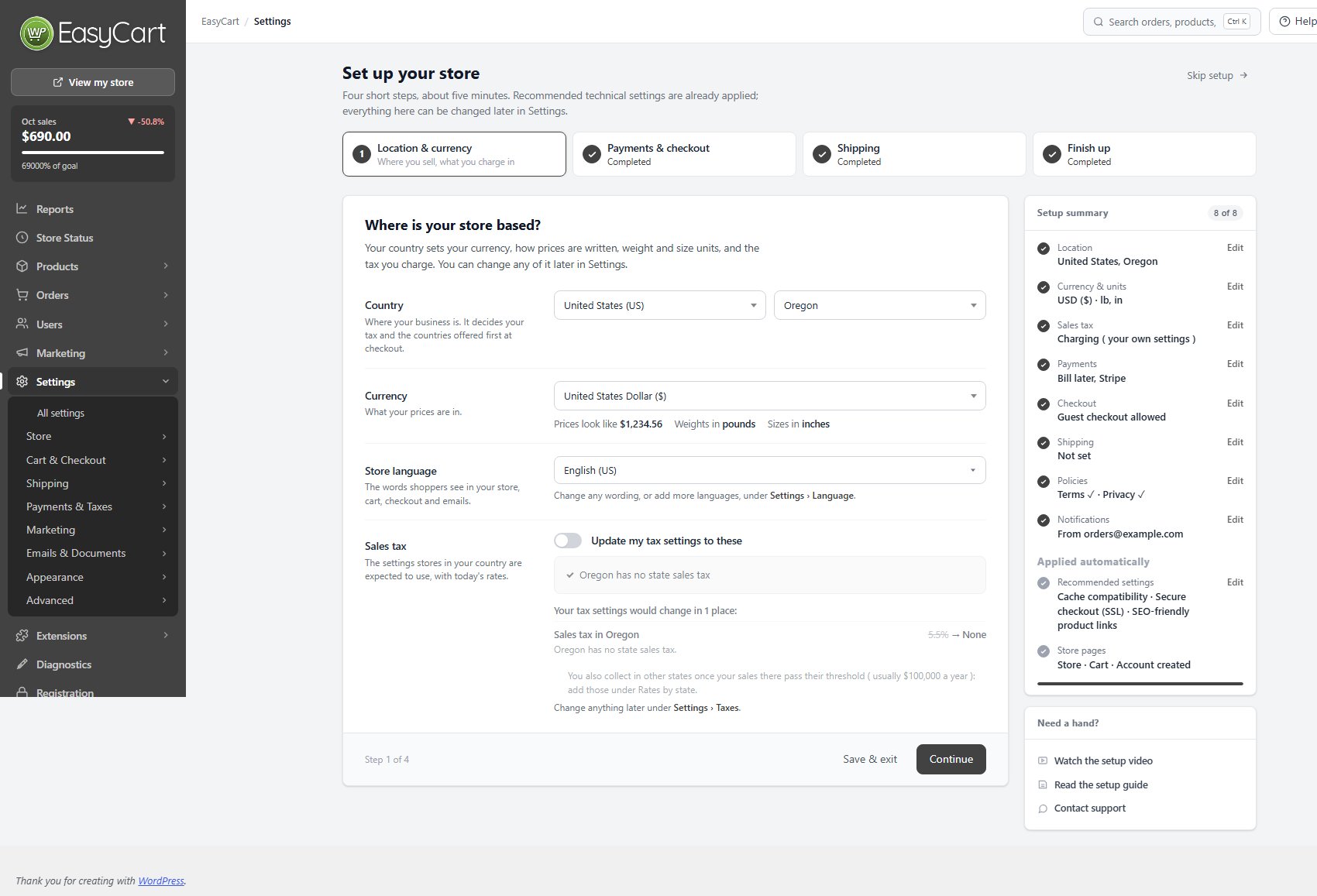
Step 1. Location & currency
Where is your store based?
Your country sets your currency, how prices are written, your weight and size units and the tax you charge. On a new store the wizard pre-fills it from your WordPress language and timezone; change anything that is not right.
Country: where your business is. It decides your tax and the countries offered first at checkout. A US store also picks its state and a Canadian store its province, because they set the sales tax, GST / HST and PST.
Currency: follows the country, and you can pick another. Under it the wizard shows Prices look like in your country’s format, such as $1,234.56 or 1 234,56 €, with Weights in pounds or kilograms and Sizes in inches or centimetres. Continue saves all of them. A store that already weighs in ounces or grams keeps that unit while the country weighs the same way.
Store language: the words shoppers see in your store, cart, checkout and emails. Change any wording, or add languages, under Settings › Language.
Tax, named for your country ( Sales tax, VAT, GST, or GST / HST and PST ): Set up tax for my country applies the settings stores in your country are expected to use, with today’s rates, and lists them first. On a store with tax already set up the switch reads Update my tax settings to these and shows what would change. VAT and GST countries also answer My prices include VAT ( or GST ), EU stores choose how they charge customers in other EU countries, and Canadian stores say whether they are registered for PST in every PST province.
Everything here can be changed later: the country, units and price format in Settings › Store details, tax in Settings › Taxes. For a step by step walkthrough, see Set Up VAT or GST for Your Country or Set Up Sales Tax and VAT.
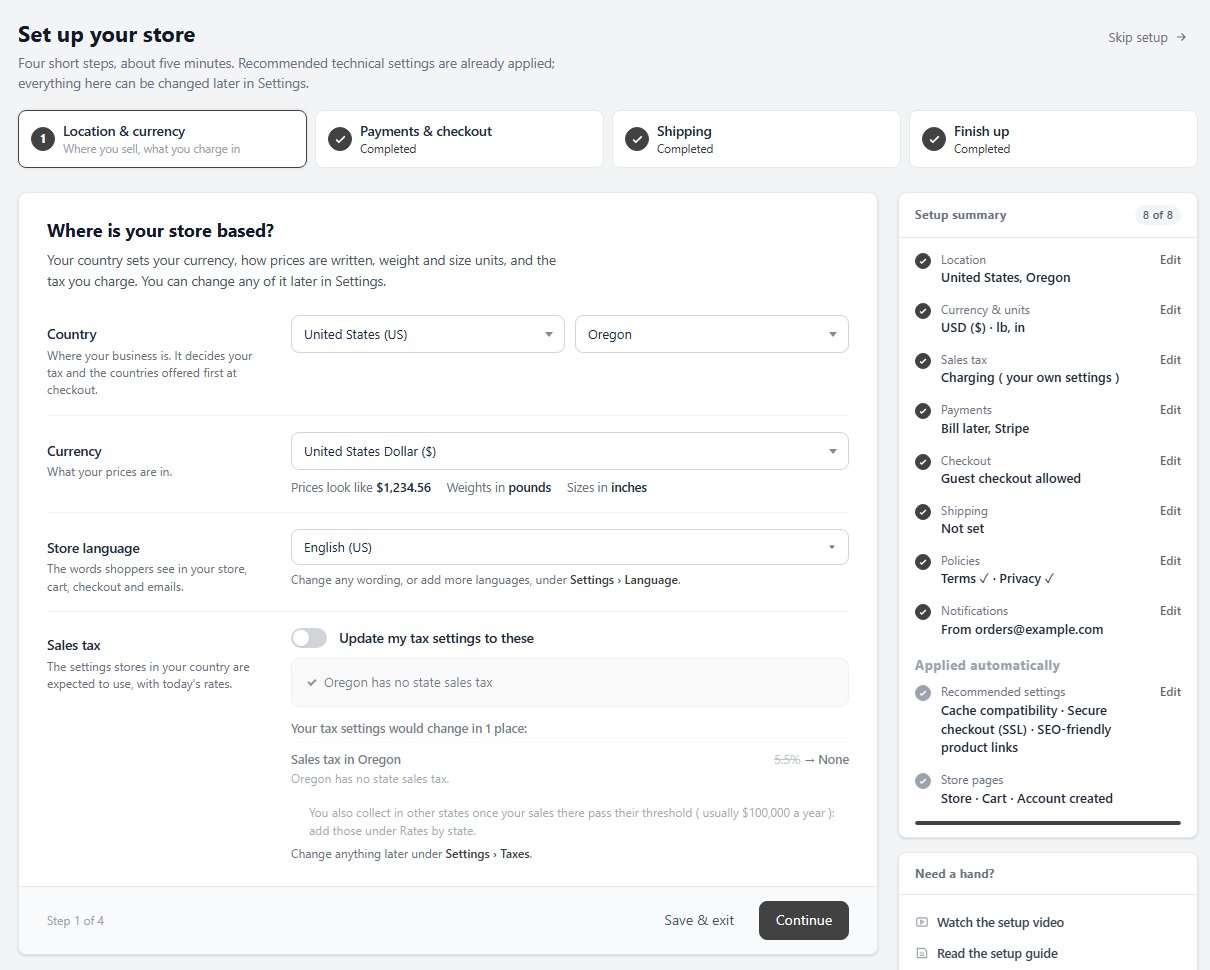
Step 2. Payments & checkout
How will customers pay?
Turn on Bill later now, or connect a gateway in a couple of clicks. The lines are grouped the way Settings › Payment groups them, and only gateways that take payments for stores in your country are shown:
Card payments: Stripe ( cards, Apple Pay, Google Pay and Link, entered on your own checkout page ) and, where Square takes payments, Square ( cards, plus your Square items brought into your store ). Both need https.
Checkout buttons: PayPal buttons, with Venmo for US stores and Pay Later in the countries PayPal offers it. No SSL certificate required. Press Connect and sign in with your PayPal login.
Pay later: Bill later. Customers order now and pay you directly, by bank transfer, cheque or on pickup ( Interac e-Transfer too in Canada ). Shoppers see it as Pay by bank transfer, or Pay by Interac e-Transfer on a Canadian store. No fees. Turn it on with the switch, and use Add your bank details to open its settings, where your account goes in your country’s format.
On the free edition a line beneath names the PRO gateways stores in your country use, with the Stripe payment methods popular there.
On the free edition, tick the EasyCart Connect terms box before you connect PayPal, Stripe or Square. Those three carry a 2% EasyCart fee on the free edition; Bill later needs no terms and carries no fee. A PRO or Premium license removes the fee and adds 30+ more gateways.
Checkout: Allow guest checkout is on by default and recommended. Requiring an account is the single biggest cause of abandoned checkouts, and customers can still create one after ordering.
For a step by step walkthrough, see How to Take Your First Payment.
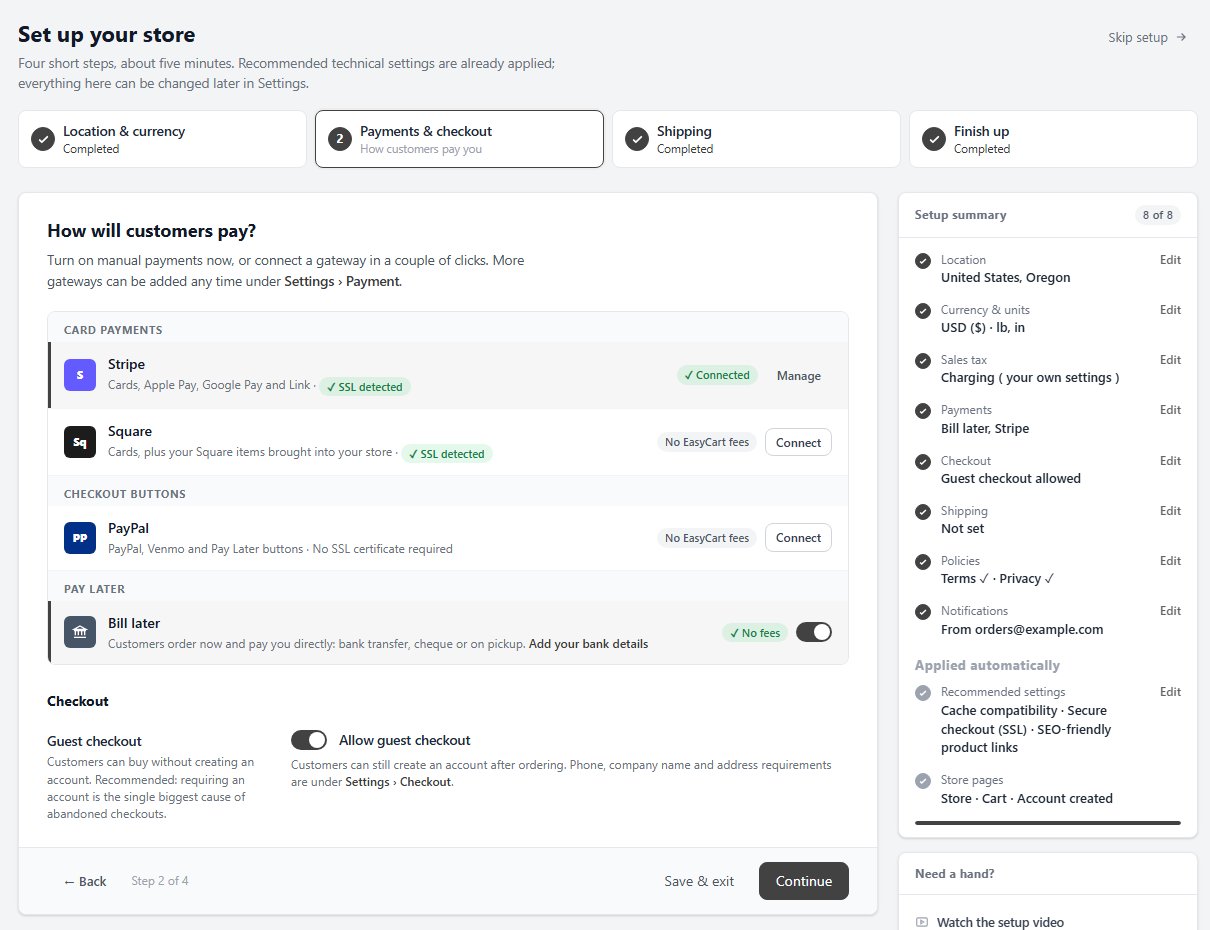
Step 3. Shipping
How do you want to charge for shipping?
Pick a starting point and the wizard installs a set of starter rates for you, priced in your currency and written in your store’s format. You edit the amounts, add free-shipping rules or switch method later under Settings › Shipping Rates.
Flat rates (recommended to start): customers choose a service level: Standard shipping, Express shipping and Next-day shipping.
By cart total: one rate per order, based on the subtotal, so small orders ship for less.
By weight: one rate per order, based on total weight, in your weight unit. Best for heavy or bulky products. A pound store starts with tiers at 20, 50, 100 and 500 lb; a kilogram store at 10, 25, 50 and 250 kg; an ounce or gram store gets the same tiers in its own unit.
I don’t ship anything: for downloads, services or collection only. No rates are installed, checkout charges no delivery, and the store counts as set up for shipping.
Each card lists the rates it will install. If you already have rates of that kind, the card says so and nothing new is added. On the free edition, a Live carrier rates card ( PRO ) lists the carriers that quote for your country, such as UPS, USPS, FedEx and DHL for a US store, or Royal Mail first for a UK store.
Where do you ship? Choose Only within your country, Across your region ( North America, Europe and so on, with the number of countries ) or Worldwide, every country people live in. Checkout offers only those countries for delivery. A new store outside the US also gets a shipping zone for its own country, in place of the US-only zones it started with while nothing uses them. If you already chose countries under Settings › Countries & Regions and they match none of the three, Keep the countries I ship to now leaves them as they are.
For a step by step walkthrough, see Set Up Shipping That Does Not Lose Money.
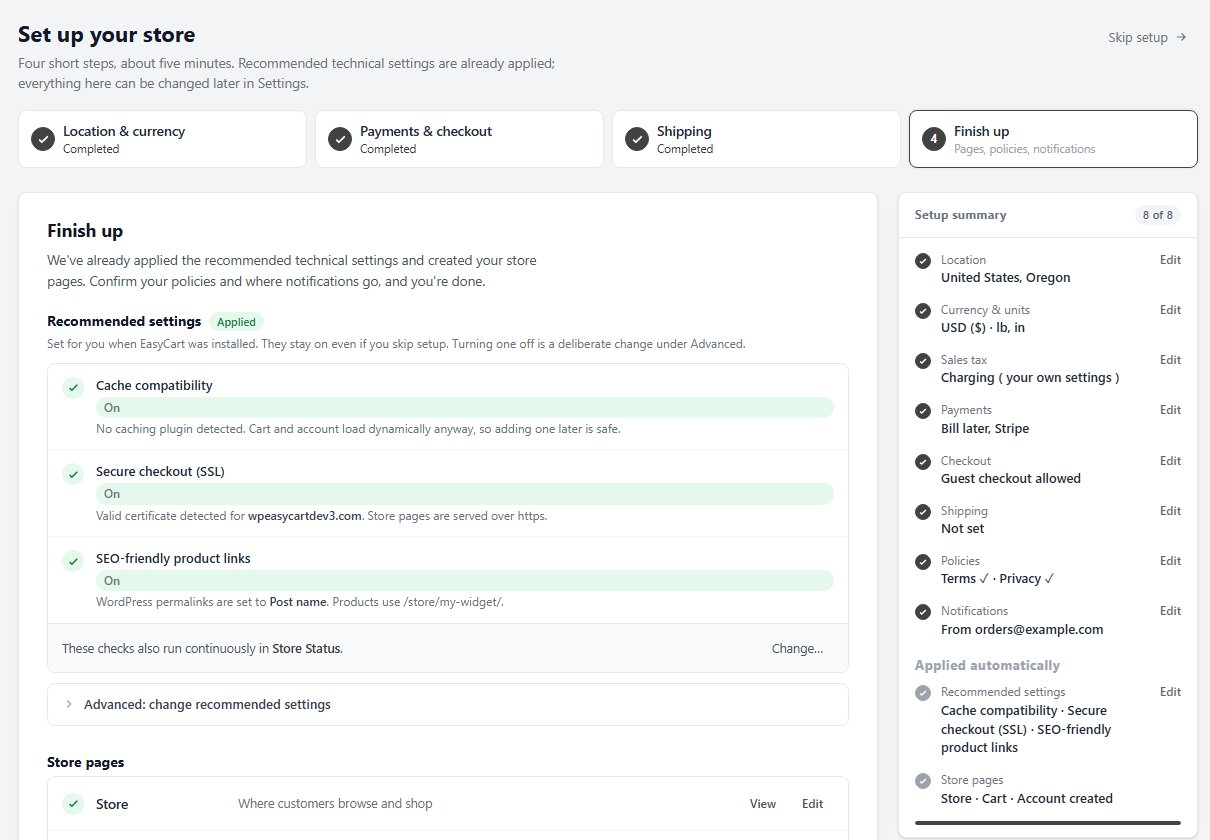
Step 4. Finish up
Pages, policies and notifications
Recommended settings were applied when WP EasyCart was installed, and the wizard shows their state: Cache compatibility, Secure checkout (SSL) and SEO-friendly product links. SSL waits for a certificate, and SEO links wait for permalinks other than Plain; both turn on by themselves once your site is ready. Advanced: change recommended settings is there if your host tells you to turn one off.
Store pages: Store, Cart & Checkout and My Account, each with View and Edit. Add all three to your menu puts them in your site navigation in one click.
Policies: pick your Terms & conditions and Privacy policy pages, or press Create draft to start one from our outline. Agreement at checkout makes customers accept the terms before they place an order.
Notifications: Send order emails from is the From and Reply-To address customers see; use one on your own domain. Copy new-order emails to is your admin address. Press Send test email now, because order emails go through WordPress mail, which many hosts handle poorly.
Help improve EasyCart shares anonymous usage data, never customer or order data. Neither it nor Send me security updates and product news from WP EasyCart is ticked for you ( usage data stays on only for a store that already shares it ). Press Finish setup to save.
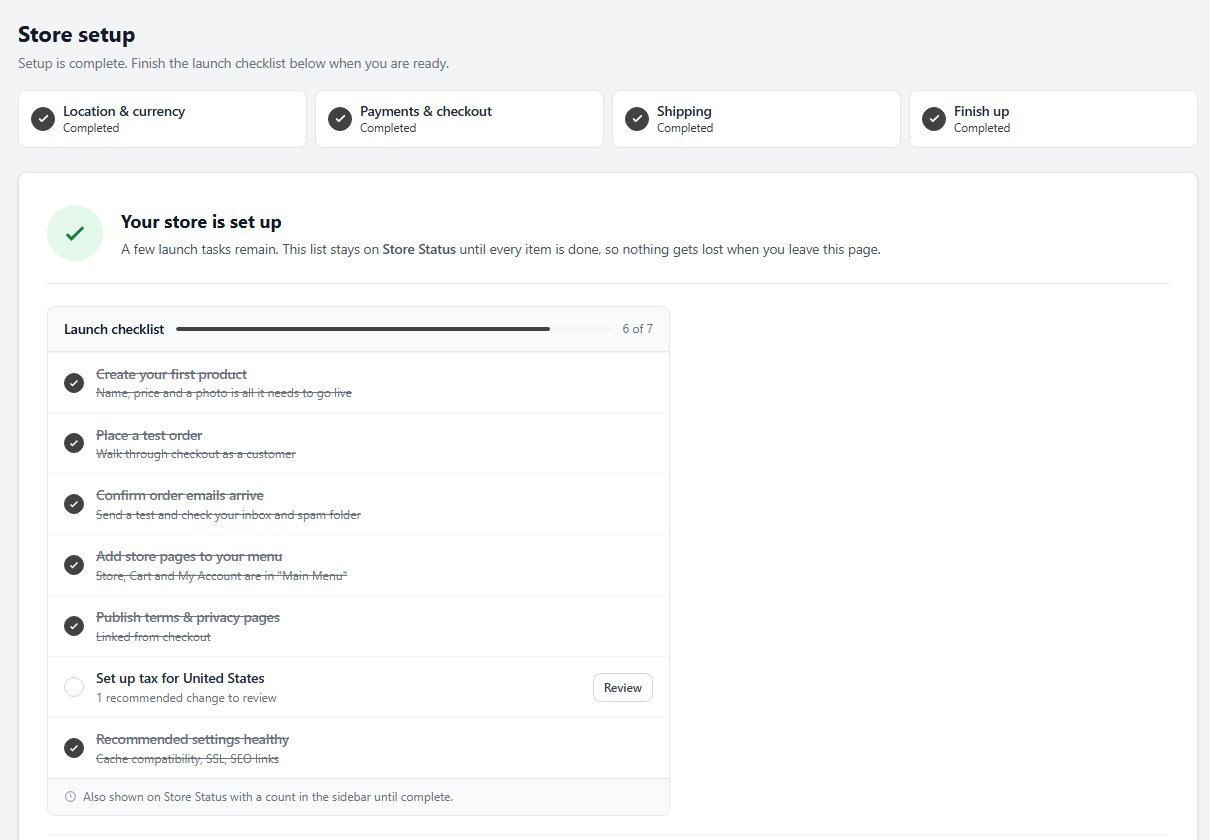
Your store is set up
The launch checklist and what to do next
The last screen shows the Launch checklist. Items tick off as you do them:
Create your first product.
Place a test order: walk through checkout as a customer.
Confirm order emails arrive: send a test and check your inbox and spam folder.
Add store pages to your menu.
Publish terms & privacy pages, linked from checkout.
Set up tax for your country: ticks off when your tax settings match the ones recommended for it, and otherwise says how many changes there are to review.
Recommended settings healthy: cache compatibility, SSL and SEO links.
Moving from Square or WooCommerce? The checklist adds an optional import item, and the cards beside it offer Open importer. Install demo data fills the store with samples if you just want to look around.
The checklist stays on WP EasyCart › Settings until every item is done, so nothing is lost when you leave. View my store opens your storefront.
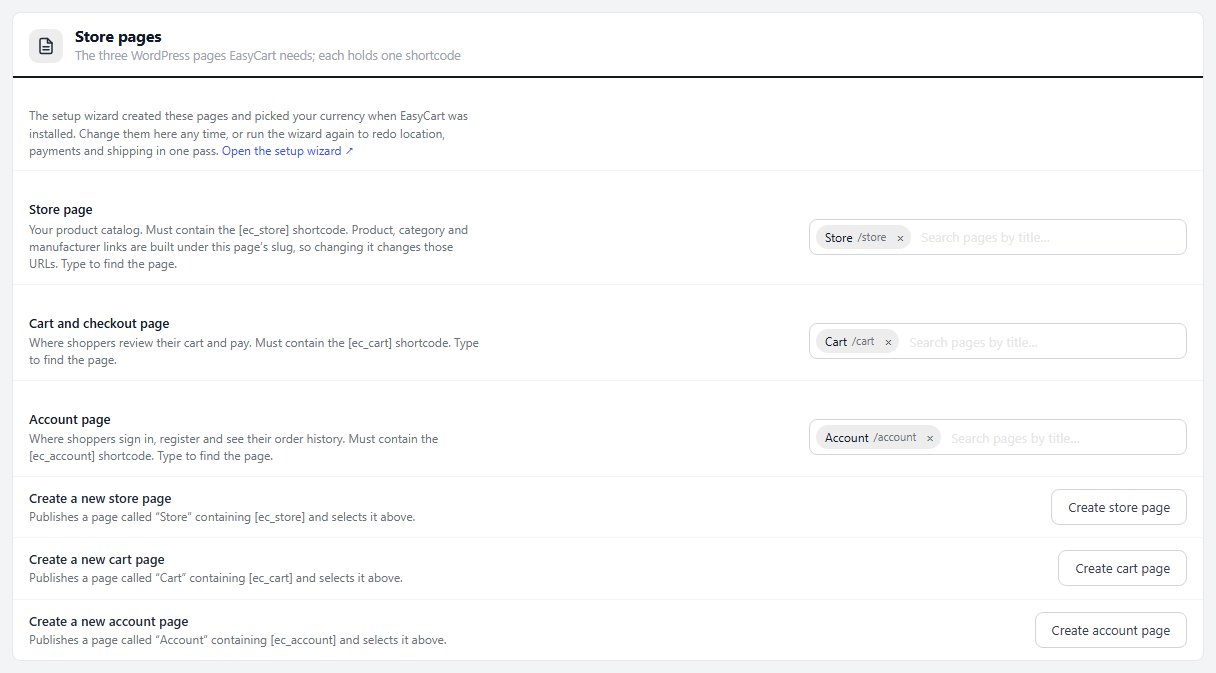
Your three store pages
Store, Cart and Account, each holding one shortcode
Your whole shop runs on three ordinary WordPress pages. WP EasyCart creates them when it is installed and connects them for you, so there is nothing to do here unless one goes missing.
Store page: your product catalog, with the [ec_store] shortcode. Product, category and manufacturer links are built under this page’s address.
Cart and checkout page: where shoppers review their cart and pay, with the [ec_cart] shortcode.
Account page: where shoppers sign in, register and see their orders, with the [ec_account] shortcode.
You find them in Settings › Store details › Store pages. If one is missing, Create store page, Create cart page or Create account page publishes a fresh one and selects it.
Try it with demo data
Sample products and orders to explore before adding your own
Want to see a working store before you add your own products? Install demo data adds sample clothing products, categories, option sets, a customer, orders and three shipping rates. Install it from the wizard’s last step, or from the Demo data card in Settings › Store details.
When you are done, the same card offers Remove demo data. It deletes only what the installer added. Your own products, customers and orders are not touched.
Demo products do not count towards the launch checklist, so Create your first product stays open until you add a real one.

Before you launch
Store readiness and the checks worth doing
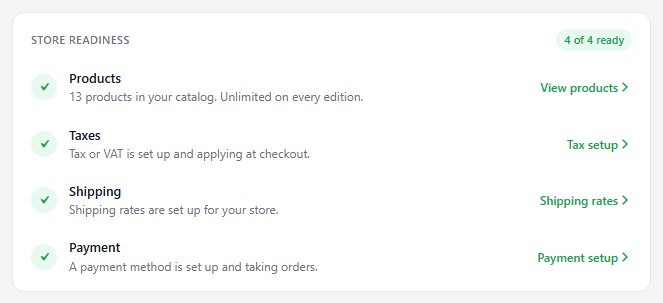
WP EasyCart › Store Status runs four readiness checks: Products, Taxes, Shipping and Payment. A failing Payment check means nobody can check out. A failing Taxes or Shipping check means the store takes orders without charging for something. A store that charges no tax or ships nothing can say so with We charge no tax or We ship nothing.
Then run down this list:
Products: added, with prices and photos.
Shipping and tax: rates that match what you really pay and owe.
Payment: a gateway connected and out of test mode.
Design: your store pages look right with your theme.
A test order: placed from start to finish, with the emails arriving.
For the whole journey in one guide, see How to Build Your First Store with WP EasyCart. Need help? Open a ticket at wpeasycart.com/my-account.
Ready to run your store on WP EasyCart?
Everything in this guide works with the free plugin. PRO and Premium add subscriptions, memberships, wholesale pricing and more. Try every PRO feature free for 14 days.
