What’s newFind any order, customer, product or setting with one admin search. See all features

How-to › Product setup

How to Show EU Product Safety (GPSR) Details

Show the manufacturer, the responsible person in the EU and each product’s warnings on your product pages, as EU product safety rules ask. You enter the contact once per manufacturer and the warnings per product. 8 parts.

Quick links

Where to find it:WP Admin › EasyCart › Products › Manufacturers

Before you start

What you need

What EU product safety rules ask a shop to show, and where WP EasyCart keeps it.

What you need

What the EU asks for, and where WP EasyCart keeps it

What you need. WP EasyCart. Product safety details are in the free plugin, with nothing else to install.

What the rules ask. The EU’s General Product Safety Regulation ( GPSR ) asks a shop selling to consumers in the EU to show, with each product: who made it, with a postal address and an email or website; when the manufacturer is outside the EU, a responsible person in the EU with the same contact details; what identifies the product; and its warnings or safety information.

Where WP EasyCart keeps it. A store usually sells a handful of brands, so the contact details are entered once on each manufacturer and shared by all its products. Each product adds its own warnings, and can name a different responsible person. Product pages then show it all in a Product safety tab.

The steps: decide when the tab shows, fill in each manufacturer, give every product a manufacturer, then add each product’s warnings.

⚠️ Careful: WP EasyCart shows the details you enter; it does not check them. What your products need is for you and your suppliers to confirm.

Set it up

Four steps

Choose when the tab shows, fill in each manufacturer, give every product one and add its warnings.

Step 1. Choose when product pages show it

Settings › Products › Product pages

Go to EasyCart › Settings › Products and find Show product safety details ( EU ) in the Product pages section.

Automatic ( the default ) shows the tab when your store is in the EU or the EEA, or sells there. Selling there means you narrowed your ship-to countries under Countries & Regions and kept an EU country among them, or you shipped an order to one in the last year. A store that ships everywhere and has never shipped to the EU does not count.

Always show turns the tab on whatever your store does, which is the safe choice for a US or UK store that does sell to the EU. Never show turns it off.

Once the tab is on, every product with a manufacturer, warnings or a responsible person shows it, with whatever is filled in so far. If you are choosing Always show, fill in steps 2 to 4 first, or leave it on Never show until you have.
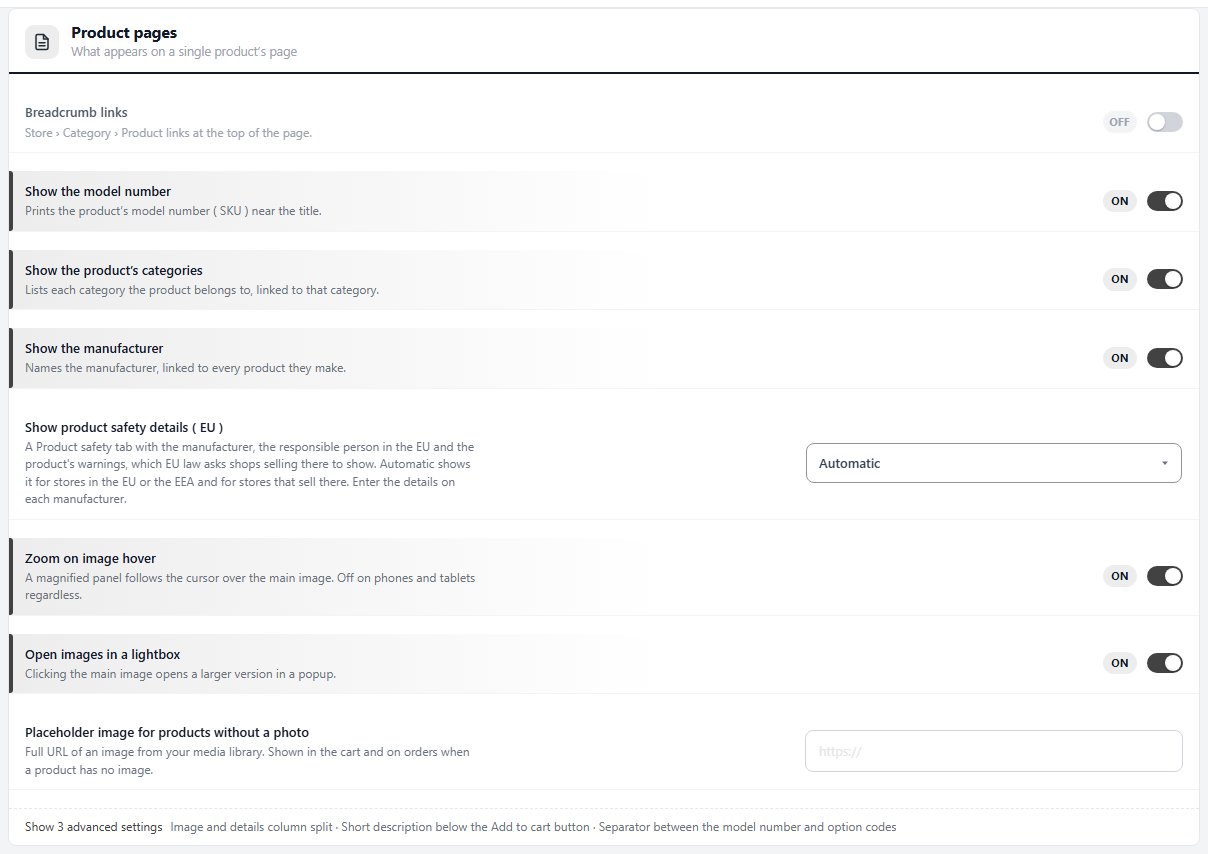
The Product pages section, with Show product safety details ( EU ) on Automatic.

💡 Note: Every setting in that section is explained in Settings › Store › Products. Ship-to countries are set in Settings › Store › Countries & Regions.

Step 2. Fill in each manufacturer

Products › Manufacturers › Product safety ( EU )

Go to EasyCart › Products › Manufacturers and open a manufacturer. The Product safety ( EU ) card sits under Details, and Product safety in the list on the left jumps to it. A line at the top says whether your product pages show the details right now.

Fill in, as printed on the product or its packaging:

Postal address: the manufacturer’s registered or trading address.
Country: where the manufacturer is. This decides whether a responsible person is needed.
Email and Website: how shoppers reach it. One of the two is enough.

Responsible person in the EU. When the manufacturer is outside the EU, or you leave its country empty, name the importer or the person the manufacturer appointed: their Name, Email and Postal address. A manufacturer in the EU needs none.

Press Save. Every product of this manufacturer now carries these details. While product pages show them, the Manufacturer health list in the left column says what is still missing, or Product safety details complete.
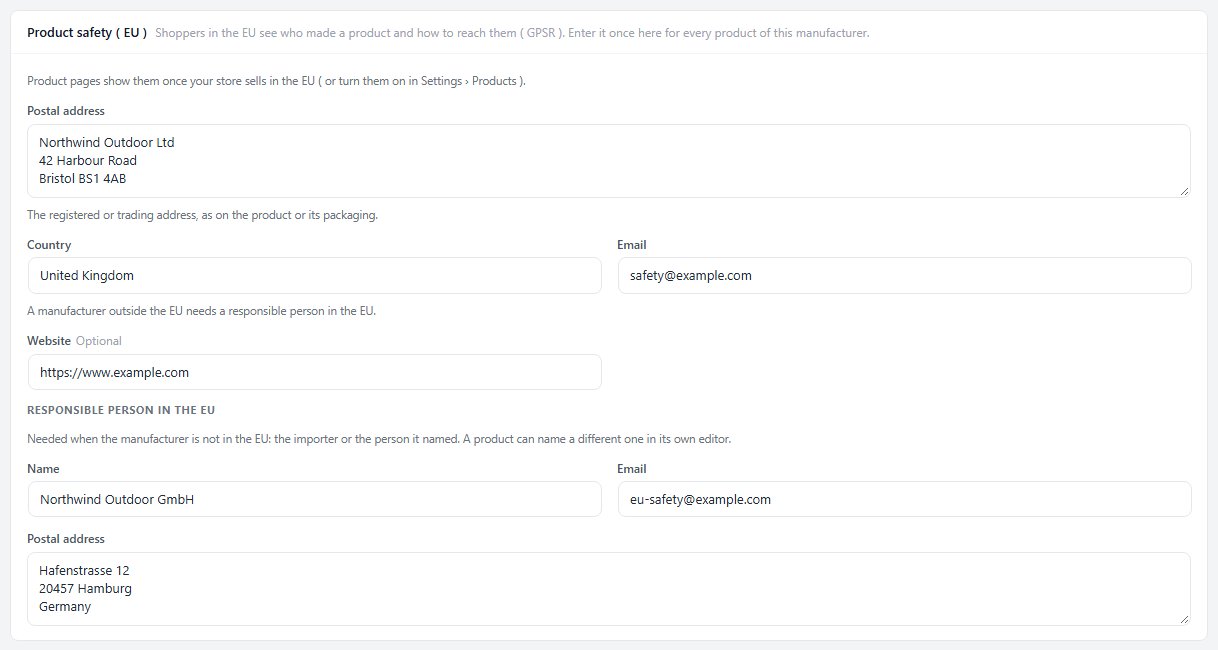
The Product safety ( EU ) card for a manufacturer outside the EU, with its responsible person in Germany.

💡 Note: The rest of the manufacturer editor is explained in Manufacturers.

Step 3. Give every product a manufacturer

The Summary column’s Organization card

A product takes its safety contact from its manufacturer, so a product without one has none. Open the product in EasyCart › Products and pick its Manufacturer in the Organization card of the Summary column, on the right. Type to search, or create a new manufacturer there and fill it in as in step 2.

For a whole brand at once, open the manufacturer and press Assign products.
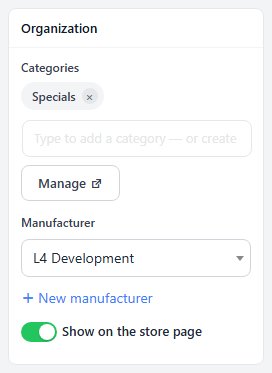
The Organization card in the Summary column: categories, manufacturer and Show on the store page.

Step 4. Add each product’s warnings

Product editor › Storefront › Product safety ( EU )

Open the product and choose Storefront in the list on the left, under Advanced. The last card is Product safety ( EU ). A new product shows it once it has been saved for the first time.

The card names the manufacturer the contact comes from, with Edit the manufacturer to open it in a new tab. Still missing: lists anything the details still lack, such as the manufacturer’s postal address or a responsible person in the EU.

Type the product’s Warnings and safety information as they appear on the product or its label, in your shoppers’ language: age limits, how to use it safely, what to keep it away from. Each line you type shows as its own line.

Does this product come in through a different importer? Open A different responsible person in the EU for this product and fill in their Name, Email and Postal address. They replace the manufacturer’s on this product only. Leave them empty to show the manufacturer’s.

Press Save.
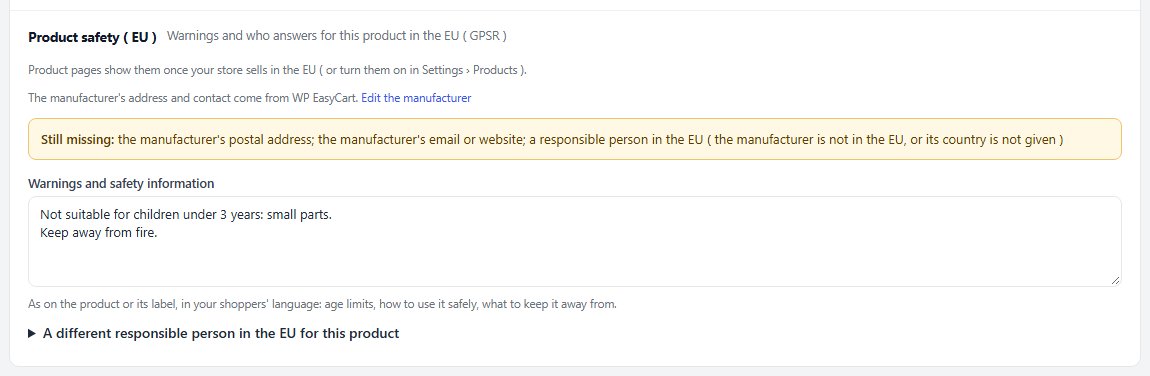
The Product safety ( EU ) card on a product, with what is still missing and its warnings.

💡 Note: The whole Storefront section is explained in Storefront.

Check it and keep it running

Good to know

What shoppers see, a test, and the usual snags.

What shoppers see

The Product safety tab on the product page

Product pages get a Product safety tab after the product’s other tabs, such as Description. It lists, leaving out anything empty:

Manufacturer: its name, postal address, email and website.
Responsible person in the EU: the product’s own, or else the manufacturer’s.
Product: its name, its SKU and its barcode. The barcode comes from Barcode ( GTIN, UPC, EAN or ISBN ) in the product’s Search & AI section, and shows when it is 8, 12, 13 or 14 digits long.
Warnings and safety information: the product’s text, line by line.

Product pages built with Elementor show the tab in the Product Tabs widget, and the Tabs extension shows it with your own tabs. Every heading in the tab can be reworded or translated in the language editor.
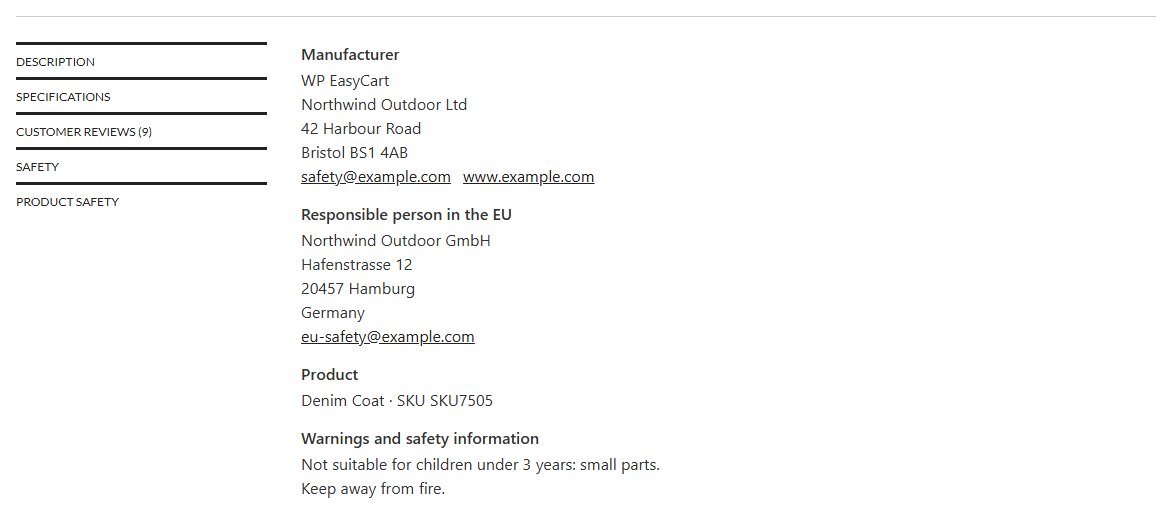
A product page’s Product safety tab: the manufacturer, the responsible person in the EU, the product and its warnings.

Test it

Check one product as a shopper

Open a product you filled in, in a private window.

1. The Product safety tab should be there. If it is not, check step 1.
2. The manufacturer’s address and email or website should show, and the responsible person when the manufacturer is outside the EU.
3. The warnings should read line by line, as you typed them.
4. Back in the editor, the product’s card should no longer show Still missing:.

If it does not work

The usual snags

There is no Product safety tab. On Automatic, the tab shows only for a store in the EU or the EEA, or one that sells there. A store that ships to every country and has not shipped to the EU in the last year does not count, and the check is made once a day. Choose Always show if you sell to the EU. A product with no manufacturer, no warnings and no responsible person has nothing to show and gets no tab.

The editor has no Product safety card. It appears once a new product has been saved for the first time. Save the product, then look under Storefront again.

Still missing says a manufacturer. The product has none. Pick one in the Organization card of the Summary column.

It asks for a responsible person, but the maker is in the EU. The manufacturer’s Country is empty or outside the EU. Set it in the manufacturer’s Product safety ( EU ) card.

No barcode in the tab. Enter it in the product’s Search & AI section. Only barcodes of 8, 12, 13 or 14 digits show.

The wrong responsible person shows. A product’s own responsible person wins over the manufacturer’s. Empty the fields under A different responsible person in the EU for this product to show the manufacturer’s.

Still stuck? Open a ticket at wpeasycart.com/my-account.

Keep going

Related panels

Products

When product pages show the safety details.

Manufacturers

The manufacturer editor and its Product safety ( EU ) card.

Storefront

The Storefront section, where each product’s warnings live.

Search & Marketing

The barcode the tab shows.

Countries & Regions

Your ship-to countries.

Set Up VAT or GST for Your Country

Selling in the EU: VAT, prices and receipts.

Ready to run your store on WP EasyCart?

Everything in this guide works with the free plugin. PRO and Premium add subscriptions, memberships, wholesale pricing and more. Try every PRO feature free for 14 days.
The WP EasyCart admin: orders and offers
Updated on October 30, 2026