
How-to › Marketing and growth
How to Recover Abandoned Carts
Win back customers who filled a cart and left. You turn on a three-step reminder sequence, write the emails, add a discount if you want one and read the results. 11 parts.
Quick links
Where to find it:WP Admin › EasyCart › Marketing › Abandoned Cart
Before you start
What you are building
What you need and what happens to a cart that is left behind.
How cart recovery works
What you need, and what happens to a cart that is left behind
no stored settingsWhat you need. WP EasyCart PRO or Premium, and store email that sends. The free plugin shows the page locked. You can try it with the free trial.
What happens. A customer fills a cart and types their email at checkout, then leaves. WP EasyCart saves that cart. After the idle time you set, it sends a short series of reminders. Each has a button that puts the cart back in front of the customer. The series stops the moment they buy, unsubscribe, or you mark the cart handled.
Two systems. The older one sends a single daily reminder, set in Settings › Checkout. The newer one sends a sequence of up to three emails, set under Marketing › Abandoned Cart. Use the sequence. Turning it on replaces the daily reminder, so nothing sends twice.
The steps: choose the timing, turn the sequence on, write the emails, add a discount if you want one, set the rules, check it can send, then read the report.
Set it up
Seven steps
Choose the timing, turn the sequence on, write the emails, add a discount, set the rules, choose what is tracked and check it can send.
Step 1. Decide the timing
The daily reminder, and the sequence that replaces it
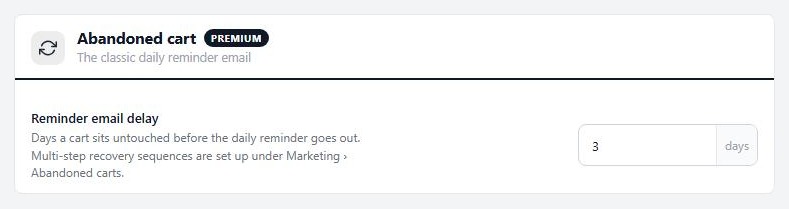
no stored settingsOpen EasyCart › Settings › Checkout and find the Abandoned cart card. Reminder email delay is the days a cart sits untouched before the daily reminder goes out. It starts at 3. Its own description points you to the sequence for anything more.
The sequence has its own timing, which is what you should use. The three steps start at 1 hour, 1 day and 3 days after the cart’s last activity, and you can change each one. A cart counts as abandoned after 60 minutes idle by default.
A good order. A helpful reminder in the first hour, a gentle nudge with a small incentive the next day, and a last chance on day three.
Step 2. Turn the sequence on
Marketing › Abandoned Cart › Sequence & settings
no stored settingsGo to EasyCart › Marketing › Abandoned Cart. The bar under the title says Reminder sequence is off. Press Turn on, or Sequence & settings once it is on, to open the settings.
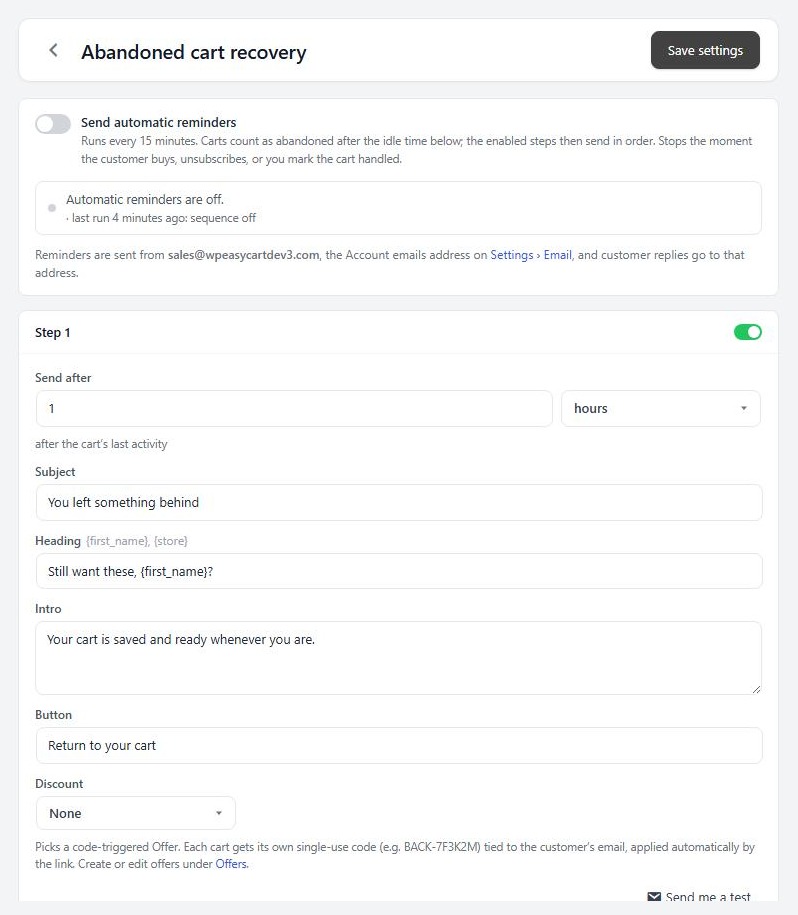
Switch on Send automatic reminders and press Save settings. It runs every 15 minutes. Each of the three step cards has its own switch, so you can run only the steps you want.
💡 Note: The old daily reminder in Settings › Checkout is replaced when the sequence is on. Use one or the other, not both.
Step 3. Write the emails
Send after, subject, heading, intro and button
no stored settingsEach step card has:
Send after: minutes, hours or days after the cart’s last activity.
Subject.
Heading: you can use {first_name} and {store}.
Intro and Button wording.
The defaults are sensible: You left something behind, then Still thinking it over?, then Last chance. Change the tone as the series goes on.
Press Send me a test on any step. It sends a real email to you. Its links open your cart page and a sample unsubscribe page, without changing any customer’s cart.
Every reminder includes an unsubscribe link. A customer who unsubscribes is not reminded again, about any cart.
Step 4. Add a discount, if you want one
A single-use code on the step that needs a push
no stored settingsA step can carry a discount. First, in Marketing › Offers create an offer that needs a code, such as 10 percent off, and set it live. Then, on the step, choose it in Discount. The list shows only offers that use a code, and inactive ones are greyed out.
Each cart gets its own single-use code, such as BACK-7F3K2M, tied to the customer’s email. The button link applies it for them, so there is nothing to type. Set Code expires to a number of days after sending, from 1 to 90. If a later step uses the same offer, the customer keeps the code and its expiry is extended.
Do not discount the first email. You would pay a margin to customers who were coming back anyway. Keep the incentive for step 2 or 3.
How to build the offer is in the coupons and automatic discounts guide.
⚠️ Careful: A discount on the first reminder pays your margin to people who would have come back anyway. Hold it for a later step.
Step 5. Set the timing and rules
The limits that stop recovery becoming spam
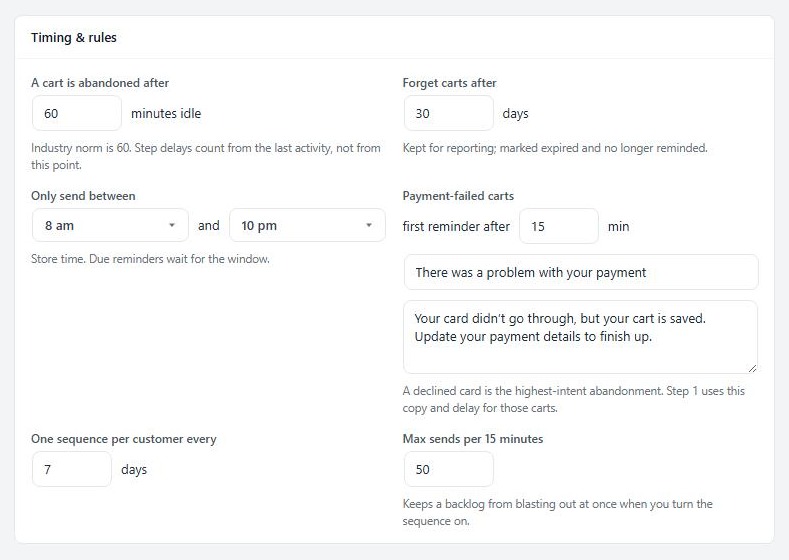
no stored settingsThe Timing & rules card holds the limits:
A cart is abandoned after: minutes idle, at least 5. It starts at 60.
Forget carts after: days. Forgotten carts are kept for reporting, marked expired and no longer reminded. It starts at 30.
Only send between: a send window in store time. It starts at 8 am to 10 pm. Reminders due outside it wait for the window to open.
Payment-failed carts: a first reminder, with its own subject and intro, after 15 minutes by default. A declined card is the most valuable cart to chase, so it is faster.
One sequence per customer every: days. It starts at 7, so a regular shopper is not chased constantly.
Max sends per 15 minutes: stops a backlog going out at once when you switch the sequence on.
Set the window and the customer limit before you turn the sequence on.
Step 6. Choose what is tracked
Opens, clicks, and saving the email early
no stored settingsThe Tracking & privacy card has three switches, all on by default:
Track opens: a tracking pixel in each reminder. It powers the opened count in the report.
Track clicks: the cart button passes through your site before restoring the cart. It powers the clicked count and which step recovered a cart.
Save the email as soon as it’s typed at checkout: makes carts recoverable even if the customer never reaches the next step. This is what most grows the pool of carts you can recover.
If you sell in the EU or UK, the card flags it. Many merchants there turn tracking off, and the email capture is worth a line in your privacy policy. Turning tracking off costs you measurement, not recovery.
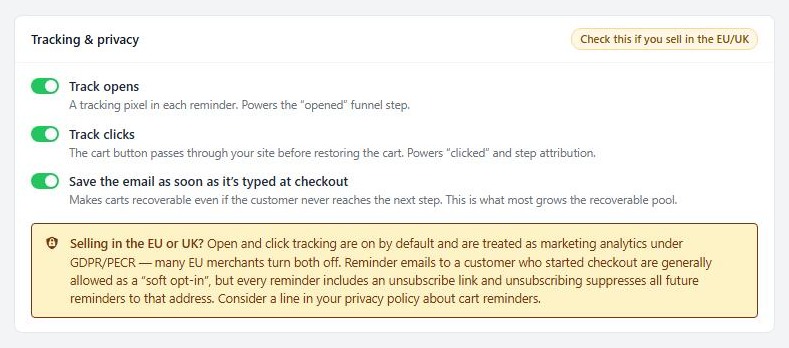
⚠️ Careful: Saving an email before checkout finishes captures an address from someone who never bought. That is what makes recovery work, so make it a deliberate choice, and take advice on your privacy notice if you sell in the EU or UK.
Step 7. Check that reminders can send
The schedule strip, Run now and the sender address
no stored settingsReminders are sent by a check that runs every 15 minutes through WordPress’s scheduler. The strip on the Abandoned Cart page and on the settings page shows the state: the next automatic run and the last run and its result, for example how many were sent and skipped.
Run now runs the check straight away. Use it after your first setup to see a result. If the strip warns that the check is overdue, WordPress’s scheduler only runs when someone visits your site. On a quiet site, ask your host for a server cron job that calls wp-cron.php. If DISABLE_WP_CRON is set, a server job must run it.
The sender. Reminders go from the Account emails address in Settings › Email, and customer replies come back to it. The settings page shows that address. If it says to set one, do that first.
Another sender. If a connected email marketing service is set to send the cart reminders, your store skips those carts. See the email marketing guide.
Keep it running
Results and fixes
What the customer sees, how to read the report and what to check when a reminder does not go.
What the customer sees
One click back to a filled cart
no stored settingsThe button in the reminder opens your cart page with their items in the cart, and the discount code applied if there is one. The link is signed, so it only works for that cart. If the link is forwarded, the cart moves to the new visitor’s browser. If the cart is gone, the customer’s newest saved cart is used. If the customer has already bought, the link just opens the cart page.
You can use a link yourself. On any cart in the list, Copy recovery link gives you one to send to a customer by hand.
Read the recovery report
The list, the tiles and the Dashboard
no stored settingsThe list at Marketing › Abandoned Cart shows each cart with the customer, the cart, its value, the Stage (Cart, Checkout started or Payment failed), the last activity, the step reached and the Status: Active, Reminded, Recovered or Bought other. Switch between 7, 30 and 90 days.
The tiles give Abandoned, Open, Recovery rate, Recovered revenue, Payment failed and Unsubscribed.
Press Dashboard for the funnel: carts with an email, reminded, opened, clicked and recovered. Under it are the carts recovered by step, your top abandoned products, and decline reasons. A lot of carts abandoned on one product usually points to a problem on that product page or in shipping cost, not to a failure of the emails.
Row actions are Open, Send reminder now, Copy recovery link, Mark handled, Unsubscribe and View customer. Send reminder now ignores the send window, but never emails someone who has unsubscribed.
If it does not work
The usual reasons a reminder is skipped or never sent
no stored settingsNothing sends. Check the switch is on, the strip is not warning about the scheduler, and Run now says why. It can say the sequence is off, that it is outside the send window, that your license is not active, or that the database update is not finished.
Carts are skipped. A run reports why: the customer unsubscribed or already bought, the cart is empty or its items are no longer available, the customer was reminded about another cart recently, or another sender handles it.
A cart has no email. Recovery needs an address. Check the switch that saves the email as soon as it is typed, and that the customer got as far as the email field.
Customers get two reminders. Your email marketing service is also sending cart reminders. Turn on its option to send them, so your store skips those carts. Check that the daily reminder is off too. It is replaced when the sequence is on.
The code did not apply. The offer must use a code and be live. Its code expires after the number of days on the step.
Keep going
Related panels
Every setting in the Abandoned Cart panel.
The daily Reminder email delay, and the rest of checkout.
The code offers you can attach to a step.
The sender address and email delivery for reminders.
Ready to run your store on WP EasyCart?
Everything in this guide works with the free plugin. PRO and Premium add subscriptions, memberships, wholesale pricing and more. Try every PRO feature free for 14 days.



