
Settings › Appearance

Language Settings

The language your storefront speaks, and every phrase it uses, editable without touching a template. 2 sections: one setting, and the phrase editor behind it.

Quick links

Where to find it:WP Admin › EasyCart › Settings › Appearance › Language

Value factory default

Wording

Language and phrases

Which language the storefront speaks, and the editor that lets you change any of its wording.

Languages

The language shoppers see and the translations installed on this store

1 setting

Storefront language

The language your shoppers read. Everything the storefront says, from the Add to cart button to the wording on a receipt, comes from the phrase set for the language chosen here. Switching language does one extra thing worth knowing about: it pulls any phrases added in the current release into every installed language, so a translation that was made against an older version gains the new entries rather than falling back to blanks.

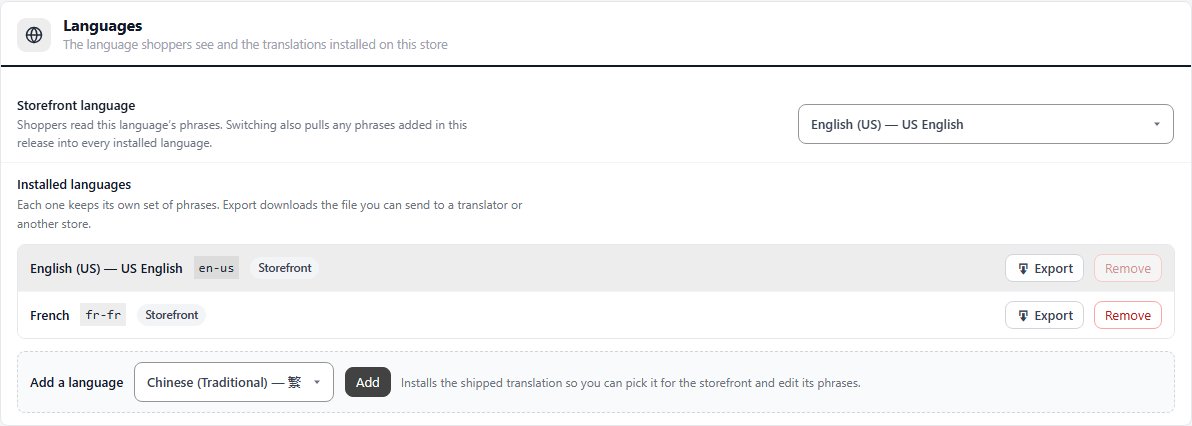
Under it, Installed languages lists every language on the store, each with its own set of phrases. Export downloads a language’s file to send to a translator or another store, and Remove uninstalls one; switch the storefront to another language before you remove the one in use. Add a language installs any translation that ships with WP EasyCart so you can pick it here and edit its phrases.
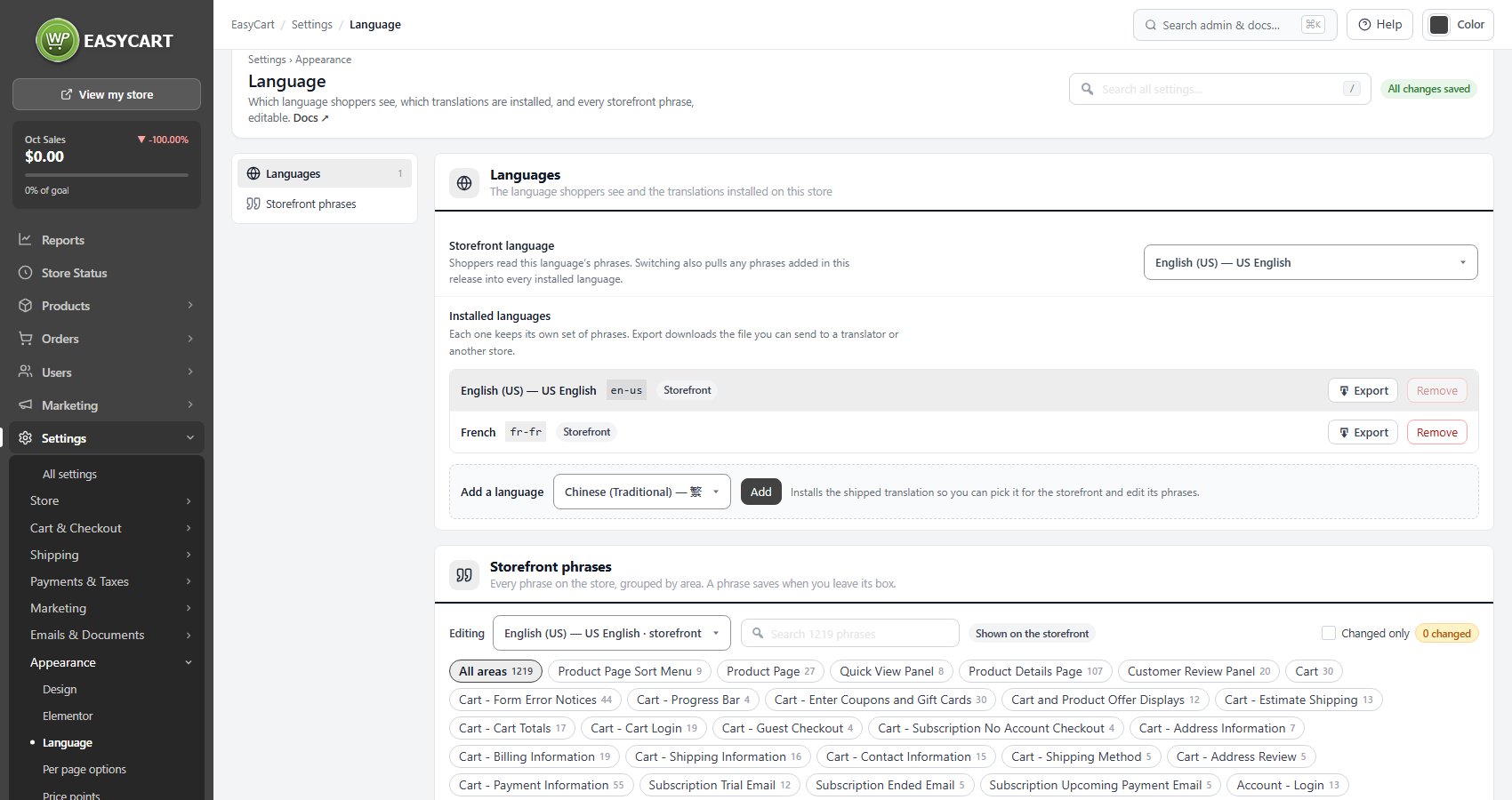
English (US)
Settings › Language with the EasyCart menu: the storefront language, installed languages and the start of the phrase editor.
Installed languages, each with Export and Remove, and Add a language.

💡 Note: This sets the language of the storefront phrases, not of your products. Product names and descriptions are stored per product, so translating a catalogue means a multilingual plugin rather than this page.

Storefront phrases

Every phrase on the store, grouped by area. A phrase saves when you leave its box.

no stored settings

No stored settings here, just the phrases themselves. Every piece of text the storefront says is listed and editable, grouped by the area it appears in, so you can change wording without touching a template or a translation file. A phrase saves as soon as you leave its box, which means there is nothing to submit and no way to lose a change by navigating away. This is the right place to adapt the store to your own voice: renaming Add to cart, rewording the tipping prompt, or softening an error message.

Editing picks which installed language you are changing, and a chip says whether it is the one shown on the storefront. The search box looks through every phrase, the area pills narrow the list to one part of the store, and Changed only shows just the phrases you have edited, with a count. Reset area puts an area’s phrases back to the originals.

💡 Note: Phrases edited here are the storefront and email wording. The words on the order receipt email and the order-complete page are reachable from Settings › Emails & Documents › Email as well, which links back to the same editor.

Keep going

Related panels

Email

Receipt wording, which links back into the phrase editor.

Design

Colours and layout, the other half of how the store presents itself.

Countries & Regions

The countries and regions shoppers pick from at checkout.

Products

Product pages and lists, where most of these phrases appear.

Checkout

The checkout wording, including the tipping prompt.

Admin

Storefront behaviour, including how product links are built.

Ready to run your store on WP EasyCart?

Everything in this guide works with the free plugin. PRO and Premium add subscriptions, memberships, wholesale pricing and more. Try every PRO feature free for 14 days.

The WP EasyCart admin: orders and offers
Updated on October 2, 2026