
Financial Settings
Authorize.net Payment Settings
Accept credit cards with one of the most trusted names in payments. Connecting Authorize.net to WP EasyCart takes just two credentials — an API login ID and a transaction key — and both live in your Authorize.net control panel. Here’s exactly where to find them.
Need an Authorize.net Account?
We are an Authorize.net reseller — and as a certified solution provider, you may sign up as a client of WP EasyCart by clicking here.

Find Your API Credentials
Everything EasyCart needs lives in the settings menu of your Authorize.net control panel. Three quick steps and you’re connected.
Open the Settings Menu
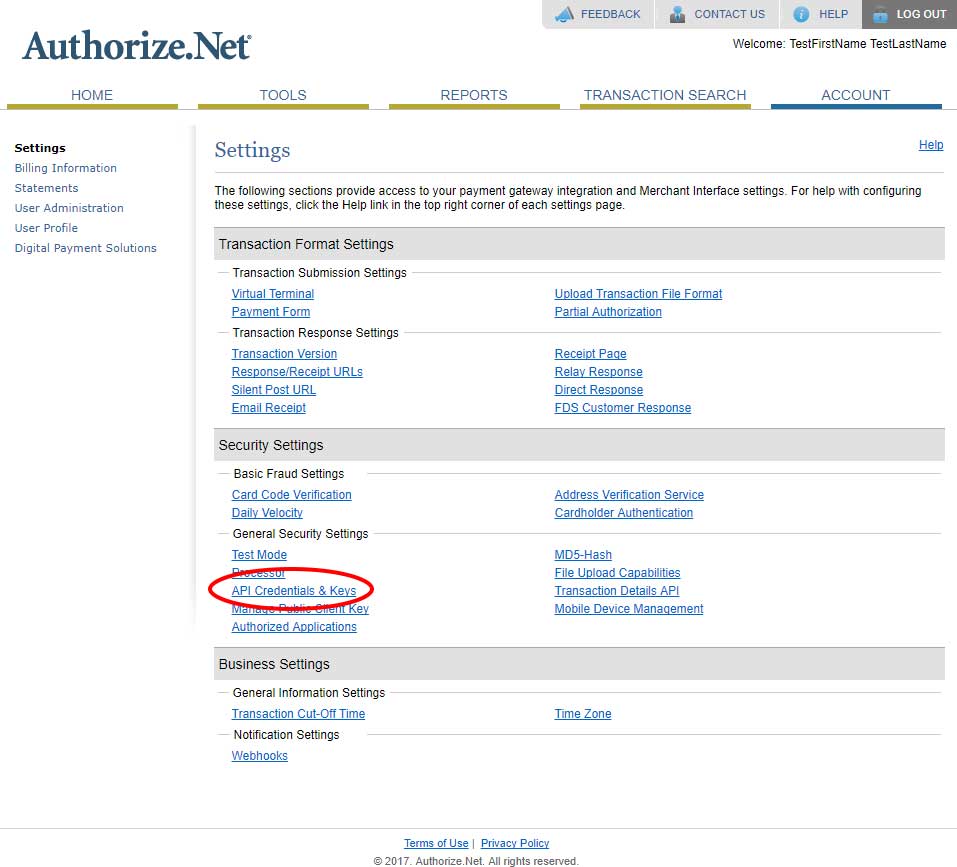
To access your Authorize.net credentials for the API, go to the settings menu found within your Authorize.net control panel.
Authorize.net — Control Panel Settings Menu

Open API Credentials & Keys
Next, open the API Credentials & Keys section within settings.
Authorize.net — API Credentials & Keys
Copy Your Login ID & Generate a Key
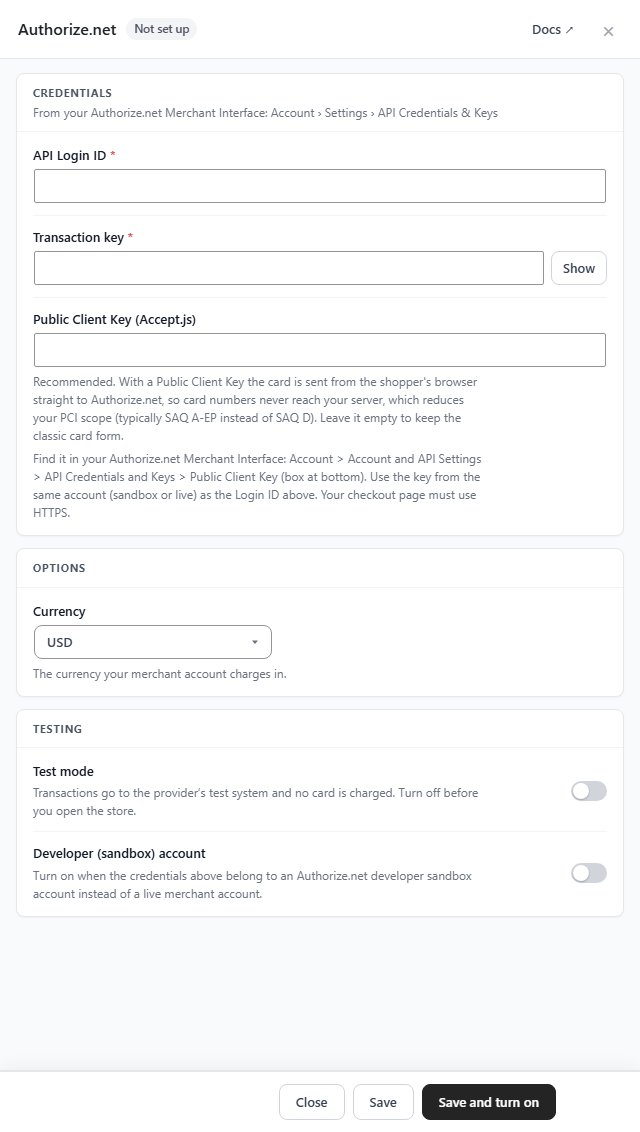
You’ll be able to view your API login ID here, but you must generate a new API transaction key each time you come to this area. In WP EasyCart go to Settings › Payments. On the Another gateway card press Use another gateway ( with a card processor already in use, press Change payment gateway first ), choose Authorize.net under Which gateway? and press Set it up. Authorize.net comes with WP EasyCart PRO and Premium. Paste the API Login ID and Transaction key ( it shows as dots until you press Show ). The Public Client Key (Accept.js) is recommended: with it the card goes from the shopper’s browser straight to Authorize.net, so card numbers never reach your server. Pick the Currency and press Save and turn on.
WP EasyCart — Authorize.net Settings
Testing? Both Sides Must Match
If you plan to test transactions, you must have Authorize.net AND WP EasyCart in test mode ( Test mode under Testing in the Authorize.net settings ). Using credentials from an Authorize.net developer sandbox account? Also turn on Developer (sandbox) account. Most users will not have these special accounts. And when you’re ready to go live, be sure to check that both accounts are live as well.
Try the PRO features free for 14 days
Anything marked PRO comes with WP EasyCart PRO or Premium. Take the whole thing for a run on your own store before you decide.