Financial Settings
First Data Payment Settings
Connect your First Data account to WP EasyCart and start sending payment requests through your gateway. It all comes down to four values — two from your Terminal, two from API Access. Find them. Enter them. Done.
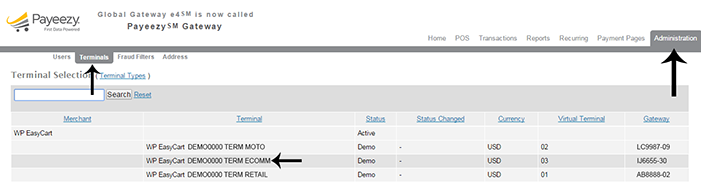
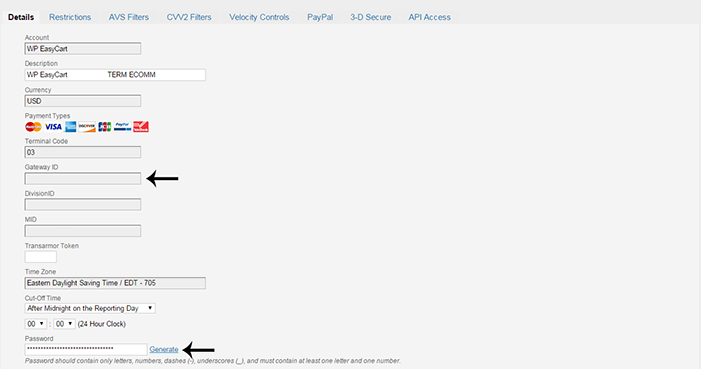
Terminal Values — Gateway ID & Password
The first two values are related to the Terminal in your First Data account.
- Gateway ID: Clearly printed along with the terminal in your account.
- Gateway Password: Must be set in the details for the gateway.
First Data — Terminal & Gateway ID
First Data — Gateway Password in Terminal Details
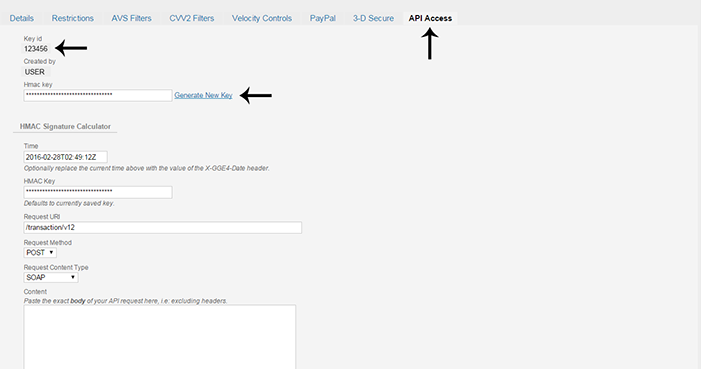
API Access Values — Key ID & HMAC Key
The other two values live in the API Access area for the gateway.
- Key ID: Clearly stated in the API Access section.
- HMAC Key: Generated on the API Access page.
First Data — API Access with Key ID & HMAC Key
Complete the Setup
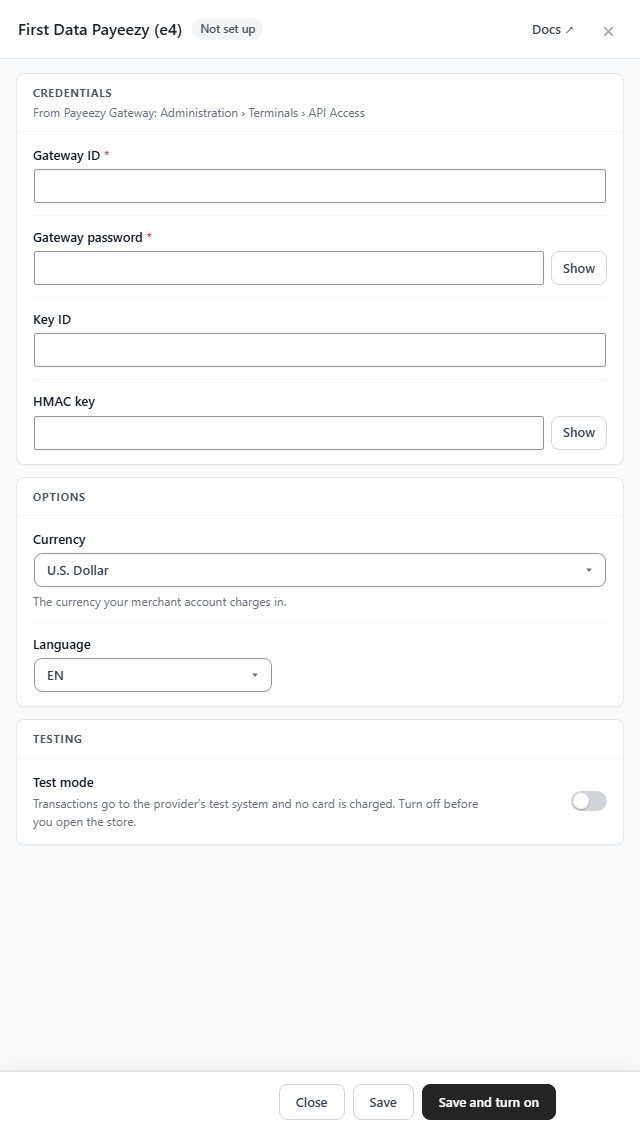
In WP EasyCart go to Settings › Payments. On the Another gateway card press Use another gateway ( with a card processor already in use, press Change payment gateway first ), choose First Data Payeezy (e4) under Which gateway? and press Set it up. It comes with WP EasyCart PRO and Premium. Enter the values under Credentials: Gateway ID and Gateway password are required, then Key ID and HMAC key. The password and HMAC key show as dots until you press Show. Pick the Currency and Language, leave Test mode off for live payments, and press Save and turn on.
The Four Values You Need
Gateway IDGateway passwordKey IDHMAC keyWP EasyCart — First Data Payeezy (e4) Settings

Try the PRO features free for 14 days
Anything marked PRO comes with WP EasyCart PRO or Premium. Take the whole thing for a run on your own store before you decide.