
The product list
Your whole catalog, and what each row tells you at a glance
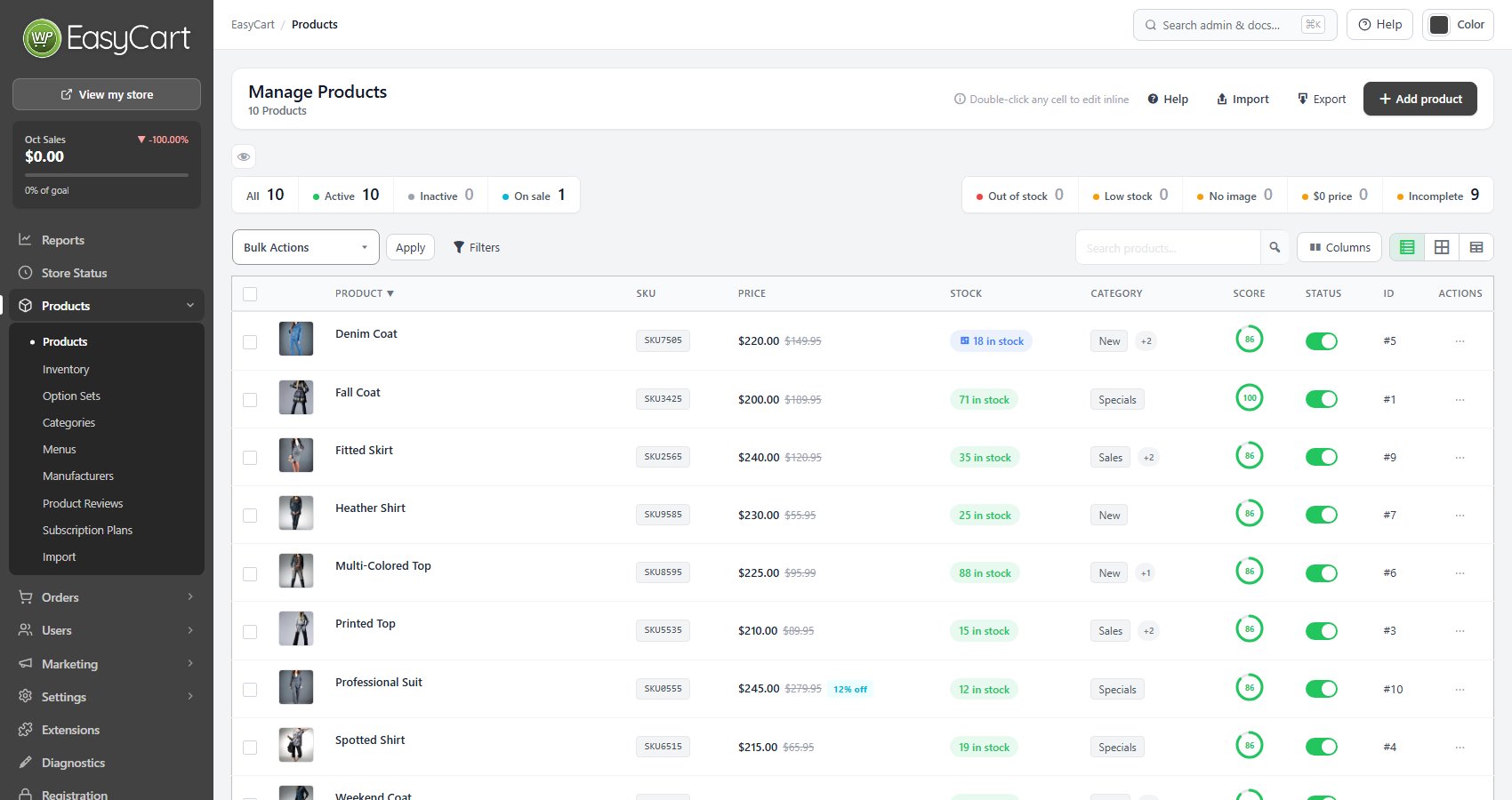
no stored settingsEvery product in one list, with its image, title, SKU, price, stock, category, a completeness Score and an active switch. Active and inactive products are both here, because a product hidden from the store is still something you need to find. The view buttons beside the search switch between Table View, Card View and Spreadsheet View; the spreadsheet view edits title, SKU and weight in place.
Rows carry markers for the things that change how a product behaves: volume pricing, B2B role pricing, a custom price label, login for pricing, a price range, a percentage off when the compare-at price is higher, and products hidden in a connected Square catalog. Each explains why a product is not behaving the way its price suggests.
The Score ring is the fastest way to find the half-entered products that are quietly failing to sell because they have no image, no description or no weight.
Stat filters and the Filters panel
One click to the products that need attention
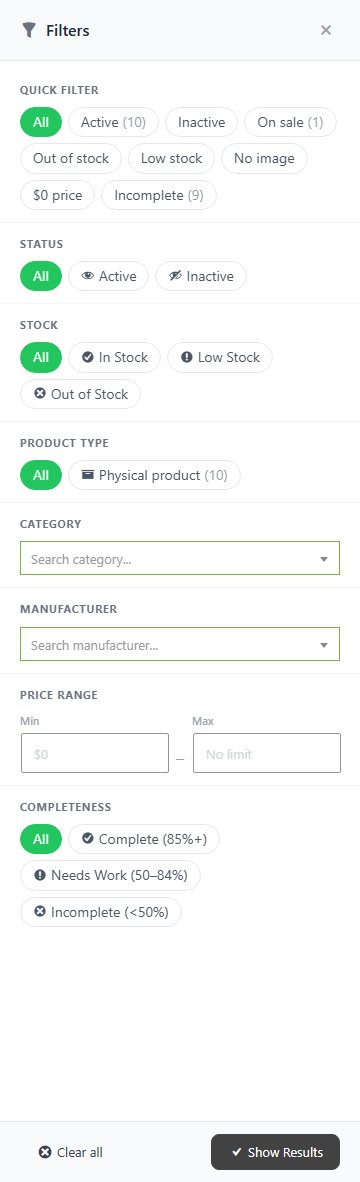
no stored settingsA row of tiles above the list counts the catalog and filters it in one click: All, Active, Inactive and On sale on the left, and the ones that need attention on the right: Out of stock, Low stock, No image, $0 price and Incomplete. Tiles for products missing a download file, or synced with Square, appear when they apply. The eye button hides the row.
Filters opens a panel with the same tiles as a Quick filter, then Status, Stock, Product type, Category, Manufacturer, Price Range and Completeness ( Complete 85%+, Needs Work 50 to 84%, Incomplete under 50% ). Product type lists the types your catalog has, in the product editor’s words and with how many products each: physical products, services, downloads, subscriptions, gift cards and so on, and Custom for products that mix types. The filters combine with the search box.

Choosing columns
Show the columns you use, in the order you want
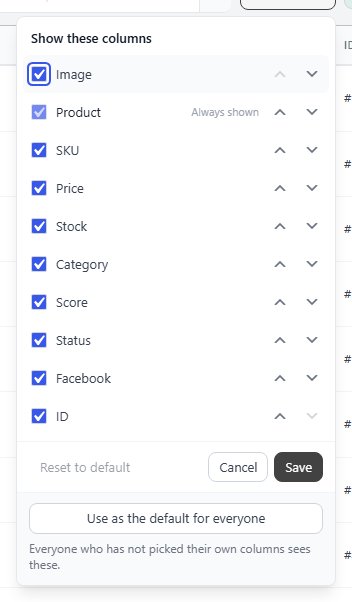
no stored settingsColumns opens a chooser. Tick the columns to show and move them up or down with the buttons or Alt and the arrow keys, then Save to keep them as your own. Reset to default drops your choice. Administrators also get Use as the default for everyone, which sets the columns for every user who has not chosen their own.
The same chooser is on every list in the admin, so the orders, customers and inventory lists can be set up the same way. Closing it without saving puts it back as it was.
Adding a product
Add product opens Quick add
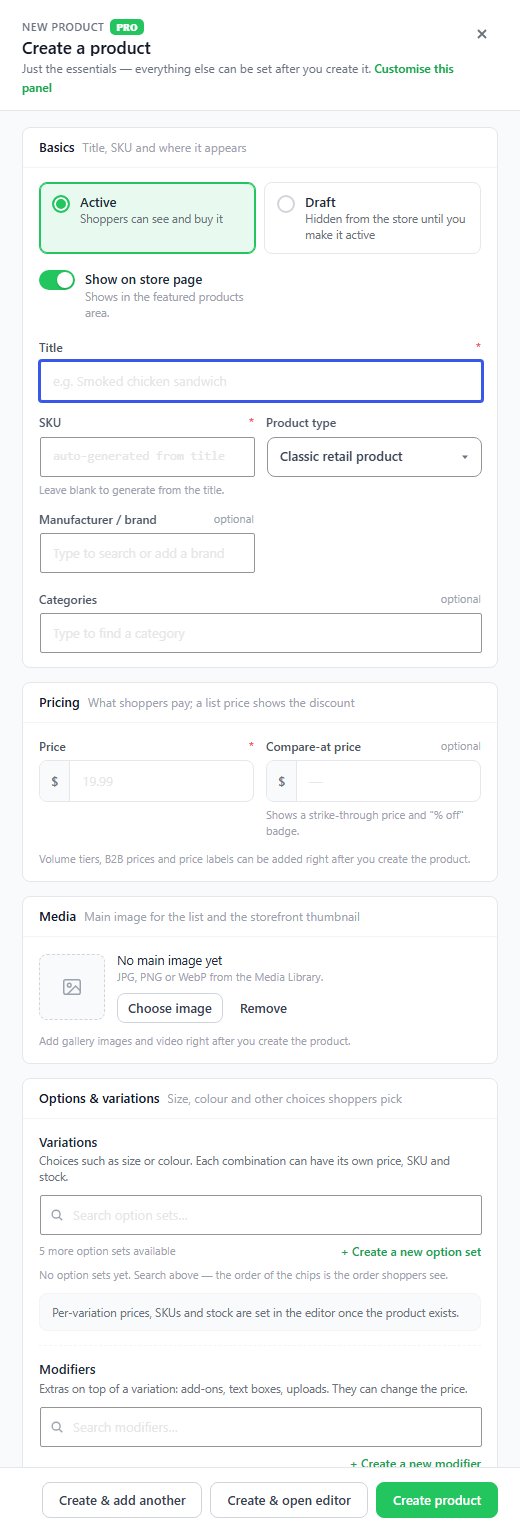
no stored settingsAdd product opens Create a product, a short panel with just the essentials. Choose Active or Draft first: a draft stays hidden from the store until you make it active. Then the Title, a SKU ( left blank, it is made from the title ), the Product type, an optional Manufacturer / brand and optional Categories, the Price and Compare-at price, and a main image.
Under Options & variations, pick the option sets that make its Variations and, with PRO, its Modifiers together, or create a new set on the spot. Prices, SKUs and stock for each variation are set in the editor once the product exists. Downloads, subscriptions, gift cards and the other special product types need PRO.
Create product ( Save as draft for a draft ) keeps you on the list, Create & add another clears the panel for the next one, and Create & open editor goes on to the full editor. Customise this panel opens the setting that adds stock, shipping or tax fields to it.
Editing without leaving the list
Inline cells, Quick Edit, Bulk Edit and an undo
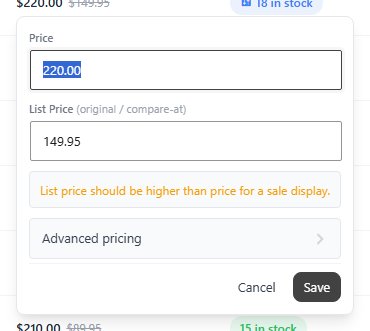
no stored settingsDouble-click a cell to edit it in place. Click a price to change the price and list price, the stock to change the quantity or Change Tracking Type ( Do not track stock, Track overall quantity, Track per variation ), the category chips to add or remove categories, and the image to open Manage Images. A product that tracks stock per variation is counted from its variations, so its stock is changed on the variations rather than typed over here.
Quick Edit, under each product’s name, opens the same panel for one product: active or draft, show on store page, title, SKU, manufacturer and sort position, the price and compare-at price, the main image, stock tracking and quantity, and whether it ships. A new title or status reaches the product’s own page too, and a product tracked per variation keeps the stock of its variations. Save changes keeps you on the list, and Save & open editor goes on to the full editor. Duplicate copies a product as a starting point for a similar one.
Tick products and Bulk Edit changes the Price, Stock Quantity, Status or Manufacturer of all of them at once. Products that track stock per variation keep their stock, and the message after saving says how many were left as they were. Bulk Actions activates, deactivates, exports or deletes the ticked products. Deactivating is not deleting: the product keeps its data, its history and its address, and only stops appearing in the store. A deleted product can be put back for 15 minutes: the list shows an Undo bar straight after the delete.
Import and export
The catalog in and out as CSV
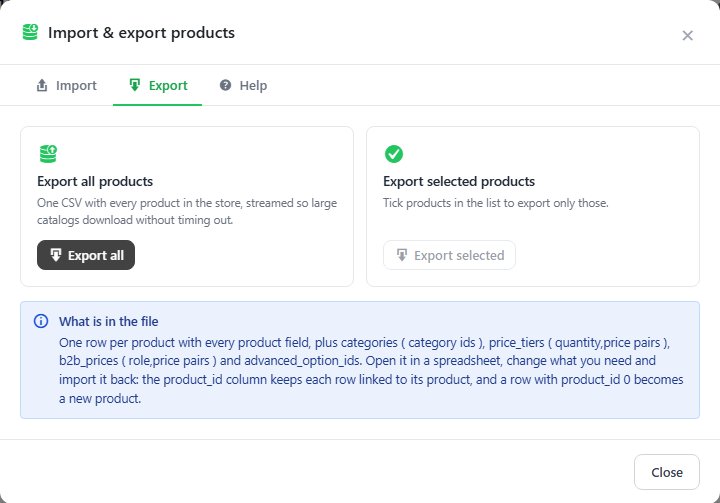
no stored settingsImport offers From a CSV file, which opens the import and export panel, or From WooCommerce or Square, which opens Products › Import. Export opens the same panel on its Export tab. Export all products streams every product into one CSV, so large catalogs download without timing out, and Export selected products takes only the ticked ones. The file has one row per product with every product field, plus categories, price tiers, B2B prices and advanced option ids.
Export All CSV in Bulk Actions follows the list: filtered or searched, for example to one manufacturer, it exports only the products the list shows.
Export, change the file, import it back: that is the supported way to bulk edit. The product_id column decides what each row does. An exported product_id updates that product; 0 adds a new one, whose SKU must be new to the store. The import shows a preview of the counts before anything is written.
Ready to run your store on WP EasyCart?
Everything in this guide works with the free plugin. PRO and Premium add subscriptions, memberships, wholesale pricing and more. Try every PRO feature free for 14 days.
