
Option sets
Reusable groups of choices, shared across products
no stored settingsAn option set is a named group of choices, such as Size with small, medium and large. It is defined once and attached to as many products as need it, which is the point: twenty shirts share one Size set rather than each carrying its own copy.
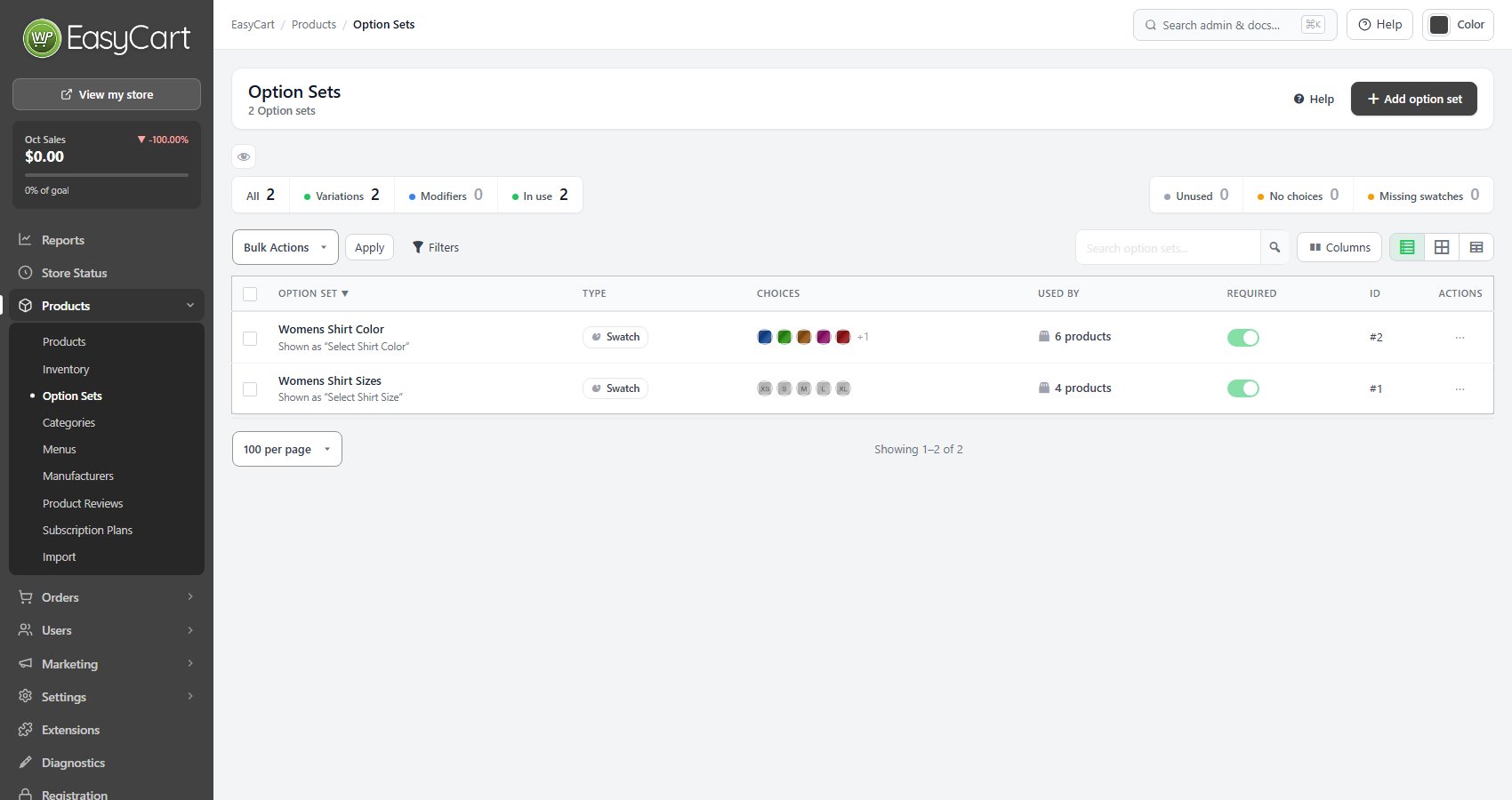
The list shows each set’s type, its choices, how many products use it and whether it is required. Tiles filter it to Variations, Modifiers, In use or Unused, and flag sets with No choices or Missing swatches. Bulk Actions set several required or optional at once.
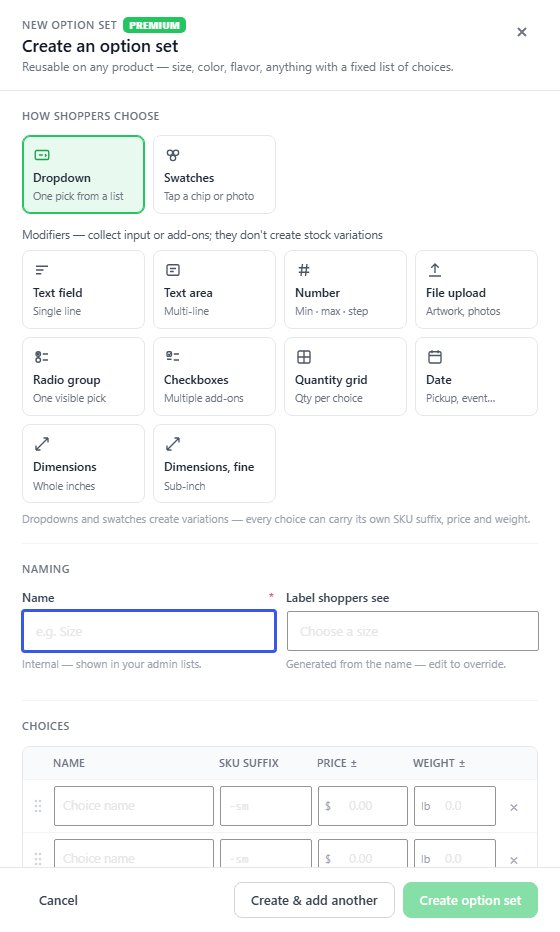
Add option set starts with how shoppers choose: a drop-down, swatches, a text field or area, a number, a file upload, a radio group, checkboxes, a quantity grid, a date, or width by height dimensions.
With PRO, a set can also be made right on a product: + Add Option Set in the product’s Options & variants section takes a name and its choices, such as Size: S, M, L. That set belongs to the product. It is marked This product, it is not listed here or offered to other products, it is deleted with the product and copied when the product is duplicated. Save to library in its menu on the product turns it into a shared set, which then appears here like any other.
Choices and variations
The set editor, and how choices multiply into variations
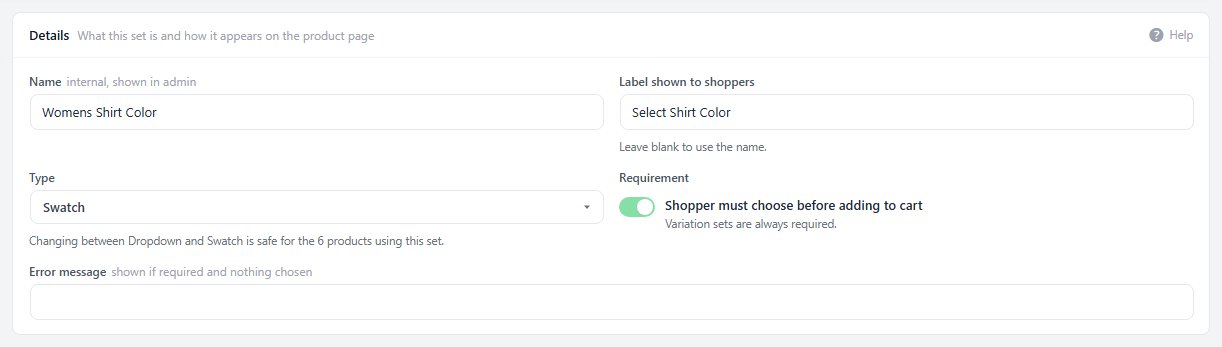
no stored settingsOpen a set to edit it. Details holds the internal Name, the Label shown to shoppers, the Type and whether the shopper must choose before adding to cart; variation sets are always required.
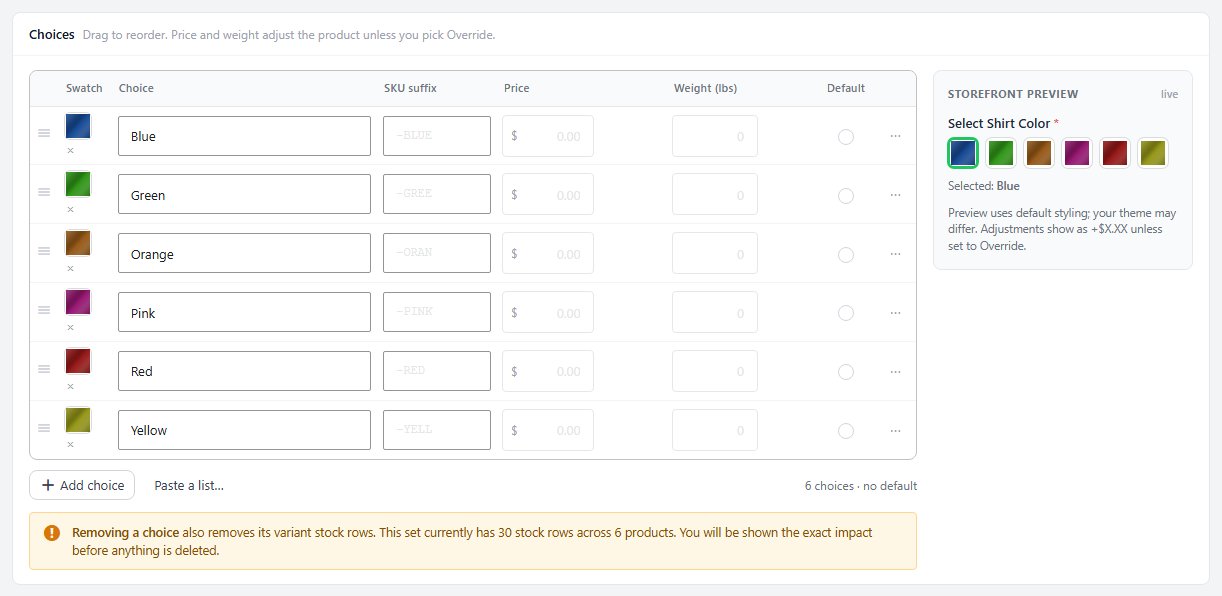
Choices lists each choice with its swatch, a SKU suffix, a price and a weight, which adjust the product unless you pick Override, and which one is the default. Drag to reorder, or Paste a list with one choice per line. A Storefront preview beside it shows the set as shoppers will see it.
Drop-downs and swatches create variations, and where a product has more than one such set the choices multiply: three sizes and three colors make nine variations, each with its own stock and SKU. Removing a choice also removes its variation stock rows, and the editor shows you the exact effect before anything is deleted.
Products using this set lists every product with it, and Assign to more adds it to others. The Set health list flags gaps such as no default choice or choices missing a SKU suffix.
Modifiers and their rules
Inputs that collect something rather than pick a variation
no stored settingsModifier sets ( PRO ) collect something from the shopper and travel with the order. They can add a price but never change stock, and they do not create variations.
Rules & validation shows only the rules for the set’s type. Text fields and areas take a length, a Text case ( as typed, UPPERCASE, lowercase or Title Case ), Allowed characters ( letters, numbers, spaces and mixes ) and a Placeholder. The rules apply as the shopper types and again when the item is added to the cart, so pasted text cannot slip past them.
File uploads take a list of Accepted file types; scripts, web pages and SVG files are always refused. Numbers and dimensions take a minimum, maximum and step, and a quantity grid takes row and column limits. Swatches choose a size, and every type has a URL variable that pre-selects a choice from a link.
Ready to run your store on WP EasyCart?
Everything in this guide works with the free plugin. PRO and Premium add subscriptions, memberships, wholesale pricing and more. Try every PRO feature free for 14 days.
