Admin panels › Orders

Download Management

The digital files your customers have bought, where those files are stored, how many times each has been taken, and the checks that catch a broken delivery before a customer does. 3 parts.

Quick links

Where to find it:WP Admin › EasyCart › Orders › Manage Downloads

What was bought

Records and storage

The purchased files, and where each one is actually served from.

The download list

One row per purchased file, and how many times it has been taken

no stored settings

Every downloadable item a customer has bought appears here, tied to the order and the product it came from, with the customer, the file, when it was created and how many times it has been downloaded. Items never downloaded are marked as such, which is a useful signal: a customer who paid and never collected usually has a problem worth chasing rather than a change of heart.

The download count can be reset on an individual record, which is the normal remedy when somebody has exhausted their attempts through no fault of their own, such as a failed transfer or a lost file. A deleted record can be put back for 15 minutes with Undo; until then the customer cannot fetch the file from their account.

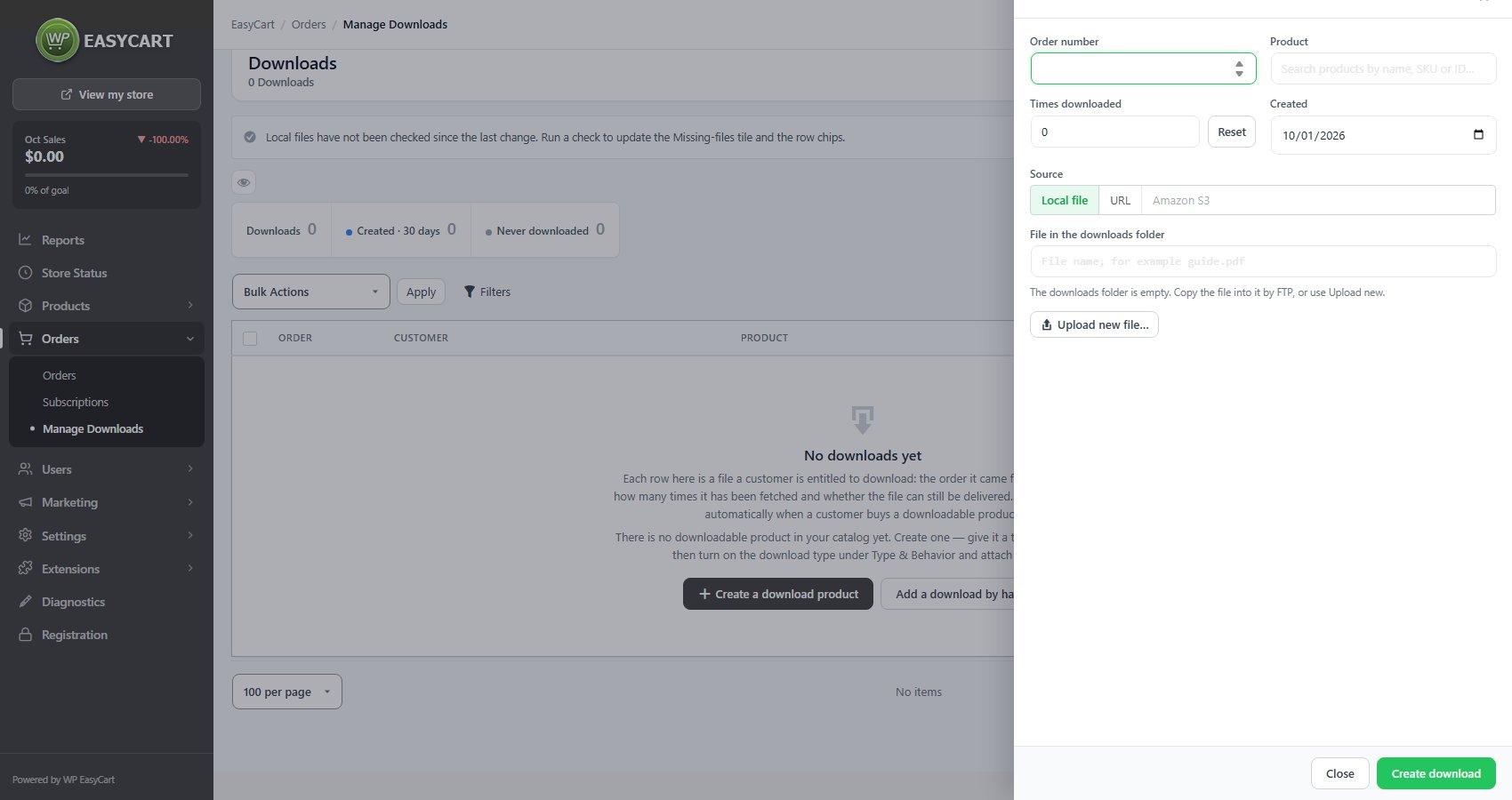
Records can also be created by hand with Add download: the order number, the product, the times downloaded, and the file, from the downloads folder, a web address, or Amazon S3. That covers a file owed to a customer whose purchase predates the product being made downloadable. Columns chooses what the list shows.

For a step by step walkthrough, see How to Sell Downloads on WordPress.
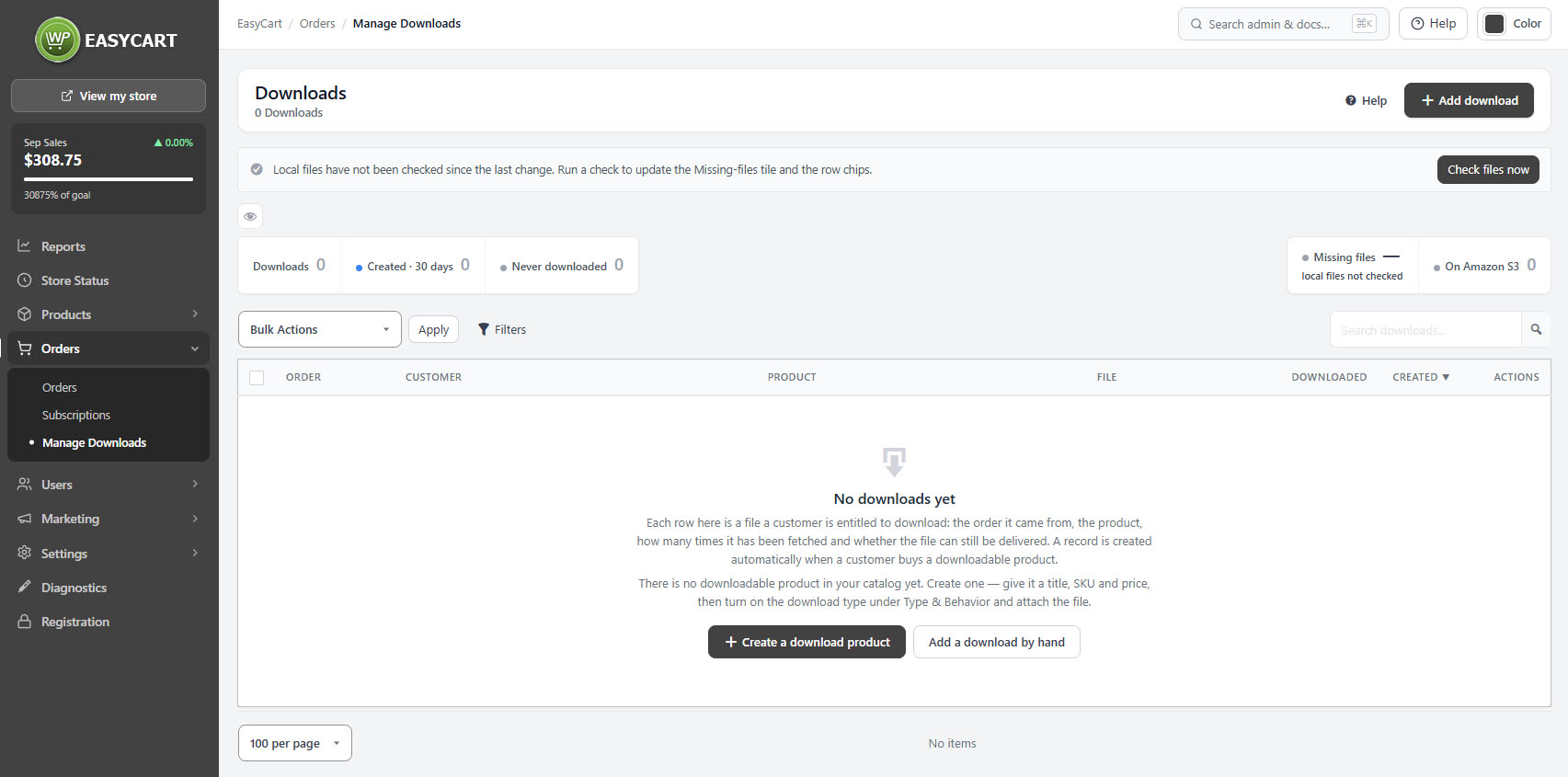
Orders › Download Management, showing purchased files with their order, customer and download counts.
Add download: the order, the product, and the file from the downloads folder, a URL or Amazon S3.

💡 Note: Whether a product is downloadable at all, and which file it delivers, is set on the product itself under Type & Behavior. This screen manages what has already been purchased.

Where the files live

The local downloads folder, or Amazon S3

no stored settings

A file is delivered either from a protected folder on your own server or from Amazon S3. The local folder sits under your uploads directory and is deliberately not a public path, so files cannot simply be linked to.

The screen checks that folder is present and usable and tells you plainly when it is not: missing entirely, not listable, not openable, in an unexpected place, or blocked by a file sitting where the folder should be. It can create the folder for you, and it states the permissions to aim for, 755 on folders or 751 to stop anyone listing the contents, and 644 on files.

Amazon S3 takes the bandwidth off your hosting, which matters once files are large or popular. A record’s file can be changed from its row: Replace file, Choose existing file or Switch to Amazon S3. If S3 is not configured the screen says so rather than failing silently at the moment a customer tries to download.

For a step by step walkthrough, see How to Sell Downloads Using Amazon S3.

⚠️ Careful: The downloads folder must exist and be readable by WordPress or nothing can be delivered. The screen reports the exact failure and the permissions to aim for. Fix it before taking orders for digital products, not after.

Keeping it working

Checks and repairs

Finding missing files and broken records before your customers do.

File checks and repairs

Finding broken deliveries before a customer does

no stored settings

A file check walks the records and reports which local files are actually missing. Until you run one, the screen is honest that the files have not been checked rather than implying everything is fine.

Two failures are distinguished. A missing file is a record pointing at something no longer on disk, usually because it was moved, renamed or cleaned up outside WordPress. A record needing repair is a bookkeeping problem in the record itself, and those can be repaired in bulk.

The panel also catches the specific case of a file uploaded through the media library that is no longer in the EasyCart uploads folder, and the case of a product that is not marked downloadable at all, both of which produce a download that fails for the customer while looking correct to you.

💡 Note: Run a file check after any hosting migration, backup restore or bulk media cleanup. Those are the three events that quietly orphan download records, and a customer finding out first is the expensive way to discover it.

Keep going

Related panels

Type & Behavior

Marking a product downloadable and attaching its file.

Order Management

The orders these downloads belong to.

Amazon S3

Amazon S3 setup, for serving files from a bucket.

Accounts

The account page customers download from.

Email

Receipts and the customer upload links alongside them.

User Accounts

The customers entitled to these files.

Ready to run your store on WP EasyCart?

Everything in this guide works with the free plugin. PRO and Premium add subscriptions, memberships, wholesale pricing and more. Try every PRO feature free for 14 days.

The WP EasyCart admin: orders and offers
Updated on October 2, 2026