
Menus and sub-menus
The navigation shoppers browse, separate from your category tree
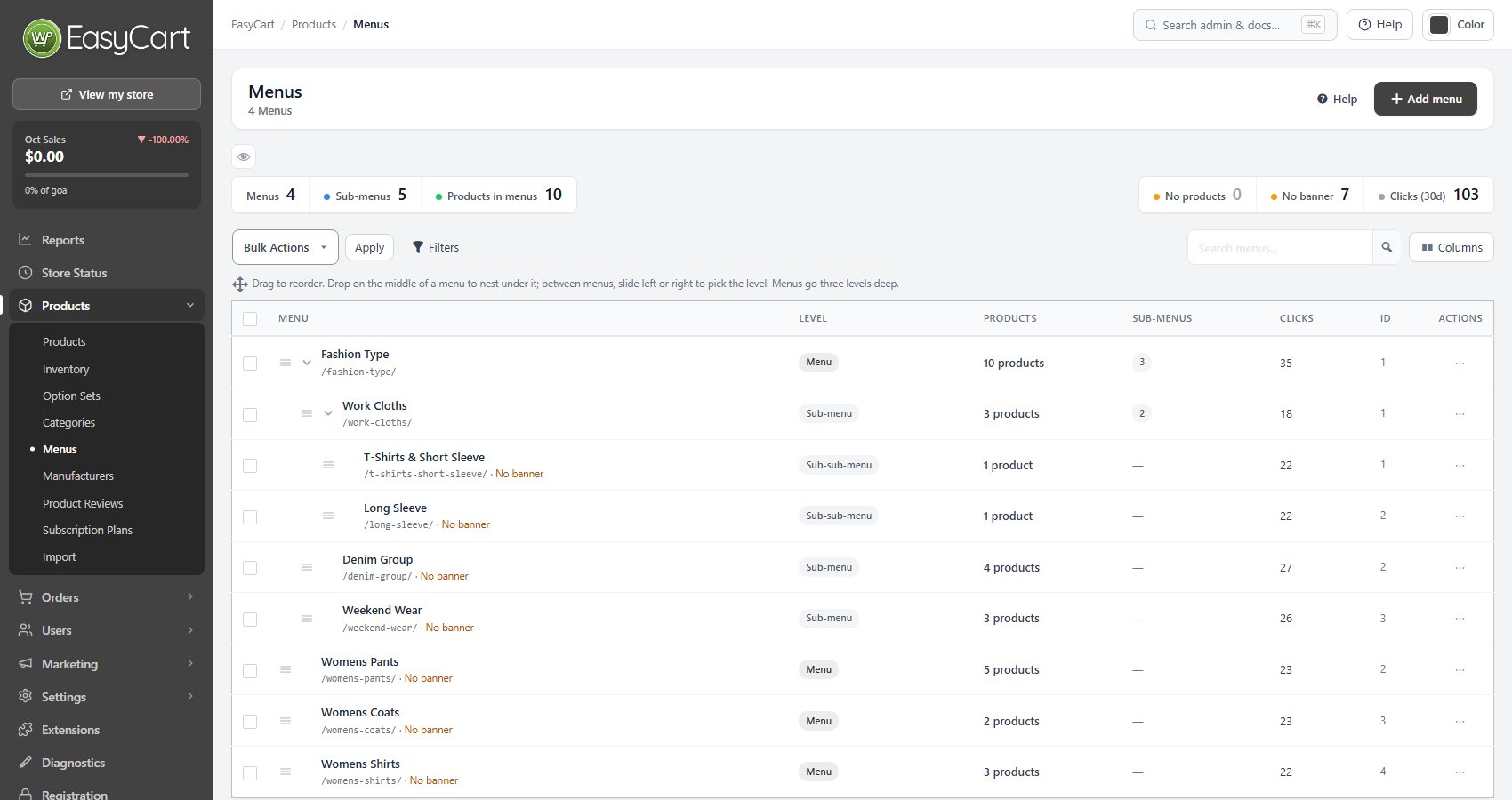
no stored settingsA menu is a navigation route through your store, three levels deep: menus, sub-menus and sub-sub-menus. Drag rows on the list to reorder them; drop on the middle of a menu to nest under it, or slide left or right between menus to pick the level.
Menus are deliberately separate from categories. Categories are how the catalog is organized; menus are how shoppers are invited to browse it. Keeping them apart means you can promote a seasonal route through the store without restructuring the catalog behind it.
The list shows each menu’s level, products, sub-menus and clicks, and tiles count the Menus, Sub-menus, Products in menus, the ones with No products or No banner, and Clicks (30d). A menu nobody clicks is either badly named or in the wrong place, and it is the cheapest thing in the store to fix.
What goes in a menu
Products added directly, and the sub-menus beneath
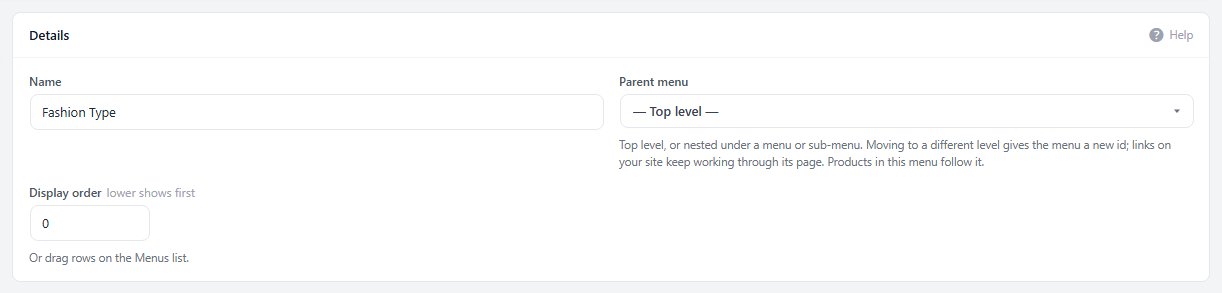
no stored settingsOpen a menu to edit it. Details holds its name, its Parent menu and its display order, where lower shows first. Moving a menu to another level gives it a new id, but links on your site keep working through its page, and its products follow it.
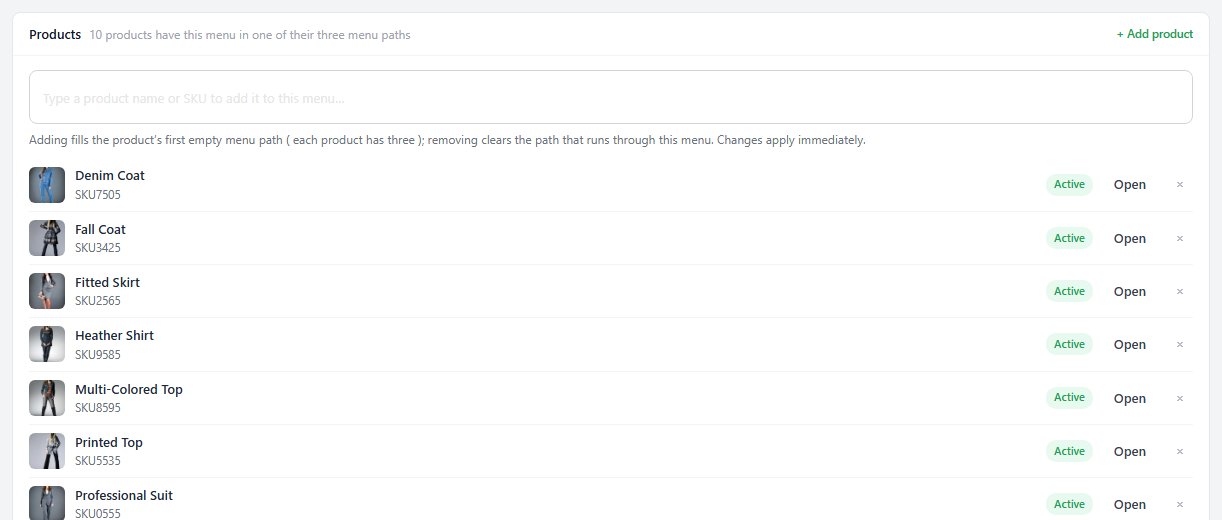
The Products card adds products by name or SKU. Each product has three menu paths, and adding one fills its first empty path; removing it clears the path that runs through this menu. Changes apply immediately, and each product shows whether it is active. Sub-menus lists the menus beneath with their order and clicks.
That control is the trade-off. A menu will not update itself as the catalog changes, so a menu built for a season needs revisiting when the season ends.
Images, address and search
How a menu page presents itself
no stored settingsImages takes a Banner image, recommended at 1600 by 400, shown at the top of the menu’s store page, and an optional Featured image used by themes and social previews. Keep the banner to its proportions or it is cropped rather than fitted.
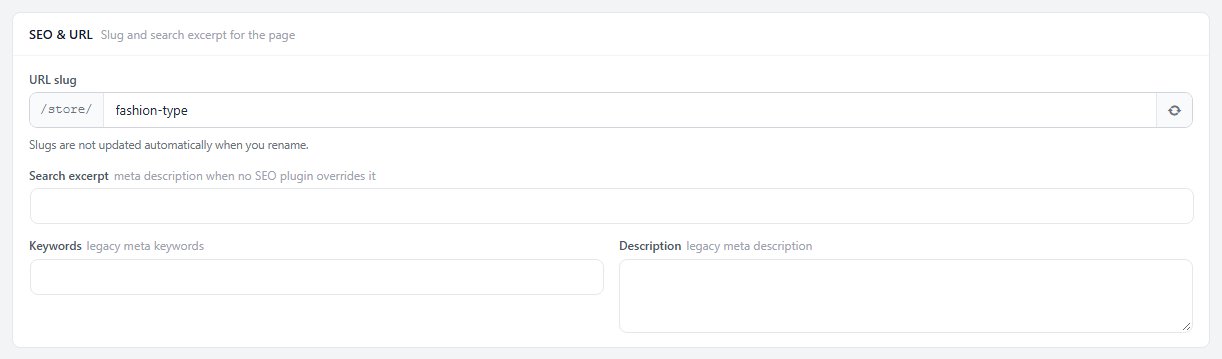
SEO & URL holds the slug and a search excerpt, used as the meta description when no SEO plugin overrides it, plus the older keywords and description fields. Slugs do not change when you rename a menu.
The Menu health list flags what a menu is missing. Deleting a menu never deletes products: their menu path is trimmed, sub-menus can be moved to another menu, and undo is available for 30 days.

Ready to run your store on WP EasyCart?
Everything in this guide works with the free plugin. PRO and Premium add subscriptions, memberships, wholesale pricing and more. Try every PRO feature free for 14 days.
