
The subscriber list
Everyone who opted in, whether or not they have an account
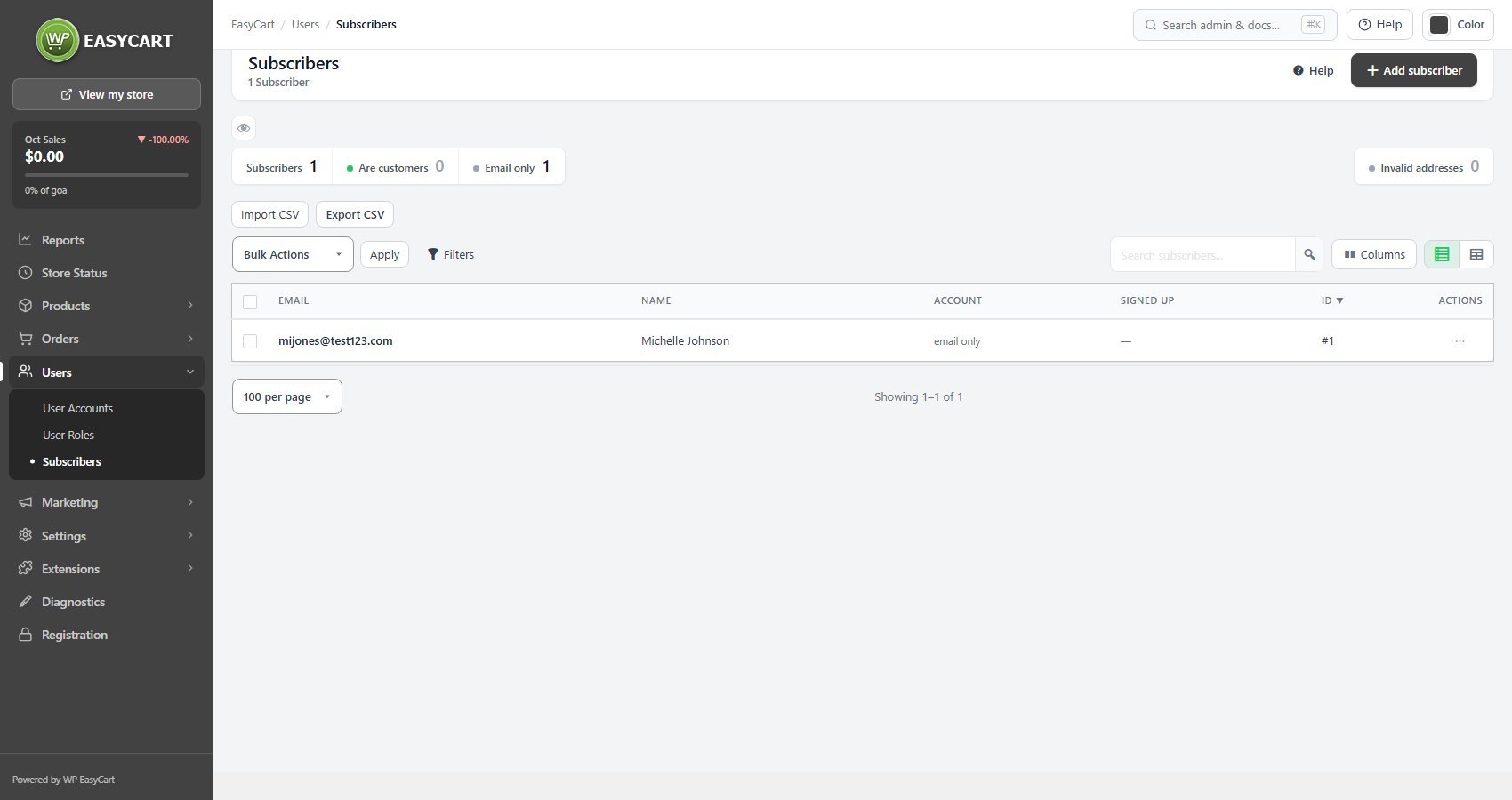
no stored settingsOne row per subscriber, with email, name, whether that address also has a customer account, and when and where they signed up. The distinction between customers and addresses matters more than it looks.
Subscribers arrive from several places. Someone who ticks the newsletter box while registering or checking out becomes both a customer and a subscriber. Someone who signs up through the newsletter form, or whom you import, is an email address and nothing more. The tiles count Are customers and Email only, and the Show filter narrows the list to either.
Signed up records the date and the source: Checkout, My Account, Account sign-up, Newsletter form, Added by staff or Import. That is your consent record when someone asks how they got on the list. Addresses that signed up before this was recorded show a dash.
The Invalid addresses tile counts entries that are not valid email addresses, and each is flagged in the list. Columns chooses which columns show, and the spreadsheet view edits email and names in place.
Adding, importing and exporting
Getting addresses in and out
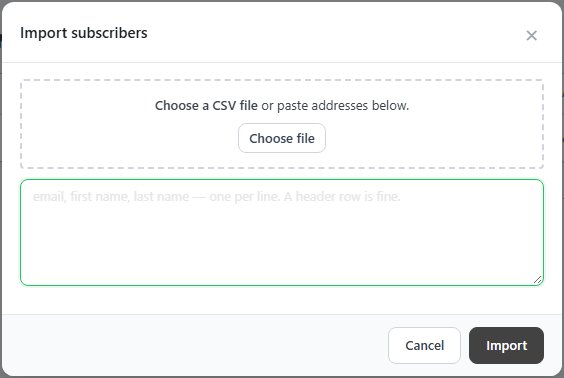
no stored settingsAdd subscriber adds one address. Import CSV takes a file or addresses pasted one per line ( email, first name, last name; a header row is fine ), shows a preview, then reports what it did rather than just claiming success: how many were imported, how many were already subscribed, and how many were invalid. That third number is the one to read, because a list with a high invalid count is a list that will damage your sending reputation.
Duplicate addresses are refused rather than silently creating a second record, so re-importing an overlapping list is safe.
Export CSV downloads the list, and Export selected just the rows you ticked, which is how the list gets into a mail platform. For an email-only subscriber the row menu offers Create account, which opens a new customer with the email and name filled in, useful when somebody who has been on your list for a year finally decides to buy.
Deleting subscribers, one or many, can be undone for 15 minutes from the bar that appears on the list.
Ready to run your store on WP EasyCart?
Everything in this guide works with the free plugin. PRO and Premium add subscriptions, memberships, wholesale pricing and more. Try every PRO feature free for 14 days.
