
The category tree
Parents, subcategories and the order shoppers see
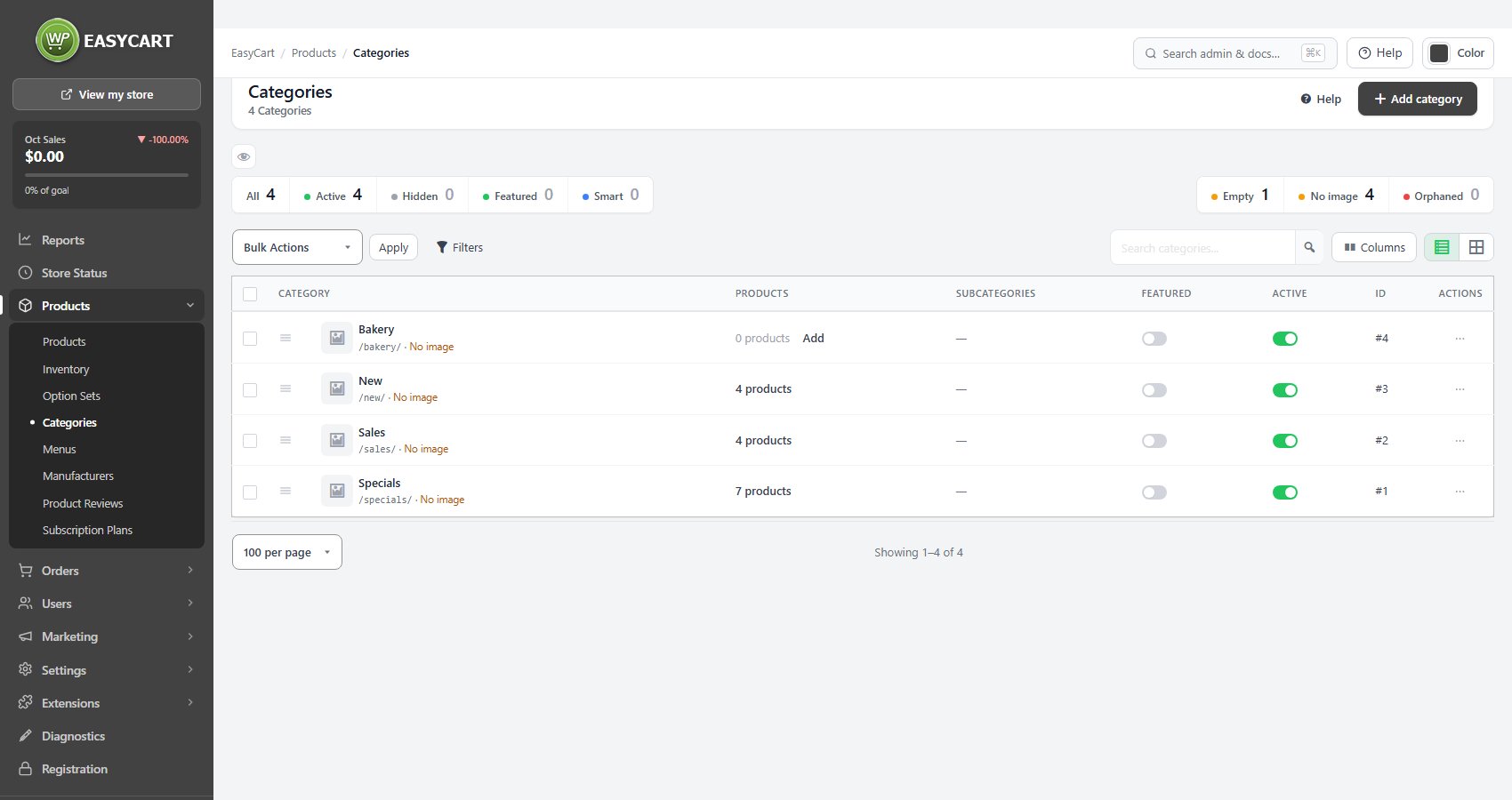
no stored settingsCategories nest. A category can hold subcategories, and those can hold their own, which lets a catalog read as departments rather than a flat list. Drag rows on the list to set the order, or type a Store order in the editor, where higher shows first.
The list shows each category’s address, products, subcategories and whether it is featured and active. Tiles filter it to Active, Hidden, Featured or Smart, and flag the ones that are Empty, have No image or are Orphaned. An empty category on the storefront is a dead end, so act on that tile rather than scrolling past it. Bulk Actions activate, hide, feature or move several under a new parent at once.
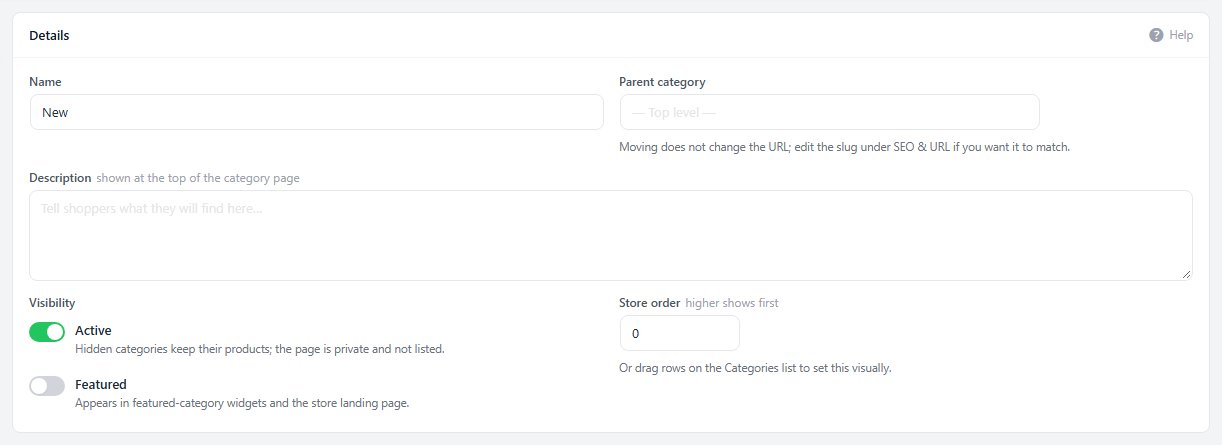
In the editor, Active off hides a category while it keeps its products; its page is private and not listed. Featured shows it in featured-category widgets and on the store landing page.
How products get in
Hand-picked, smart rules, or both
no stored settingsThe Products card fills a category one of three ways, and its changes apply immediately.
Hand-picked means you choose the products: type a name or SKU to add one. Total control, and total upkeep, because every new product needs adding.
Smart rules ( PRO ) adds products that match conditions you set, such as price less than 25, or manufacturer is Acme and in stock, matching all or any of the rules. The card shows how many products match right now, and the rules re-evaluate whenever a product is saved and once an hour, so the category keeps itself current. Both lets the rules do the bulk while you add exceptions by hand.
Subcategories adds existing categories under this one or makes new ones. A product can belong to a parent and a child at the same time.

Images, address and search
How a category looks, and how it is found
no stored settingsImages takes a Category image, square and at least 600 by 600, used in grids and menus, and an optional Featured banner of about 1600 by 500 for themes that show a category header. The Description shows at the top of the category page, and a page with real text is far more likely to rank than a bare grid.
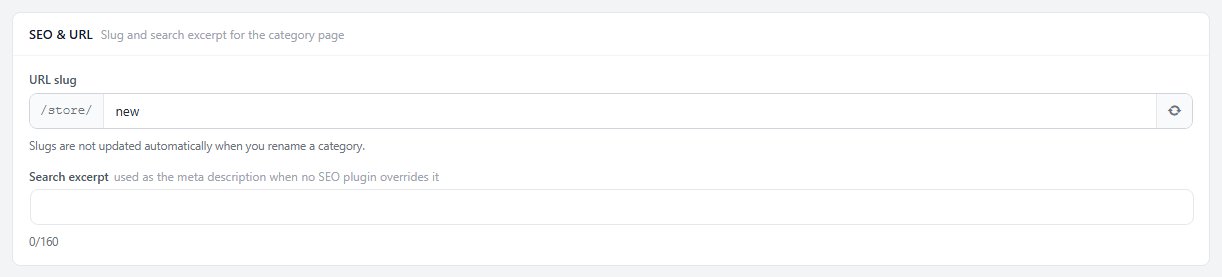
SEO & URL holds the slug and a Search excerpt, used as the meta description when no SEO plugin overrides it. Slugs do not change when you rename a category, and moving it under a new parent does not change the address either. With Yoast SEO active, a Yoast card adds its own fields here. With Elementor, Page layout gives the category its own template.
Deleting never deletes products: you choose what happens to the subcategories and products, the old address can redirect, and undo is available for 30 days. Hiding is usually the better answer.

Ready to run your store on WP EasyCart?
Everything in this guide works with the free plugin. PRO and Premium add subscriptions, memberships, wholesale pricing and more. Try every PRO feature free for 14 days.
