
The manufacturer list
Every brand you stock, and how much interest each attracts
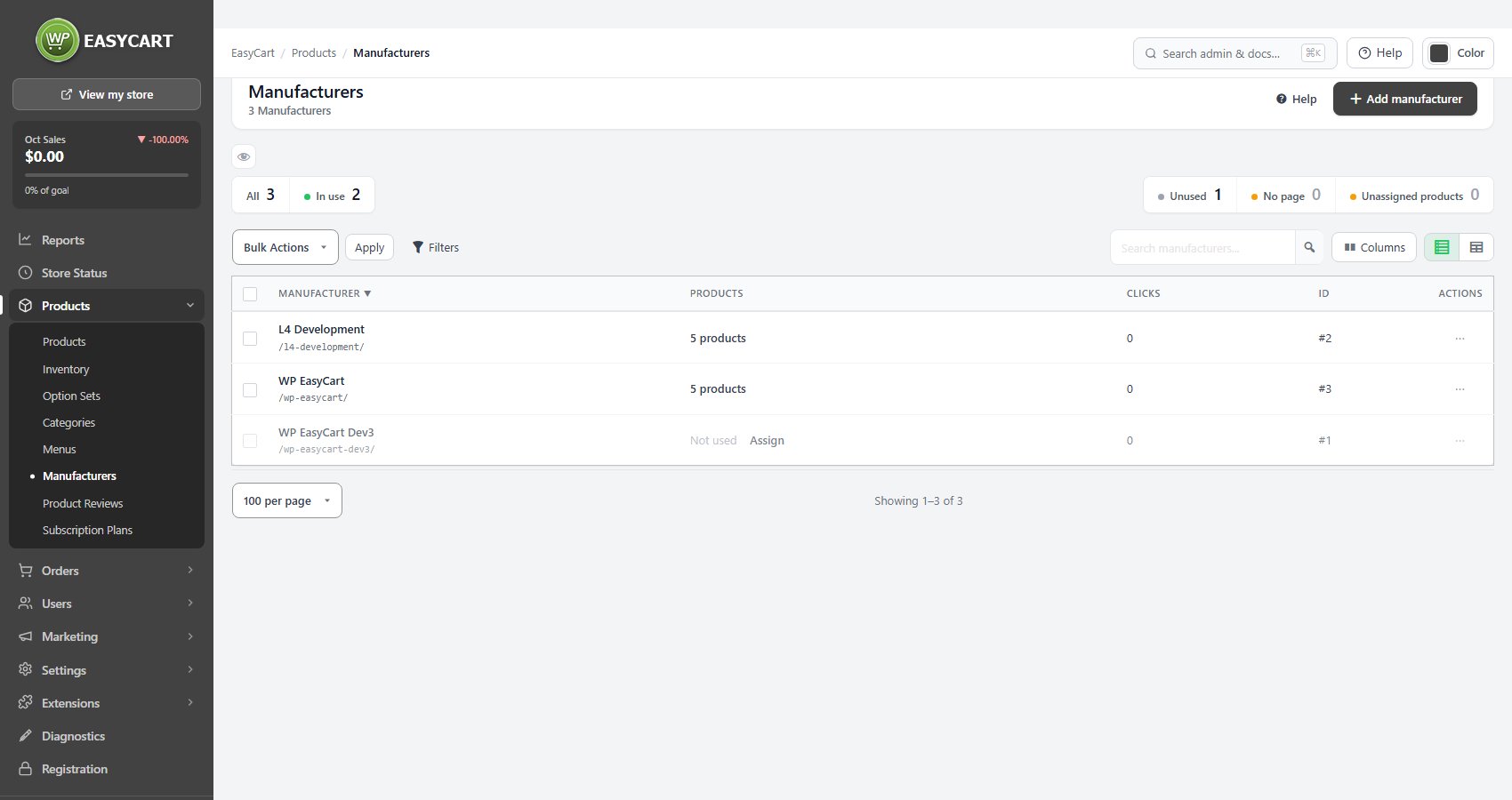
no stored settingsOne row per manufacturer, with its address, how many products carry it and how many clicks its page has had. Tiles filter the list to the brands In use or Unused, and flag any with No page and the count of Unassigned products that have no manufacturer at all. An unused brand offers Assign straight from its row.
A manufacturer is only worth creating if shoppers think in brands. On a store selling its own products there is nothing to separate. On a store reselling several brands it is one of the main ways people browse, and the click counts tell you which ones.
The manufacturer page
Logo, products and how it is found
no stored settingsOpen a manufacturer to edit it. The Name shows on product pages and as the title of the manufacturer’s store page. The Logo / featured image is optional and used by themes that show a manufacturer header.
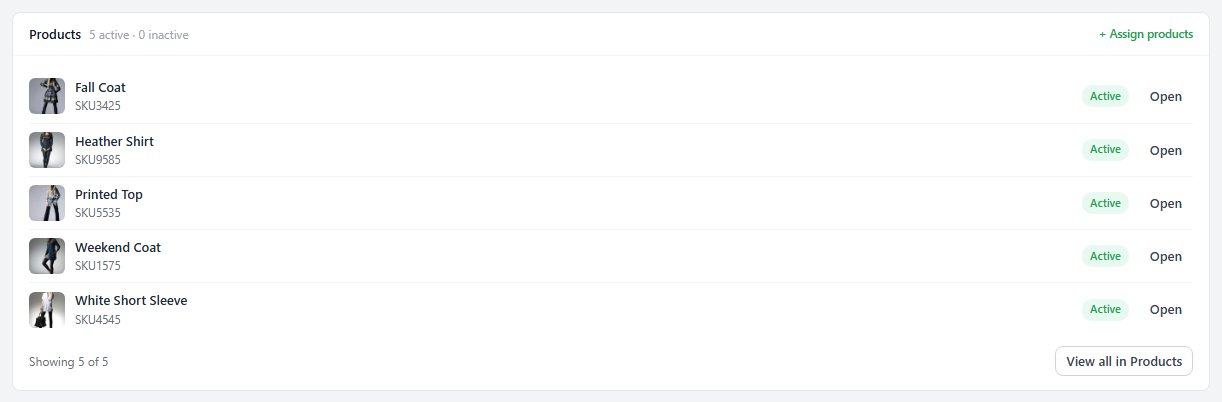
The Products card lists the products carrying the brand, active and inactive, and Assign products adds more at once, far quicker than product by product when a new brand arrives with thirty items. SEO & URL holds the slug and a search excerpt used as the meta description when no SEO plugin overrides it, and View on site opens the page.
Deleting never deletes products: you can reassign them to another manufacturer, the old address can redirect, and undo is available for 30 days.

Ready to run your store on WP EasyCart?
Everything in this guide works with the free plugin. PRO and Premium add subscriptions, memberships, wholesale pricing and more. Try every PRO feature free for 14 days.
