
Step 1. Link your UPS account
Sign in to UPS once, from WP EasyCart
Open EasyCart › Settings › Shipping › Shipping settings and find Carrier accounts. Pick the UPS tab and turn Enable UPS on.
A line under it reads No UPS account linked yet. Press Link your UPS account. You sign in to UPS on a UPS page, approve the link, and come back to your WordPress admin. There are no keys to copy.
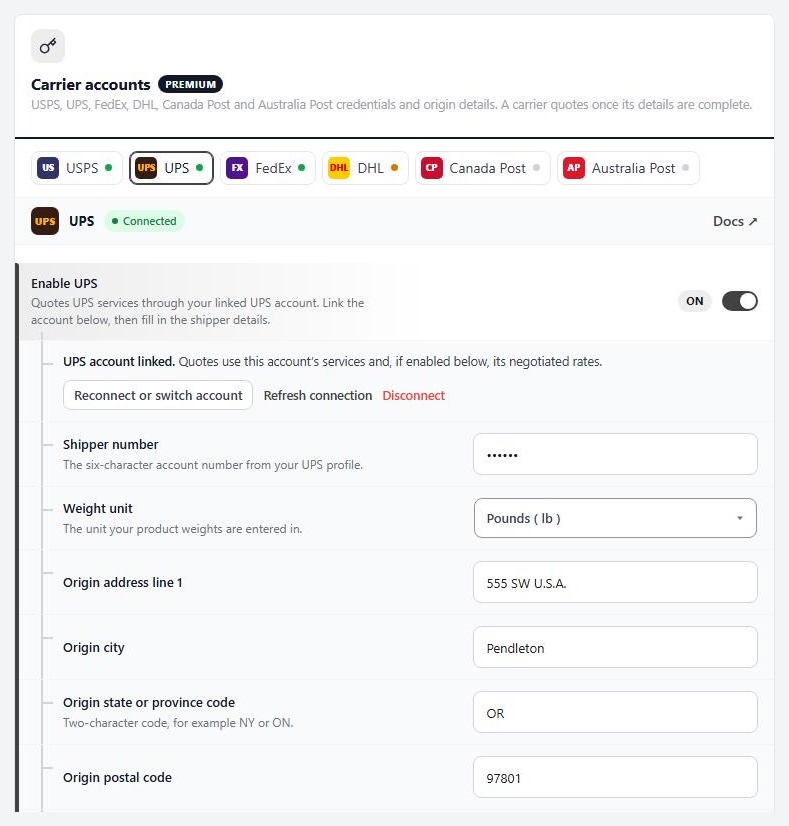
Once linked, the line reads UPS account linked. and three more controls appear:
Reconnect or switch account: sign in again, for example with a different UPS account.
Refresh connection: asks UPS for a fresh connection without signing in again.
Disconnect: removes the link.
You need a UPS account to link. A personal or a business account both work; create one at ups.com if you do not have one yet.
Step 2. Add your shipper number and ship-from address
So UPS knows whose account to quote and where parcels start
Fill in the rows under the link buttons. UPS will not quote until the ship-from postal code and country are set.
Shipper number: the six-character account number from your UPS profile. To find it, sign in at ups.com and open your account or profile page.
Weight unit: the unit your product weights are entered in, pounds or kilograms.
Origin address line 1, Origin city, Origin state or province code ( two characters, such as NY or ON ), Origin postal code and Origin country: where your parcels ship from.
Press Show advanced settings for the rest:
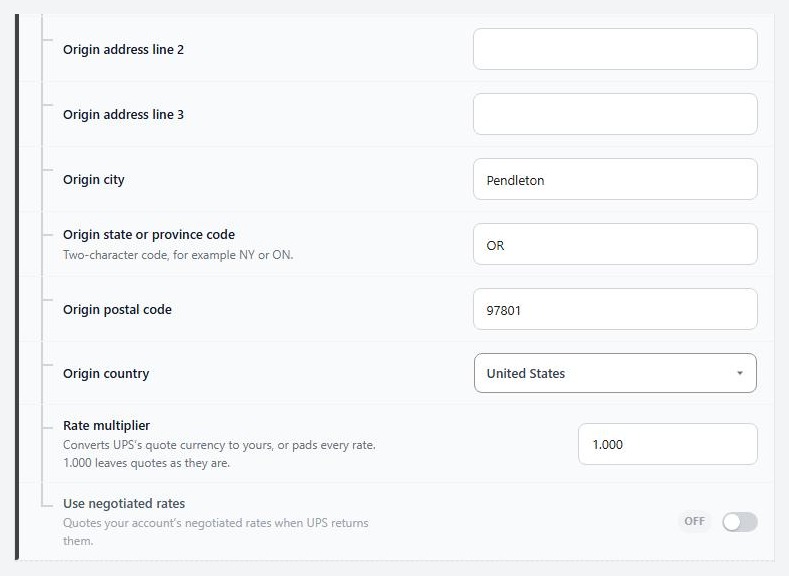
Origin address line 2 and line 3: optional.
Rate multiplier: 1.000 leaves UPS’s quote as it is. Enter 1.100 to add 10% to every UPS rate, or use it to convert UPS’s currency to yours.
Use negotiated rates: quotes the discounted rates on your UPS account when UPS returns them. Off by default.
Every change here saves as you make it, and a small Saving … Saved note shows beside it.
Check the connection
Connected, Needs details, Not set up, or not accepted
The line under the UPS tab name tells you where you are:
Connected: UPS accepted the account and WP EasyCart can get rates.
Needs details: something is still empty. It says what, for example Add: Origin postal code.
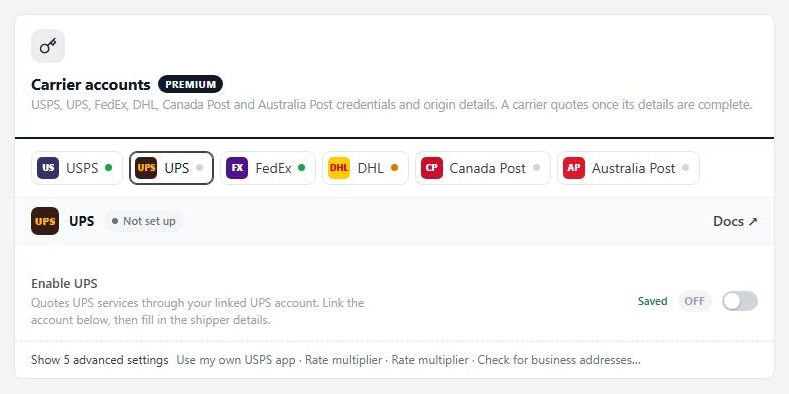
Not set up: Enable UPS is off.
If UPS turns the details down, the status says UPS did not accept these details and tells you to check the credentials, account number and origin address. Check the shipper number and the ship-from address, then press Refresh connection.
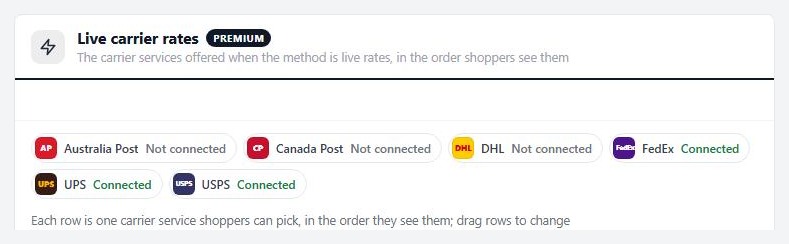
The same UPS status also shows on Settings › Shipping › Shipping rates, in the Live carrier rates card, beside the other carriers.
Turn UPS on or off
One switch, and nothing is lost
Turn Enable UPS off and UPS stops quoting at once. The status reads Not set up and the rows under the switch fold away. Your linked account, shipper number and ship-from address are kept, so turning it back on brings UPS straight back to Connected.
Use this to pause UPS without losing your setup, for example while you test another carrier.
Step 3. Switch your store to live rates
UPS does nothing until this is the active method
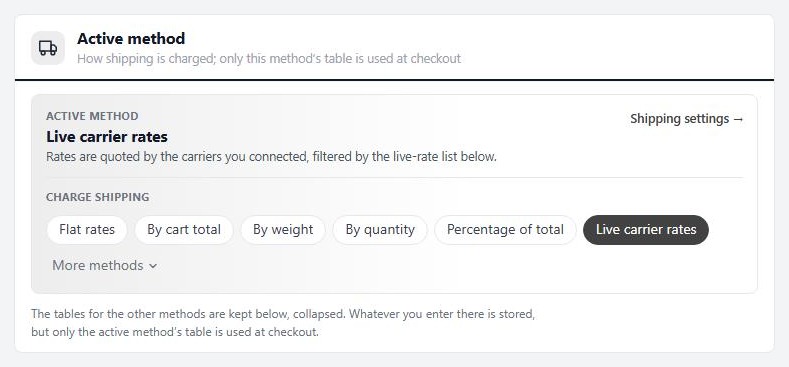
Open EasyCart › Settings › Shipping › Shipping rates. At the top, Active method shows how shipping is charged, and only that method’s table is used at checkout. Under Charge shipping choose Live carrier rates.
The tables for the other methods stay below, folded. Whatever you entered there is kept, but it is not used while live rates are active.
Step 4. Choose the UPS services shoppers see
Each row is one UPS service, in the order shoppers see them
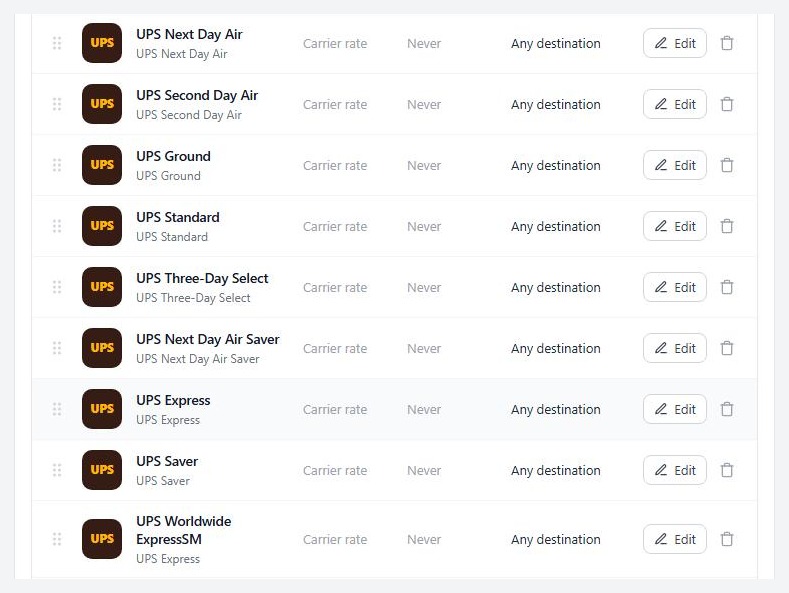
Scroll to Live carrier rates. The first time you save UPS details, WP EasyCart adds the usual UPS services for you if none are listed yet: Next Day Air, Second Day Air, Ground, Standard, Three-Day Select, Next Day Air Saver, Express, Saver and Worldwide Express.
Each row shows the name shoppers see, the UPS service behind it, a fixed Price if you set one ( otherwise Carrier rate ), the Free shipping at amount and the Zone. Drag a row by its handle to change the order shoppers see. Press Edit to change a row, or the bin to remove it.
Below the list, Also quoted, from your extensions lists Shippo and ShipStation when they are installed. Their services are set in the extension, not here.
Add, edit or remove a service
Names, fixed prices, free shipping and zones
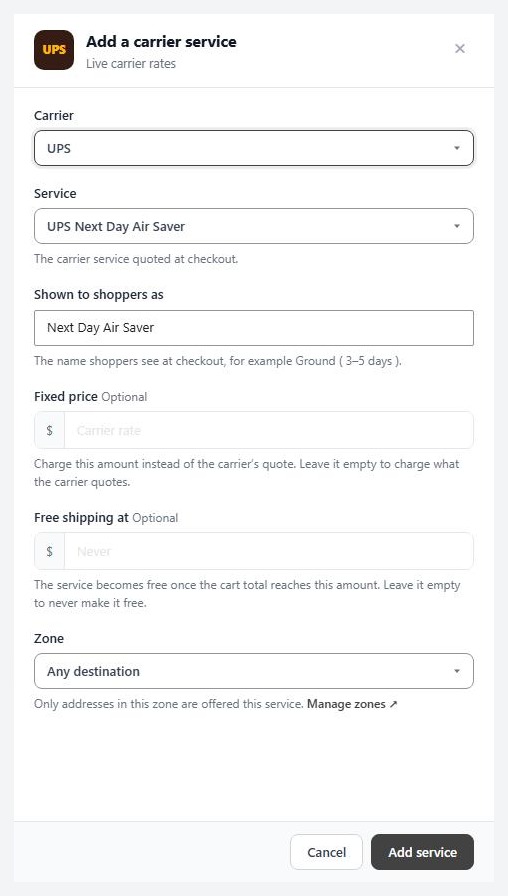
Press Add service under the list, or Edit on a row. A panel opens with:
Carrier and Service: pick UPS, then the service to quote. UPS offers Next Day Air, Second Day Air, Ground, Express, Worldwide Expedited, Standard, Three-Day Select, Next Day Air Saver, Next Day Air Early A.M., Worldwide Express Plus, Second Day Air A.M., Saver, Worldwide Express Freight, and the SurePost services.
Shown to shoppers as: the name at checkout, for example Ground ( 3–5 days ).
Fixed price: optional. Charge this amount instead of the UPS quote. Leave it empty to charge what UPS quotes.
Free shipping at: optional. The service becomes free once the cart total reaches this amount. Leave it empty to never make it free. This targets one service, so you can offer free UPS Ground over a set order value while the faster services still cost.
Zone: limit the service to a shipping zone.
Press Add service or Save changes to finish, or Remove in the edit panel to delete the row.
Step 5. Get your products ready
A weight and a size, and Enable Shipping on
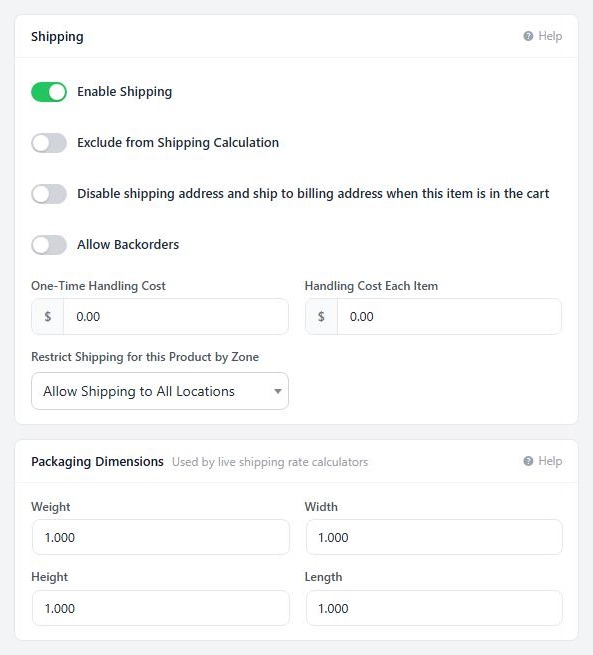
Live rates quote each cart from its products, so edit every product you ship. Open the product, choose Inventory & Shipping, and:
Enable Shipping: on, or the item is left out of the shipping calculation.
Weight, Width, Height and Length under Packaging Dimensions: the package details live rates use. A product with no weight cannot be quoted properly.
One-Time Handling Cost and Handling Cost Each Item: optional extras added on top of the rates.
Weights are read in the unit you chose for UPS in step 2. Dimensions are read in inches or centimetres, set by Dimension units in the advanced settings of the Shipping method card on Settings › Shipping › Shipping settings.
Delivery days and other live-rate options
How quotes are shown
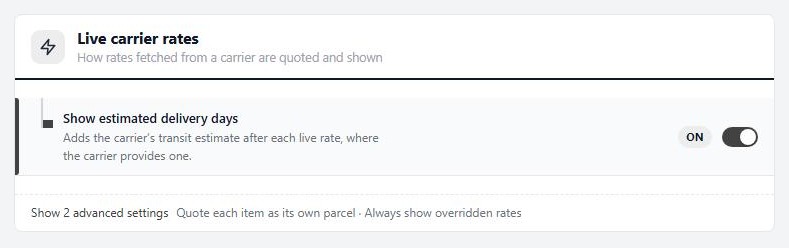
On Settings › Shipping › Shipping settings, the Live carrier rates card covers all carriers:
Show estimated delivery days: adds UPS’s transit estimate after each rate, where UPS provides one. On by default.
Quote each item as its own parcel ( advanced ): asks for a rate per item and adds them up, instead of one combined package. Only for goods that cannot ship together; it usually costs more.
Always show overridden rates ( advanced ): a service you gave a fixed price is shown even when UPS returns no rate for the address.
Ready to run your store on WP EasyCart?
Everything in this guide works with the free plugin. PRO and Premium add subscriptions, memberships, wholesale pricing and more. Try every PRO feature free for 14 days.
