
The checkout map
Every place a question can go, in the order a shopper meets them
no stored settingsCheckout fields are your own questions at checkout: a delivery date, a tax ID, how the shopper heard about you, a waiver to accept. The builder needs WP EasyCart PRO or Premium. Without it the page shows a locked example of the builder and what it does; with an older PRO it asks you to update.
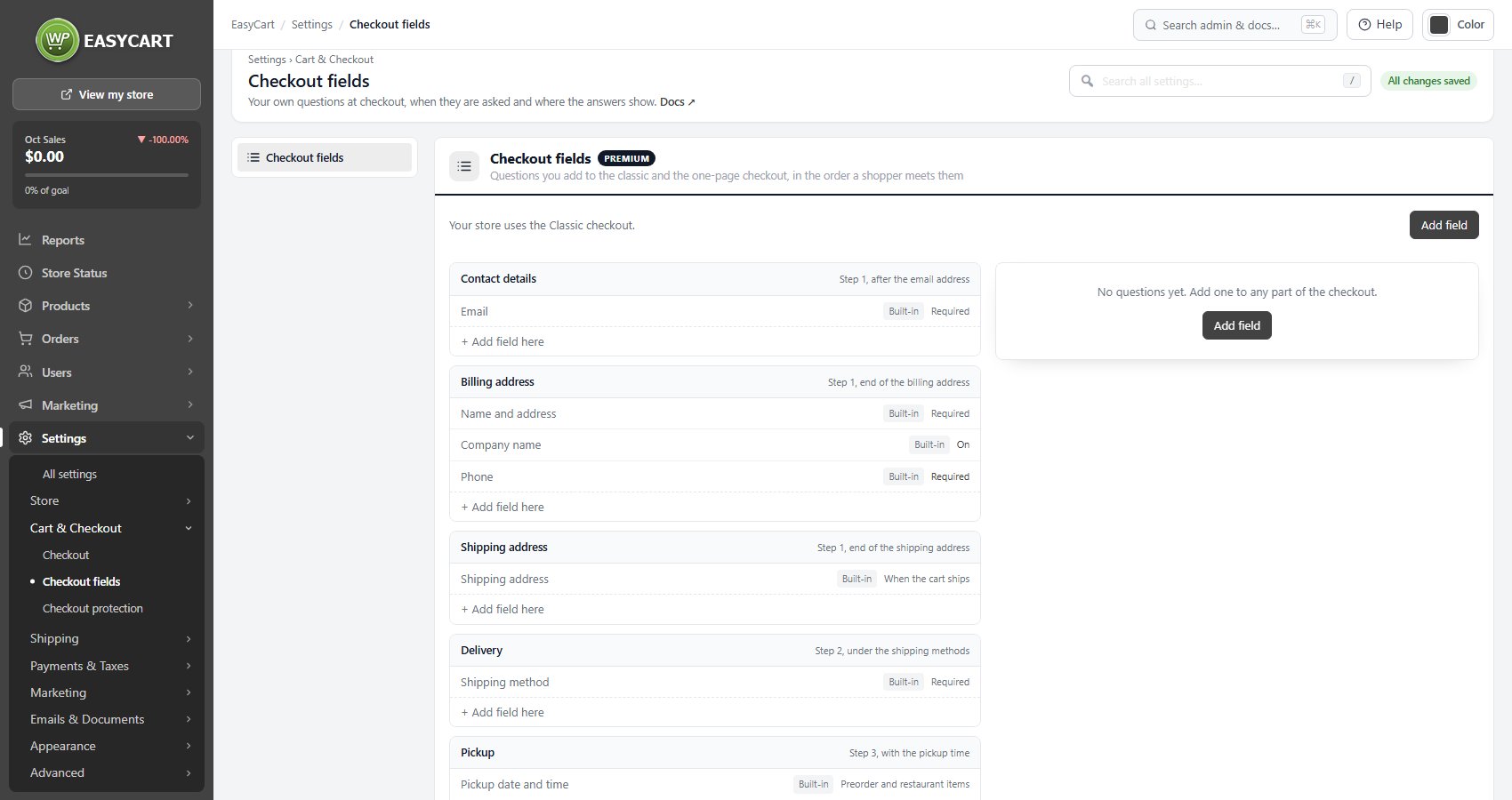
The left side is a map of the checkout. The line at the top says which checkout your store uses, Classic or One-page, and every field works in both. The places are Contact details, Billing address, Shipping address, Delivery, Pickup, Order notes and Review and place order. Each says where it falls in your checkout, for example “Step 1, after the email address” on the classic checkout or “Information, after the email address” on the one-page one.
Your store’s own fields, such as Email, Name and address, Company name, Phone, Shipping method, Terms and conditions and Newsletter sign-up, sit in the map with a Built-in chip so you can see what is already asked. They are switched on and off where they always were, and their links take you to Settings › Checkout. Use + Add field here in any place, or Add field at the top, to add a question.
The Field tab
Label, help, validation and what happens to the answer
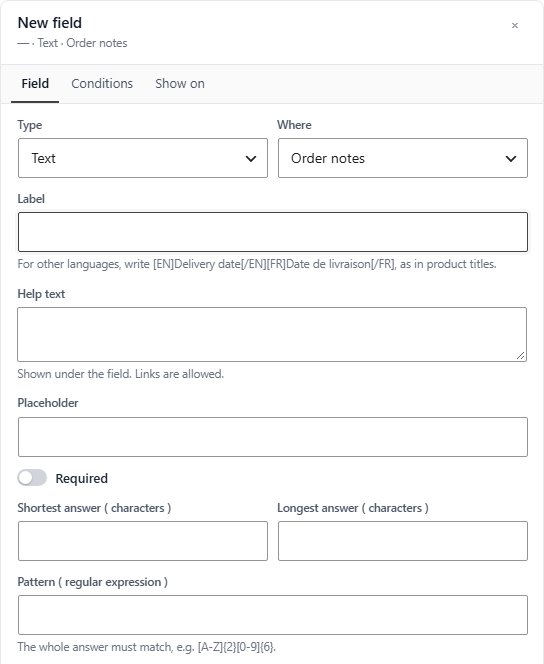
no stored settingsPicking a field, or adding one, opens its editor beside the map. The Field tab holds Type, Where ( the place on the map ), Label, Help text ( shown under the field, links allowed ), Placeholder and Default answer. For other languages, write the label as [EN]Delivery date[/EN][FR]Date de livraison[/FR], the same as product titles.
Required makes the shopper answer. While a required field applies to a cart, the Apple Pay, Google Pay and PayPal buttons on the cart and at the top of the checkout are hidden so the shopper goes through the form, and the builder says so. Turn on Ask after payment when skipped to keep those buttons: an express payment skips the form, and the thank-you page and the order in My Account then ask for the answer.
Checks depend on the type: Shortest answer and Longest answer in characters, a Pattern ( regular expression ) the whole answer must match with its own Message when it does not match, Lowest, Highest and Step for numbers, and for dates Earliest date, Latest date ( a number of days from today or a fixed date ), Days that cannot be chosen and Dates that cannot be chosen.
Width is Full or Half. Remember for the customer’s next order shows signed-in customers their last answer, which they can change in My Account and you can change on the customer screen. Personal data has the answer erased by Tools › Erase Personal Data; every answer is in the personal data export either way. Show as a column on the orders list adds a column, and for dropdown, radio and checkbox fields a filter too. Key names the answer in the order export ( field_<key> ) and in code, and cannot change once an order has an answer. CSS class is there for styling.
For dropdowns, radio buttons and multiple checkboxes, the Choices tab lists the options: each Choice has the wording shoppers see and what it is Stored as, plus Fewest choices and Most choices for multiple checkboxes. The error messages shoppers see, such as “Please fill in this field.”, are in Settings › Language under Checkout Fields.
Conditions
Ask only the shoppers it applies to
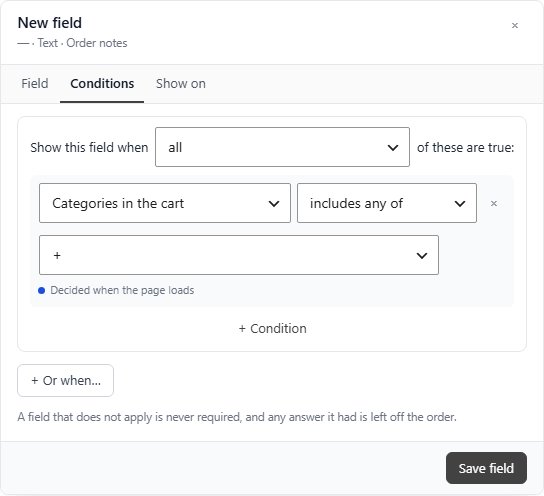
no stored settingsA field with no conditions is always shown. On the Conditions tab, Show this field when all or any of the rules are true, and + Or when… adds another group, so a field can apply in more than one situation.
A rule can look at the cart ( products, categories or manufacturers in it, the kinds of item such as downloads, subscriptions, gift cards or pickup items, the subtotal, the weight, the number of items, a coupon ), the shopper ( signed in, checking out as a guest, the customer role, a particular customer ), the address ( billing country, shipping country, shipping state or region ), the delivery method name, the payment method, the gift order box, today’s date or day of the week, or another checkout field’s answer.
Each rule is marked Checked on the page as the shopper changes it or Decided when the page loads. On the classic checkout a rule about something chosen on a later step, such as the delivery method, uses what the shopper chose the last time they got that far, and the editor tells you when that is the case. A field that does not apply is never required, and any answer it had is left off the order.
Show on
Where the answer appears after the order
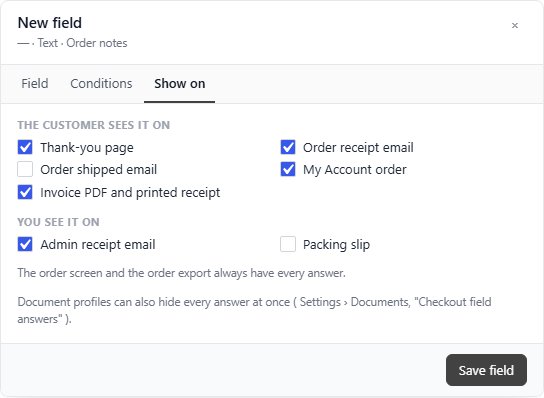
no stored settingsThe customer sees it on: Thank-you page, Order receipt email, Order shipped email, My Account order and Invoice PDF and printed receipt. You see it on: Admin receipt email and Packing slip. A new field starts on the thank-you page, the receipt, My Account, the invoice and the admin receipt.
The order screen and the order export always have every answer. Document profiles can also hide every answer at once with their Checkout field answers switch, on Settings › Documents.
Ready to run your store on WP EasyCart?
Everything in this guide works with the free plugin. PRO and Premium add subscriptions, memberships, wholesale pricing and more. Try every PRO feature free for 14 days.
