
The active method
Which system is charging, and switching between them
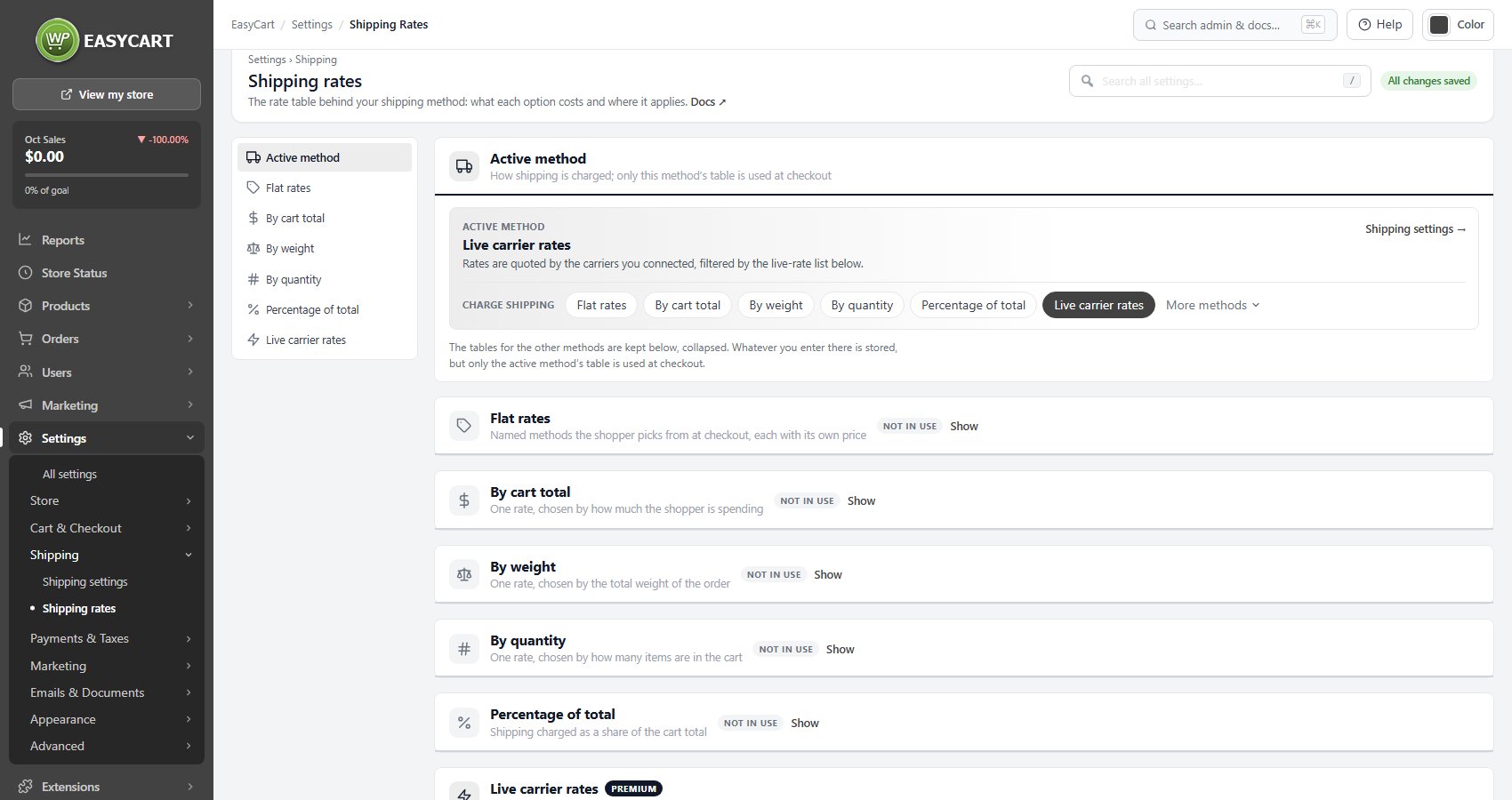
no stored settingsThis page edits rate tables, and only one table is ever in use: the one belonging to your active shipping method. The Active method card at the top names it and offers a row of buttons to switch, which saves the same setting that lives on the Shipping settings panel. The tables for the other methods sit below, collapsed and marked Not in use; Show opens one.
That single fact explains most shipping confusion. Rates entered under a method you are not using are not combined with the active ones and not partially applied; they are ignored entirely. A store quoting nothing at checkout, or quoting something unexpected, is usually looking at the wrong table.
Switching method does not delete anything, so you can move between systems while working out which fits, and the tables you built are still there when you come back.
The rate tables
Five ways of deciding what shipping costs
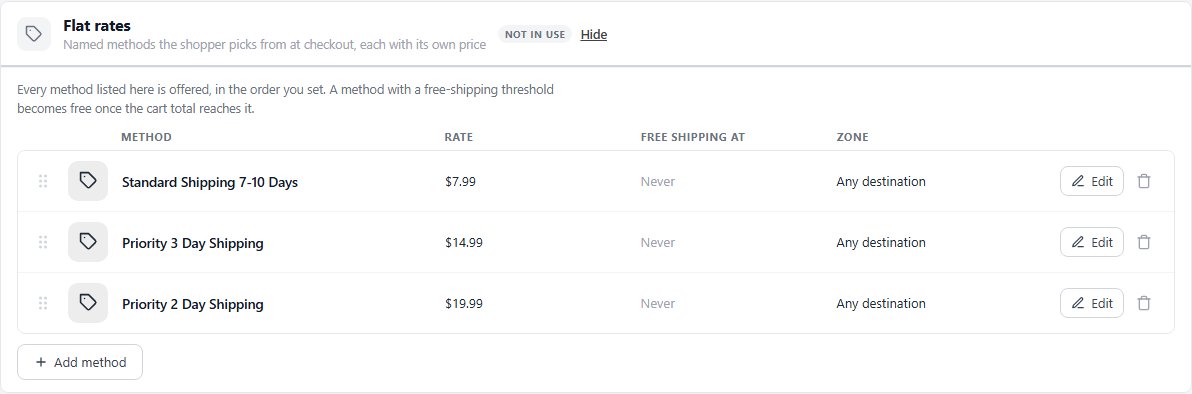
no stored settingsFlat rates are named methods with fixed prices, such as standard and express. Simple, predictable, and the right starting point for most stores.
By cart total picks one rate based on what the shopper is spending, which is how free shipping over a threshold is built.
By weight picks one rate from the order’s total weight, and is the closest of the manual systems to what shipping actually costs you. It depends entirely on your products carrying weights.
By quantity picks one rate from how many items are in the cart.
Percentage of total charges shipping as a share of the cart. Easy to set up and increasingly wrong as order values spread, since shipping cost does not scale with price.
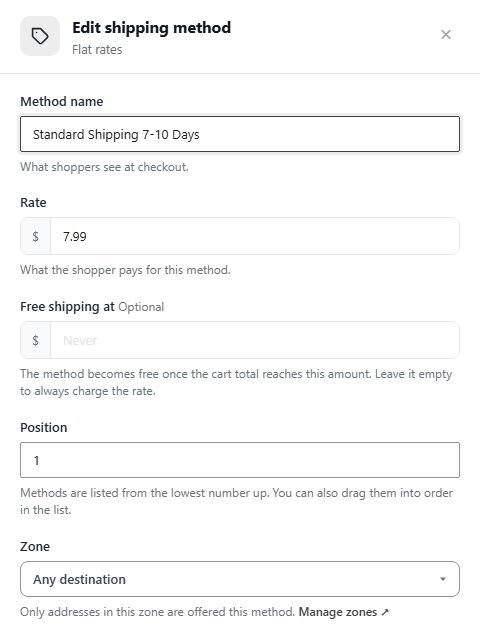
Every table is a list of rows. Edit on a row, or Add method / Add rate under the list, opens a drawer at the side. A flat rate takes a Method name shoppers see, its Rate, an optional Free shipping at amount, a Position and a Zone, and every flat method listed is offered, in that order. Rows can also be dragged into order.
The other tables are tiers. Each row says where it applies from, a cart total, a weight or a number of items, and what it charges, and the row with the highest starting point at or below the order applies. Start the first row at 0, or a small order gets no rate at all.
For a step by step walkthrough, see Set Up Shipping That Does Not Lose Money.
Live carrier rates
Real prices from the carrier, and the services you offer
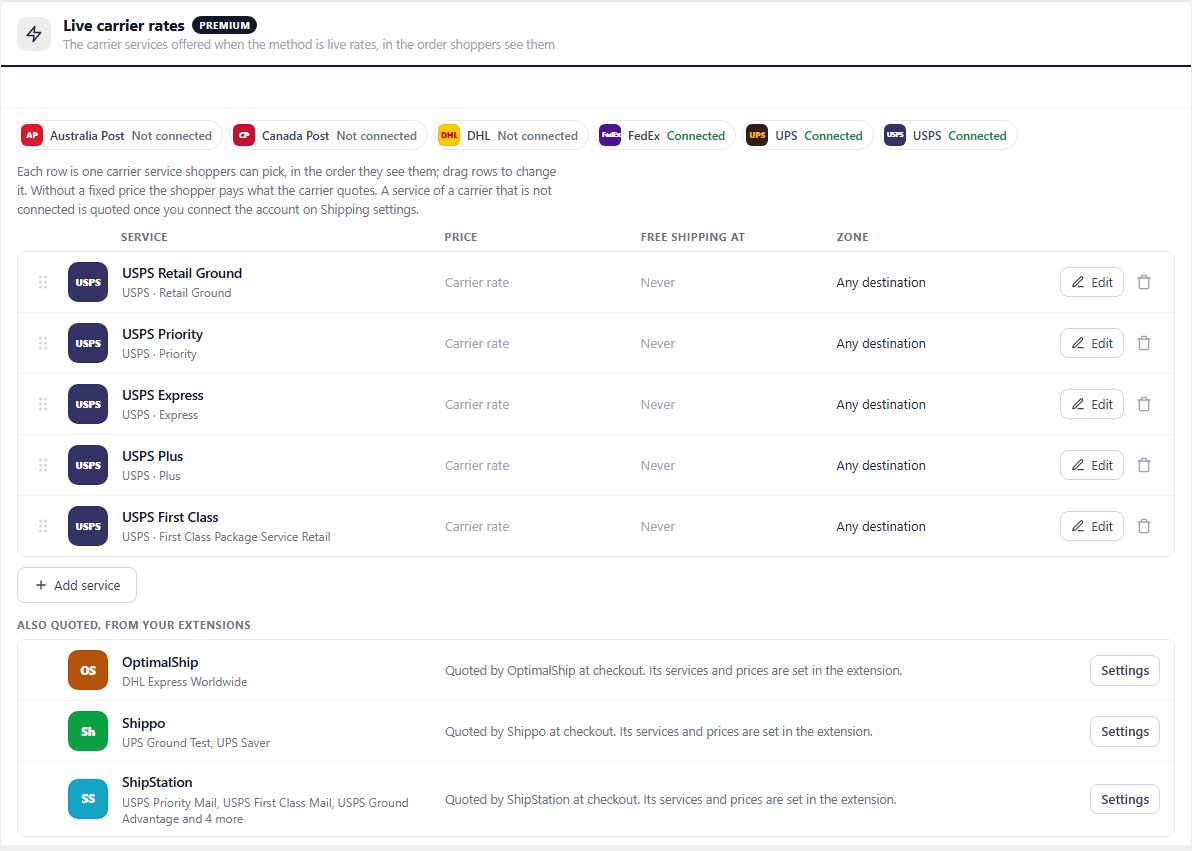
no stored settingsWhen the method is live carrier rates, the table becomes a list of carrier services rather than prices you set: Priority Mail, FedEx 2Day and so on. A strip across the top shows which carriers are Connected, and a carrier that is not links to its account on Shipping settings. Each row is one service shoppers can pick, in the order they see them; drag rows to change it.
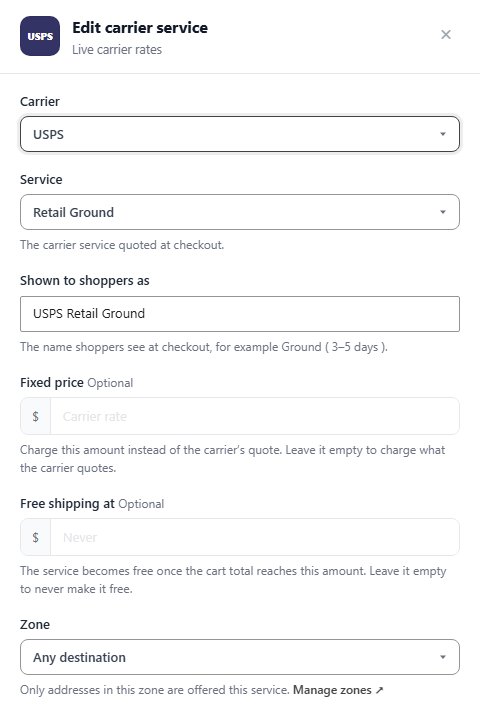
Edit or Add service opens the drawer: the Carrier, the Service it quotes, the name it is Shown to shoppers as, an optional Fixed price, an optional Free shipping at amount, and a Zone.
Offering every service a carrier returns is a mistake. A shopper presented with eleven options with similar names will pick the cheapest or abandon, and neither is what you wanted. Three or four, clearly different in speed and price, converts better.
Without a fixed price the shopper pays what the carrier quotes. A fixed price is how you absorb part of the cost or round a rate to something friendlier. Whether a fixed-price service still shows when the carrier returns nothing for an address is a setting on the Shipping settings panel.
Rate services from extensions. Shipping extensions that quote their own rates, such as Shippo, ShipStation or OptimalShip, are listed under the services as Also quoted, from your extensions. Those rows are read only: their services and prices are set in the extension, and Settings on the row opens it.
Live rates are included with PRO and Premium licences, and they need product weights and your carrier accounts complete before they can quote anything.
Ready to run your store on WP EasyCart?
Everything in this guide works with the free plugin. PRO and Premium add subscriptions, memberships, wholesale pricing and more. Try every PRO feature free for 14 days.
