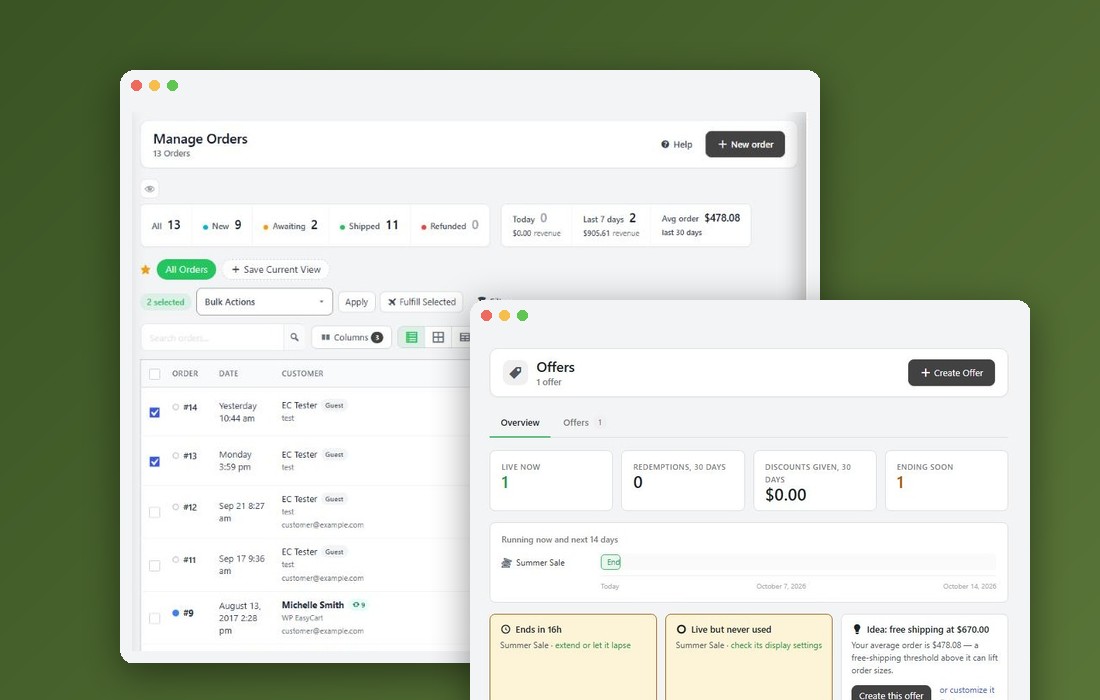
Step 1. Choose how shoppers pay for shipping
One way for the whole store
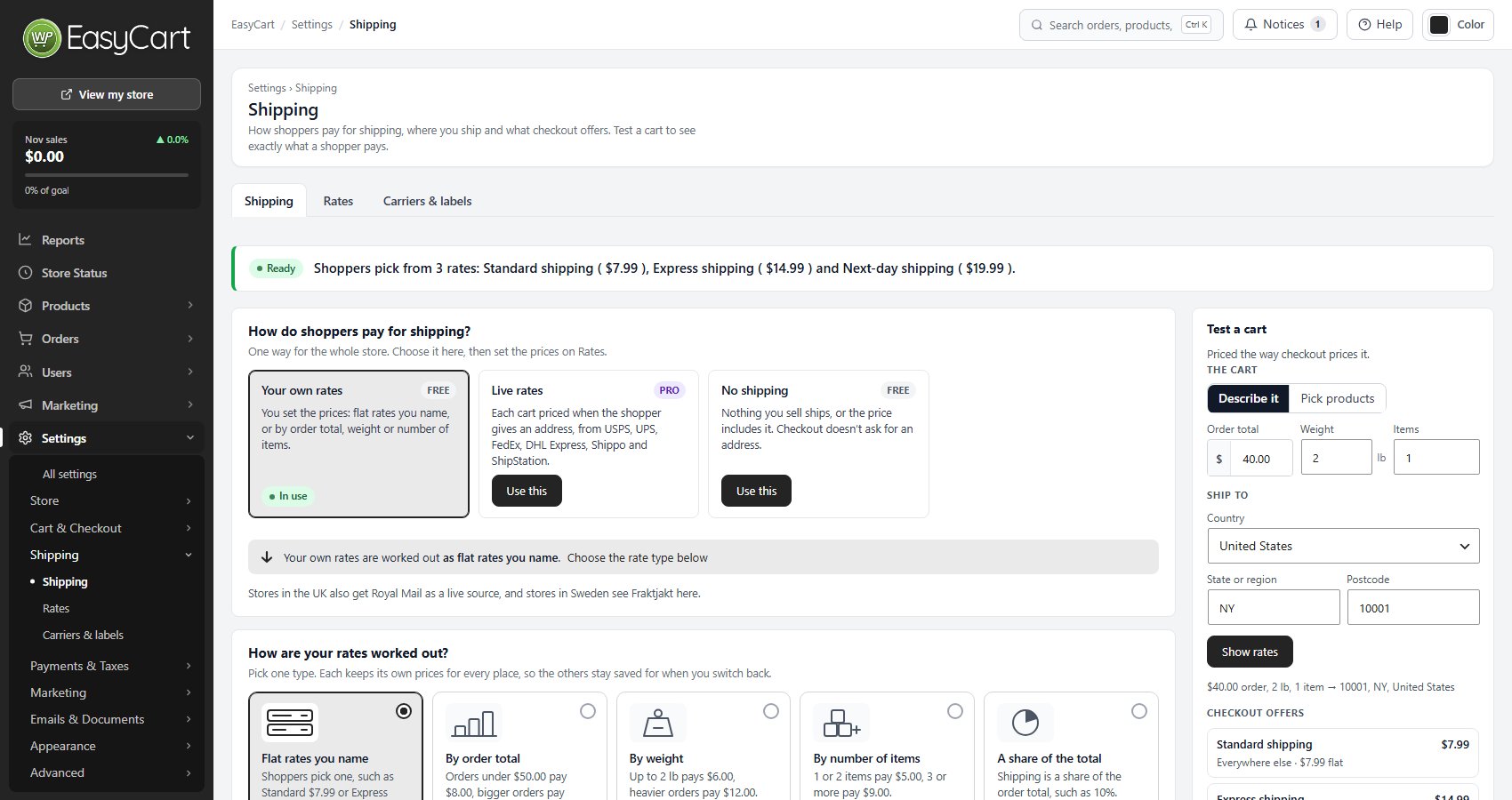
Open EasyCart › Settings › Shipping › Shipping. The first card asks How do shoppers pay for shipping? Press Use this on one:
Your own rates: you set the prices. The right start for most stores.
Live rates: each cart is priced by your carriers when the shopper gives an address. PRO and Premium.
No shipping: nothing you sell ships, or the price includes it. Checkout does not ask for an address.
With your own rates, the next card asks How are your rates worked out? Pick one type:
Flat rates you name: fixed prices shoppers pick from, such as Standard and Express.
By order total: the price follows how much the shopper spends.
By weight: the price follows the order’s total weight. The closest of your own rates to what a parcel really costs you.
By number of items: the price follows how many items are in the cart.
A share of the total: a percentage of the order. Simple, and increasingly wrong as order values spread, because a parcel’s cost does not scale with its price.
Only the type in use is charged. Each type keeps its own prices, so switching deletes nothing and you can try each.
Ran the setup wizard? Its Shipping step already chose a way and added starter rates in your currency: Standard shipping, Express shipping and Next-day shipping for flat rates, or tiers for order total or weight. A store with no rates gets Add starter rates on the Shipping page. Treat those amounts as placeholders: replace them with what parcels really cost you in Step 2.
Step 2. Set your prices
Flat rates, or bands by total, weight or number of items
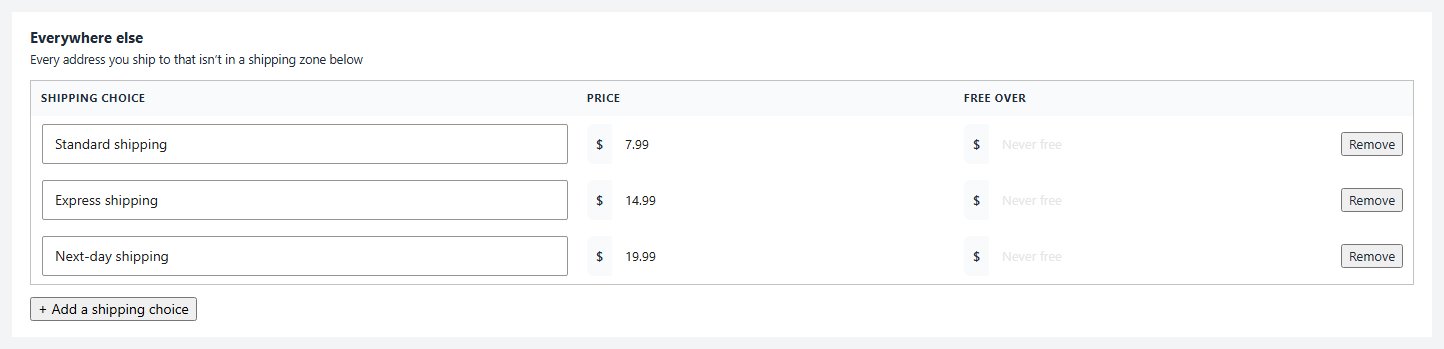
Press Set prices on Rates, or open Settings › Shipping › Rates. The Everywhere else block holds your usual prices, for every address you ship to that is not in a shipping zone with prices of its own.
Flat rates. Each row is a shipping choice: the name shoppers see, its Price and an optional Free over amount. Edit a box and it saves. + Add a shipping choice adds one. Every choice listed is offered at checkout.
By order total, weight or number of items. Each band starts From an amount and says what orders from there Pay; the band an order falls in sets its price. + Add a band adds one. Start the first band at 0, or smaller orders pay nothing for shipping: the block warns you, and ticks confirm every order has a price. Weights are in your store’s unit, set in Settings › Store details under Country and units.
Every change is listed under Recent changes at the foot of the page, with Undo.
Step 4. Add handling and zones
Cover packing costs, and charge by destination
On Shipping, the At checkout card has the amounts that stop shipping quietly losing money:
Handling fee: added to every shipping rate, free ones too. Use it for packing materials and time. Leave it empty for none.
Express surcharge: with bands by total, weight, number of items or share, offers an Express choice at the standard rate plus this amount. Leave it empty for no Express choice.
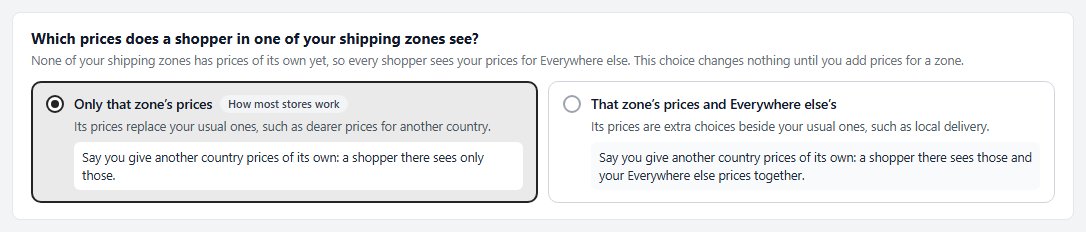
Zones. On Rates, + Add a shipping zone groups countries, states and provinces under a name, with prices of their own, so you can charge one price at home and another abroad without a row for every country. Above the blocks, choose whether a shopper in a zone sees Only that zone’s prices ( how most stores work ) or That zone’s prices and Everywhere else’s. Who pays what, beside them, names any country you ship to that has no price.
Where you are willing to ship at all is set in Countries & Regions; Where do you ship? on Shipping links there. A country that is off is refused as a shipping address at checkout.
Step 5. Add live carrier rates (PRO)
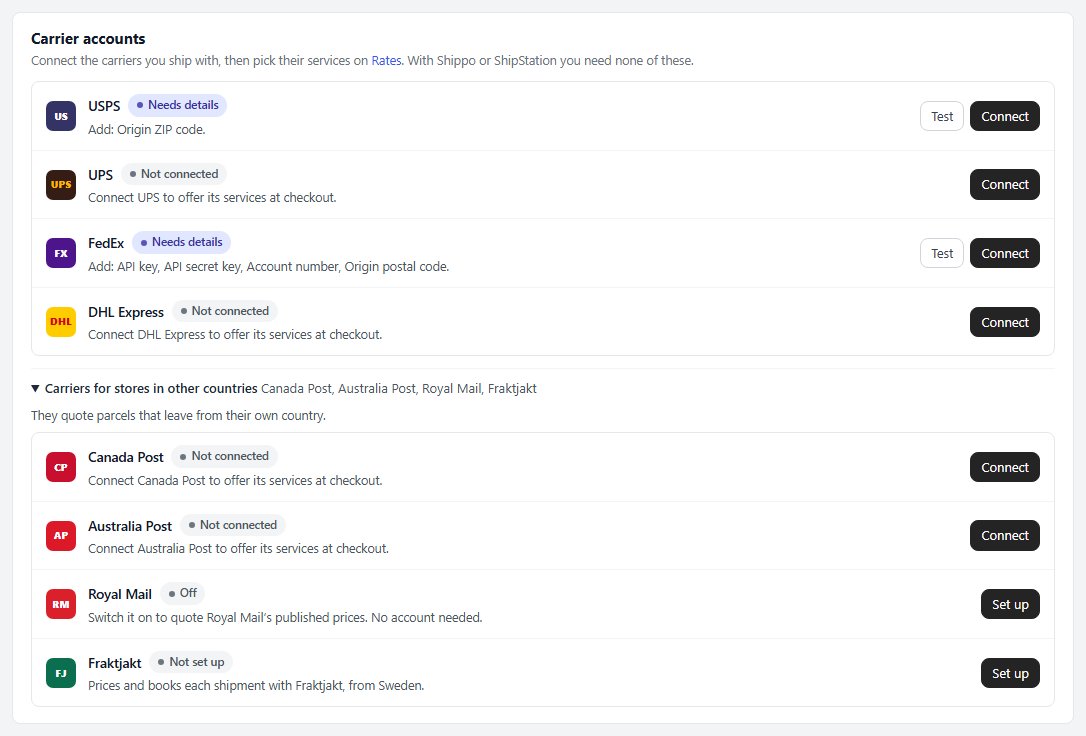
USPS, UPS, FedEx, DHL, Canada Post, Australia Post and Royal Mail
Live rates ask the carrier what a parcel will cost, from its weight, size and destination. They are included with PRO and Premium.
Open Settings › Shipping › Carriers & labels. Fill in Where do parcels leave from? once for every carrier, then under Carrier accounts press Connect on each carrier you use. Its details drawer takes its credentials, such as Enable UPS and the account link; the row names what is missing until it reads Connected, and Test asks the carrier now.
Posting from the UK? Royal Mail has its own row: Offer Royal Mail at checkout adds the Royal Mail services you pick, priced from Royal Mail’s own price lists by each parcel’s size, weight and destination.
Then, on Shipping, press Use this on Live rates. On Rates, each carrier lists its services with a switch. Offering every service a carrier returns is a mistake: three or four that differ clearly in speed and price convert better than eleven that look alike. A service can take a Fixed price instead of the carrier’s, which is how you absorb part of the cost or round a rate.
While live rates are in use, Shipping adds Show estimated delivery days to At checkout, and Quote each item as its own parcel and Always show overridden rates to Fine-tune. The last one shows a fixed-price service even when the carrier returns nothing for the address.
Weights, and what you ship in
Products without a weight, and your boxes
Weights. On Shipping, Weights and sizes shows your units and says whether every product that ships has a weight. Products without a weight count as sets what one without counts as when your rates read weights; empty means nothing, which undercharges.
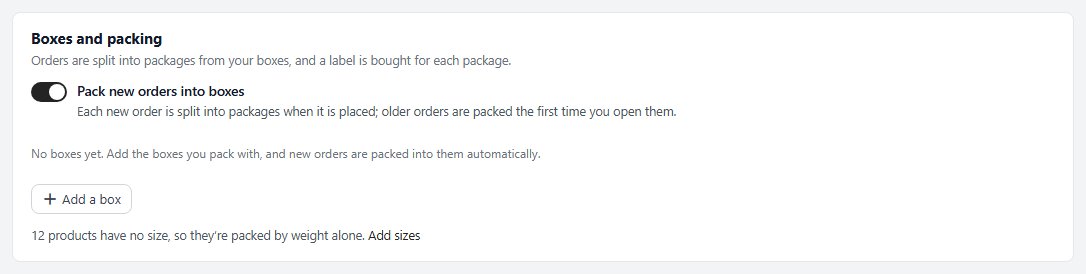
Boxes and packing. On Carriers & labels, save the boxes you ship in with Add a box: the inside size, empty box weight and the most it holds, and mark one as the default. With Pack new orders into boxes on, each new order is split into packages when it is placed, and a label is bought for each package. Orders that cannot be packed by size use the default box.
Step 6. Test what a customer is charged
A test cart for every case you priced
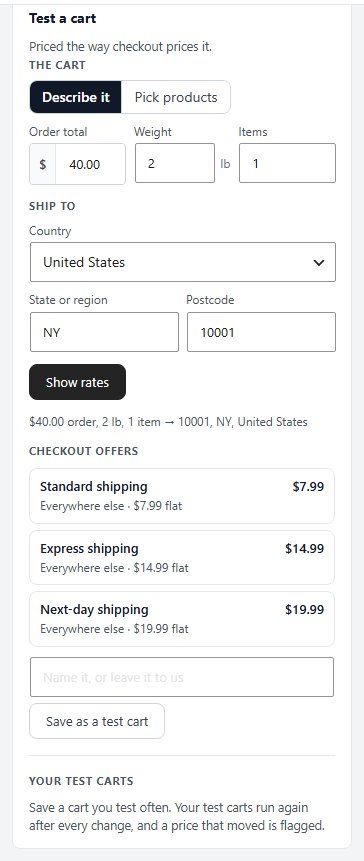
Do not trust the table. On Shipping, Test a cart prices a cart the way checkout does, without placing an order:
1. Describe it with an order total, weight and number of items, or Pick products.
2. Enter a domestic address under Ship to and press Show rates ( Ask for live rates with live rates ). Every rate comes back with how it was worked out: the zone, the band, free over an amount and the handling fee.
3. Repeat for a typical order, your heaviest order and one just above and just below your free shipping threshold.
4. Repeat for an address in each zone.
Press Save as a test cart on the ones you care about. Your test carts run again after every change, and a price that moved is flagged. On Rates, Test a cart also prices your first test cart for each place.
For a final check, buy as a customer: pay by bank transfer or use a gateway in test mode, as in the payment guide, then open Orders and check the shipping amount on the order.
Ready to run your store on WP EasyCart?
Everything in this guide works with the free plugin. PRO and Premium add subscriptions, memberships, wholesale pricing and more. Try every PRO feature free for 14 days.