
Stock levels
What you have, what is committed, and what is actually available
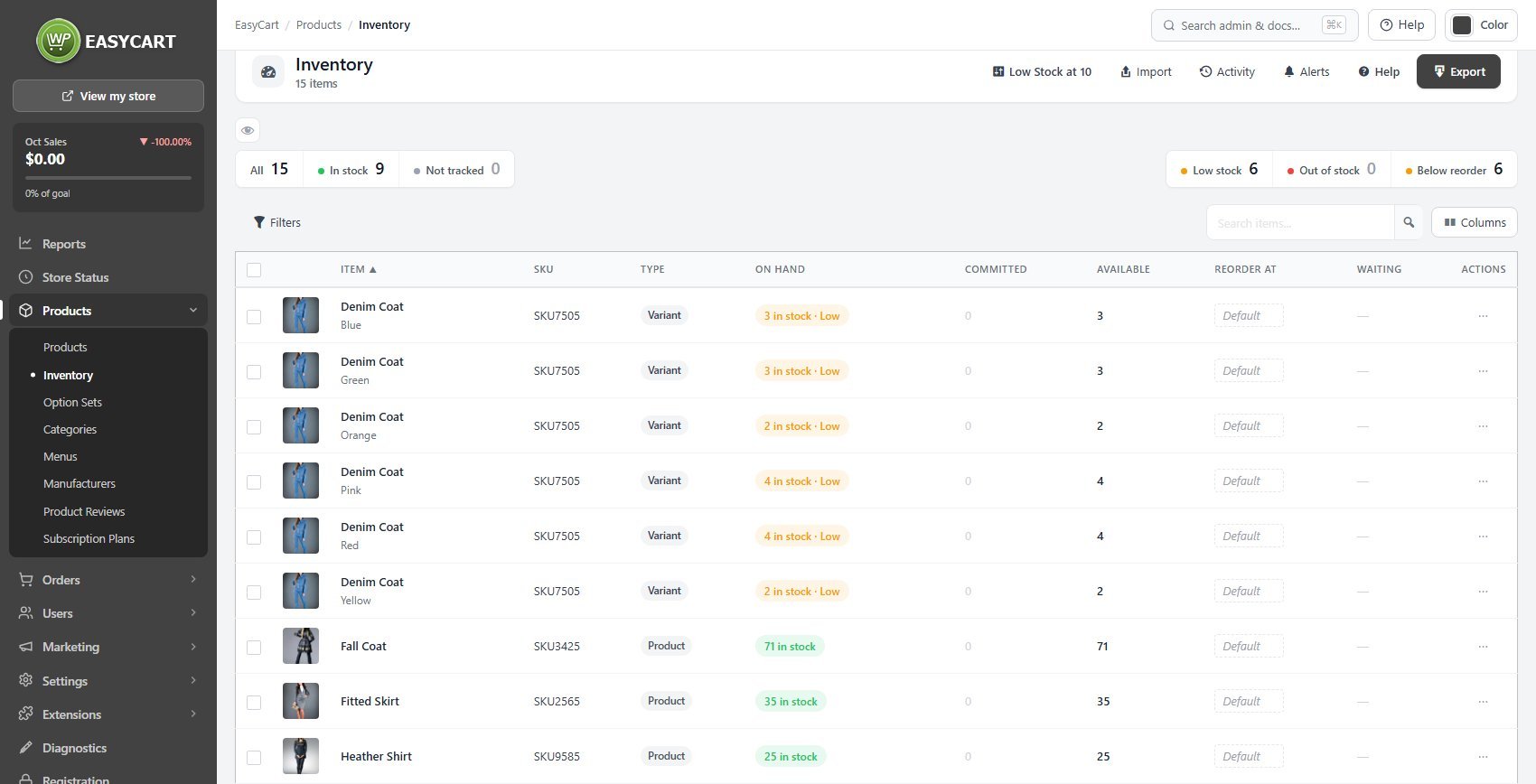
no stored settingsOne row per tracked item, which for a product tracked per variation means one row per variation rather than one per product. Each shows what is On Hand, what is Committed to orders not yet fulfilled, and what is therefore Available to sell. Those are three different numbers, and confusing them is how stores oversell.
Tiles above the list count and filter the items: All, In stock and Not tracked, then Low stock, Out of stock and Below reorder. A product that does not track stock shows as Unlimited rather than zero, so it is never mistaken for a sold-out one. Low Stock at in the header shows the store-wide threshold and links to where it is set.
Where a catalog is connected to Square, stock managed there is marked, because Square owns those quantities rather than this screen.
Filters, and one product at a time
Stock status, item type, visibility and a single product
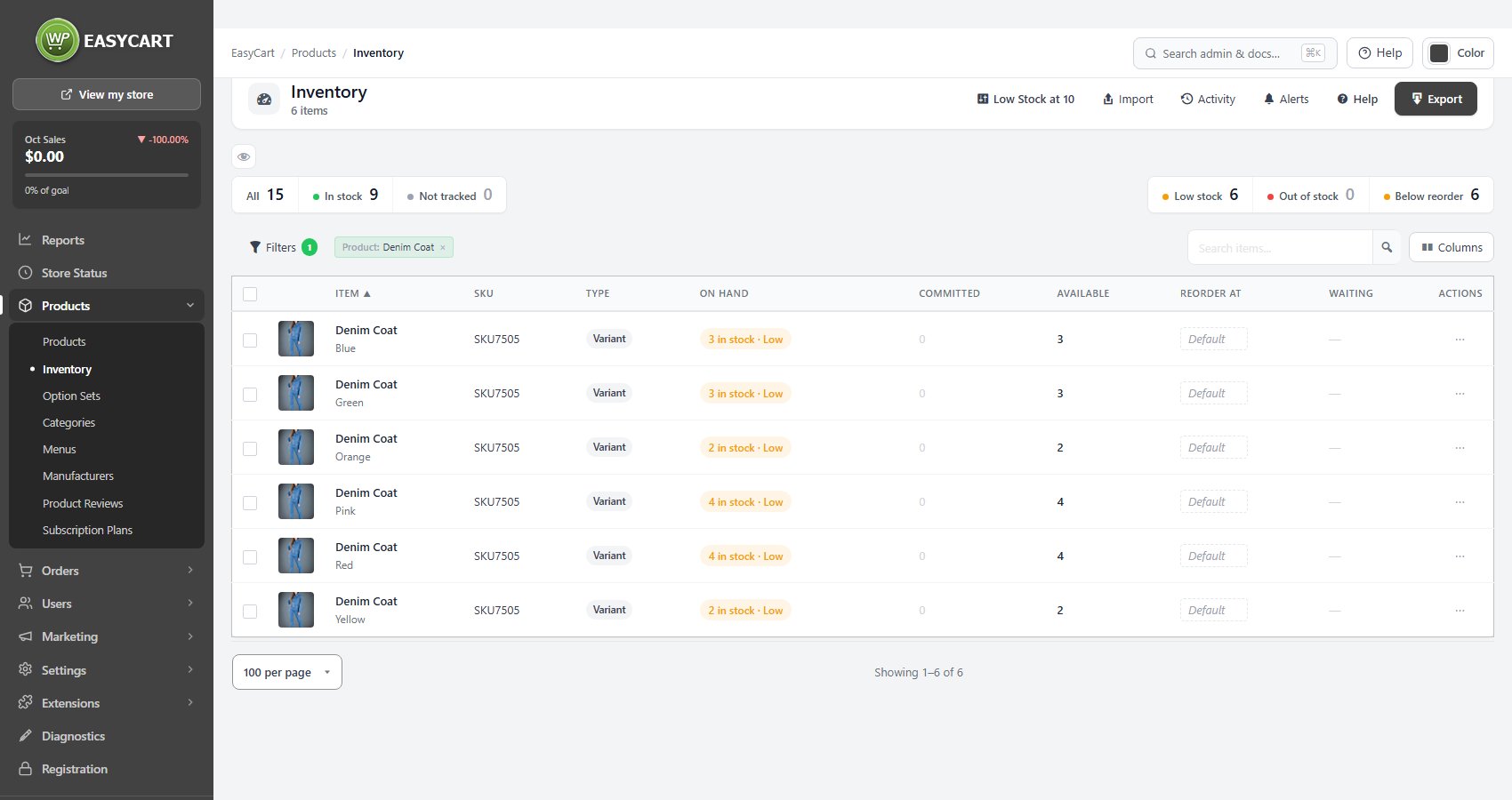
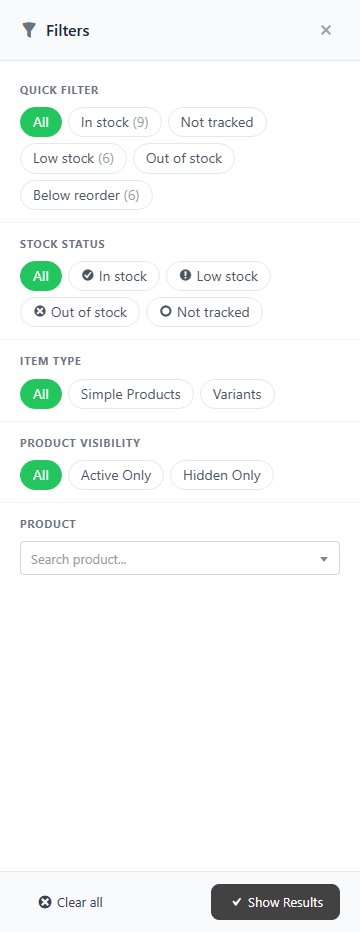
no stored settingsFilters narrows the list by Stock Status, Item Type ( simple products or variants ), Product Visibility ( active or hidden ) and Product.
The Product filter searches as you type and shows one product with all of its variations, which is the quickest way to check or recount a single product that comes in twenty sizes and colors. The filters combine with the search box, and the applied ones are listed above the results.
Changing stock
Adjustments with a reason, so the history means something
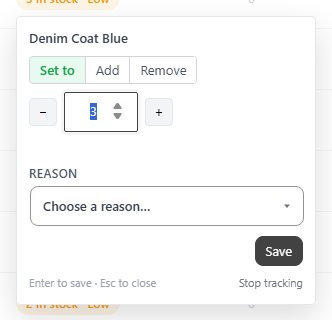
no stored settingsClick an item’s stock to change it: Set to a quantity, Add or Remove an amount, with the minus and plus buttons or a typed number, and Stop tracking when the item no longer needs counting. For an item that is not tracked, the same click offers to start tracking with the quantity you have on hand.
With PRO, every change asks for a Reason ( also in Adjust Stock in the row menu ): Stock received, Recount / cycle count, Damaged, Lost / theft, Correction, Restock ( refund ), Promotion / giveaway or Other, with an optional note. It shows the new total before you apply it. Bulk Update sets, adjusts or sets the reorder point of every ticked row at once, for a stock take or a delivery.
An honest reason is the most valuable habit on this screen. Six months later the history is the only evidence of whether a gap was miscounting, breakage or loss.
Inventory history
Every movement, with the reason and who made it
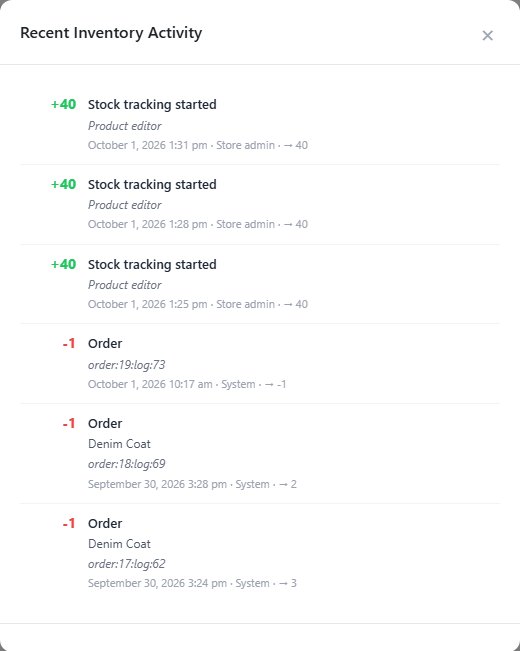
no stored settingsView History on a row, or Activity in the header for the whole store, opens the history ( PRO ): each change with the amount, the reason, the new total and who made it. Orders, CSV imports and bulk updates appear beside manual adjustments, so the full story of how an item reached its level is in one place.
This is what you reach for when the shelf and the screen disagree. Working back through the history usually finds the point where they parted, far quicker than recounting everything. The same history is on each product’s Inventory & Shipping tab.
Import and export
Bulk stock updates from a spreadsheet, previewed before they apply
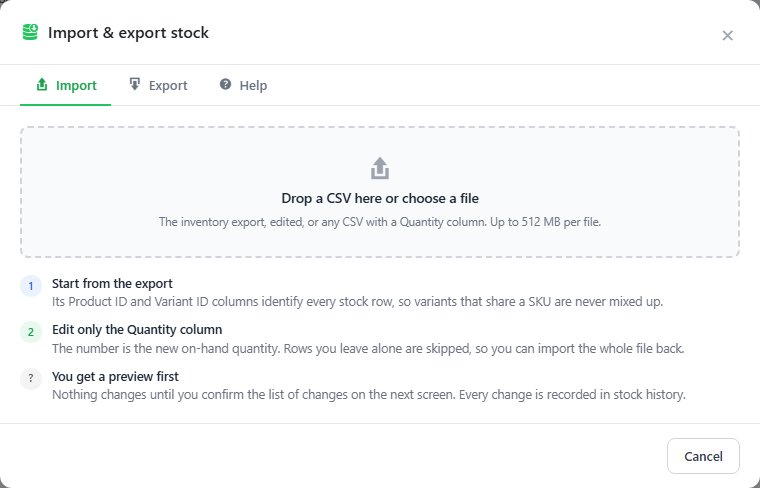
no stored settingsExport writes every item with its Product ID and Variant ID as well as the SKU. That matters because variations can share a SKU, and matching on IDs updates the exact one.
Import ( PRO ) checks every row before anything is written. It shows how many rows it read, how they matched, the quantities that will change, the ones already at that quantity, and the rows it cannot use, with the reason: no ID or SKU, a SKU shared by several items, a product that tracks stock per variation, stock managed by Square, and so on. A file with no header row is read as SKU and Quantity.
Applying runs in the background, keep the window open, and every change is written into the history as CSV import, so a bulk import is as traceable as a manual one.
Alerts and waiting customers
Being told before you run out, and telling customers you are back
no stored settingsSet Reorder Point ( PRO ) flags an item when its quantity is at or below the number you choose. Items left on Default use the store-wide low stock threshold.
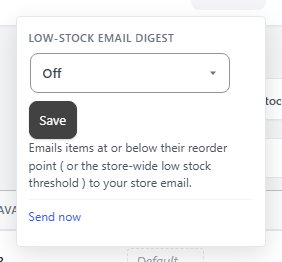
Alerts sets up the Low-stock email digest, daily or weekly, which emails everything at or below its reorder point to your store email in one message. Send now sends it immediately.
The Waiting column counts the customers waiting for a back-in-stock email, and Notify Waiting Customers sends it. They wanted to buy and could not, which makes them the warmest list in your store.
Ready to run your store on WP EasyCart?
Everything in this guide works with the free plugin. PRO and Premium add subscriptions, memberships, wholesale pricing and more. Try every PRO feature free for 14 days.
