
What’s newFind any order, customer, product or setting with one admin search. See all features

How-to › Product setup

How to Manage Inventory and Stop Overselling

Sell what you have and know when it is running out. You track quantity, decide what happens at zero, hold stock for carts and set your alerts. 10 parts.

Quick links

Where to find it:WP Admin › EasyCart › Products › Inventory

Before you start

What you are building

What you need and how stock is counted.

How stock control works

What you need, and what stops a sale

What you need. WP EasyCart. Counting stock, backorders, stock alerts and the Inventory page are in the free plugin. PRO or Premium adds stock adjustments with a reason, movement history, reorder points, bulk update, CSV import and a low-stock email digest. There is a free trial if you want to try them.

The idea. You tell the store how many you have. Each sale takes some away. At zero the product cannot be bought, or it can be backordered, your choice. You are warned before you reach zero.

A product is either tracked or it is not. A product that is not tracked can always be bought, because the store does not know how many you have. That is right for a service or a download and wrong for anything you can run out of.

The steps: track the product, decide what happens at zero, hold stock for carts, set your alerts, then keep it right from the Inventory page.

Set it up

Five steps

Track quantity, decide what happens at zero, allow backorders, hold stock for carts, set alerts and keep counts right.

Step 1. Track stock on the product

The Inventory section, Stock and order limits

Open a product in EasyCart › Products and choose Inventory in the list on the left, under Catalog. In Stock and order limits, choose Track stock:

Not tracked: the product is always available.
Total: one number for the whole product. Enter it in Units in stock.
Per variant (PRO): a separate number for each size or color. This needs option sets. Set the numbers in the Variations table in the Options & variants section. The total is then worked out for you.

Minimum per order and Maximum per order limit how many one order can hold. A maximum stops one customer taking your last twenty.

Press Save. The cart will not let a customer add more than you have, unless you allow backorders. Not sure which products are tracked? The Inventory page, in step 5, shows them all.

What the shopper is told. When a quantity cannot go higher or lower, the cart says why, right at the item: Only 3 in stock., Only 3 in stock, including 1 elsewhere in your cart. when the same product sits on another line with other options, You can buy up to 5 of this item. or The minimum for this item is 6. With Show remaining stock on products off, the stock message reads That’s all we have in stock. instead. It shows on the cart page, the one-page checkout’s cart and its order summary, and the wording can be changed in Settings › Language.

Stock and order limits: Track stock, Units in stock, Minimum per order and Maximum per order.

⚠️ Careful: A product that is not tracked can always be bought. If you can run out of it, track it.

What customers see at zero

Out of stock, hidden, or on backorder

Out of stock. The Add to cart button is replaced by an out-of-stock notice, and the product stays listed. To take sold-out products out of the shop, open Settings › Products, find the Inventory card and turn on Hide out-of-stock products from lists.

Stock levels. Show remaining stock on products prints N left in stock on the product page. It is on by default. Turning it off hides stock levels across the whole store and overrides each product’s own setting, so leave it on.

Back-in-stock email (PRO). Turn on Let shoppers ask for a back-in-stock email and out-of-stock products get a notify me box. Subscribers are managed from each product’s stock tab, and the Inventory page can email them once you restock. See step 5.
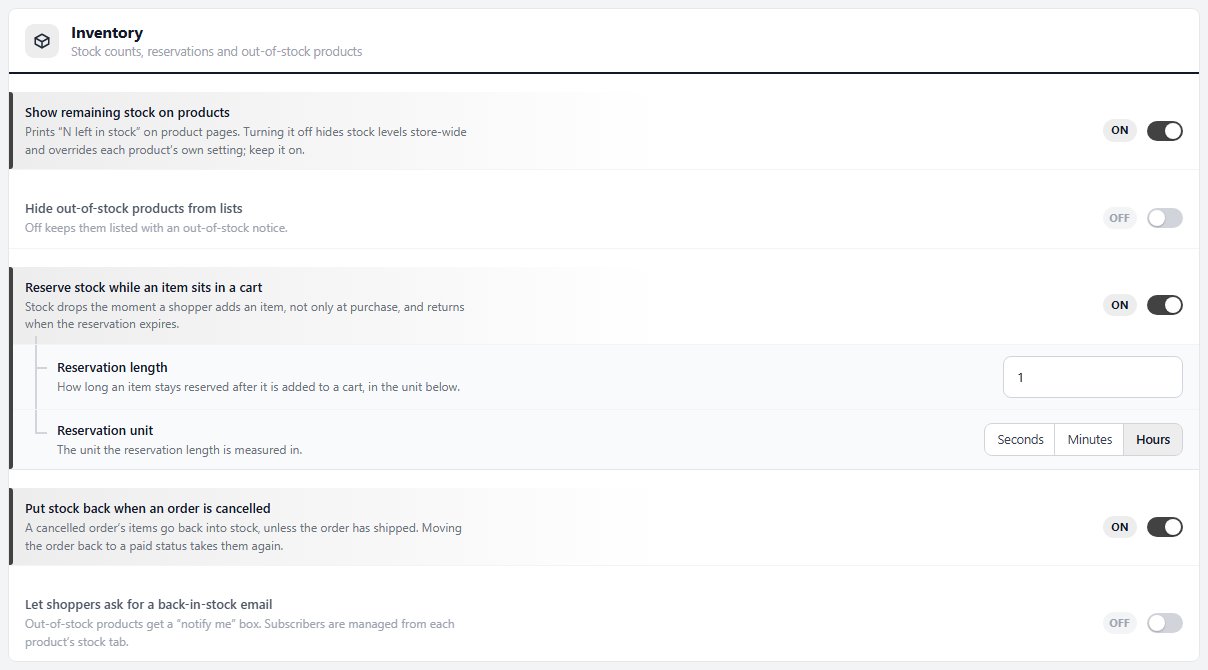
Settings › Products › Inventory, with cart reservation and Put stock back when an order is cancelled.

Step 2. Allow backorders when you want them

Sell what you do not have yet

Backorders let customers buy past zero when more is on its way. In the Inventory section, the Backorders card has Sell when out of stock. Turn it on and fill in Expected back in stock so customers know when to expect it.

The product page then shows Available on backorder, and the button reads BACKORDER NOW. The cart no longer caps the quantity at your stock. The date shows as Backordered until that date.

Leave it off for anything you cannot promise. A customer who orders your last item and waits three weeks is worse for you than one who sees Sold out.

Step 3. Stop two customers buying the last one

When stock is taken, and holding it for carts

When stock is taken. A card payment takes stock as soon as the order is placed. An order paid later, such as Bill later ( which shoppers see as Pay by bank transfer ), or through a third-party checkout, takes stock when its status first moves to an approved one, such as Bank Transfer Received ( Direct Deposit Received on older stores ). Until then those units are still on the shelf as far as the store knows. With PRO the Inventory page shows them as Committed and works out Available.

Hold stock in carts. In Settings › Products › Inventory, turn on Reserve stock while an item sits in a cart. Stock then drops the moment a shopper adds an item, and comes back when the reservation ends. Set the Reservation length and Reservation unit (seconds, minutes or hours). One hour is the default.

Use reservations for limited drops and one-off items. Skip them for products you rarely run out of, because abandoned carts will hold stock for the length you set.

When stock comes back. Put stock back when an order is cancelled, in the same Inventory card, is on by default: a cancelled order’s items go back into stock, unless the order has shipped, and moving the order back to a paid status takes them again. A refund on its own does not restock. With PRO, the refund window has Restock item on each line, off by default once the order is fulfilled.

💡 Note: The order’s status decides when a Bill later order takes stock. Approve the order the day you promise the goods, not before.

Step 4. Get warned before you run out

Settings › Checkout › Stock alerts

Open EasyCart › Settings › Checkout and find Stock alerts.

Low stock threshold is one number for the whole store, 10 to start with. It marks items Low on the Inventory and Products screens and triggers the email below.
Email me when stock runs low sends one email to the store admin address the first time an item drops to the threshold. It does not repeat until you restock past it.
Email me when a product sells out sends an email when an item reaches zero, for a whole product or for a single option combination.

A different number for one item (PRO). A reorder point on a product or variant replaces the store number for that item. Set it from the Inventory page.

A daily or weekly digest (PRO). See the next section.
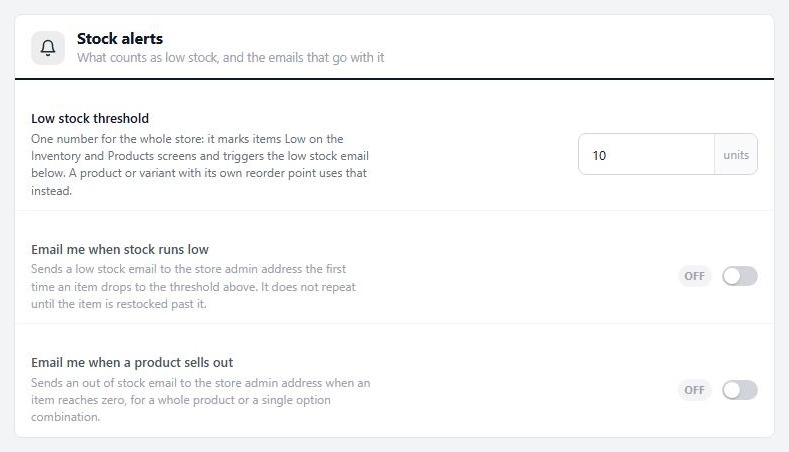
Settings › Checkout › Stock alerts.

Step 5. Keep it right from the Inventory page

Products › Inventory

Open EasyCart › Products › Inventory. Every tracked product and every variation is one row, with its SKU, type and On Hand number. Items you do not track show as Not tracked. A strip of counts across the top, In stock, Low stock, Out of stock and Not tracked, filters the list when you press one. You can also filter by item type, product visibility, or one product with all its variants, and search by name or SKU.

Change a number. Press the On hand pill, or use the row menu’s Change quantity… to type the true count. Track stock… starts tracking an untracked item, and Stop tracking stock switches it off. Items whose stock is managed by Square or another service are locked, because that service owns the number.

Export. The Export button downloads the list as a CSV.
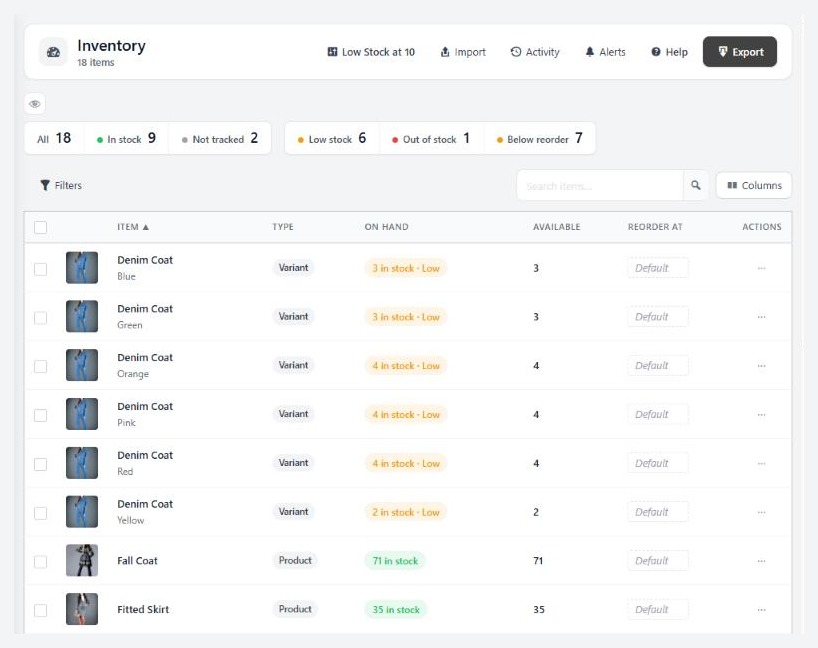
Products › Inventory, with the stock status strip and the On Hand column.

The PRO inventory tools

Reasons, history, reorder points, bulk update and CSV

Reasons and history. With PRO, every stock change asks for a Reason: Stock received, Recount / cycle count, Damaged, Lost / theft, Correction, Restock (refund), Promotion / giveaway or Other. Use Adjust Stock on a row to add or remove units, and View History to see who changed what and why. The Activity button shows every change across the store. A product’s own Inventory section has its Stock history too.

Committed and Available. Two extra columns. Committed is the quantity on order lines that have not taken stock yet, such as unpaid Bill later orders. Available is on hand minus committed.

Reorder points. Set Reorder Point on a row gives one item its own low-stock number in the Reorder At column. A stat card counts items Below reorder.

Bulk Update. Tick rows, press Bulk Update, choose Set quantity to, Adjust quantity by (+/-) or Set reorder point to, enter the value and a reason.

CSV. Import opens the Import & export stock panel. Export all items or only tracked ones, change the Quantity column and import the file back. Rows are matched on Variant ID, then Product ID, then a SKU that only one item carries, and the quantity is set, not added. You see a preview first, and each change is written to history as CSV import. Use it for a stock take.

Alerts digest. The Alerts button offers a Low-stock email digest set to Off, Daily or Weekly, with a Send now link. It emails the items at or below their reorder point, or the store threshold.

Notify Waiting Customers. When a product has back-in-stock subscribers and stock again, its row menu offers this to email them.

Check it and keep it running

Good to know

Testing it, and what to check when stock is not what you expect.

Test it

Sell the last one on purpose

Make a test product with 2 in stock and a low stock threshold of 2.

1. Open it in a private window and try to add 3 to the cart. The cart should stop at 2 and say Only 2 in stock. at the item.
2. Buy 2 with a test card. The product should read out of stock and the Inventory page should show 0.
3. You should have the low stock and out of stock emails, if you turned them on.
4. Turn on Sell when out of stock, save and reload. You should see the backorder button.
5. Place an order with Pay by bank transfer ( Bill later ). The Inventory page should not change until you set the order to an approved status.

If it does not work

Why stock is not what you expect

A product never sells out. Track stock is set to Not tracked, or Sell when out of stock is on. Check the Inventory page for Not tracked.

A Bill later order did not reduce stock. That is by design until the order reaches an approved status.

Stock looks lower than I sold. You use Reserve stock while an item sits in a cart, so carts are holding units. Stock returns when the reservation ends. Shorten the Reservation length if it holds stock too long.

I cannot change a number. The item’s stock is managed by Square or another service, or it has no tracking. With PRO, choose a reason before you save.

One size sold out but the product shows in stock. Track stock is Total, so the product counts one overall quantity. Set Track stock to Per variant, then enter each size in the Variations table.

No low stock emails. Turn on Email me when stock runs low. The email is sent once per drop and not again until the item is restocked above the threshold.

Still stuck? Open a ticket at wpeasycart.com/my-account.

Keep going

Related panels

Inventory Report

Every panel and action on the Inventory page.

Inventory

The Inventory section of the product editor.

Checkout

Stock alerts and the other checkout settings.

Products

Inventory and product list settings.

Options & Variants

Variations and per-variation stock.

Ready to run your store on WP EasyCart?

Everything in this guide works with the free plugin. PRO and Premium add subscriptions, memberships, wholesale pricing and more. Try every PRO feature free for 14 days.

The WP EasyCart admin: orders and offers
Updated on October 19, 2026