
The customer list
Everyone who has an account, and how to find the ones you want
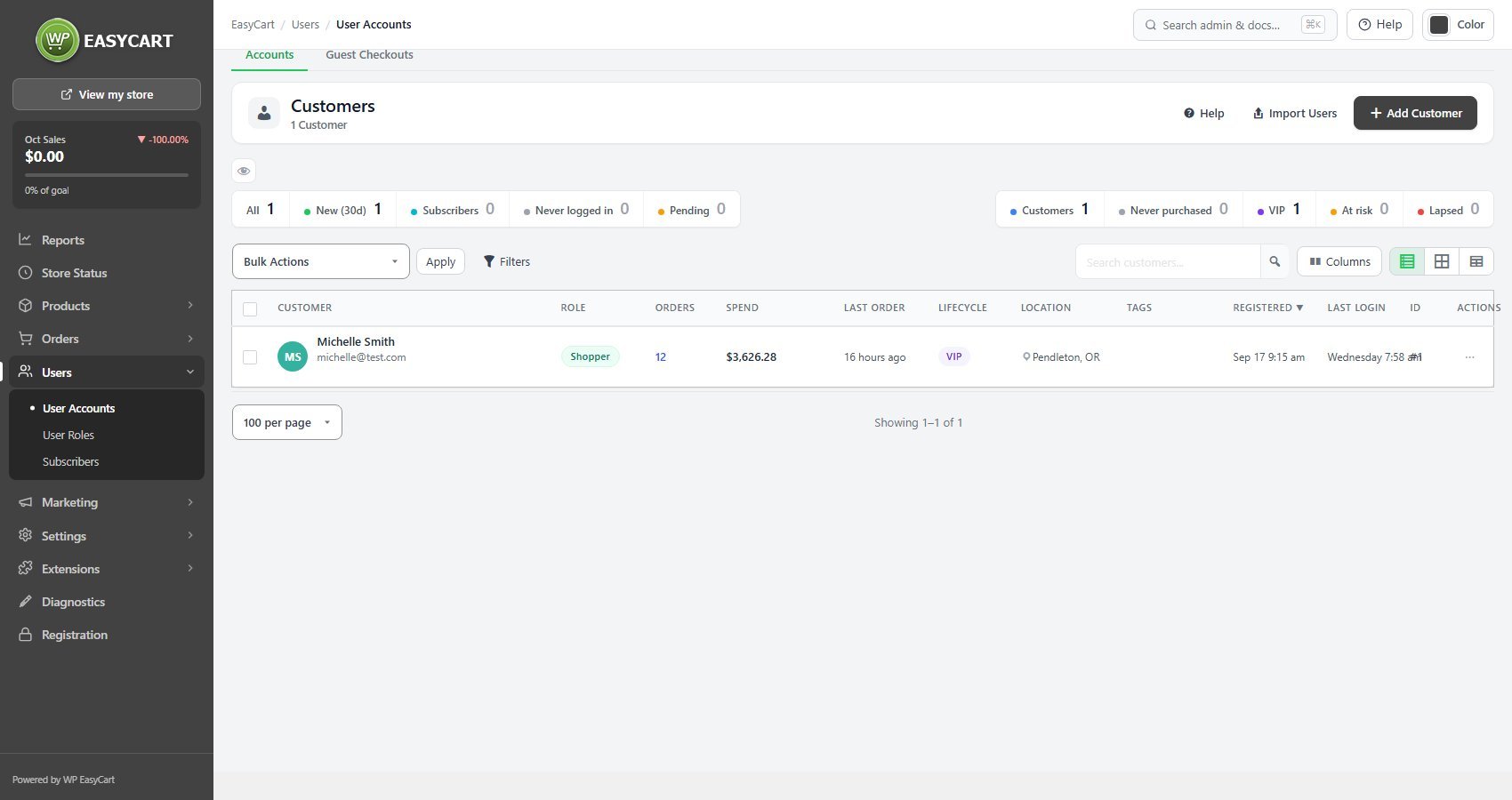
no stored settingsOne row per customer, with name, email, role, newsletter status, when they registered and when they last signed in. Last login fills in as customers sign in, so it is blank on accounts created before tracking began rather than wrong, and the screen says so rather than showing a misleading date.
The tiles above the list filter it in one click: New (30d), Subscribers, Never logged in and Pending for accounts still waiting on activation. With PRO a second row sorts customers by what they buy: Never purchased, VIP, At risk and Lapsed. Filters narrow it further, and quick edit changes the common fields without opening the record.
The Columns button picks which columns show and in what order. Your choice is yours alone; an administrator can also press Use as the default for everyone. Import Users brings accounts in from a file, and customers can be exported, either the selected rows or all of them, which is how you get a list out for a mail platform or a data request.
Beside Accounts, the Guest Checkouts tab ( PRO ) lists shoppers who bought without an account, grouped by email. Repeat guests are the ones worth inviting to sign up.
The customer record
Identity, addresses, sign-in and internal notes
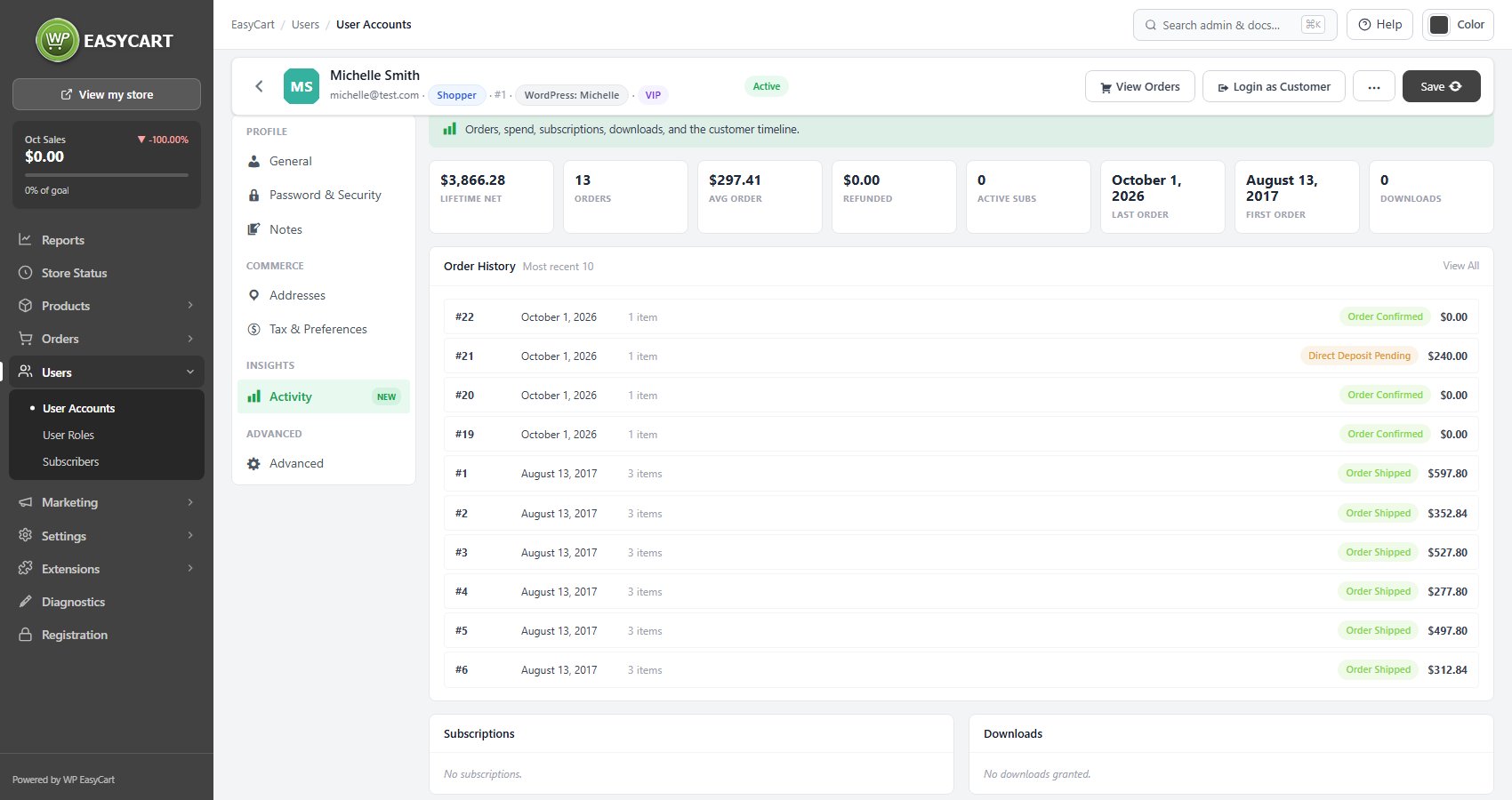
no stored settingsThe record opens on the essentials: name, sign-in email, role and newsletter status. A new customer has to be saved with those filled in before the remaining sections unlock, which stops half-formed records accumulating.
Addresses holds the default billing and shipping addresses used at checkout, with a copy-to-shipping shortcut, plus an optional alternate email that is copied on receipts.
Password & Security covers setting a password, generating a strong one, and sending a reset link. Sending the reset link is the recommended route: it avoids you ever knowing the customer’s password, and the screen says as much.
Notes are internal and never shown to the customer. The WordPress Account line shows the linked WordPress user; when a WordPress user only shares the email it says Same email, not linked, and with no match it says there is no linked account.
For a step by step walkthrough, see How to Let Customers Manage Their Account.
Tax and shipping exemptions
Per-account rules applied at checkout
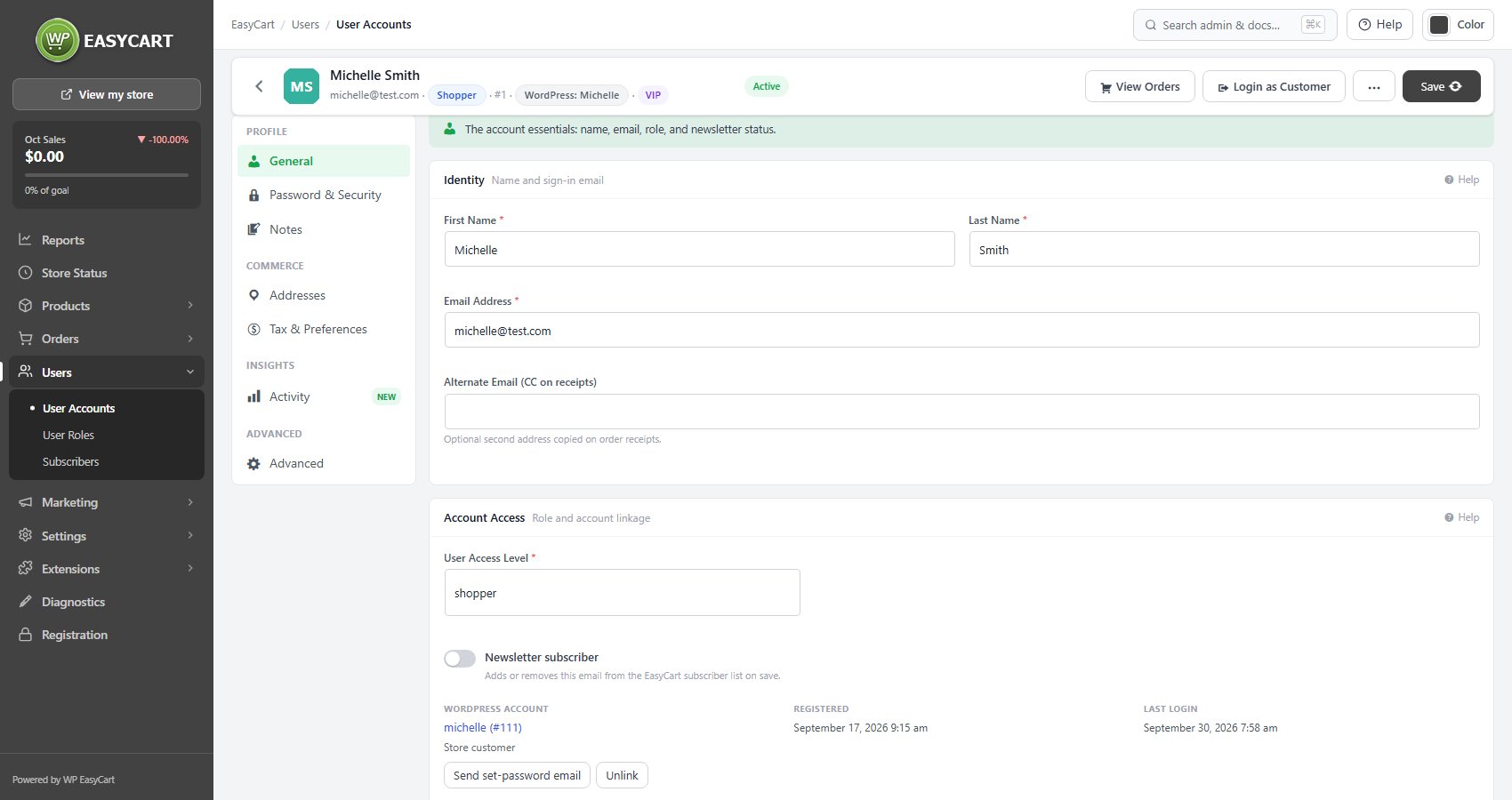
no stored settingsOn Tax & Preferences, individual customers can be set to Exclude from tax, Exclude from shipping charges, or Bypass Disabled Shipping Address. These apply at checkout for that account only, and the Effective Tax Status card underneath says in one line why this customer is or is not taxed.
They exist for the real cases that come up in trade selling: a tax-exempt institution, a wholesale account with shipping built into its pricing, an account that collects rather than receives. Used for anything else they quietly lose you money, because nothing on the order flags that the exemption was the reason the total looked odd.
The VAT Registration Number is stored here too, which is what pairs with your tax settings to zero-rate qualifying business orders. Stripe test-mode customer marks an account whose saved payment data belongs to Stripe test mode, so you do not mistake a test record for a real one.
For a step by step walkthrough, see How to Sell Wholesale to Approved Customers.
Insights and account tools
What the customer is worth, and the things you can do to their account
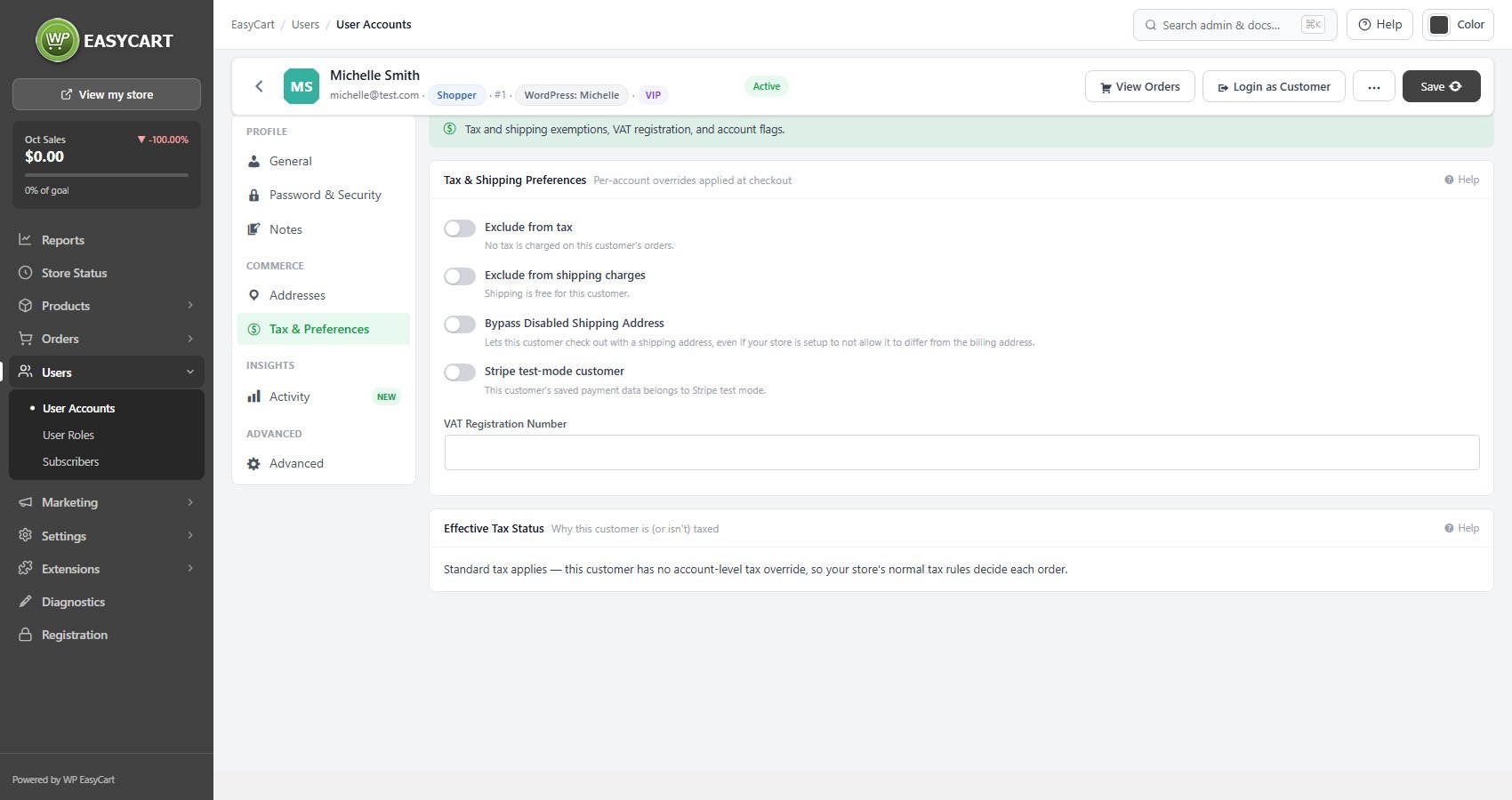
no stored settingsActivity pulls together lifetime spend, orders, average order, refunds, subscriptions, downloads and the order history, which turns a name into a picture of the relationship before you answer their email.
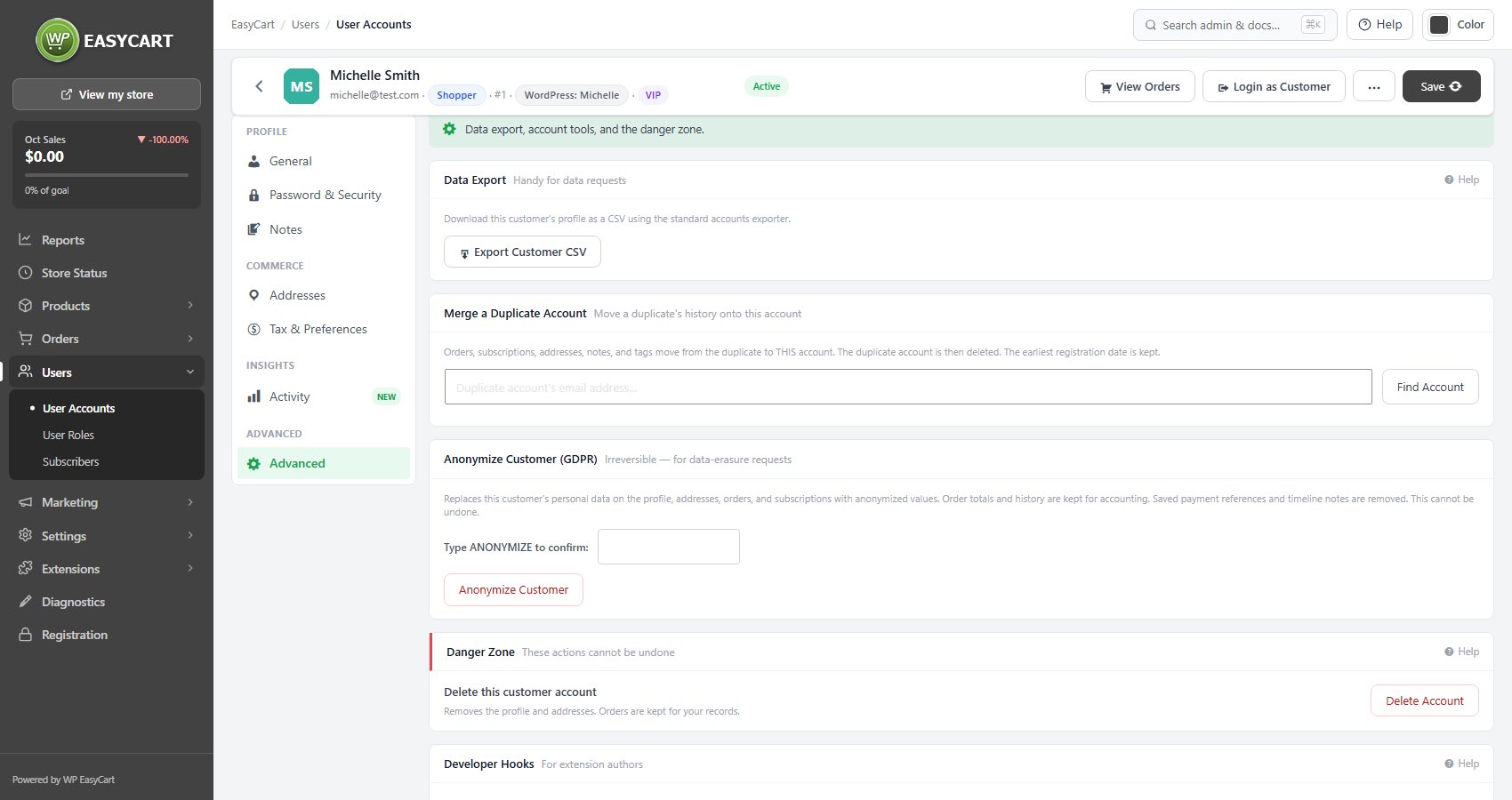
Login as Customer signs you in as them, which is the fastest way to see what they are seeing when they report something you cannot reproduce. On Advanced, Export Customer CSV produces their data in one file, the practical answer to a data request. With PRO, Merge a Duplicate Account moves orders, subscriptions, addresses, notes and tags from a duplicate onto this account and then deletes the duplicate, and Anonymize Customer (GDPR) replaces their personal data while keeping order totals for your accounts. Anonymizing cannot be undone.
Delete Account opens a window that asks where their orders should go. Turn their orders into guest checkouts is the recommended choice: the orders keep the name, email and addresses recorded on them and move to the Guest Checkouts list. Move their orders to another customer hands them to an account you search for, and they show in that customer’s history. Orders are never deleted; the profile and saved addresses are.
A delete can be taken back. The list reloads with an Undo bar that puts the account, its addresses and its orders back as they were. Accounts removed with Bulk Actions › Delete get the same bar, which works for 15 minutes; that route skips the window and leaves their orders as they are.
Ready to run your store on WP EasyCart?
Everything in this guide works with the free plugin. PRO and Premium add subscriptions, memberships, wholesale pricing and more. Try every PRO feature free for 14 days.
