
Navigation

Settings › Documents

Document Profiles

Several versions of the same document, ready for the job at hand: a gift slip with no prices, a drop-ship slip with a partner’s logo, an invoice for the books. 7 parts.

Quick links

Where to find it:WP Admin EasyCart Settings Customize Documents

The idea

Profiles

What a profile is and the ones every store starts with.

What a profile is

One document, several versions of it

no stored settings

A profile is a named set of show and hide switches for one document. The receipt, the shipped email, the packing slip and the invoice PDF each have their own profiles, so a packing slip profile never affects a receipt.

Every document has a default profile, marked with a Default chip on its tab. Automatic emails and printing use the default. A different profile goes out only when you pick it: in the Email attachments grid, or for a single send from an order.

A profile can also carry its own logo and footer image, and on the invoice PDF its own heading, Invoice or Receipt.
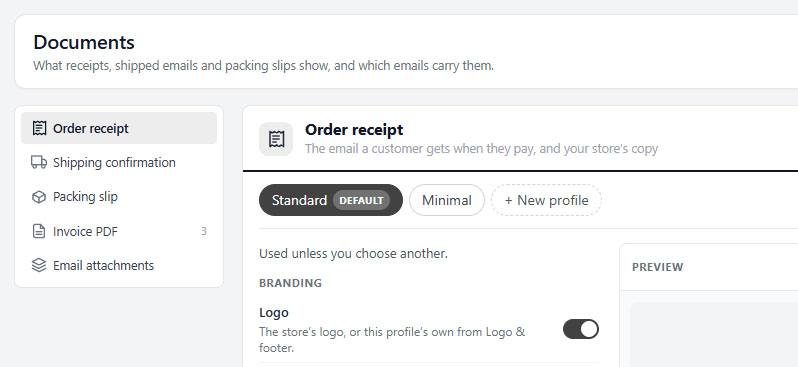
Profile tabs across the top of a document, the default one marked.

💡 Note: The switches themselves are listed, document by document, in Settings › Documents.

The profiles you start with

Ready-made versions for the usual jobs

no stored settings

Standard, on every document, is the one used unless you choose another. It is the only profile without PRO, and it reads the settings your store already had, so an upgrade changes nothing.

With PRO or Premium, each document adds ready-made profiles:

Receipt · Minimal: no images or SKUs.
Shipping confirmation · Gift: no prices, no billing address.
Packing slip · With prices: prices and every total.
Packing slip · Gift: no prices, billing address, contact details or order notes.
Packing slip · Drop-ship: your branding and SKUs, no prices or images.
Invoice PDF · Receipt: headed Receipt, for orders already paid.
Invoice PDF · Bookkeeping: an invoice without the greeting, thank-you lines or product images.

Built-in profiles can be changed and reset, but not renamed or deleted.

Making them yours

Managing and branding

Creating, defaulting and resetting profiles, their own logo, and the words they print.

Creating and managing profiles

New, rename, delete, make default and reset

no stored settings

+ New profile copies the profile you are looking at, switches, branding and heading included, under the name you give it (up to 60 characters). That makes it the quickest way to duplicate a profile: open the one closest to what you want, then create.

Rename and Delete work on your own profiles. Deleting one sends anything that used it back to the default: attachment cells switch to the default, and if it was the default itself, Standard takes over.

Make default decides what automatic emails and printing use from then on. Reset puts a built-in profile back the way it ships, store logo and footer image included. Without PRO, the Standard profiles of the receipt, shipped email and packing slip can still be reset.

⚠️ Careful: Changing the default profile changes every automatic email and print from that moment, including attachment cells set to Attach · default. Check the preview first.

Logo and footer image per profile

Different branding for different paperwork

no stored settings

Logo & footer, beside the preview, gives the profile you are editing its own logo and footer image. Only that profile changes; every other profile and every other email keeps the store’s. A dot on the button means the profile already has its own.

For each image choose the store’s or a different one from the Media Library, and either the store size or its own: a width as a share of the page, from 5 to 100 per cent, and a height limit in pixels where 0 means no limit. The logo also takes a position, left, center or right. The store’s own images, sizes and position are set on Settings › Email › Sender, linked from the drawer as Manage store defaults.

The typical use is drop-shipping: a packing slip profile carrying a partner’s logo instead of yours. If the profile hides its logo, the drawer says so and offers to show it. The receipt’s drawer changes the receipt email only; the PDF attached to it is the invoice PDF, with profiles and branding of its own.
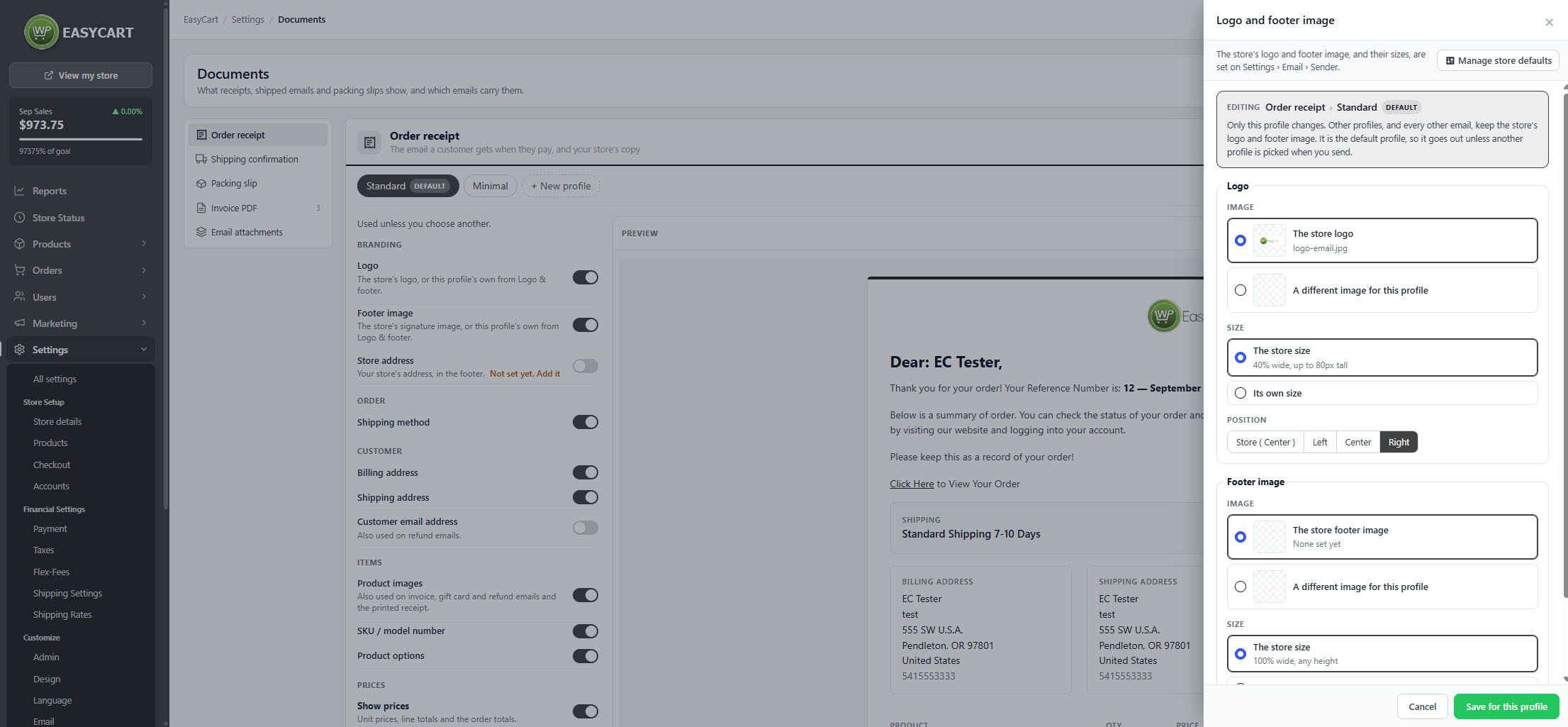
The Logo and footer image drawer for one packing slip profile.

Editing the wording

Headings and phrases, without touching a template

no stored settings

Edit wording opens the headings and phrases the document prints, such as Packing Slip, Order number: and To follow in a separate shipment, in your store language. Pick a language when more than one is installed, and Use the original puts any phrase back.

A phrase marked Also on is shared, so changing it changes it on those documents too. Wording is store-wide, not per profile. The same phrases are in the language editor under Order Documents.

Checking your work

Preview and special cases

Seeing a real order before it goes out, and what happens with custom templates or a lapsed licence.

The live preview

A real order, exactly as it goes out

no stored settings

The preview renders a real order with the switches as they are on screen, the actual email for the receipt and shipped email and the page itself for the packing slip and PDF. It refreshes about half a second after each change, and after switching profile, changing the heading, saving branding or saving wording.

It starts on your newest order each visit; type another number in the Order # box to check a harder case. A store with no orders yet shows a message instead, and the preview needs access to orders as well as settings.

Custom templates and licences

Two situations worth knowing about

no stored settings

If your store uses its own copy of a document template in the data folder, the editor says so. The copy keeps working and the Standard profile still sets the options it reads, but switches added since it was copied do not change it, and the preview shows your copy. The PDF is no longer built from a copied printable receipt; Print receipt still uses it.

If a PRO licence lapses, every document goes back to its Standard profile, whatever the default was. Your other profiles are not deleted.

💡 Note: The invoice PDF, extra profiles, per-profile branding and the attachments grid need WP EasyCart PRO 6.0.1 or later. An older PRO shows an Update WP EasyCart PRO link instead.

Keep going

Related panels

Documents

Every switch on every document, with its default.

Sending Order Documents

Choosing a profile for one email from an order.

Email

The store logo, footer image and their sizes.

Language

All document phrases, in every store language.

Try the PRO features free for 14 days

Anything marked PRO comes with WP EasyCart PRO or Premium. Take the whole thing for a run on your own store before you decide.

Updated on September 23, 2026