
Admin panels › Products
Products
Your whole catalogue in one list: what is complete, what is active, what is priced oddly, and how to change many products at once. 3 parts.
Quick links
Where to find it:WP Admin › EasyCart › Products › Products
The catalogue
List, editing and transfer
Reading the list, changing products without opening them, and moving the catalogue in and out as CSV.
The product list
Your whole catalogue, and what each row tells you at a glance
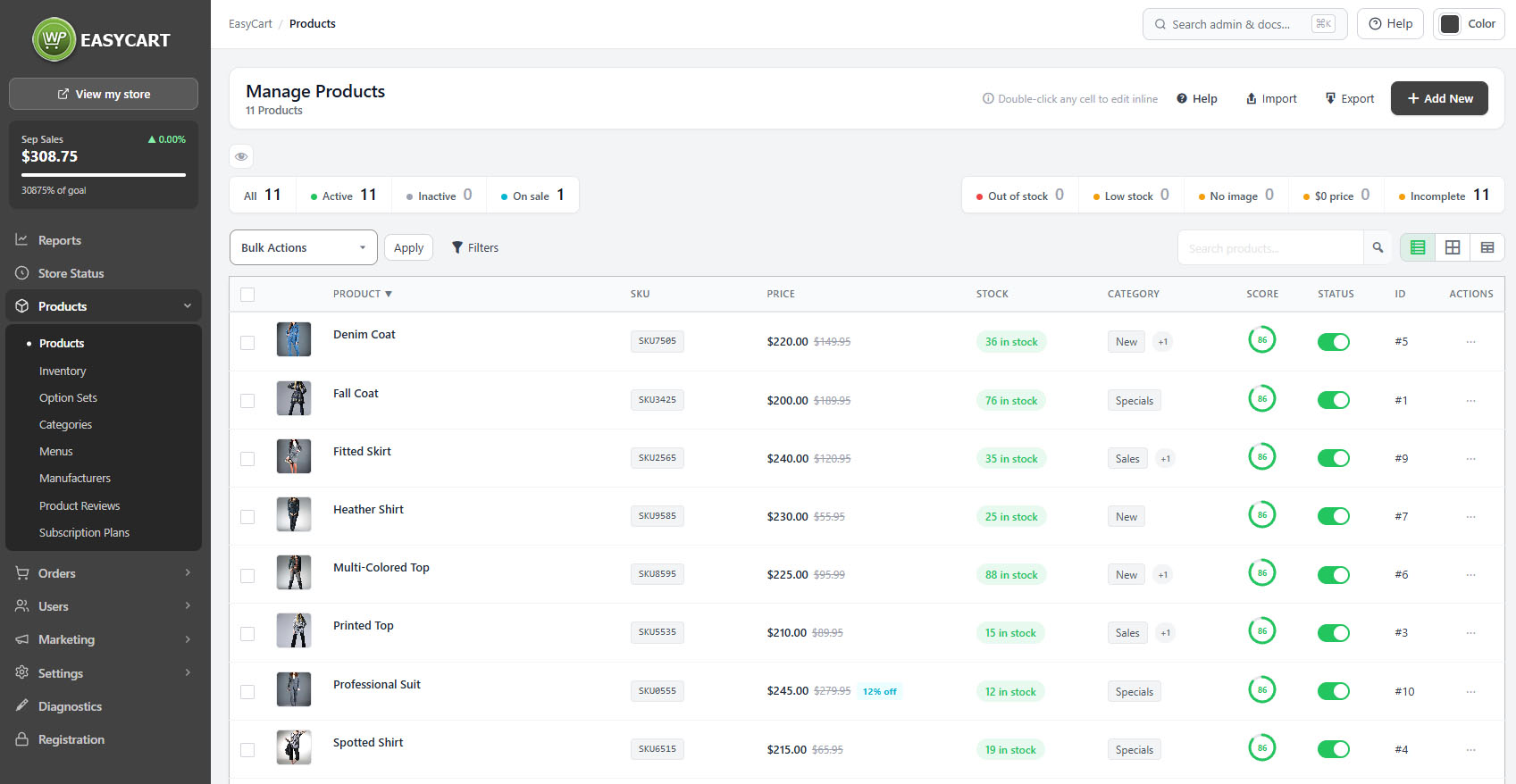
no stored settingsEvery product in one list, with its image, title, category, base price and stock. Active and inactive products are both here, because a product hidden from the store is still something you need to find.
Rows carry markers for the things that change how a product behaves: advanced pricing configured, a custom price label in use, business-to-business role pricing set, a zero price, and products hidden in a connected Square catalogue. Each is a state that explains why a product is not behaving the way the base price suggests.
A completeness indicator scores how finished a product is. It is the fastest way to find the half-entered products that are quietly failing to sell because they have no image, no description or no weight.
💡 Note: The completeness score is the quickest way to find products that will not sell because something is missing. Work down it before adding more products.
Editing without leaving the list
Inline cells, bulk actions and duplication
no stored settingsCells can be edited in place by double-clicking, which is the quickest way to correct a price or a title across a batch of products without opening each one.
Products can be activated or deactivated in bulk, which is how a seasonal range goes live and comes down again. Deactivating is not deleting: the product keeps its data, its history and its URL, and simply stops appearing in the store.
Duplicating copies a product as a starting point for a similar one, which saves retyping shared specifications and option sets.
Stock tracking type can be changed from here too, between not tracking, basic tracking and tracking per option combination. That decision shapes how the product behaves everywhere else, so it is worth getting right before a product goes on sale rather than after.
💡 Note: Deactivating keeps the product, its history and its URL and only removes it from the store. Prefer it to deleting for anything seasonal or temporarily unavailable.
Import and export
Getting the catalogue in and out as CSV
no stored settingsProducts export to CSV, either the current selection or everything matching the filters. The export is also the supported route to bulk editing: export, change the file, import it back.
The important detail is how rows are matched on the way back in. A row carrying a product ID updates that product; a row without one creates a new product. This is what makes the export-edit-import cycle safe, and it is also the thing to be careful with, because stripping the ID column turns an update into a duplication of your whole catalogue.
How many products go into each export file is set on the Products settings panel, and lowering it is the fix when an export times out on a large catalogue.
⚠️ Careful: On import, a row with a product ID updates that product and a row without one creates a new product. Do not remove the ID column from an exported file you intend to import back, or you will duplicate the catalogue rather than update it.
Keep going
Related panels
The product editor, opened from any row here.
The full import tool and its column mapping.
Stock levels, adjustments and low stock alerts.
The categories products are organised into.
Option sets, which create variants.
Store-wide settings for how products are displayed.
Try the PRO features free for 14 days
Anything marked PRO comes with WP EasyCart PRO or Premium. Take the whole thing for a run on your own store before you decide.
