Navigation

Admin panels › Products

Menus

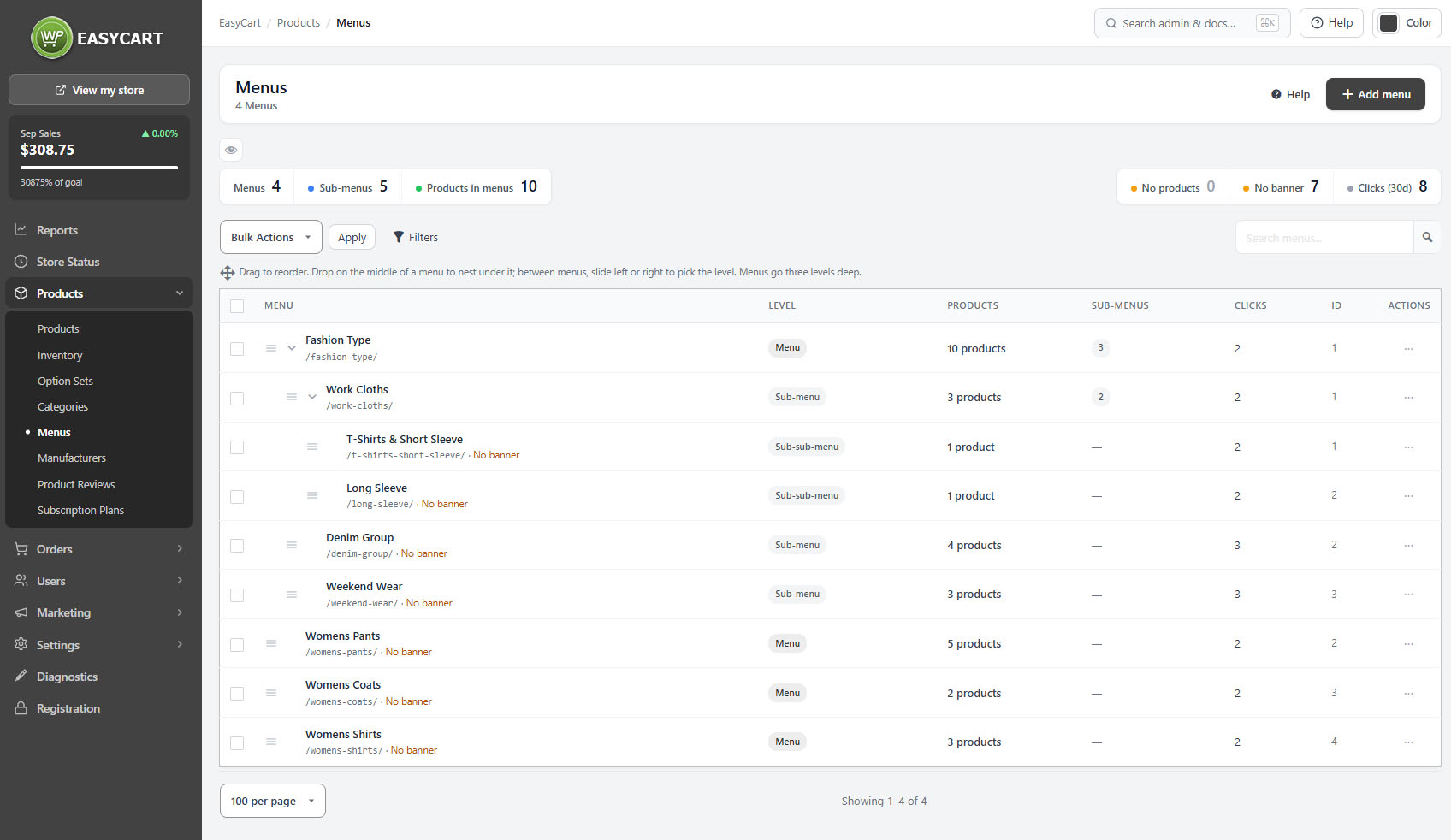
The storefront navigation: hand-built routes through your catalogue, with images, ordering and click counts that tell you what is working. 3 parts.

Quick links

Where to find it:WP Admin › EasyCart › Products › Menus

Navigation

Menus, contents and presentation

The structure, what goes in it, and how each menu page looks.

💡 Note: Click counts are the quickest signal of whether your navigation works. A menu with items but no clicks is usually named in your language rather than your customers’.

What goes in a menu

Products added directly, in the order you choose

no stored settings

Products are added to a menu individually, which gives you complete control over what a shopper sees and the order they see it in. Each item shows its own click count, so you can tell which products are earning their place.

That control is the trade-off. A menu will not update itself as the catalogue changes, so a menu built for a season needs revisiting when the season ends. For groupings that should stay current on their own, a rule-based category is the better tool.

Items that are no longer available are marked as such rather than quietly disappearing, so a menu never silently shrinks without telling you.

💡 Note: Menus are hand-built and stay as you leave them. If you want a grouping that keeps itself current as products come and go, use a rule-based category from Categories instead.

Images, keywords and SEO

How a menu page presents itself

no stored settings

A menu carries a featured image and, optionally, a banner. The banner has a recommended size of 1600 by 400, which is worth respecting: a banner at the wrong proportions will be cropped rather than fitted.

A description and keywords can be added, and the URL slug is editable. As with categories, changing the slug on an established menu changes an address that people and search engines already hold.

A health indicator flags menus that need attention, typically empty ones or those with nothing to show.

Keep going

Related panels

Categories

Categories, which organise rather than navigate.

Products

The products a menu is built from.

Products

Search matching menu names, and the store sidebar.

Design

How menus and the cart icon appear on the storefront.

Manufacturers

Manufacturer pages, another browsing route.

Organization

Assigning a product to menus from its own screen.

Try the PRO features free for 14 days

Anything marked PRO comes with WP EasyCart PRO or Premium. Take the whole thing for a run on your own store before you decide.

Updated on September 19, 2026