
Navigation

Admin panels › Product details

Media

The photographs, video and per-variant images that do most of the selling on a product page. 3 parts.

Quick links

Where to find it:WP Admin EasyCart Products open a product Media

Showing the product

Images, video and variants

The gallery and its order, video in place, and images that follow the option a shopper picks.

Product images

The gallery, and which image does the selling

no stored settings

Images are added and dragged into order, and the order matters: the first tile is the listing image, the one shoppers see in grids and search results. It is the single most important asset on the product, because it decides whether anybody clicks at all.

The rest form the gallery on the product page. Shoppers who are close to buying look for the angle that answers their doubt, so scale, back views and detail shots earn their place more than variations on the same hero shot.

How images behave in listings, whether they zoom on hover, open in a lightbox, or swap to a second image, is set store-wide rather than per product. Several of those effects need the product to have extra images, which is one reason a single-image product looks flat next to its neighbours.
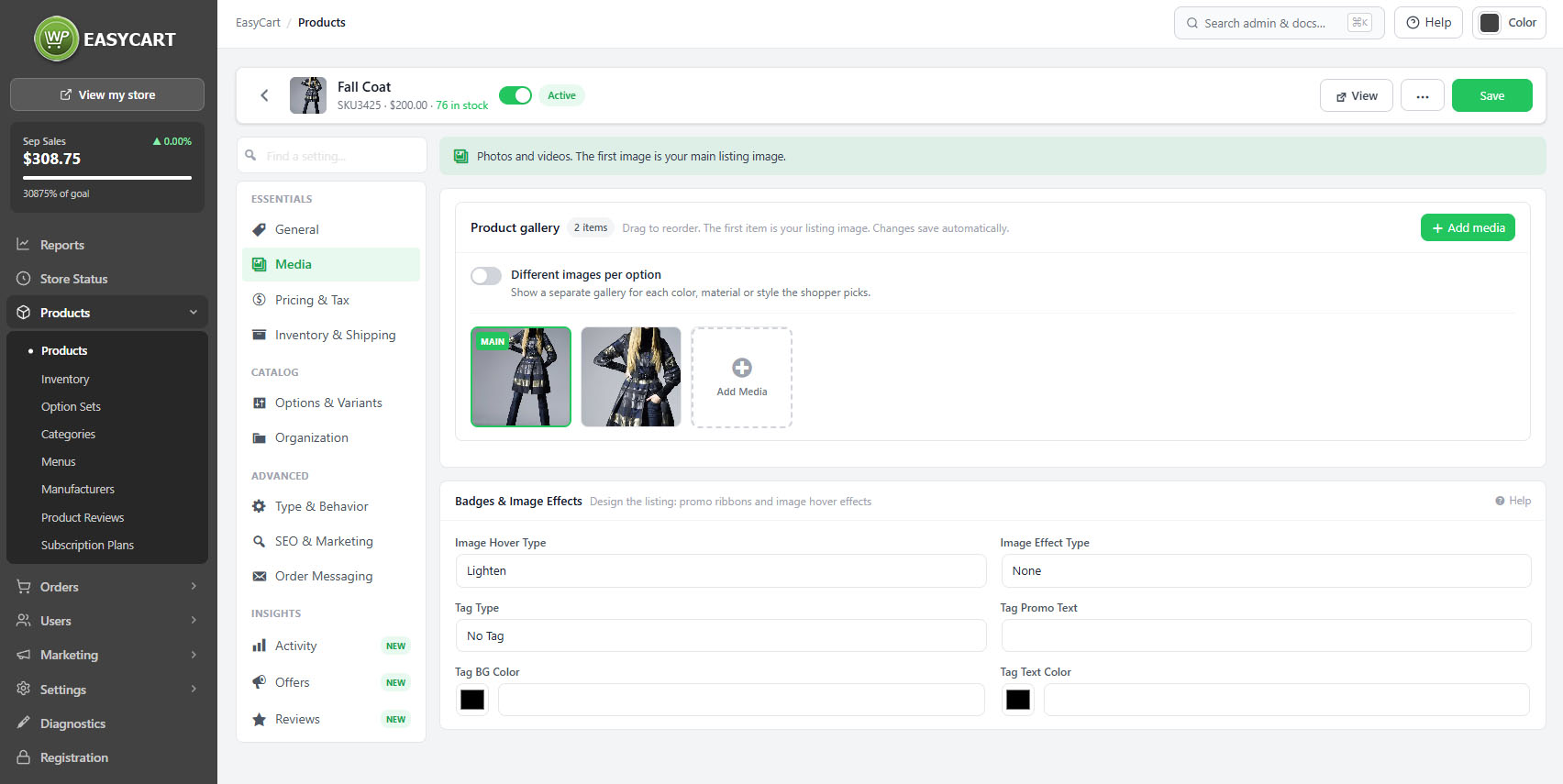
The product editor, Media tab, showing the image gallery with the listing image first.

💡 Note: The first image is the listing image. Reordering the gallery changes what shoppers see in grids, so check the order after adding new photographs.

Video

YouTube, Vimeo or a hosted file, sitting in the gallery

no stored settings

A video sits alongside the photographs in the gallery rather than in a separate tab, so shoppers find it while they are already looking. YouTube, Vimeo and a hosted MP4 are all accepted.

Video earns its keep on anything where scale, motion or assembly is hard to convey in a still. It is wasted on products a photograph already explains.

Per-option image sets

Different images for different variants

no stored settings

Where a product has option sets, each choice in the first set can carry its own images. A shirt in red, green and blue shows the red photographs when red is selected.

This is the difference between a shopper trusting what they are ordering and guessing. On anything sold by colour or finish it is close to essential, and it removes a large share of returns caused by expectation rather than fault.

The editor shows which sets have images attached and which do not, so a half-photographed range is visible rather than something you discover from a complaint.

💡 Note: Per-option images follow the first option set on the product, which is configured under Options & Variants.

Keep going

Related panels

Options & Variants

Option sets, which per-option images follow.

Products

Hover effects, zoom and lightbox settings.

Design

Image framing, cropping and grid layout.

General Details

The product title and descriptions.

SEO & Marketing

How the product appears in search results.

Products

Completeness scoring, which counts images.

Try the PRO features free for 14 days

Anything marked PRO comes with WP EasyCart PRO or Premium. Take the whole thing for a run on your own store before you decide.

Updated on September 19, 2026