
Admin panels › Orders
Order Management
Every order your store takes, and everything you do to one: find it, fulfill it, ship it, refund it and record what happened. 7 parts, covering the list and the order screen.
Quick links
Where to find it:WP Admin › EasyCart › Orders › Orders
Finding work
The list
How orders are presented, how to narrow them down, and how to act on many at once.
The order list
Finding the orders you need to act on, in the view that suits the job
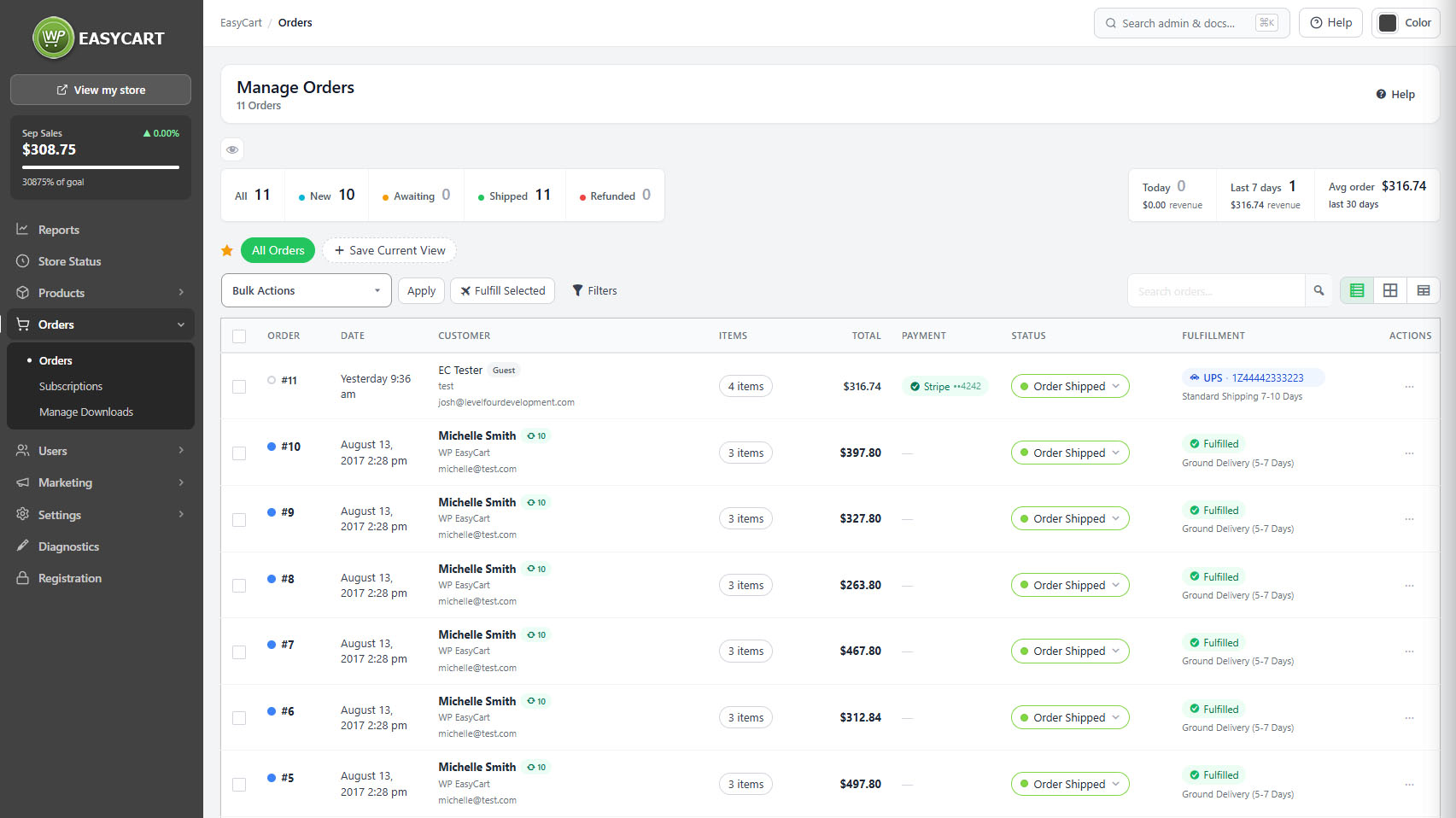
no stored settingsOrders arrive here and stay here. The list can be read three ways: a table for scanning, cards for browsing on a smaller screen, and a spreadsheet view for working through many orders at once.
Every order carries badges that tell you what kind of thing it is without opening it: guest checkout, pickup, pre-order, subscription, replacement or reship, third party payment, no shipping needed, partially or fully refunded, and whether a promo code was used. Unviewed orders are marked as new and can be clicked to mark viewed, or marked in bulk, which is how a two-person team avoids both packing the same order.
Filters and saved views
Narrowing the list, and keeping the narrowing
no stored settingsFilter by order status, fulfillment state, payment method, date and customer, or search by purchased product to answer who bought a particular item. Date presets cover today, yesterday, the last seven or thirty days, this month and this year, with a custom range for anything else.
Once a set of filters earns its keep, save it as a view. Saved views are the real productivity feature on this screen: awaiting fulfillment, paid, ships to my country becomes one click every morning instead of four dropdowns. Views can be deleted when they stop matching how you work.
💡 Note: Saved views are the difference between this screen being a list and being a work queue. Build one for each thing you do daily, such as awaiting fulfillment, and the filters stop being a chore.
Working in bulk
Acting on many orders without opening any of them
no stored settingsSelect orders and change their status together, mark them viewed or unviewed, or export them. Export covers either the selected orders or everything matching the current filters, so a saved view plus an export is a repeatable report.
Individual rows offer quick edit, duplicate, reorder, print packing slip, print receipt, resend the receipt email and send the order shipped email without leaving the list. Duplicating stamps the new order with a note recording which order it came from and when, so a reship is traceable rather than mysterious.
Doing the work
Inside an order
Editing the order, getting it shipped, refunding it, and recording what was said.
Inside an order
The full record: items, money, addresses, fulfillment and history
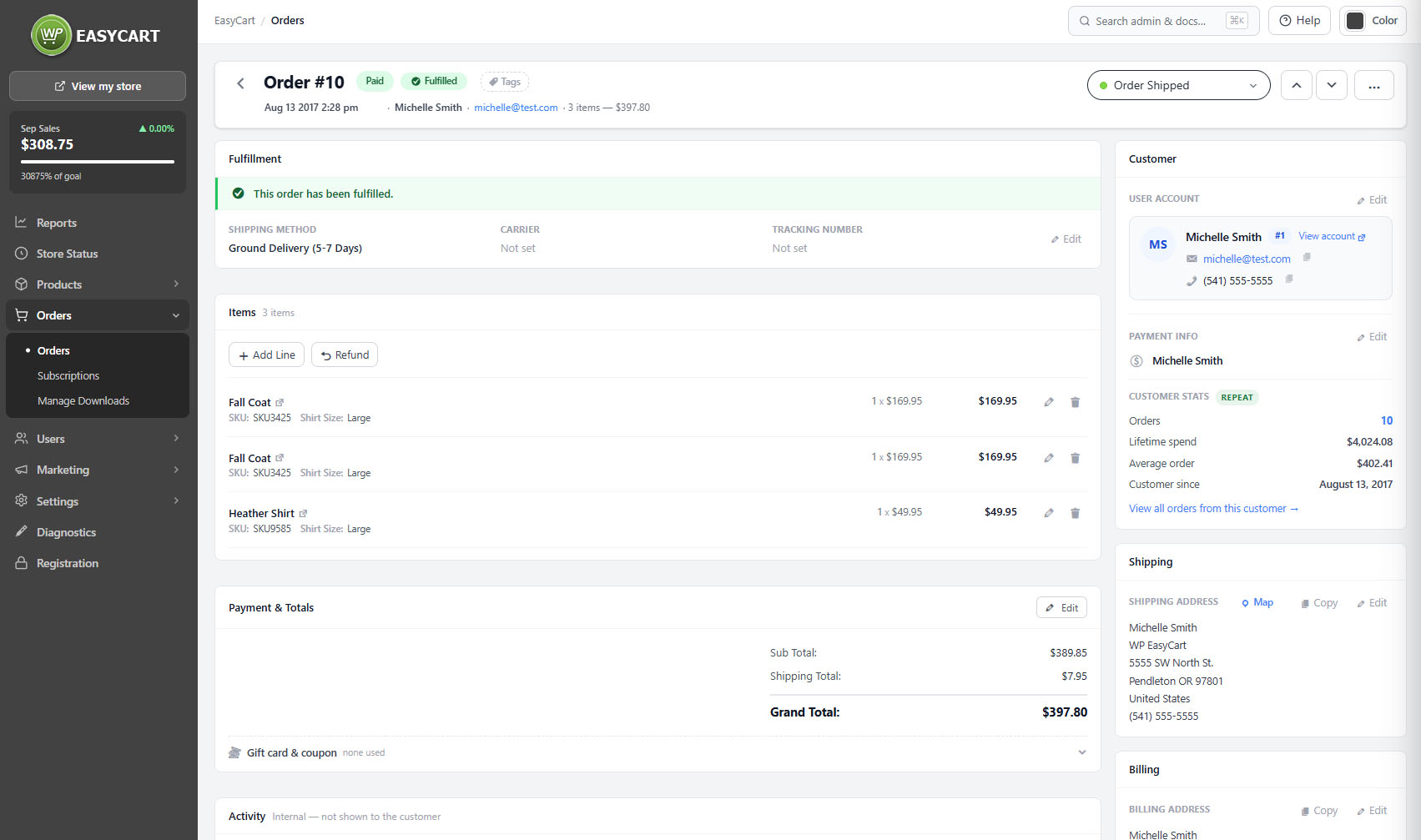
no stored settingsThe order screen is organised around what you actually do. Items can be edited line by line, added or removed, with the totals recalculating. Payment and totals shows subtotal, shipping, discounts, tip, duty and every tax line the order attracted, including the Canadian GST, HST, PST and QST breakdown where it applies.
Billing and shipping addresses can be edited, copied from each other and copied out, and email, phone and tracking numbers each have a copy button, which matters more than it sounds when you are pasting into a carrier site twenty times a day.
Navigation between the previous and next order keeps you moving without returning to the list.
💡 Note: Sections on the order screen save together rather than field by field, and pressing escape closes an editor. If a change seems not to have stuck, check you saved the section rather than just leaving the field.
Fulfillment and shipping
Marking orders done, and getting labels out of the door
no stored settingsAn order is awaiting fulfillment until you say otherwise. Save and fulfill does both in one action, and the shipped email can go to the customer at the same time, optionally to several addresses.
Shipping details capture the carrier, the method, the speed and the tracking number. The carrier list covers the usual names directly, including Click-N-Ship, Canada Post, AusPost, MyPost and MyDHL+, with an option to create the label at the carrier instead.
Where a connected service is set up, Shippo, Stamps.com or ShipStation, labels can be created from the order itself, and the screen tells you when an order is already in your Shippo dashboard rather than letting you create a duplicate label.
Pickup orders show their pickup location and date instead of shipping, and pre-orders show the collection date the shopper chose.
Refunds
Partial and full, with the arithmetic done for you
no stored settingsRefunds can be full or partial, and a calculator works out the amount so you are not doing tax-inclusive arithmetic by hand at the moment you are least inclined to be careful. The order then carries a partially or fully refunded badge in the list, so the state is visible without opening it.
Whether the customer is told automatically is a setting on the Additional settings panel. It is worth having on: a refund the customer has not been notified about generates a support message, and sometimes a chargeback, before the money lands.
⚠️ Careful: A refund here changes the order record and, where the gateway supports it, sends the refund. Whether the customer is emailed automatically is controlled under Settings › Admin. Turning that on is strongly advised.
Notes, tags and activity
What was said, what was agreed, and what happened
no stored settingsThere are two kinds of note and the difference matters. Customer notes are what the shopper left at checkout, or what you want to say back to them. Administrative notes are internal and never shown to the customer. A note can be pinned to the top of the order so the next person to open it cannot miss it.
Orders can be tagged for your own grouping, and the activity log records what happened and when, with a full log available when the summary is not enough. When a customer disputes what was agreed, the activity log and the notes are the record.
Order metadata and the terms agreement captured at checkout are shown here too.
⚠️ Careful: Administrative notes are internal and customer notes are not. Read the label before typing anything you would not want the buyer to see.
Keep going
Related panels
Recurring orders, which create an order on each payment.
Digital files attached to orders, and their delivery.
Order numbering, stock alerts and the checkout that creates these orders.
Extra order columns and the automatic refund email.
The figures these orders add up to.
The customers behind the orders.
Try the PRO features free for 14 days
Anything marked PRO comes with WP EasyCart PRO or Premium. Take the whole thing for a run on your own store before you decide.

