
Admin panels › Users
User Roles
Roles do two jobs: they decide what a customer pays, and what a member of staff can open. 3 parts, covering both.
Quick links
Where to find it:WP Admin › EasyCart › Users › User Roles
Groups and prices
Roles and what they pay
The roles themselves, who is in them, and the prices their members see.
Roles
The groups customers and staff belong to
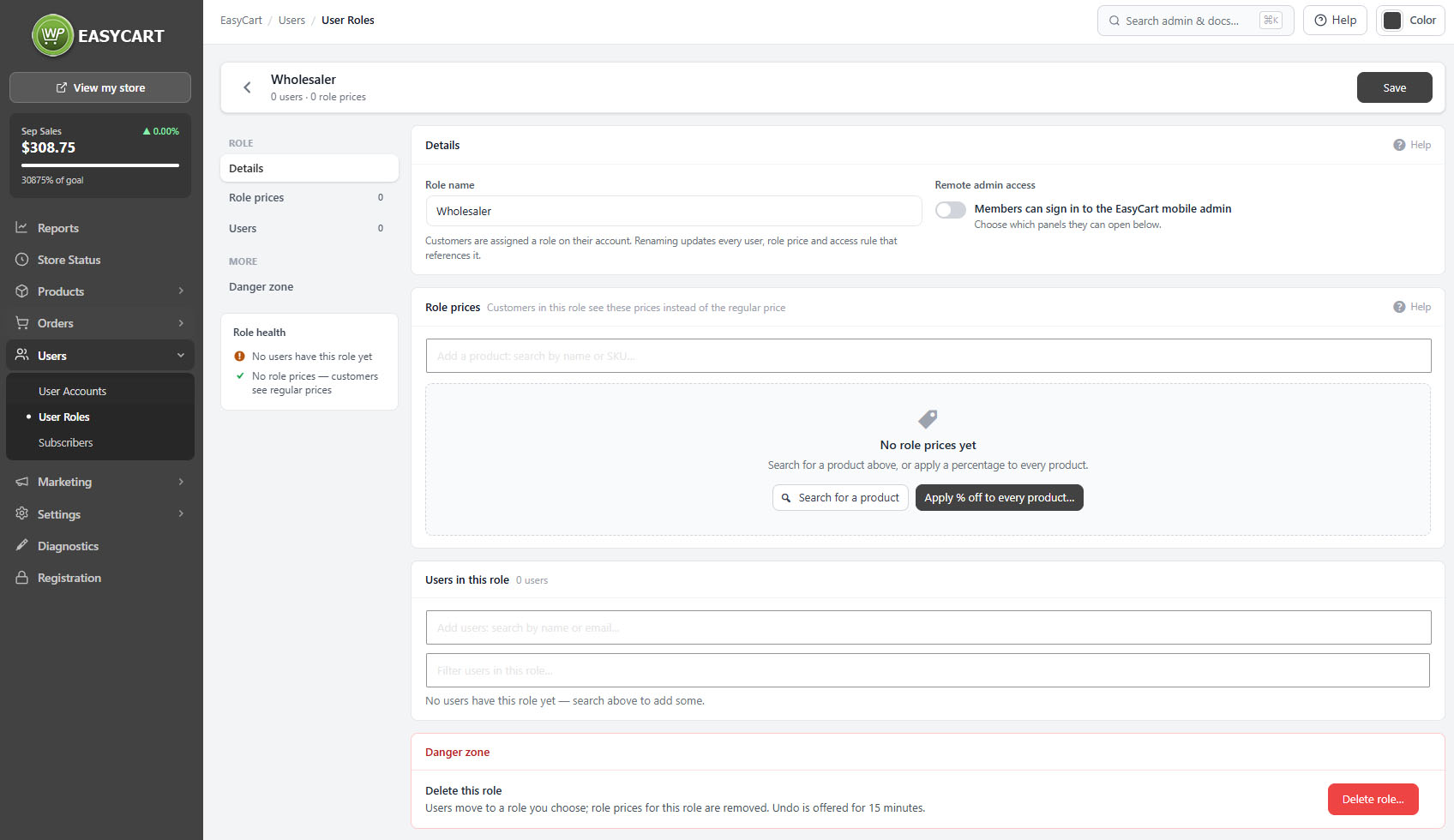
no stored settingsA role is a group an account belongs to, and it decides two quite different things: what a customer pays, and what a staff member can open. Both are edited from the same screen.
Some roles are built in and cannot be deleted, because the storefront relies on them existing by name. You can rename your own roles freely; the built-in ones keep their name for that reason.
A role health indicator flags roles that are inactive or have nobody in them, which is usually a role created for a plan that never happened. The members list shows who is in a role, with a search, and members can be moved to another role individually or in bulk, which is what you want when a pricing tier is retired.
💡 Note: Built-in roles cannot be deleted because the storefront refers to them by name. Move members to another role instead of trying to remove the role itself.
Role prices
Customers in a role see a different price
no stored settingsA role price replaces the regular price for everyone in that role. This is how trade, wholesale and member pricing is built: the customer signs in, and the store simply shows them their price rather than applying a discount at checkout.
Prices can be set per product, found by name or SKU, or generated across the catalogue by applying a percentage off. The percentage can go to every active product, or only to a selection, which is the usual approach when some lines carry no trade margin.
The list of role prices can be filtered, and each entry shows the regular price beside the role price so you can see the gap at a glance. Removing a role price returns those customers to the regular price.
Applying a percentage across every active product is a large, irreversible-feeling change, and the screen asks you to confirm you understand how many products it will touch before it runs.
⚠️ Careful: Applying a percentage to every active product rewrites a role price for the whole catalogue in one action. Check the product count the screen quotes before confirming, and consider applying to a selection first.
Staff permissions
What a role can open
Panel access for staff roles, and sign-in to the mobile admin apps.
Panel access and remote admin
What staff in a role can open, and whether they can use the mobile app
no stored settingsFor staff roles, the screen lists the EasyCart panels and you tick the ones the role can open. This is how you give a packer the Orders screen without the Settings screen, or a merchandiser the Products screen without customer records.
Remote admin access is a separate switch that decides whether members of the role can sign in to the EasyCart mobile admin apps. Worth treating as its own decision: a phone is easier to lose than a laptop, and a role that only ever works in the building does not need it.
Panel access here governs the EasyCart screens. What a user can do in WordPress itself is a separate matter, covered by the WordPress administrative roles.
💡 Note: Panel access controls the EasyCart screens only. WordPress capabilities are separate and are covered under WordPress Administrative User Roles.
Keep going
Related panels
The customer accounts assigned to these roles.
WordPress Administrative User Roles
WordPress capabilities, the layer beneath panel access.
Restricting the whole store to particular roles.
Product pricing, which role prices override.
Flex-Fees, which can also vary by role.
Registration, and how customers get a role in the first place.
Try the PRO features free for 14 days
Anything marked PRO comes with WP EasyCart PRO or Premium. Take the whole thing for a run on your own store before you decide.
