
Settings › Financial

Flex-Fee Settings

Extra charges and standing discounts added at checkout, conditional on destination, customer role, cart contents or payment method. 4 parts.

Quick links

Where to find it:WP Admin › EasyCart › Settings › Financial › Flex-Fees

Building a fee

What it is and what it charges

The fee itself, and how its amount is worked out.

What a Flex-Fee is

A line added to the order, which can also be negative

no stored settings

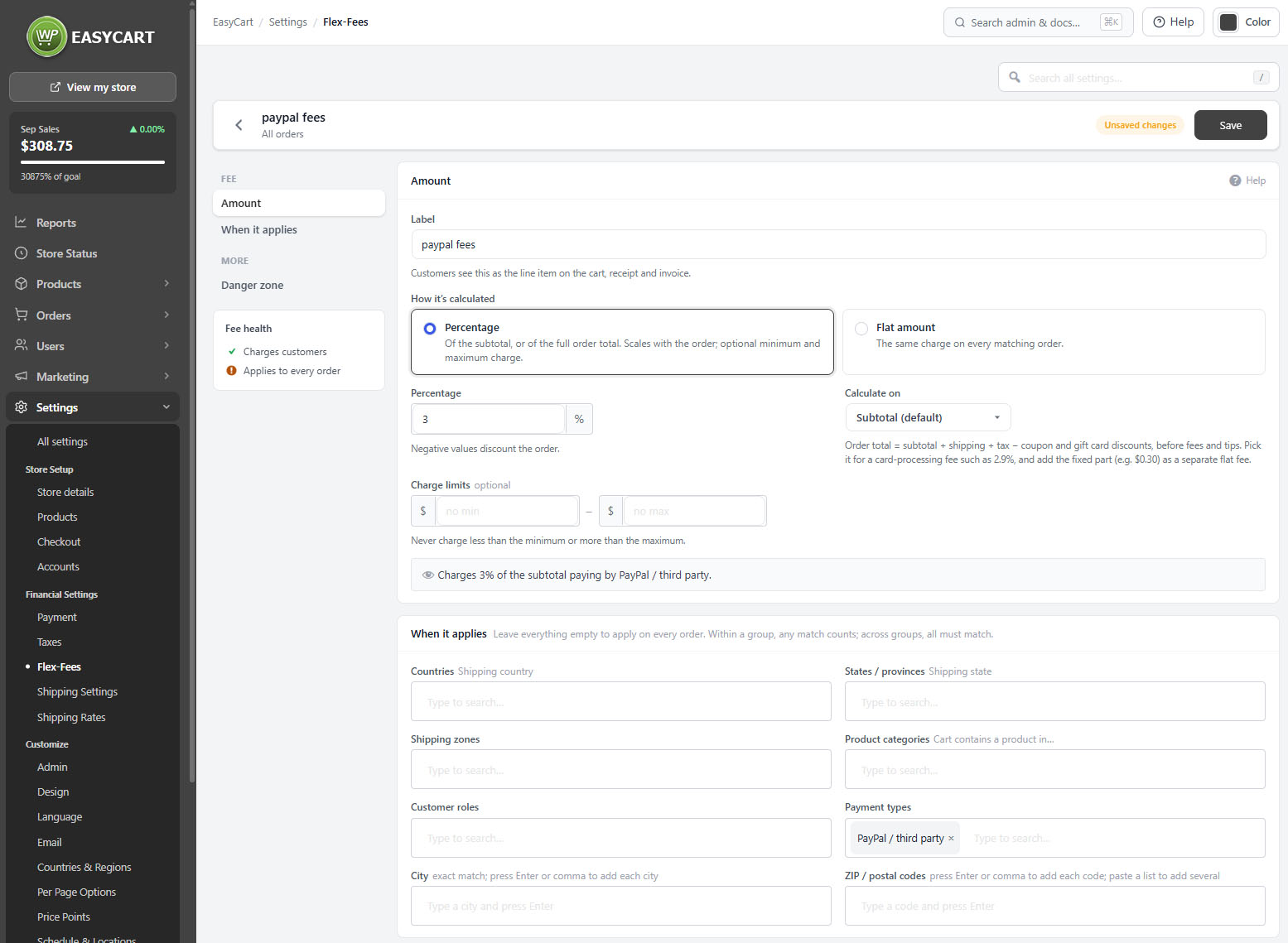
A Flex-Fee adds a line to the order at checkout. The label you give it is what the customer sees on the cart, the receipt and the invoice, so write it as something a buyer would understand rather than as an internal code.

The useful surprise is that a fee can be negative, in which case it acts as a discount. That makes this one mechanism for handling handling charges, remote area surcharges, card processing costs, and standing wholesale discounts, without needing separate systems for each.

The list shows every fee with whether it charges or discounts, whether it applies to every order or only to matching ones, and a health indicator that flags fees doing nothing, typically because the amount is zero or the limits contradict each other. Fees can be duplicated as a starting point for a similar one.
Settings › Flex-Fees, showing the fee list with amounts, conditions and health indicators.

💡 Note: A negative amount turns a fee into a discount, which is a neat way to run standing trade or member pricing alongside the offers system in Offers.

How the amount is worked out

Flat or percentage, and what the percentage is taken from

no stored settings

A fee is either a flat amount, the same on every matching order, or a percentage.

For a percentage, what it is calculated on matters a great deal. The default is the subtotal. The alternative is the order total, meaning subtotal plus shipping plus tax minus discounts, and that is the one to use for card processing fees. A card processor charges you on everything it puts through, so a 2.9 per cent fee taken on the subtotal alone leaves you paying the processor on the shipping and tax yourself.

Minimum and maximum limits cap the result, so a percentage fee never becomes absurd on a very large or very small order. The editor refuses a maximum below the minimum rather than accepting a rule that can never be satisfied, and a percentage has to fall between minus one hundred and one hundred.

💡 Note: For a card processing fee, calculate on the order total rather than the subtotal. Processors charge you on shipping and tax as well, so a subtotal-based percentage leaves you covering the difference.

Targeting and judgement

Conditions and good practice

When a fee applies, and when adding one is a bad idea.

When it applies

Seven kinds of condition, combined

no stored settings

A fee either applies to every order or only to orders that match your conditions, and the conditions can be combined.

Destination covers shipping country, state or province, ZIP or postal codes, and shipping zones. Postal codes are matched exactly and several can be listed, which is how a remote area surcharge is built.

Who is buying covers customer roles, which is how a standing wholesale discount or a trade-only handling charge is applied.

What is in the cart covers product categories, so a fee can attach to hazardous, oversized or fragile goods without touching the rest of the order.

How they are paying covers payment type: card, PayPal or third party, manual payment, Amazon Pay, and the Stripe buy-now-pay-later providers Klarna, Afterpay and Affirm. This is what makes an honest card surcharge possible, applied only to the methods that actually cost you.

💡 Note: Shipping zones come from Settings › Shipping settings, roles from User Roles and categories from Categories. Build those first, then write the fee.

Using them well

Where fees help, and where they cost you the sale

no stored settings

Fees are added at checkout, which is the most expensive place in your store to introduce a surprise. A shopper who reaches the last step and finds a charge they were not expecting frequently leaves, and they leave with a worse impression than if the price had simply been higher.

So the practical rule is to make fees predictable. Name them clearly, mention them where shoppers will see them before checkout, and prefer building an unavoidable cost into your prices over adding it as a line at the end.

Also check the legal position. Several jurisdictions restrict or prohibit card surcharges, and some card network rules do too, regardless of local law. The mechanism here will happily apply a surcharge; it cannot tell you whether you are allowed to.

Negative fees carry none of this baggage. A discount appearing at checkout is a pleasant surprise, and role-based discounts are one of the tidiest ways to run trade pricing alongside retail.

⚠️ Careful: Card surcharges are restricted or prohibited in several jurisdictions and under some card network rules. This panel will apply one regardless; checking whether you may is your responsibility.

Keep going

Related panels

Payment

Payment methods, which fees can be conditional on.

Shipping settings

Zones used as fee conditions.

User Roles

Roles, for trade discounts and surcharges.

Offers

Discounts driven by campaigns rather than standing rules.

Taxes

Tax, calculated alongside these fees.

Checkout

The checkout where fees appear.

Try the PRO features free for 14 days

Anything marked PRO comes with WP EasyCart PRO or Premium. Take the whole thing for a run on your own store before you decide.

Updated on September 19, 2026