
Settings › Troubleshoot
Log Entries
What the payment gateways, carriers and webhooks actually said back to your store, searchable and safe to share. 5 parts.
Quick links
Where to find it:WP Admin › EasyCart › Settings › Troubleshoot › Log Entries
The record
What is logged and how healthy it looks
What lands in the log, and the four counters that say whether anything is going wrong right now.
What is in the log
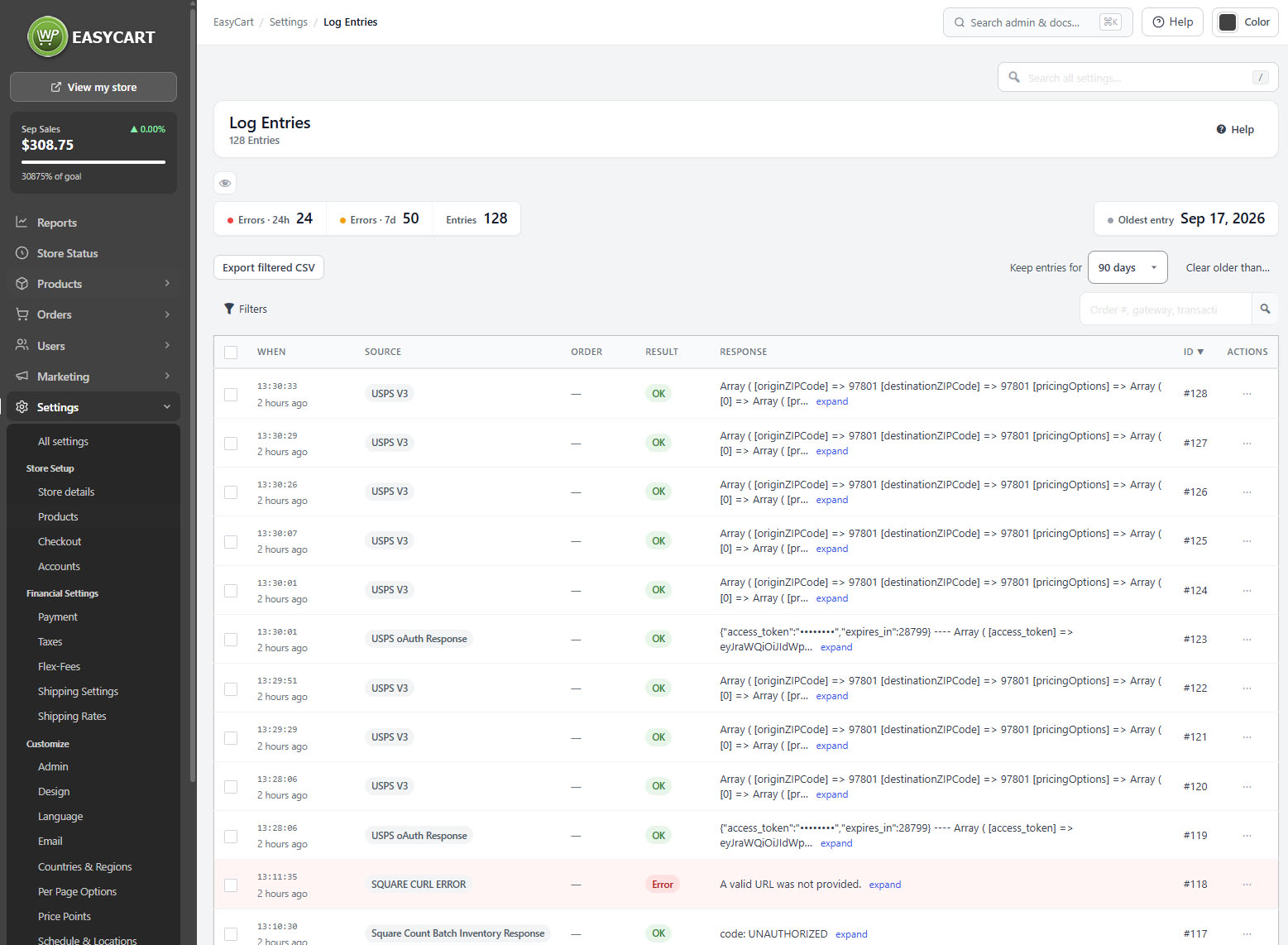
One entry for every reply your store received
no stored settingsEvery time your store talks to something outside itself — a payment gateway, a shipping carrier, a webhook arriving from Stripe — the reply is written here. The log is read-only. Nothing on this screen changes an order, a payment or a shipment; it only tells you what was said.
That makes it the first place to look when a customer says a card was refused and you cannot see why, or when a carrier stops returning rates. The order screen tells you an order failed. This tells you the sentence the gateway sent back.
Each row shows When it happened, the Source that sent it, the Order it belongs to, a Result of OK or Error, and the first meaningful line of the Response. Entries from the last day also show how long ago they arrived.
💡 Note: This screen changes nothing. To act on what you find, go to the order under Order Management or to the gateway under Settings › Payment.
The counters
Four numbers that say whether anything is wrong right now
no stored settingsAbove the list sit four figures. Errors · 24h and Errors · 7d are the ones to read first: a store that is working normally shows a small, steady number, and a jump means something changed today. Entries is the total held, and Oldest entry tells you how far back the record actually goes, which is the honest answer to whether the log can still explain last month’s problem.
Clicking a counter filters the list to it, so the error figure is also the fastest route to the errors themselves.
Using it
Finding, reading and keeping entries
Narrowing the list to the entry you want, reading the full reply safely, and deciding how long the log is kept.
Finding the entry you want
Filters and a search built for the things merchants actually type
no stored settingsThree filters narrow the list. Result has a single Errors only pill. Source picks one gateway or carrier. When offers the last 24 hours, 7 days or 30 days.
The search box takes an order number, a gateway name, a transaction id or the text of an error. Words are matched independently and in any order, so stripe declined finds a Stripe entry whose reply says the card was declined. Wrap words in “quotes” to keep them together. A number also matches the order and the entry id, and #1234 means order 1234 and nothing else.
Changing the search or a filter returns you to the first page rather than stranding you on page nine of results that no longer exist.
💡 Note: Use #1234 to pull up one order, and “quotes” to search for an exact phrase from an error message.
Reading an entry, and what is hidden
The full reply, with card numbers and keys masked
no stored settingsThe Response column shows a one-line summary. expand opens the complete reply, formatted so it can be read, and Copy payload puts it on the clipboard, which is exactly what to paste into a support ticket. View order jumps to the order the entry belongs to, when it has one.
What you see is masked before it reaches the screen. Card numbers keep only their last four digits, security codes are replaced, and Stripe keys, webhook secrets, passwords, API keys, access tokens and licence keys are blanked out. The masking is applied to the display and to the export, never to what is stored.
So a payload is safe to copy into a support conversation, and it is still worth reading before you send it.
💡 Note: Payloads are masked before they are shown or exported, so a copied entry can go into a support ticket without exposing card numbers or API keys. Read it before you send it anyway.
Exporting and clearing
How long entries are kept, and how to take them away
no stored settingsExport filtered CSV downloads exactly what the current search and filters are showing, masked the same way as the screen. Filter first, then export; exporting without filtering gives you the whole log.
Keep entries for sets retention, with choices of 7, 30, 90 or 180 days, one year, or forever. The default is 90 days. Anything older is removed by a daily task, so the log does not grow without limit. Choosing forever stops that task entirely, which on a busy store means a table that only ever gets bigger.
Clear older than… removes old entries straight away rather than waiting for the daily run. It deletes permanently and there is no undo, so export anything you might need before clearing.
⚠️ Careful: Clearing entries deletes them permanently and cannot be undone. Export what you need first. Setting retention to forever stops the daily cleanup, which on a busy store leaves a table that only grows.
Keep going
Related panels
The health checks, for problems the log only hints at.
The orders these entries belong to.
Gateway setup, the usual source of payment errors.
Carrier rates, the usual source of shipping errors.
Whether the store is set up to take an order at all.
Admin options, including what else is recorded.
Try the PRO features free for 14 days
Anything marked PRO comes with WP EasyCart PRO or Premium. Take the whole thing for a run on your own store before you decide.
